
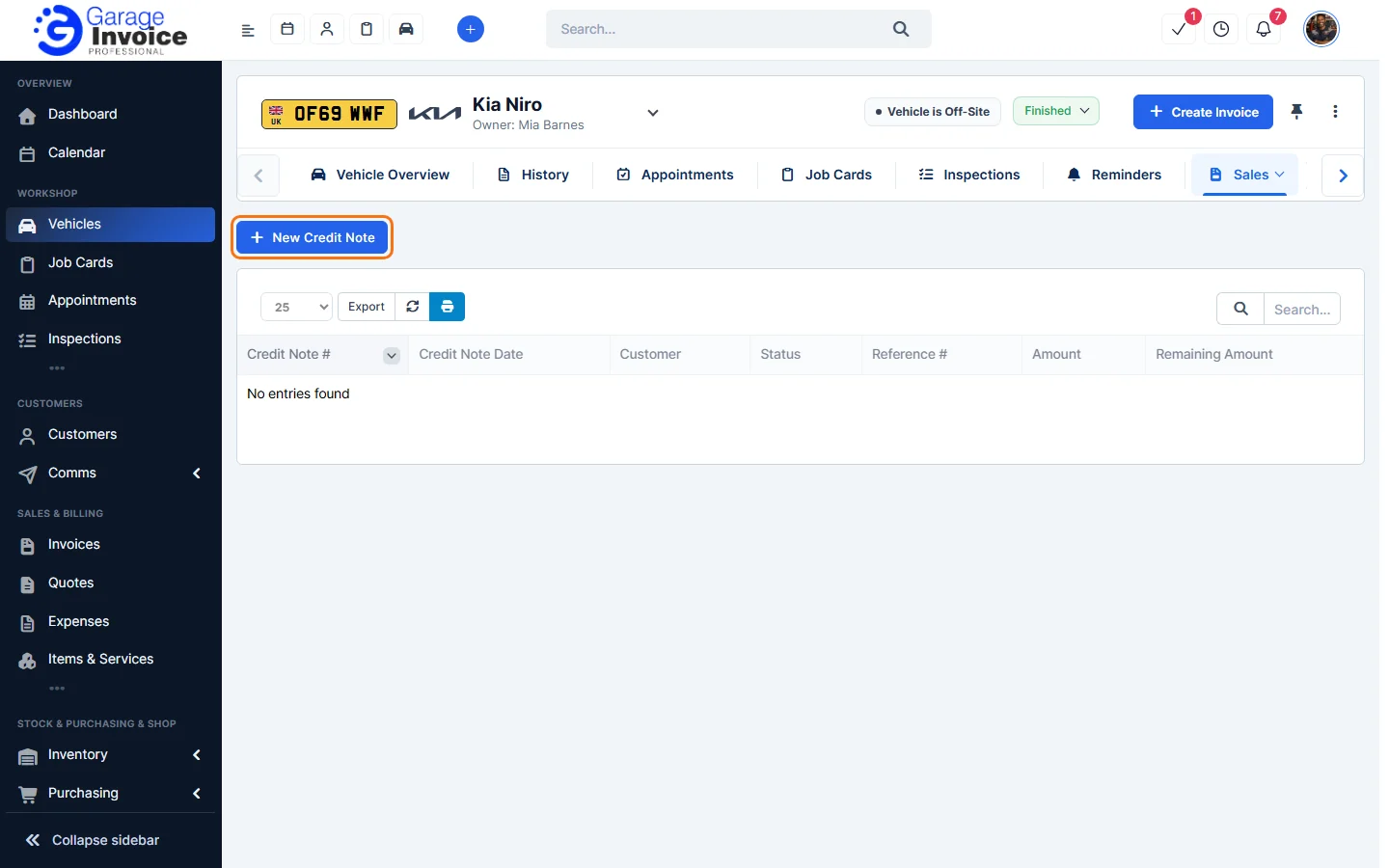
- Open the vehicle (see Search for Vehicle) and click Sales → Credit Notes in the vehicle menu. If you can’t see it, use the arrow at the right end of the menu to scroll.
- You’ll see every credit note for the vehicle with its date, status, amount and remaining amount. Click a credit note number to open it.
- Click New Credit Note to create one for this vehicle.
Step-by-step guides
These screens work in the same way as the main Credit Notes pages, so the full guides apply:
- Add New Credit Note | Create Credit Note
- Apply Credit Note to Customer Invoice
- Refund Credit Note to Customer
- Edit Credit Note
- Delete Credit Note
All guides: Credit Notes
Feature Vehicle records: see what it does and how it fits your workshop.