
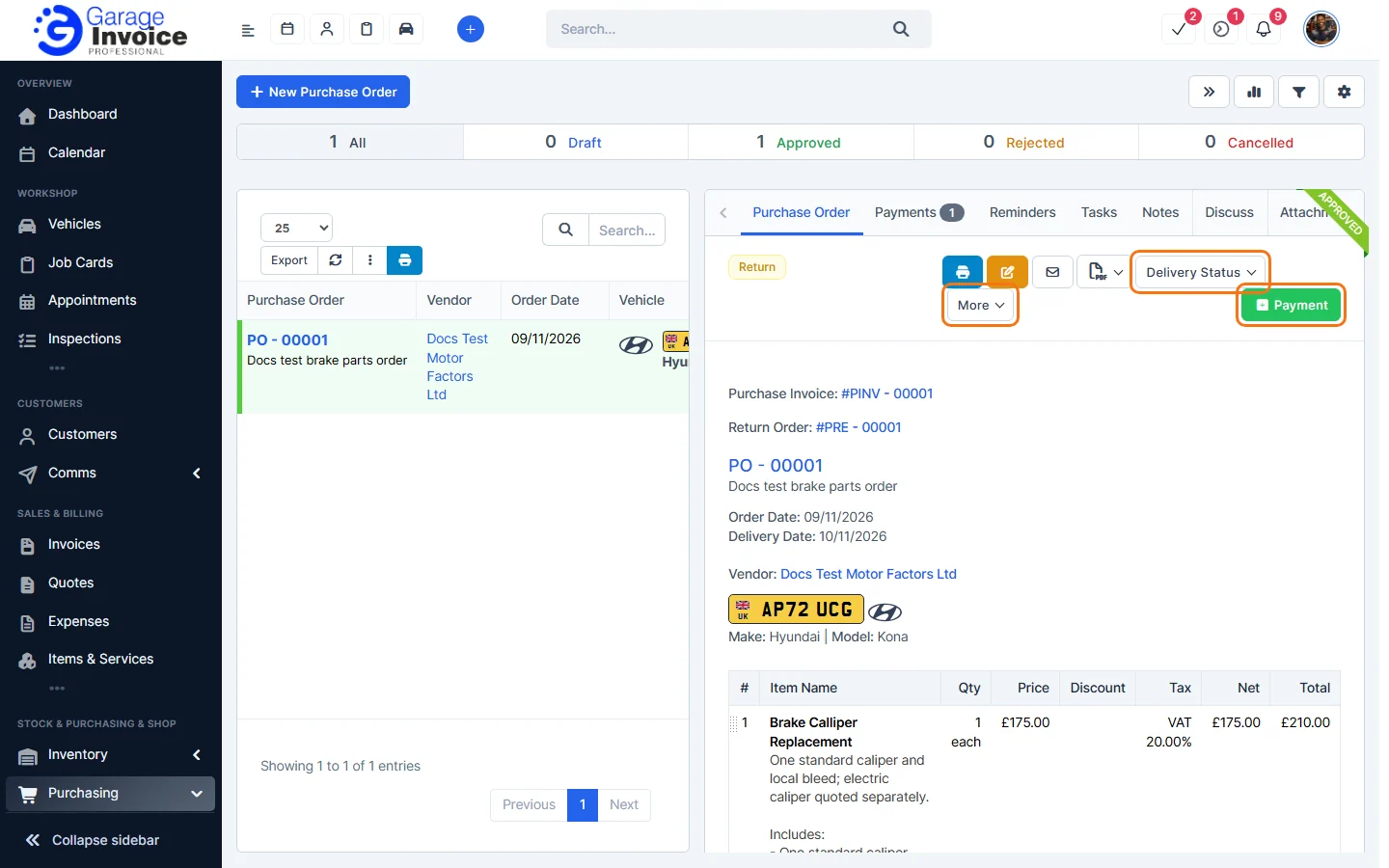
- Click Purchasing in the sidebar (under Stock & Purchasing & Shop) and click Purchase Orders. Click the order number.
- Click the green Payment button.
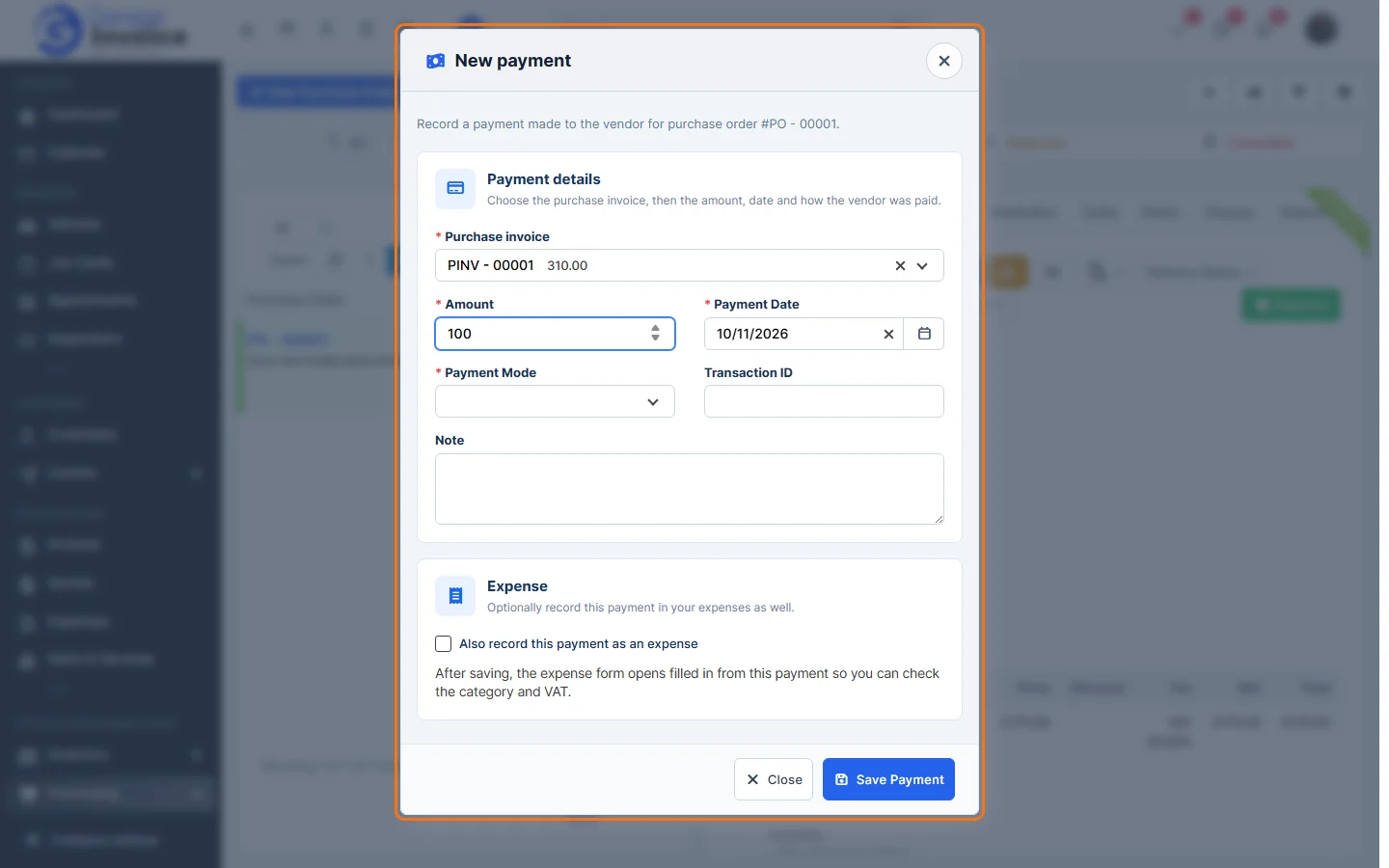
- Check the Purchase invoice and enter the Amount, Payment Date and Payment Mode (required). Add a Transaction ID and Note if you like.
- Tick Also record this payment as an expense to add it to your expenses too. After saving, the expense form opens filled in so you can check the category and VAT.
Click Save Payment.
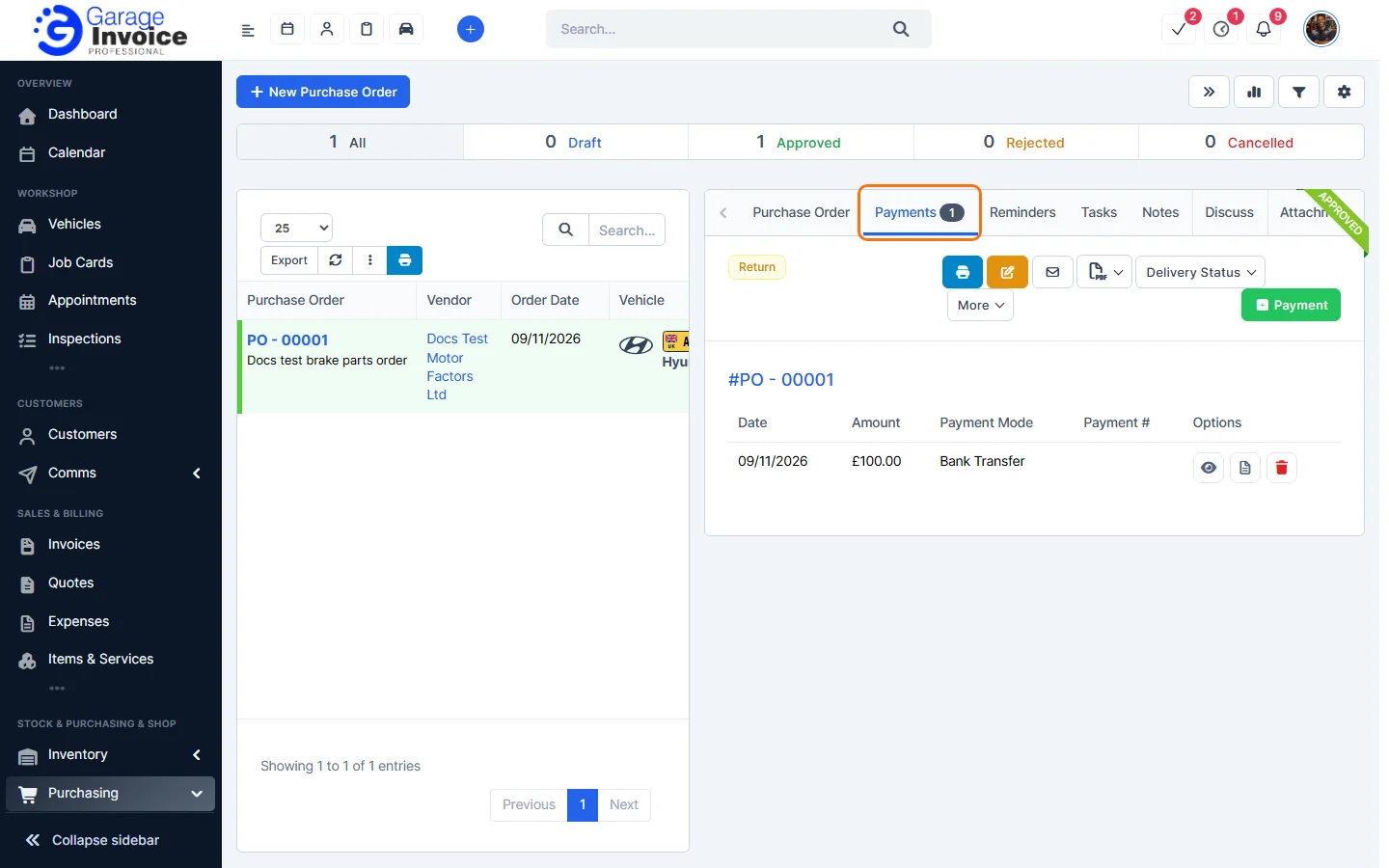
- The Payments tab lists every payment for the order.
Note: the first time you record a payment, a purchase invoice is created from the order. See Purchase Invoices.
Feature Stock and inventory control: see what it does and how it fits your workshop.