
Support tickets keep every customer question or complaint in one place, with the full conversation, private staff notes, the customer and the vehicle.
Open the Tickets page
- Click Comms in the sidebar, then Tickets.
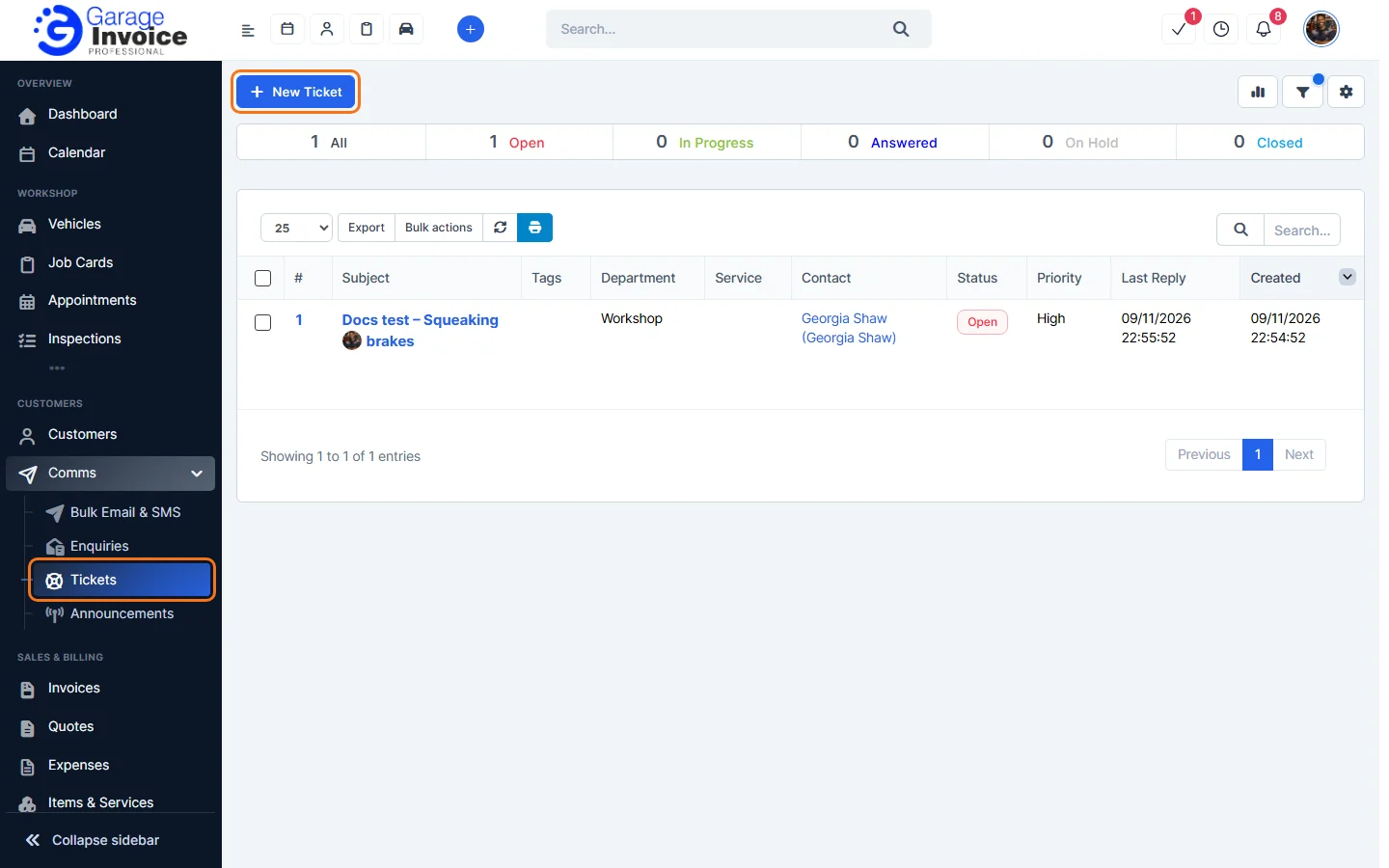
- The bar at the top shows how many tickets you have in each status. Click a status to show only those tickets:
- Open: a new ticket, or the customer has replied.
- In Progress: you are working on it.
- Answered: you have replied. This is the default status after a staff reply.
- On Hold: waiting for something, for example parts.
- Closed: finished.
- Each row shows the ticket number, Subject, Tags, Department, Service, Contact, Status, Priority, Last Reply and Created date. Click the subject to open the ticket.
Quick stats
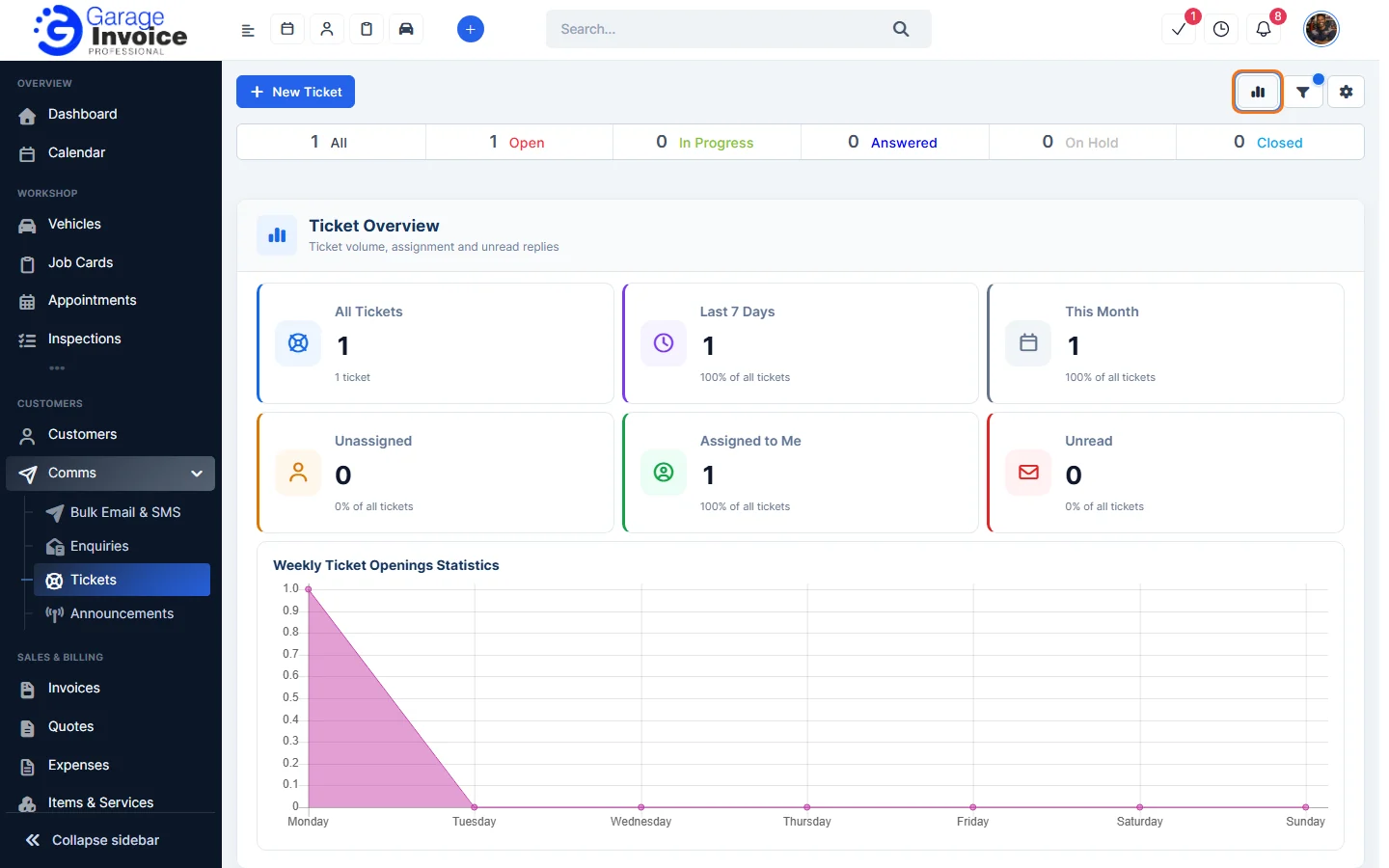
- Click the chart button at the top right (View Quick Stats).
- Ticket Overview shows All Tickets, Last 7 Days, This Month, Unassigned, Assigned to Me, Unread and a Weekly Ticket Openings Statistics chart.
Filter tickets
- Click the filter button at the top right. A blue dot on it means a filter is already applied.
- Choose any of Date Range, Status, Department, Priority, Customer, Vehicle, Assigned To and Ticket State (Assigned to me, Unassigned, Unread), then click Apply. Tick Remember my filters to keep them next time, or click Clear to remove them.
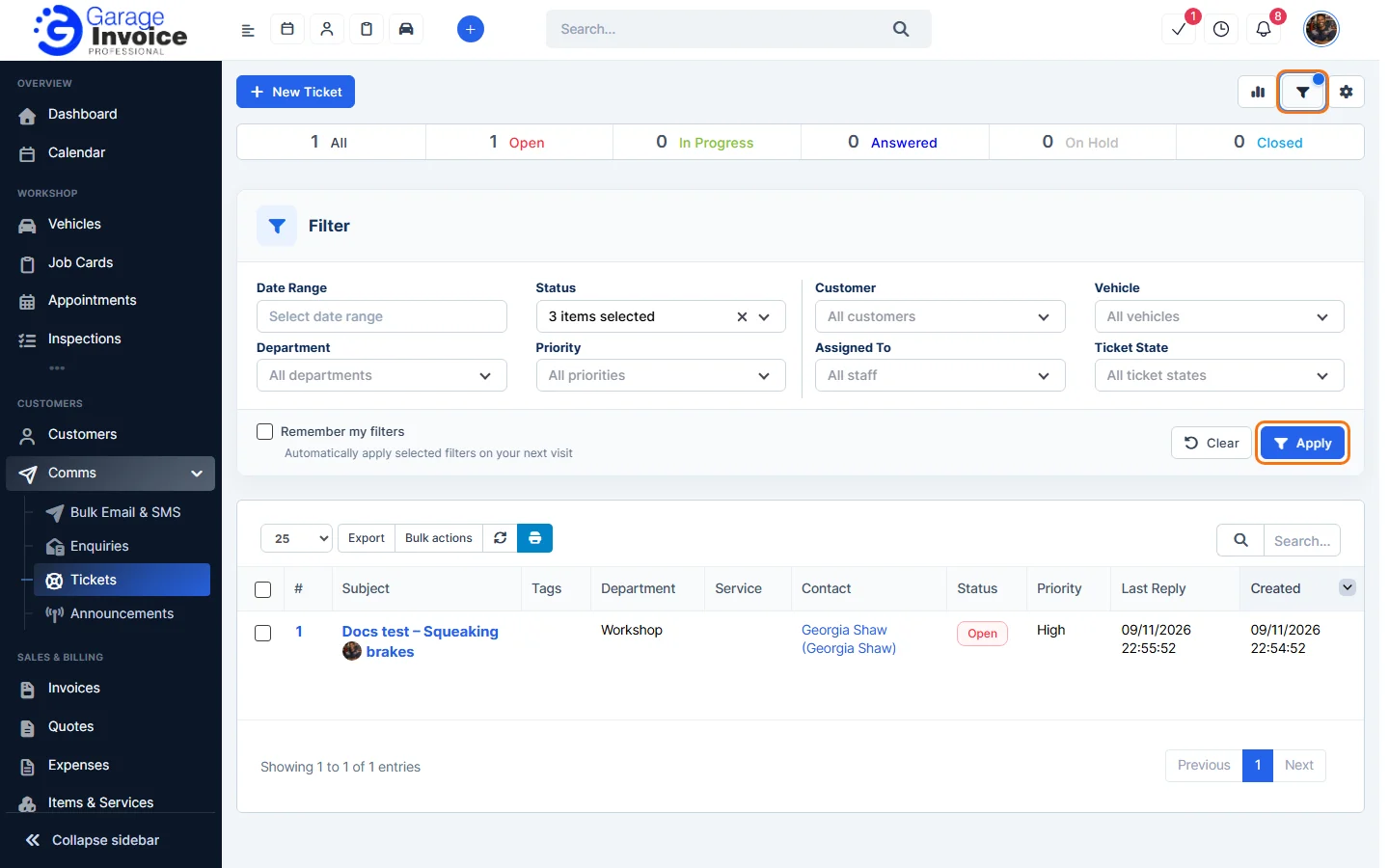
Note: by default the list may hide some statuses (the Status filter shows “3 items selected”). If you can’t find a ticket, click All in the status bar or clear the filter.
Other places you see tickets
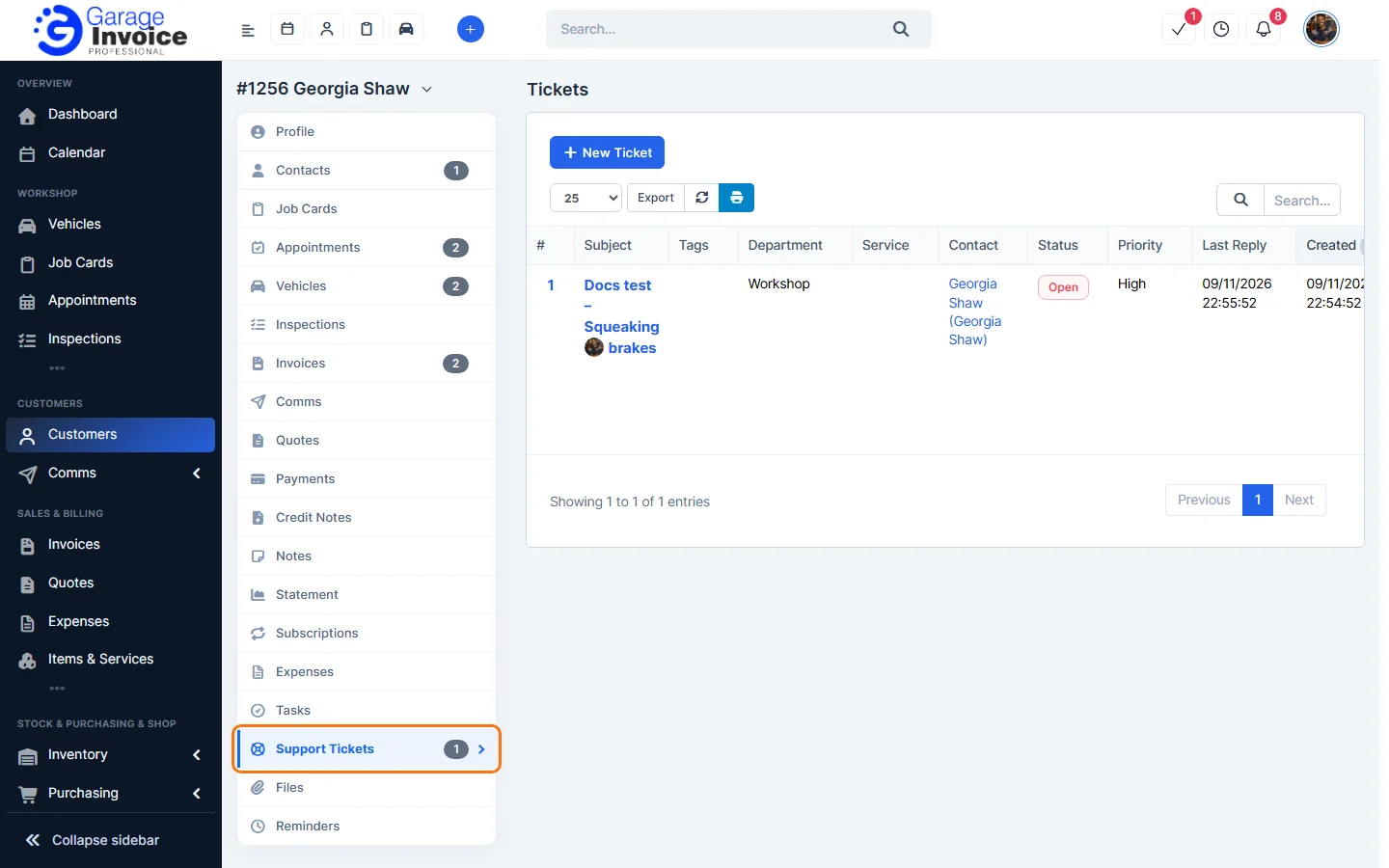
- On a customer’s profile, the Support Tickets tab lists that customer’s tickets.
- On a vehicle, open the Communication tab and click Tickets.
- Customers can open tickets themselves with the public support form. See Support Ticket Settings and Public Support Form.
Next: Create Customer Support Ticket · Reply to Customer Support Ticket