
- Click Appointments in the sidebar, under Workshop, and click the appointment’s date and time (or hover over it and click View).
- At the top you see the service, date, time and duration, the status and the buttons Edit, Notify, More and the next document to create (for example Create Job Card). The progress bar shows Booked, Confirmed, In workshop and Finished.
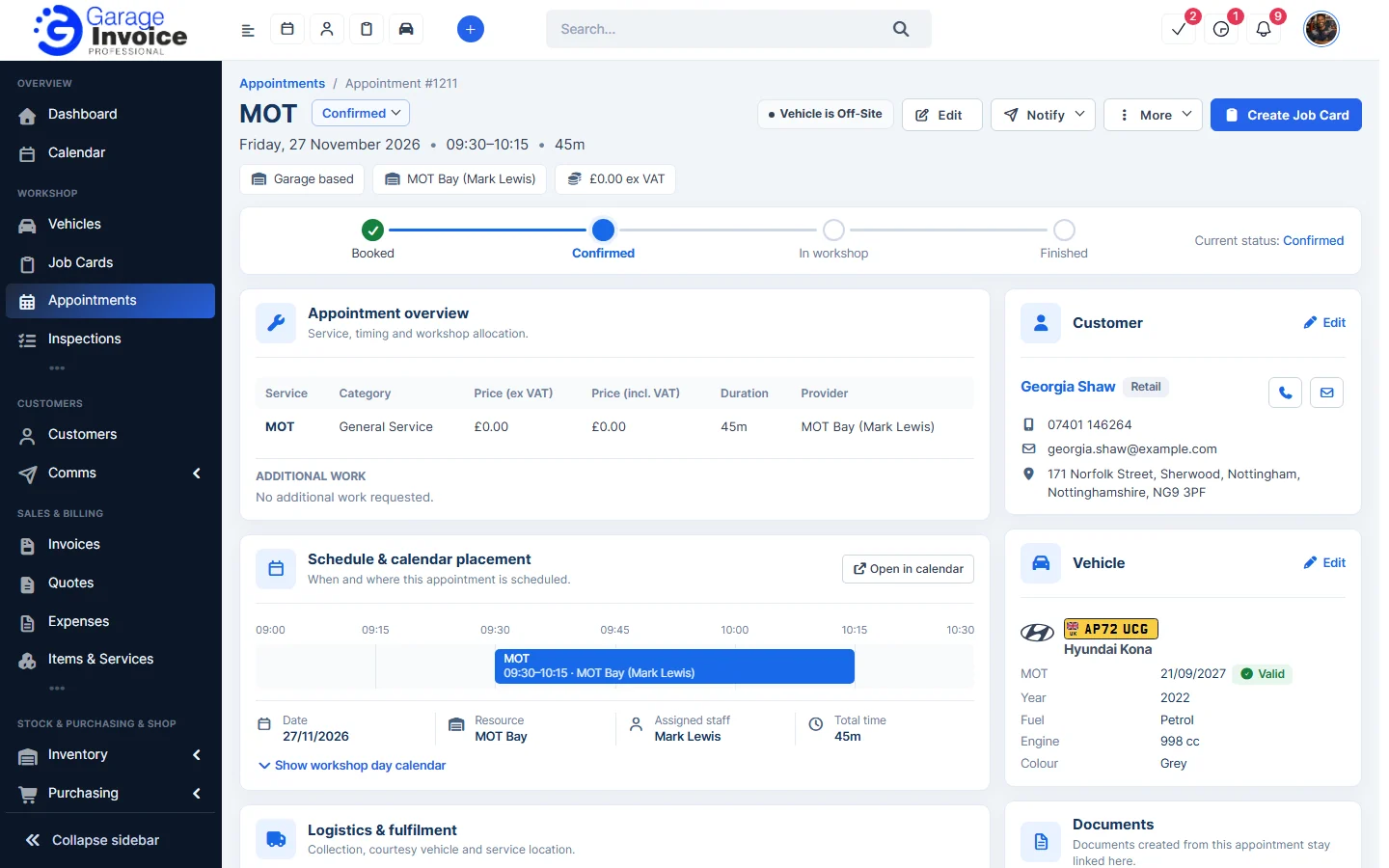
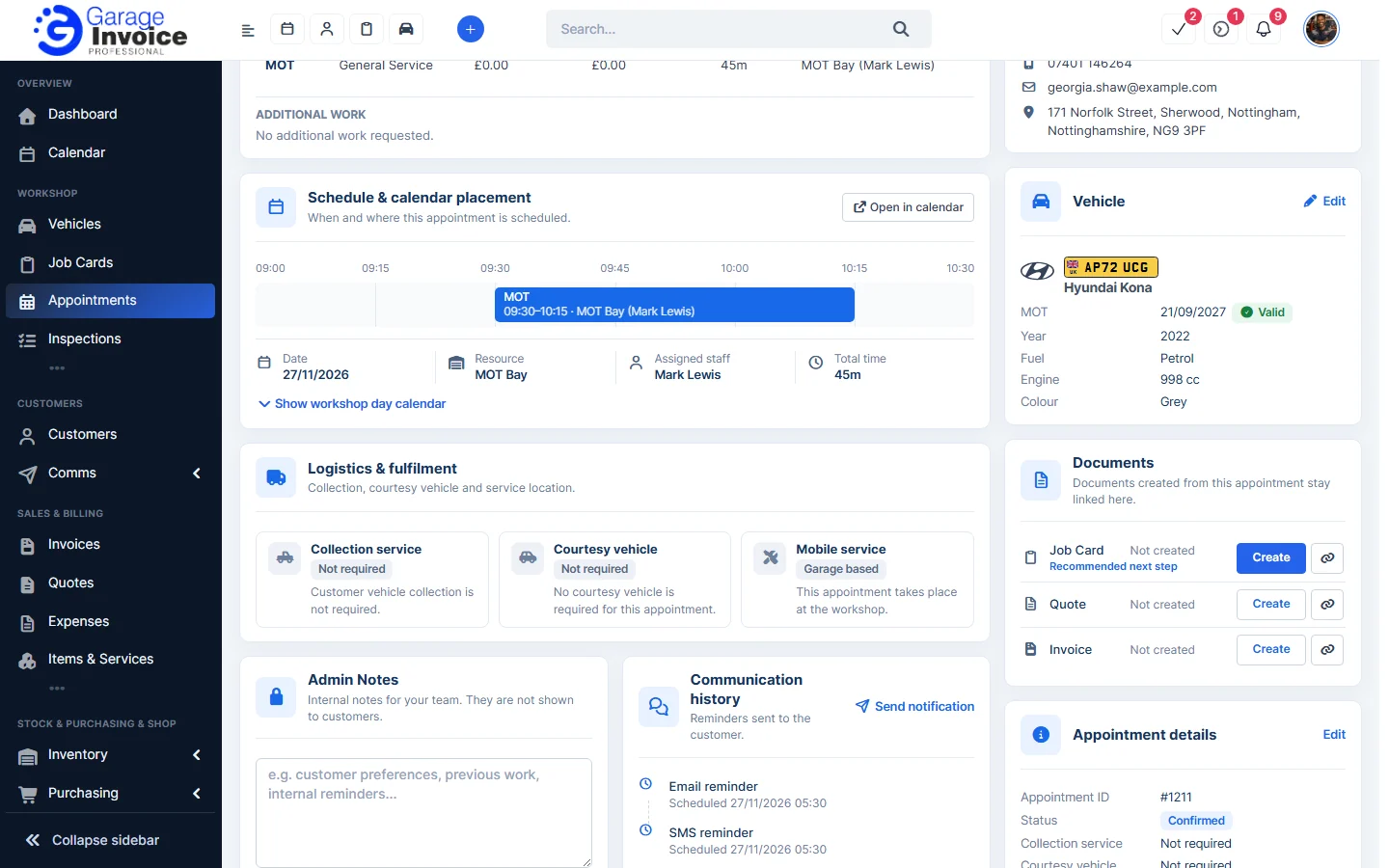
- The page is split into panels:
- Appointment overview: service, category, price, duration, provider and any additional work.
- Schedule & calendar placement: the time on the provider’s day. Click Open in calendar or Show workshop day calendar.
- Logistics & fulfilment: Collection service, Courtesy vehicle and Mobile service.
- Admin Notes: internal notes for your team. Click Save Notes.
- Communication history: reminders sent or scheduled. Click Send notification to send one now.
- Customer, Vehicle, Documents and Appointment details on the right.
Related: Edit Appointment · Change Appointment Status · Create Job Card, Quote or Invoice from an Appointment
Feature Online booking and appointments: see what it does and how it fits your workshop.