
Approved Goods Dispatched Notes can only be deleted when this is allowed in the settings.
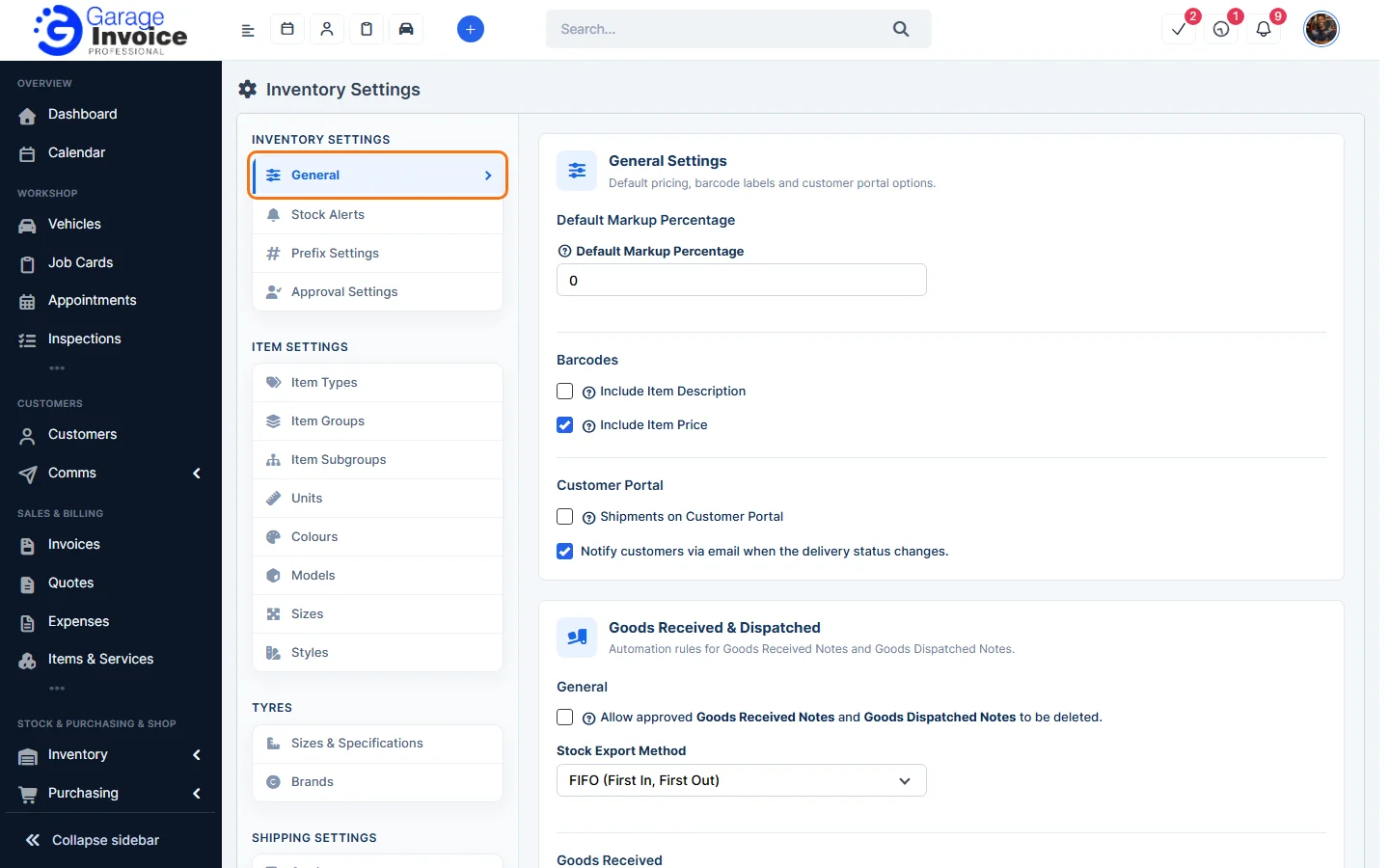
- Click Inventory in the sidebar (under Stock & Purchasing & Shop) and click Stock Items. Click the gear button at the top right to open Inventory Settings, then click General on the left.
- Under Goods Received & Dispatched, tick Allow approved Goods Received Notes and Goods Dispatched Notes to be deleted.
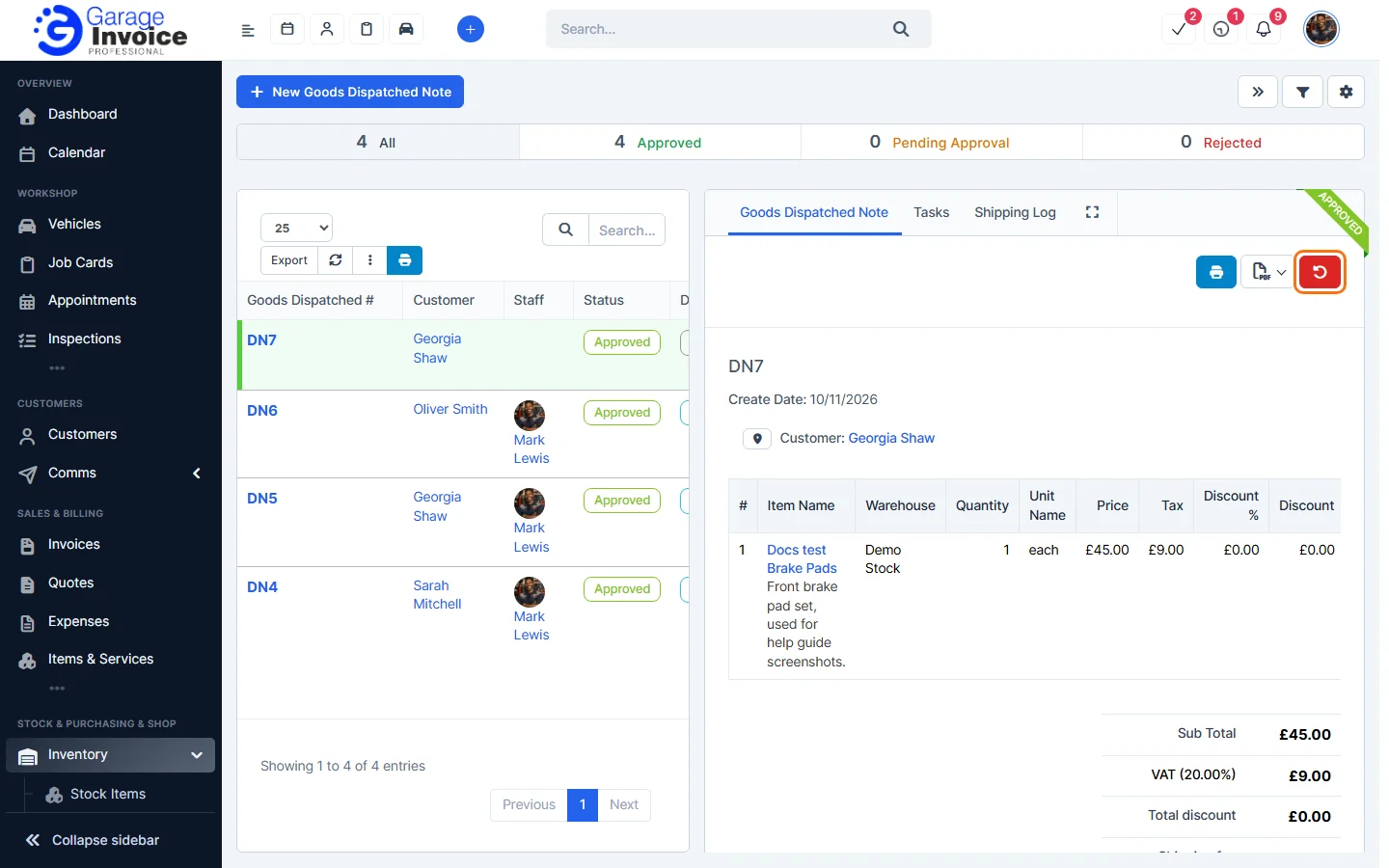
- Click Inventory in the sidebar (under Stock & Purchasing & Shop) and click Goods Dispatched. Hover over the note and click Delete (Approved), or click the note number and click the red delete button at the top.
- Click OK to confirm. This can’t be undone.
The stock on the note goes back into the warehouse.
Tip: you can have the Goods Dispatched Note deleted automatically when its invoice is cancelled or deleted. See Inventory General Settings.
Feature Stock and inventory control: see what it does and how it fits your workshop.