
Items & Services is your price list: the labour, parts, tyres, consumables, subcontract work and bundles you sell. Save an item once and add it to invoices, quotes and job cards in a couple of clicks.
- Click Items & Services in the sidebar, under Sales & Billing.
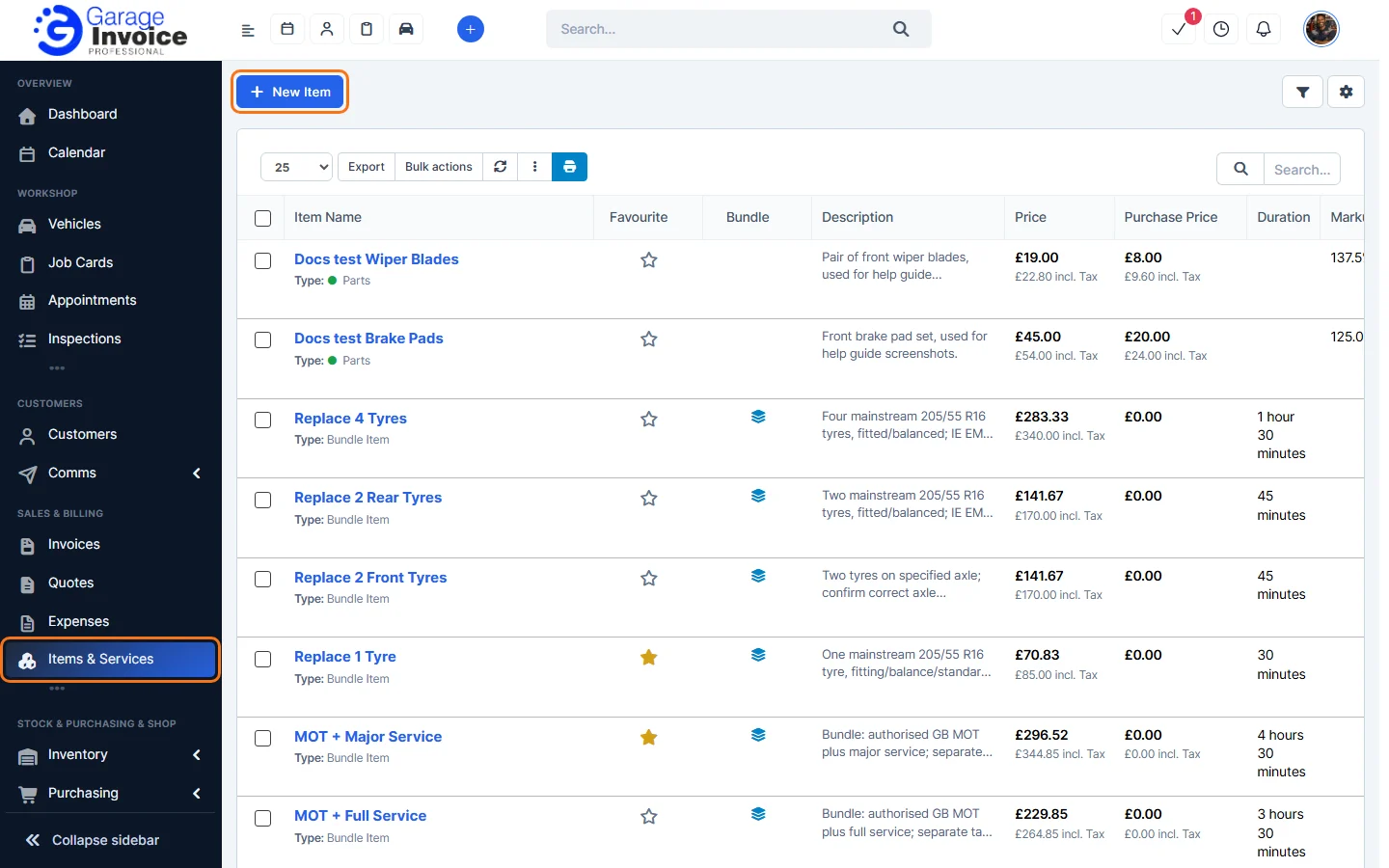
- Each row shows the Item Name and its Type, plus Favourite, Bundle, Description, Price and Purchase Price (each with the price incl. tax), Duration, Markup, Margin, Unit of measure and Group Name. Click the star in the Favourite column to add an item to your favourites or remove it.
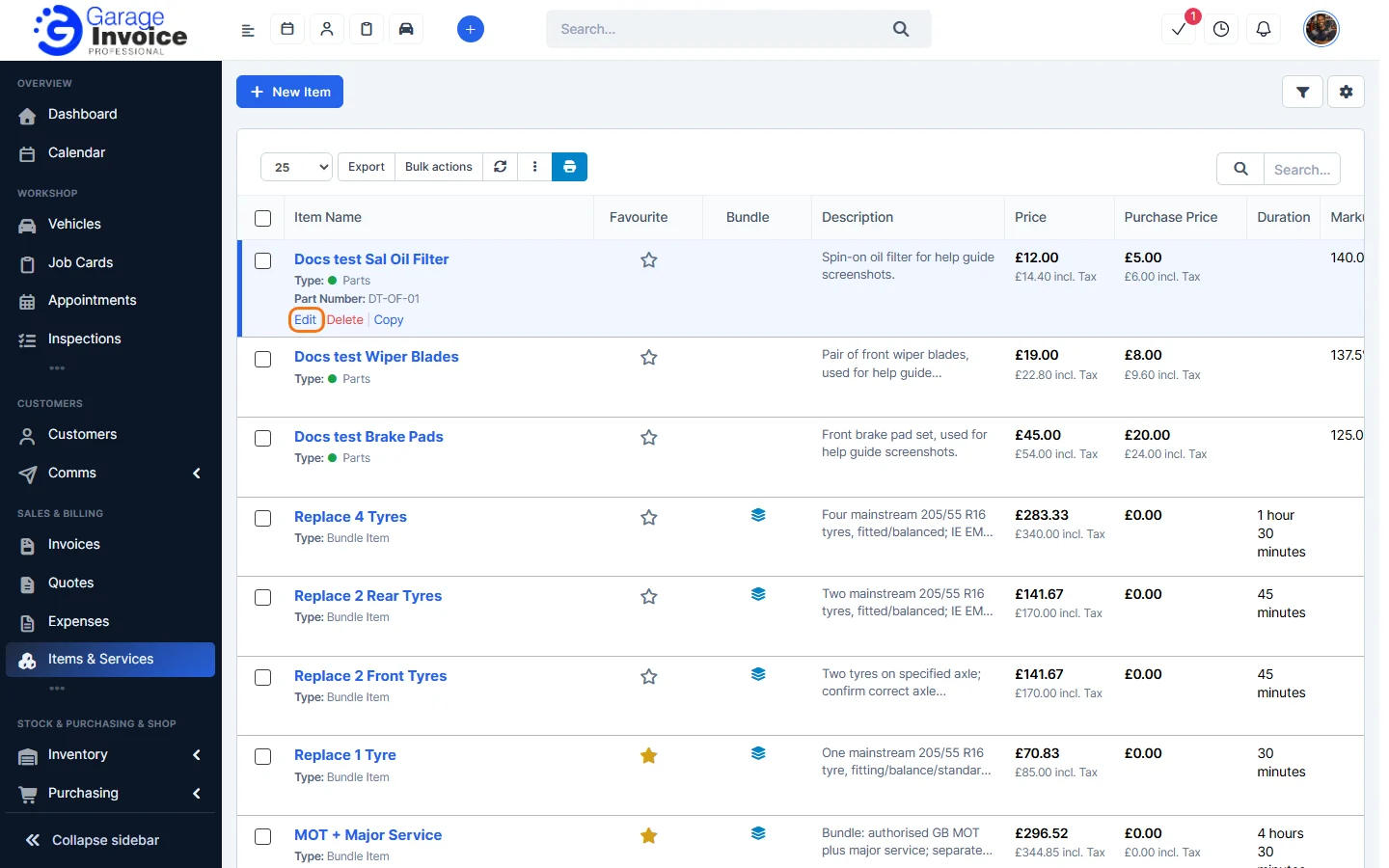
- Hover over an item to see Edit, Delete and Copy.
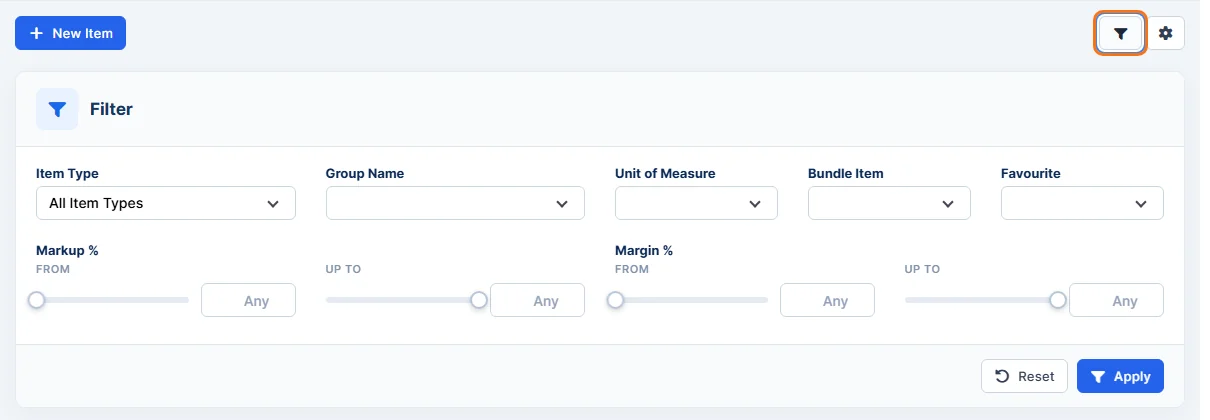
- Click the filter button at the top right to filter by Item Type, Group Name, Unit of Measure, Bundle Item, Favourite, Markup % and Margin % (from / up to). Click Apply, or Reset to clear the filter.
- Click the cog button at the top right for Settings (item types, groups, units and more), Import Items and Export Items.
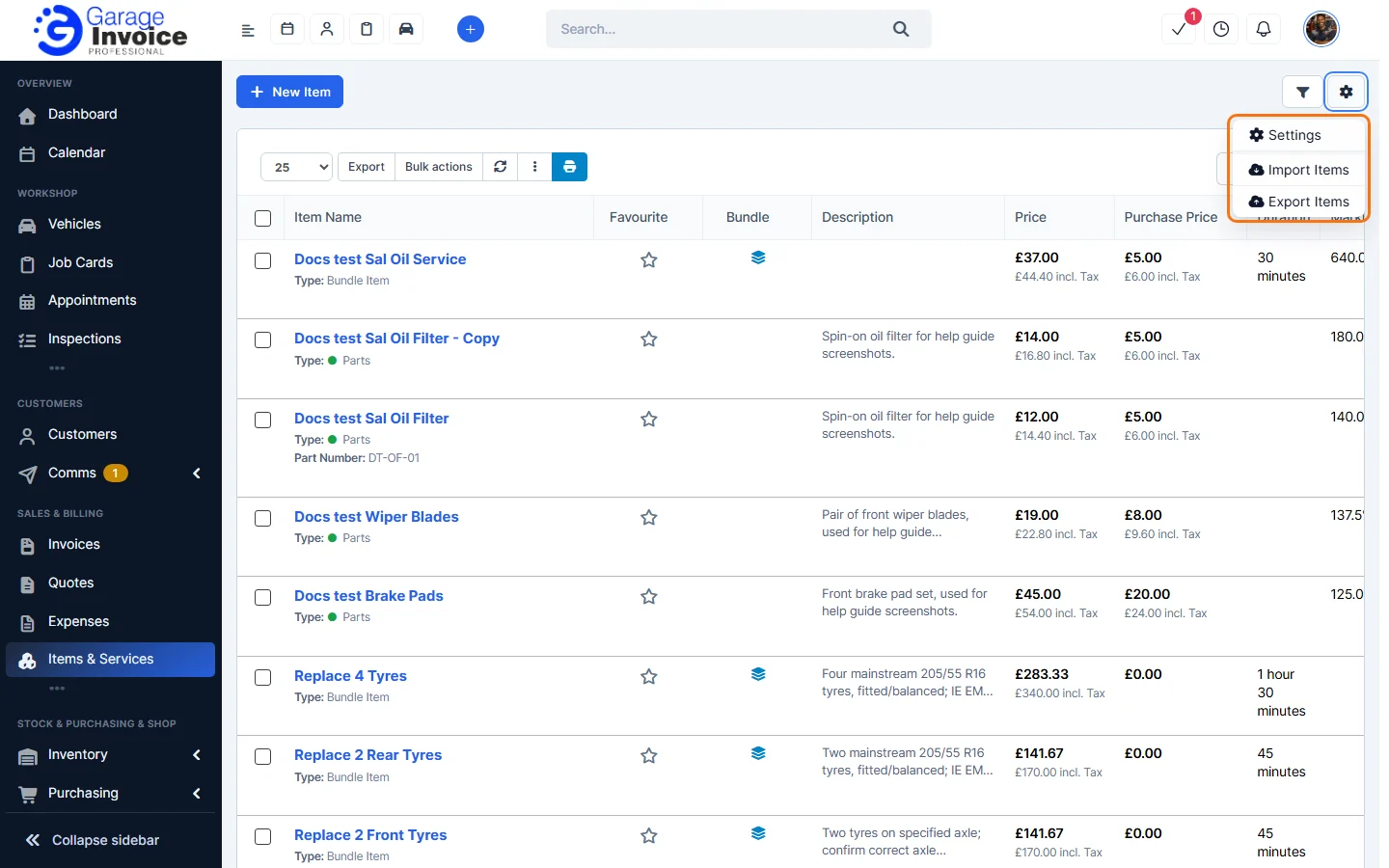
- Above the list you can change how many rows to show, Export the list, use Bulk actions, reload the list, choose columns and print. Use the Search box on the right to find an item.
Item types
- Labour: work charged by time. The prices are called Cost per Hour and Charge Rate.
- Parts: parts you fit. You can add a Part Number.
- Tyres: tyres, with brand, size and label details.
- Consumables and Subcontract: other things you charge for.
- Bundle Item: several items sold together, for example an MOT plus a service. See Create a Bundle Item.
Items & Services, Stock Items and Purchasing Items
These three pages show the same items. Add an item on one of them and it appears on the other two. Each page shows the list in a way that suits the job:
- Items & Services (this page): your sales price list, with favourites, bundles, duration, markup and margin.
- Inventory > Stock Items: stock levels in each warehouse, SKU and barcode, and stock alerts. See Inventory Overview.
- Purchasing > Items: items by type with their supplier (vendor), for buying. See Purchasing Items.
Tip: to track stock for an item, choose Yes under Stock Control when you add or edit it. Items without stock control show Not Tracking on the Stock Items page.
Next: Add an Item or Service · Use Items on Invoices, Quotes and Job Cards
Feature Stock and inventory control: see what it does and how it fits your workshop.