
- Click Settings in the sidebar (under Administration), open Integrations & Services and click Vehicle & Postcode Lookup.
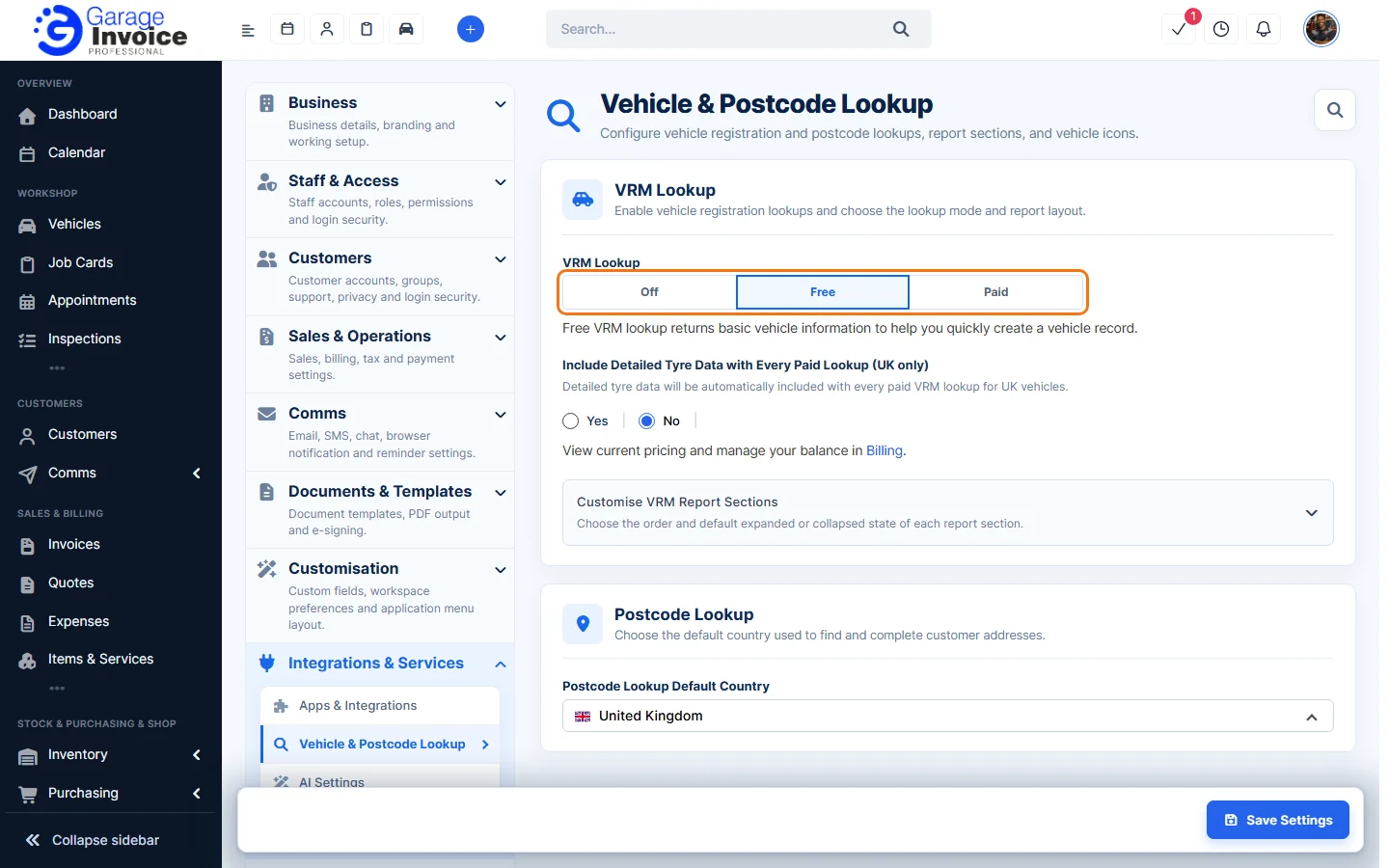
VRM Lookup
A VRM lookup fills in vehicle details from the registration number when you add a vehicle. Choose the mode under VRM Lookup:
- Off: lookups are switched off. You enter vehicle details by hand.
- Free: returns basic vehicle information, so you can create the vehicle record quickly.
- Paid: returns more detailed information, including the VIN and extra vehicle data. Paid lookups are charged to your balance: click Billing to see prices and top up (see Billing & Usage).
Include Detailed Tyre Data with Every Paid Lookup (UK only): Yes adds detailed tyre data to every paid lookup for UK vehicles.
Customise VRM Report Sections
- Click Customise VRM Report Sections to open it.
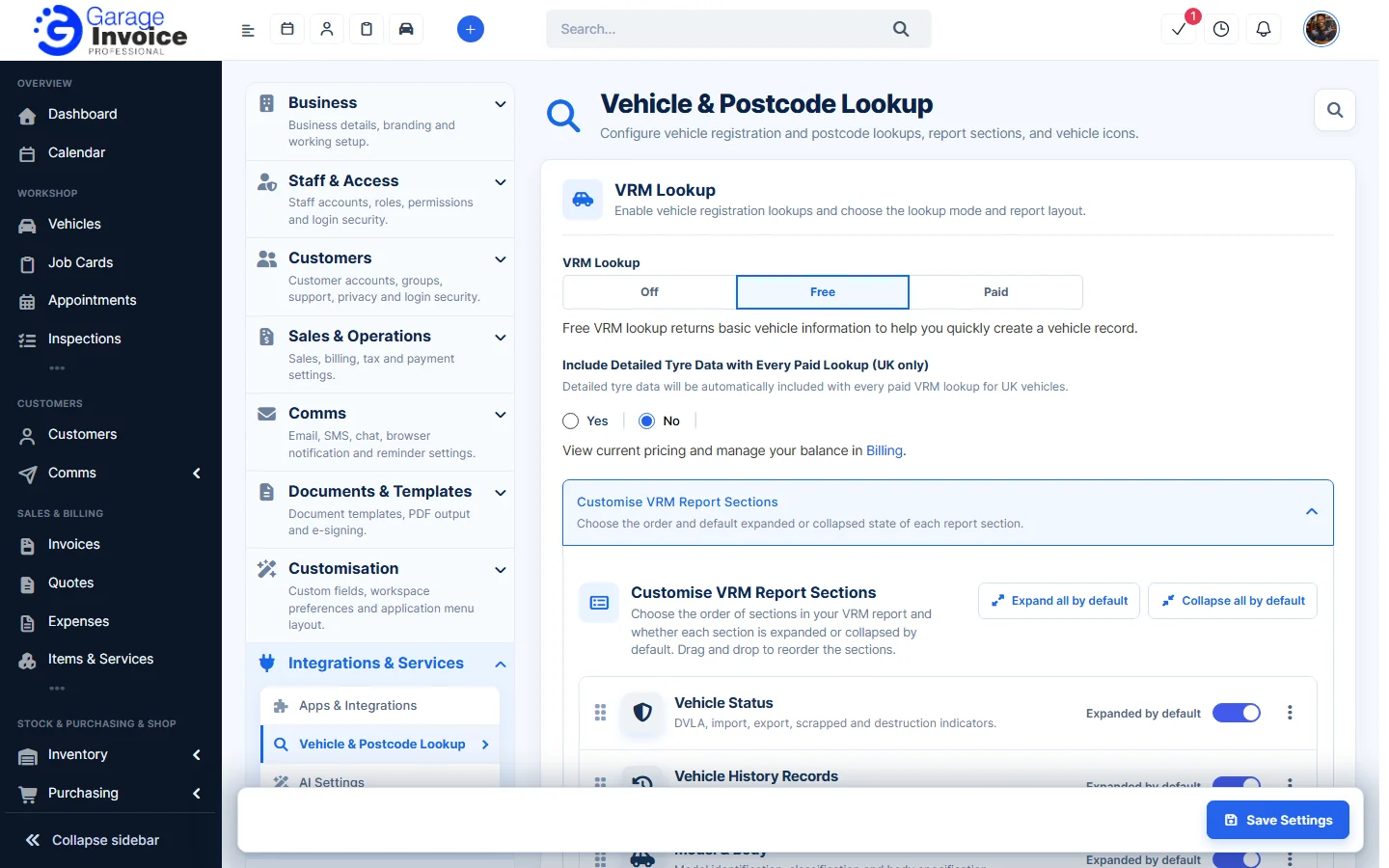
- Drag the sections into the order you want them in the vehicle report, for example Vehicle Status, Vehicle History Records, Model & Body, Dimensions & Weights, Powertrain & Electric Vehicle System, Charging, Safety & Emissions, Performance & Efficiency and Tyres & Wheels.
- Use the Expanded by default switch on each section to choose whether it opens expanded or collapsed, or click Expand all by default or Collapse all by default.
Postcode Lookup
Postcode Lookup Default Country: the country used to find and complete customer addresses from a postcode: United Kingdom, Ireland, Isle of Man, or No Postcode Lookup to turn it off.
Click Save Settings when you’re done.
Related: Change VRM Lookup Country · Change Post Code Lookup Country · Vehicle Data Report · VRM Lookups Not Working
Feature VRM lookups: see what it does and how it fits your workshop.