
Reply to the customer
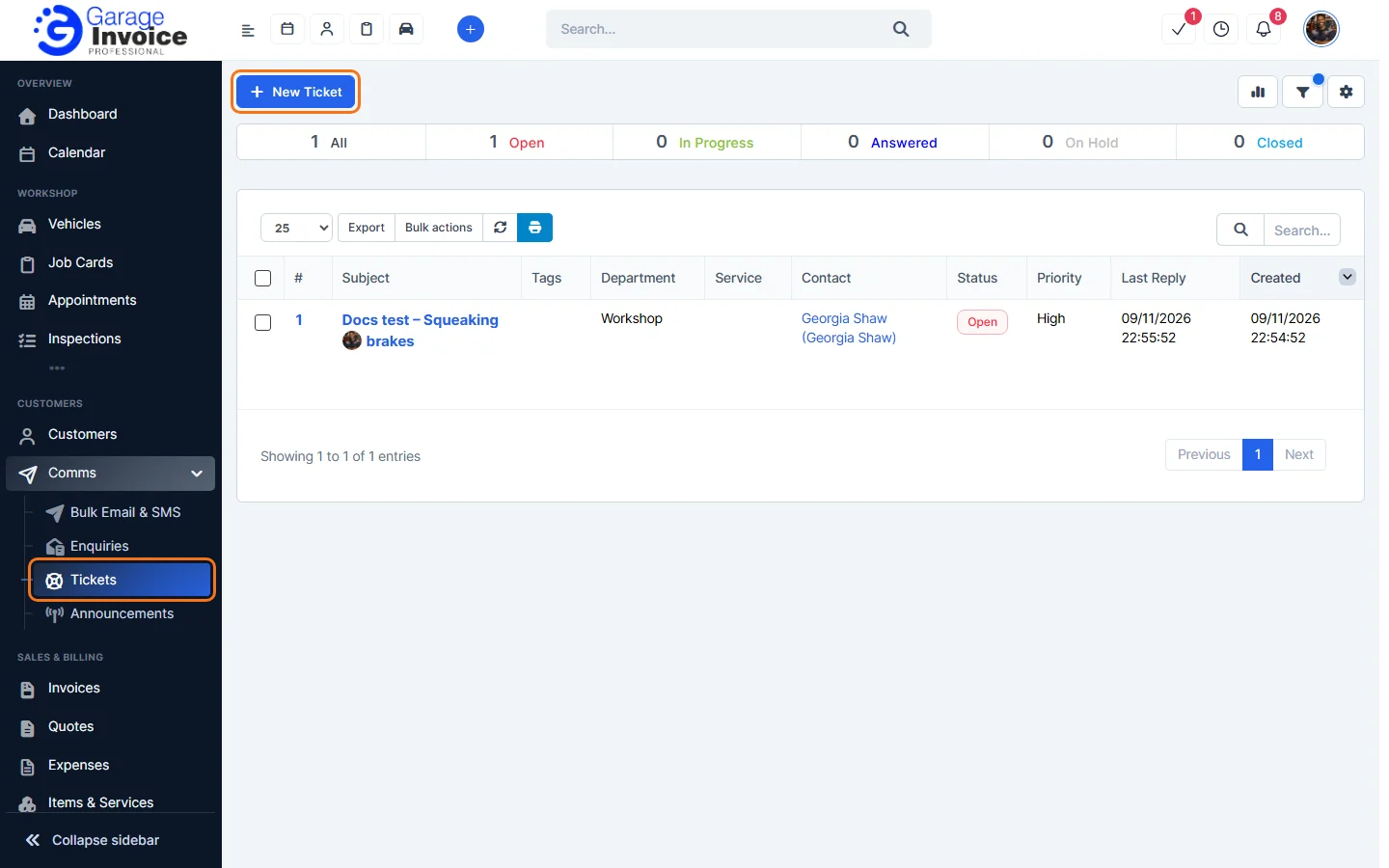
- Click Comms in the sidebar, then Tickets, and click the ticket’s subject.
- The Add Reply tab is open. Type your reply, or choose a saved text from Insert predefined reply.
- Check Change Status. It is set to Answered by default. Add CC addresses or Attachments if you need to.
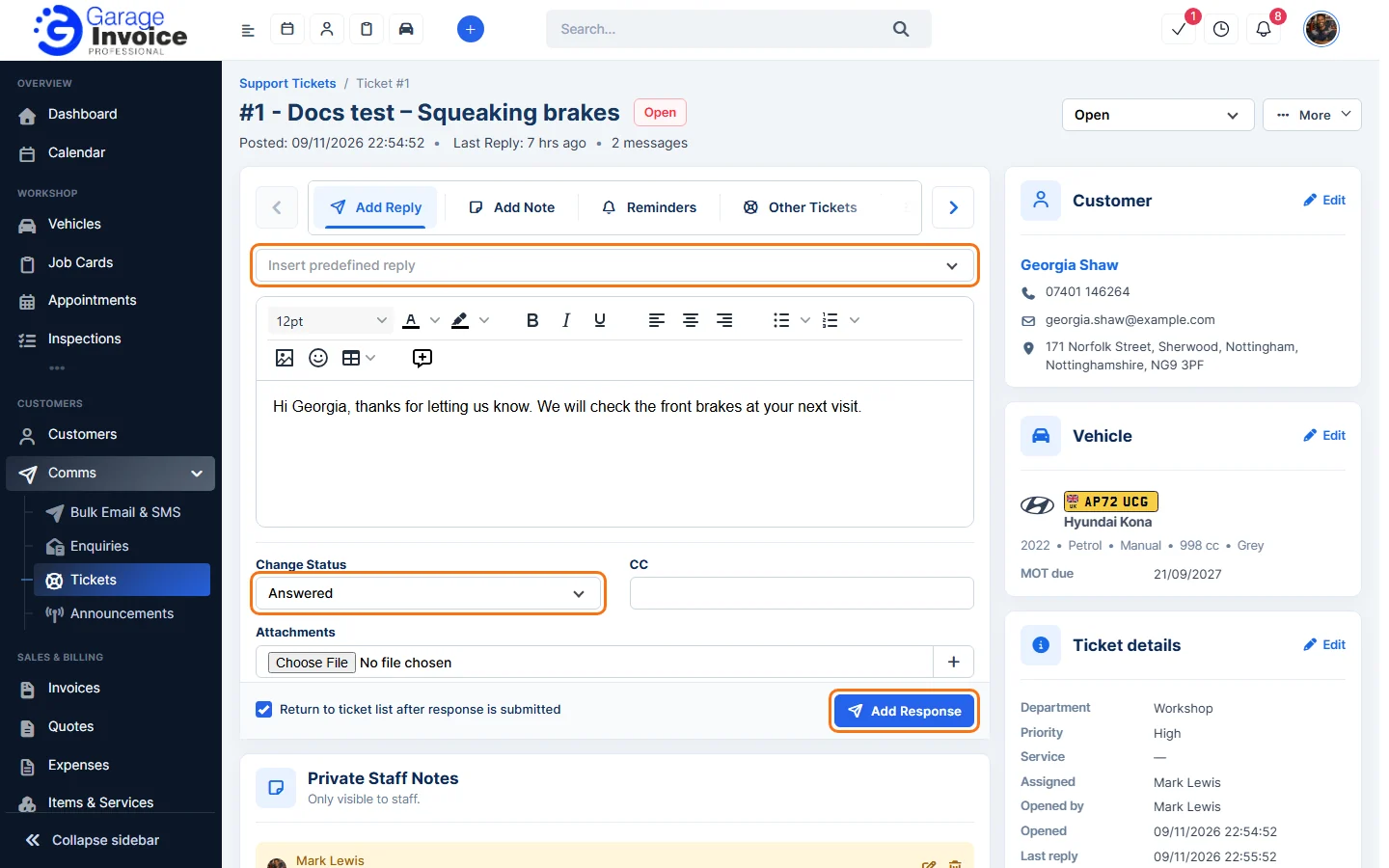
- Untick Return to ticket list after response is submitted if you want to stay on the ticket.
- Click Add Response. Your reply is added to the Conversation and the customer gets it by email.
The Conversation shows every message, oldest first. Each message has buttons to print, edit or convert it to a task.
Change the status without replying
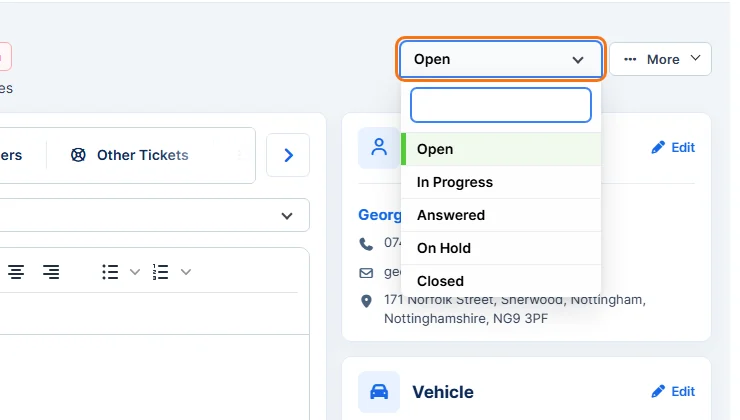
- Use the status dropdown at the top right of the ticket and choose Open, In Progress, Answered, On Hold or Closed.
Add a private note
- Click the Add Note tab.
- Type the note and click Add Note.
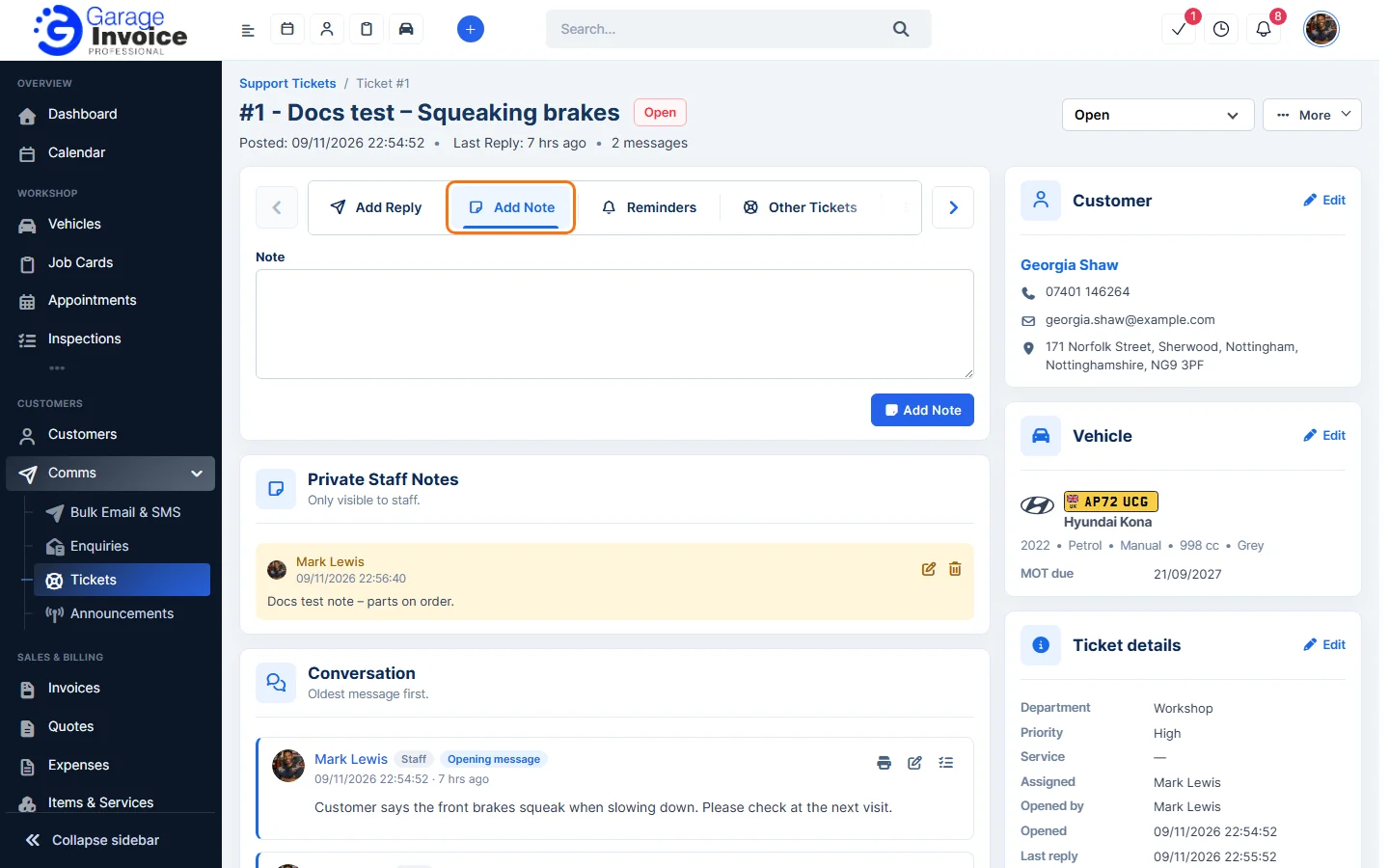
- The note appears under Private Staff Notes (Only visible to staff). Use the icons on the note to edit or delete it.
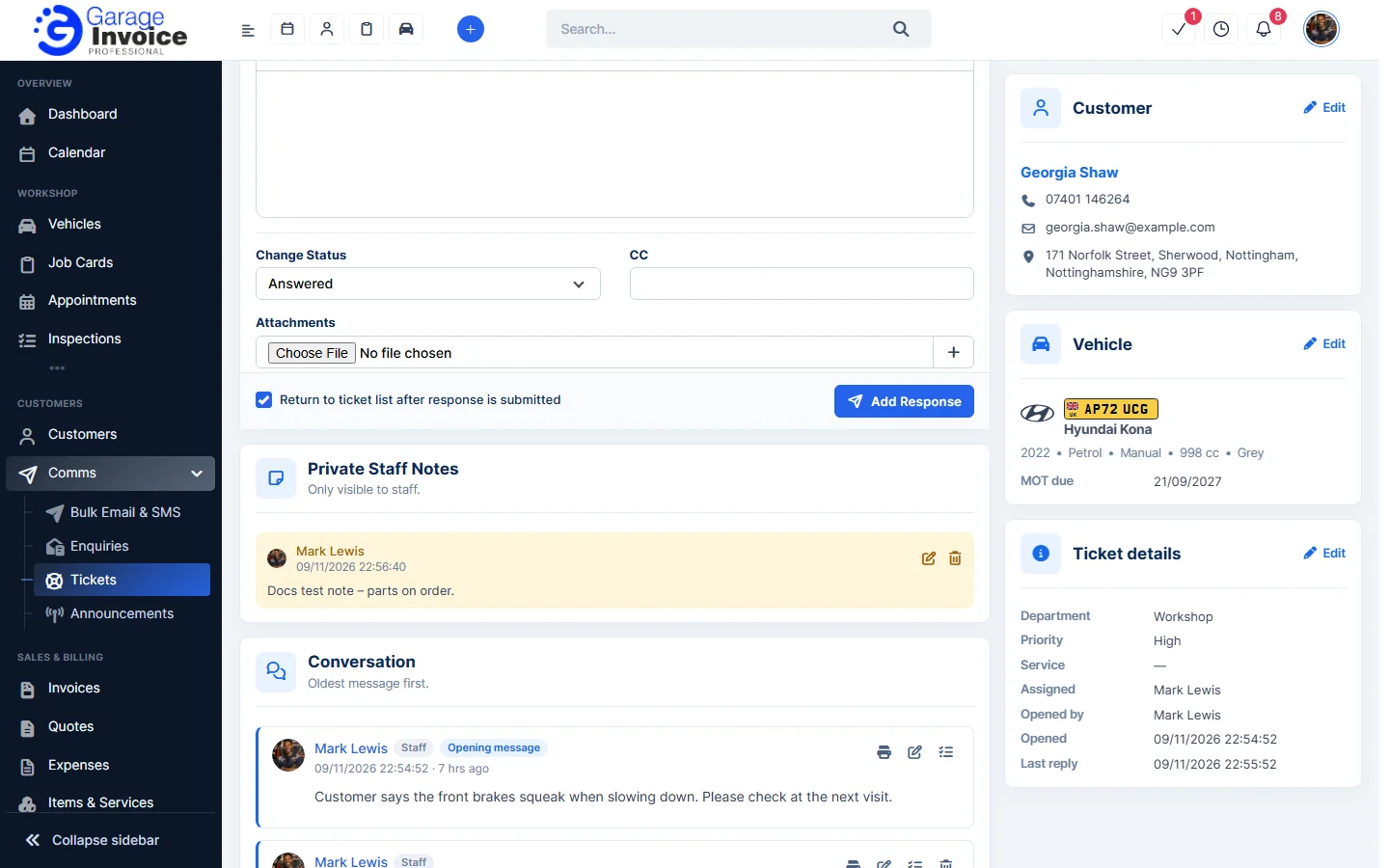
Note: the customer never sees private staff notes.
Tip: save answers you type often as predefined replies. See Support Ticket Settings.
Next: Manage a Support Ticket