GI System controls how the Garage Invoice workspace looks and behaves. These settings apply to everyone using your Garage Invoice.
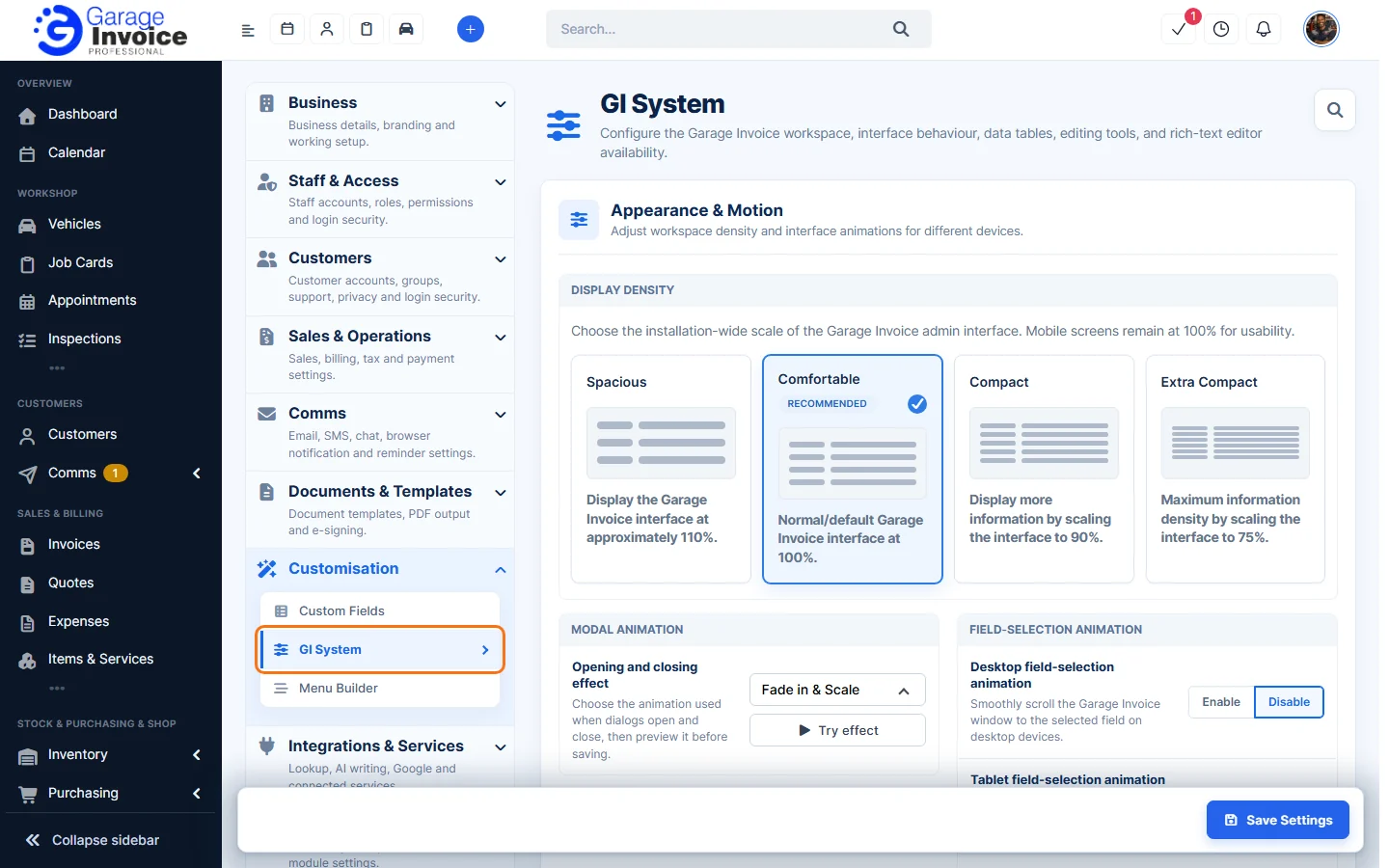
- Click Settings at the bottom of the sidebar, under Administration. In the panel on the left, open Customisation and click GI System.
- Change what you need in each section (see below).
- Click Save Settings at the bottom right.
Appearance & Motion
- Display Density: the size of the whole interface. Spacious (about 110%), Comfortable (the normal 100%, recommended), Compact (90%) or Extra Compact (75%). Mobile screens always stay at 100%.
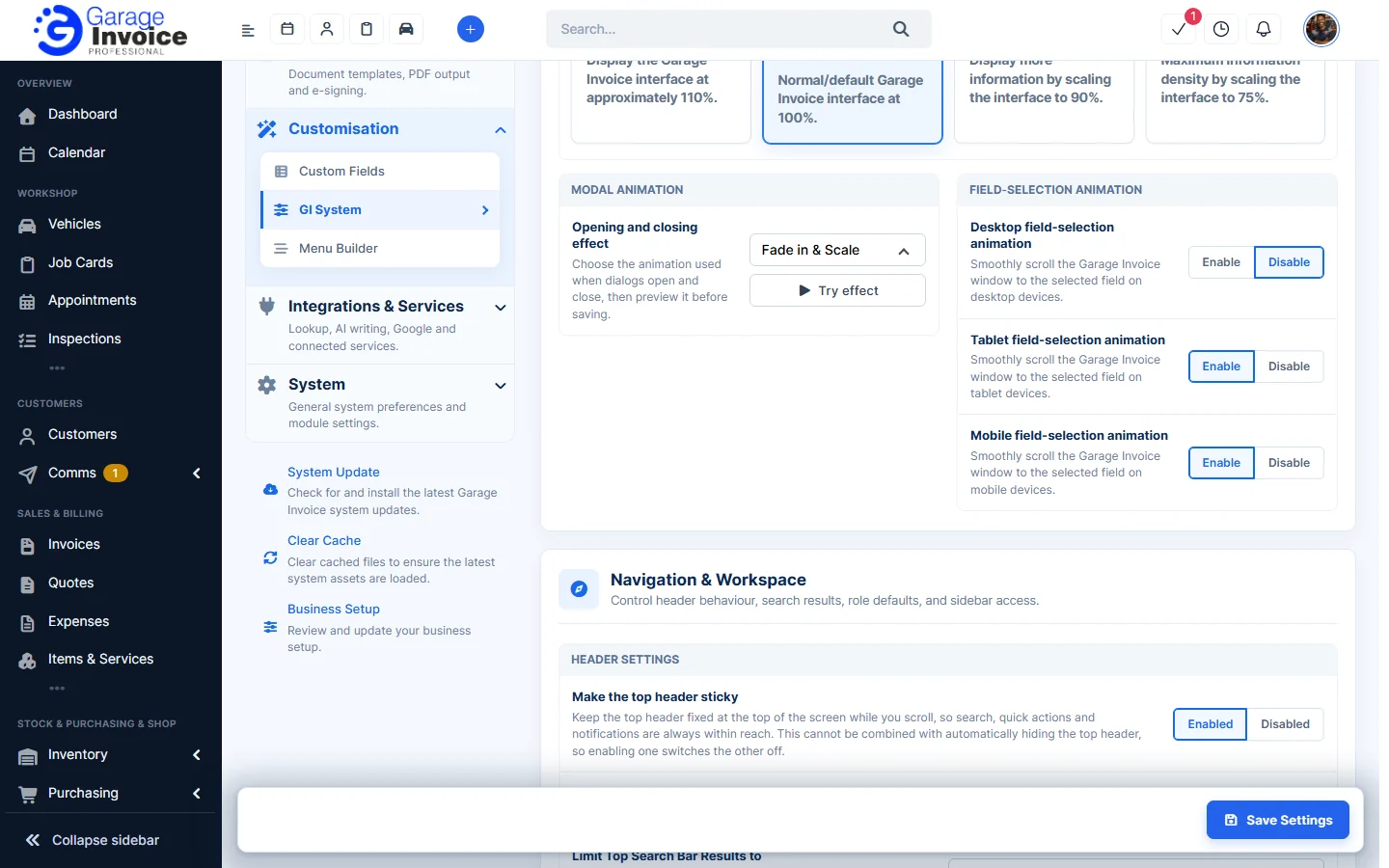
- Opening and closing effect: the animation used when windows open and close, for example Fade in & Scale or Slide in (right). Click Try effect to preview it.
- Desktop, Tablet and Mobile field-selection animation: when enabled, the window scrolls smoothly to the field you select on that type of device.
Navigation & Workspace
- Make the top header sticky: keeps the top bar fixed while you scroll, so search, quick actions and notifications are always in reach.
- Automatically hide the top header: hides the top bar until you move the pointer to the top edge of the page. You can’t use this and the sticky header together: turning one on turns the other off.
- Limit Top Search Bar Results to: the most records the top search shows for each type, for example customers or vehicles.
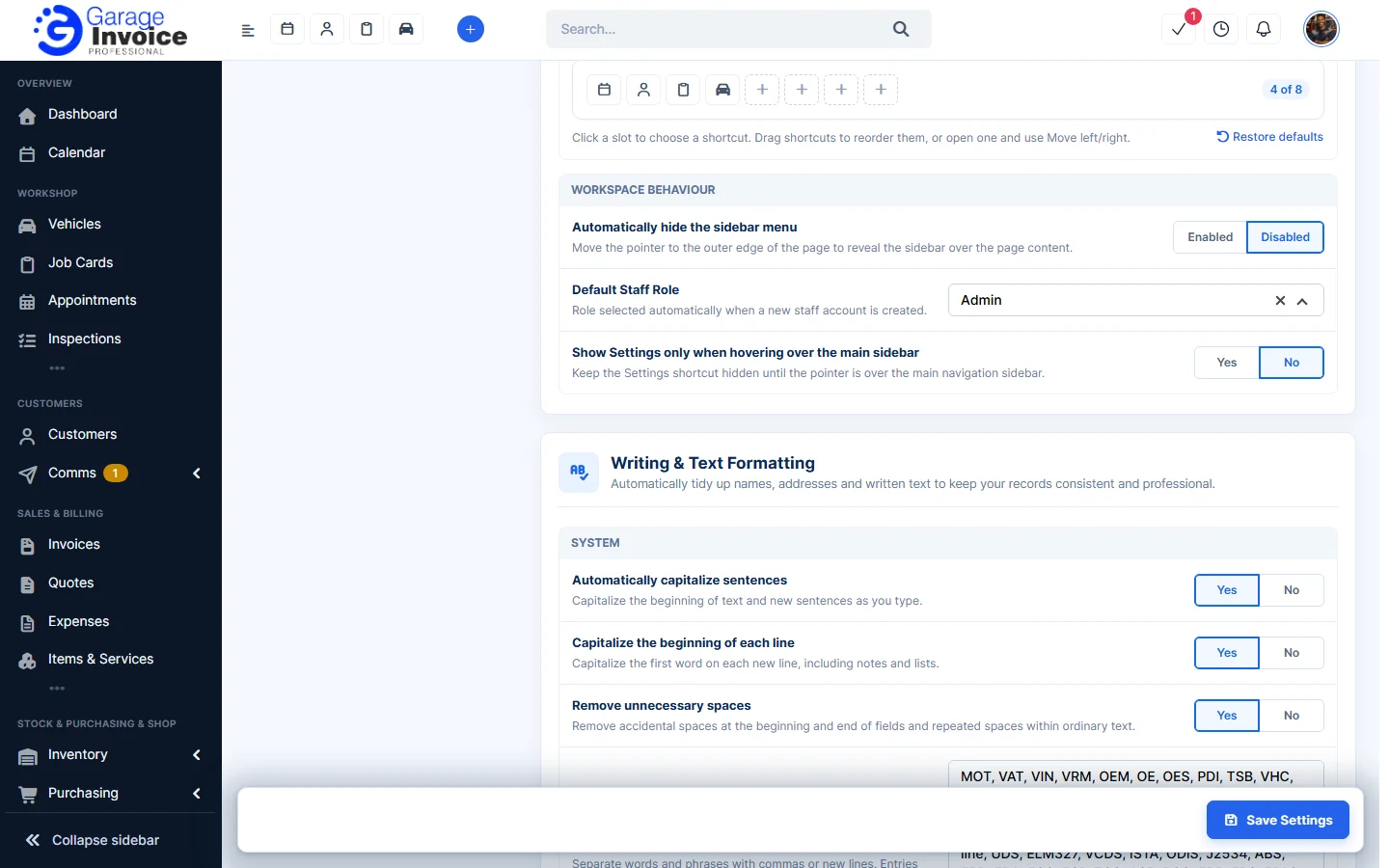
- Top header shortcuts: choose up to 8 buttons for the top bar. Click a slot to choose a shortcut, and drag shortcuts to reorder them. Click Restore defaults to go back to the standard set. Staff only see shortcuts their permissions allow, and shortcuts are hidden on smaller screens.
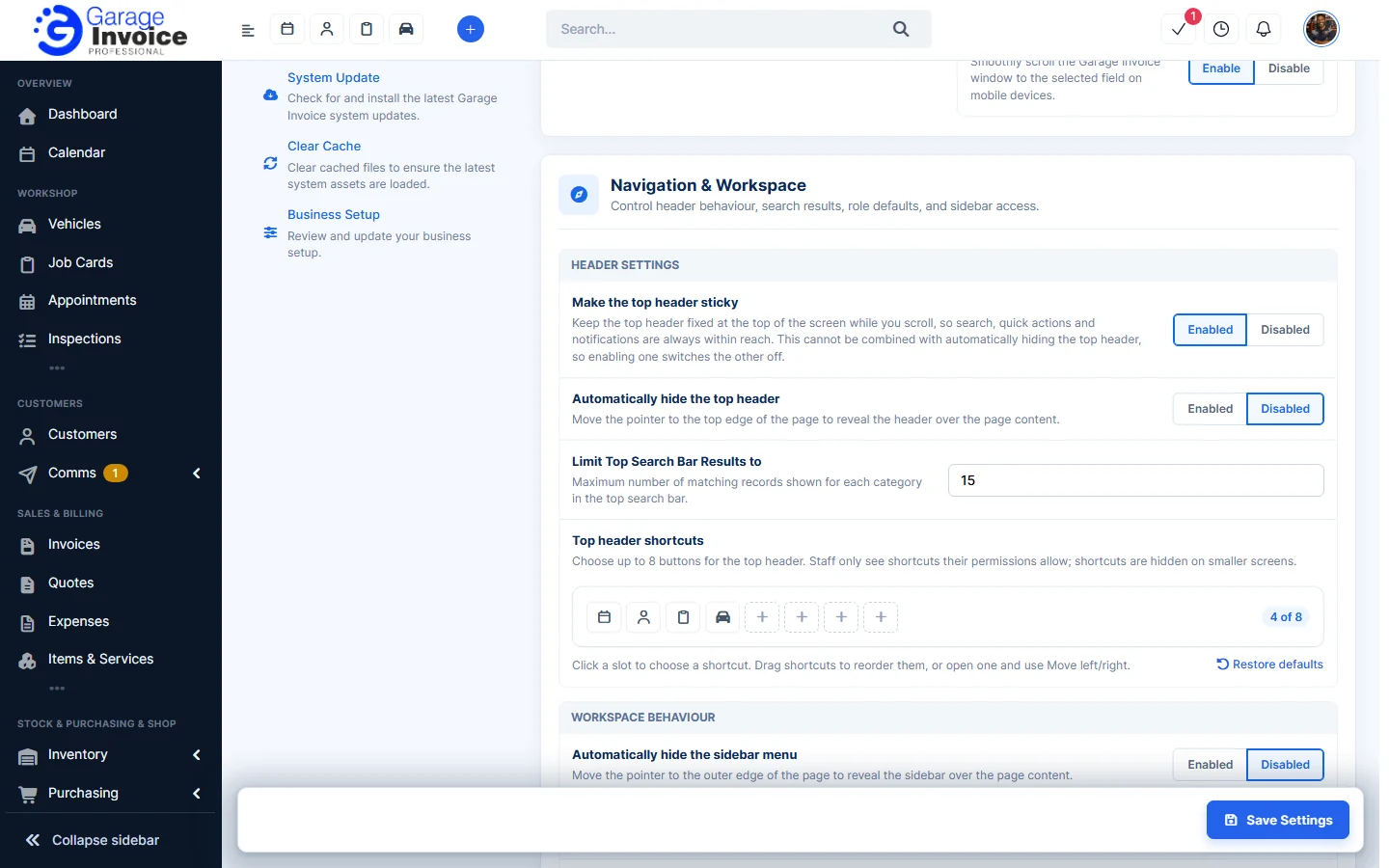
- Automatically hide the sidebar menu: hides the sidebar until you move the pointer to the edge of the page.
- Default Staff Role: the role selected automatically when you create a new staff account.
- Show Settings only when hovering over the main sidebar: hides the Settings link until you point at the sidebar.
Writing & Text Formatting
Garage Invoice can tidy up text as you type to keep your records consistent.
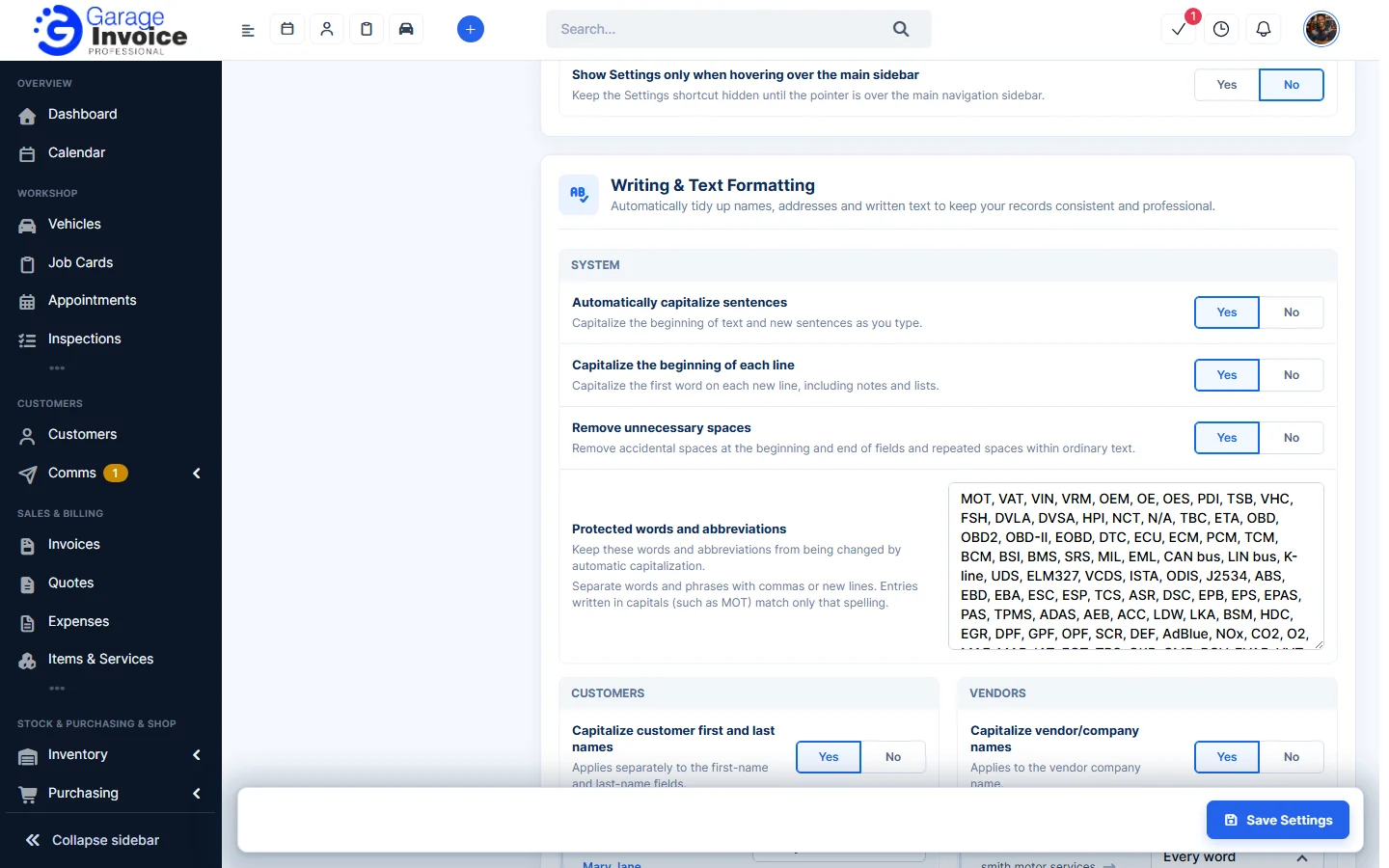
- Automatically capitalize sentences and Capitalize the beginning of each line: capitalise the start of text, new sentences and new lines.
- Remove unnecessary spaces: removes spaces at the start and end of fields and repeated spaces.
- Protected words and abbreviations: words that capitalisation should never change. Separate them with commas or new lines. Words written in capitals, such as MOT, only match that spelling.
- Customers: capitalise first and last names, company names, addresses, cities and counties. For each, choose the Capitalization style, for example Every word or First word. Format postcodes makes UK postcodes upper case with a space (sw1a1aa becomes SW1A 1AA). Apply customer rules to customer contacts uses the same name rules for contacts. Email addresses are never changed.
- Vendors: the same options for supplier names, contacts, addresses, cities, counties and postcodes.
- Items: Capitalize item name on invoices, quotes and job cards, and Capitalize item description.
Files & Item Editing
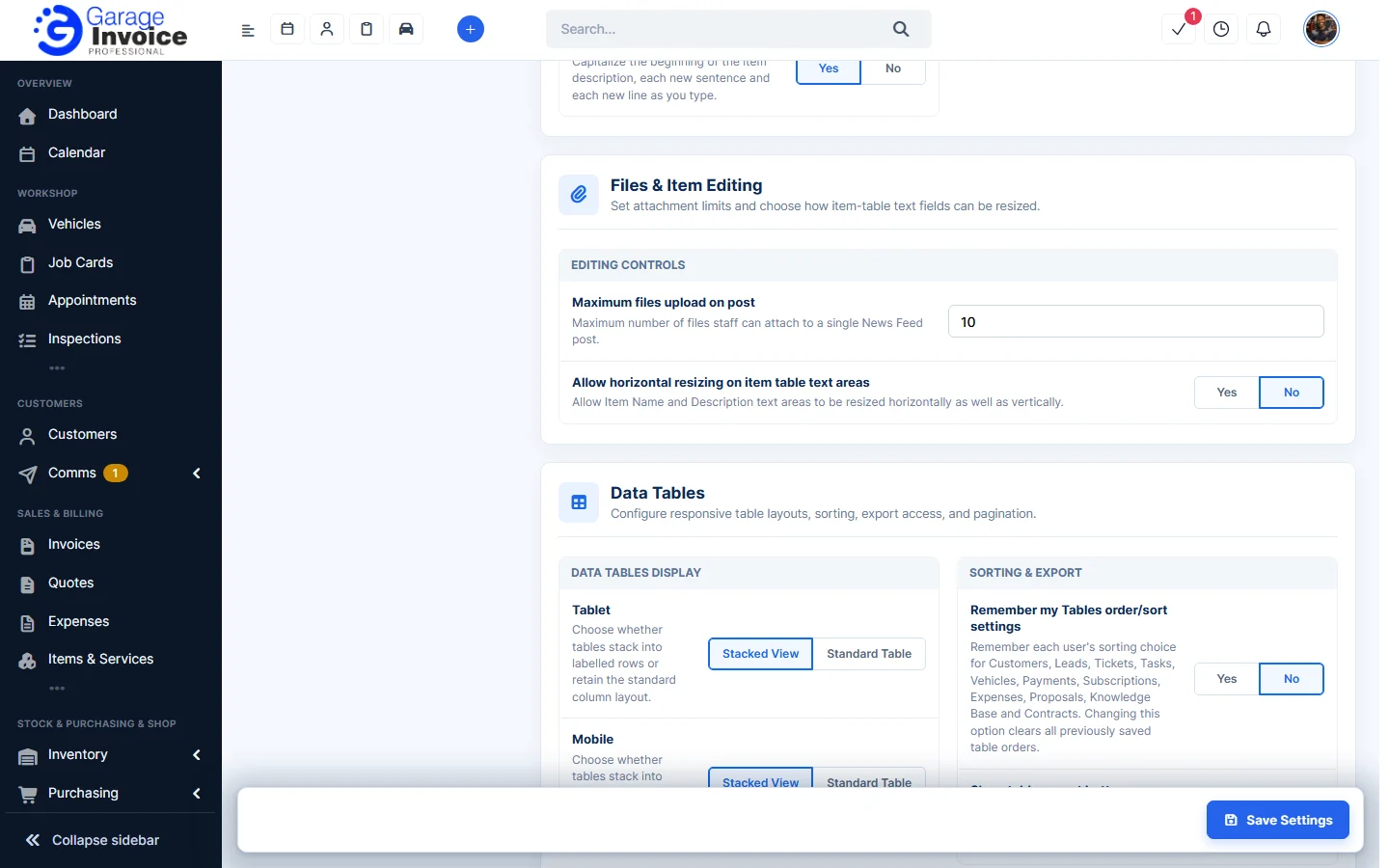
- Maximum files upload on post: how many files staff can attach to one News Feed post.
- Allow horizontal resizing on item table text areas: lets you make the Item Name and Description boxes wider as well as taller.
Data Tables
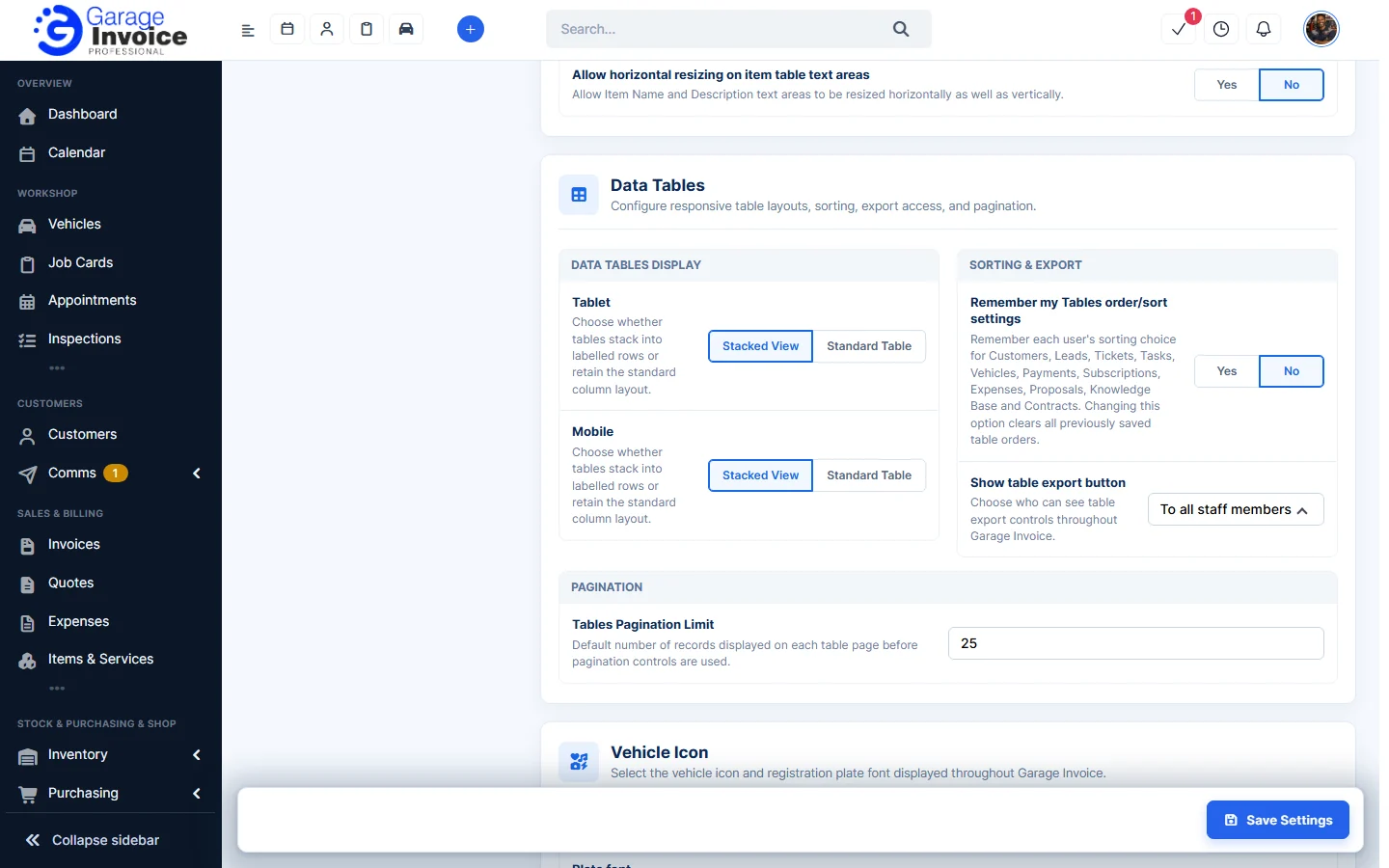
- Tablet and Mobile: show tables as Stacked View (each row as a labelled card) or Standard Table (columns).
- Remember my Tables order/sort settings: remembers how each user sorted tables such as Customers, Vehicles and Payments. Changing this clears everyone’s saved sorting.
- Show table export button: To all staff members, Only to administrators, or hide it for everyone.
- Tables Pagination Limit: how many records each table page shows.
Vehicle Icon
Choose the number plate font and the vehicle icon used throughout Garage Invoice. See Vehicle Icon and Number Plate Font.
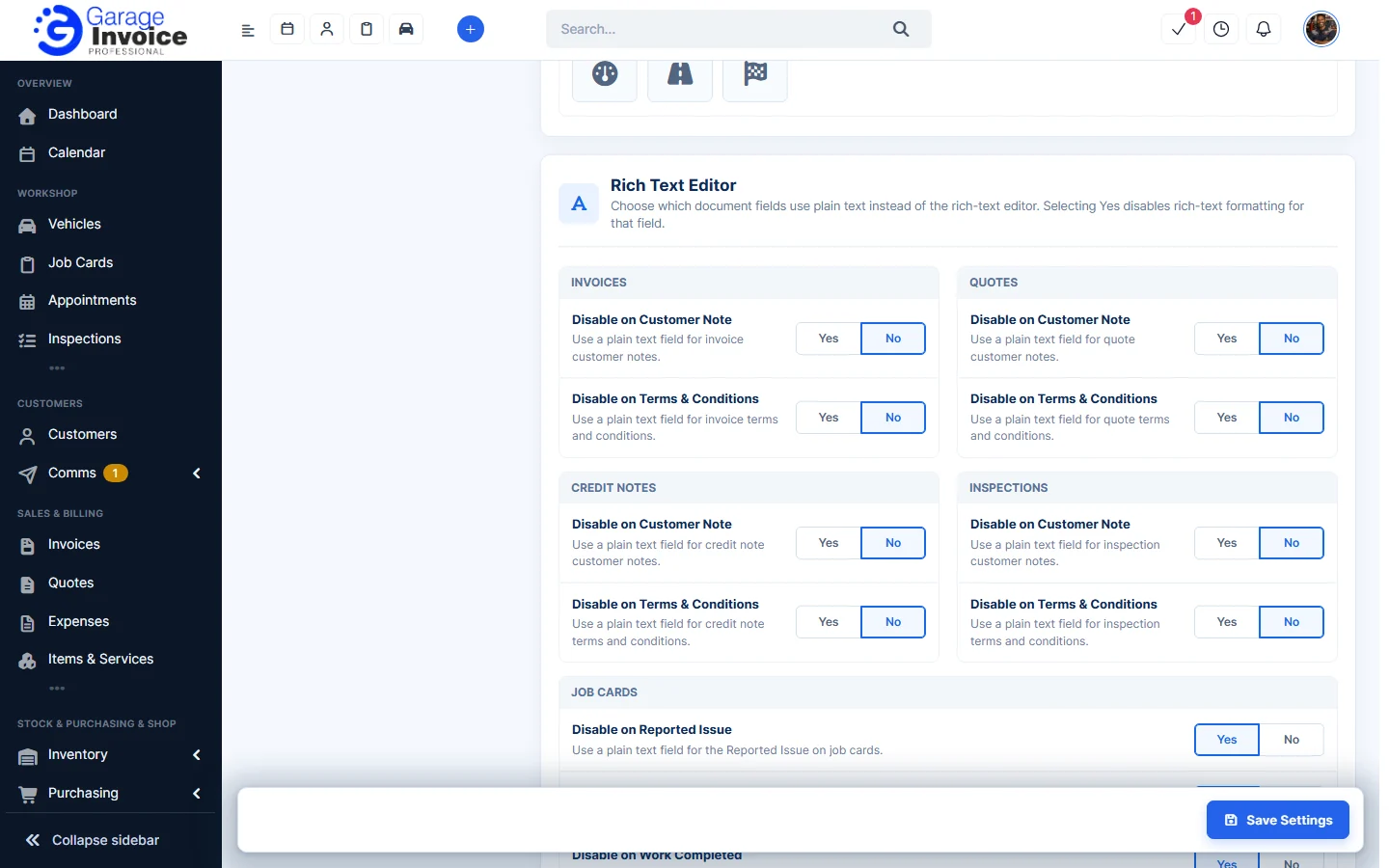
Rich Text Editor
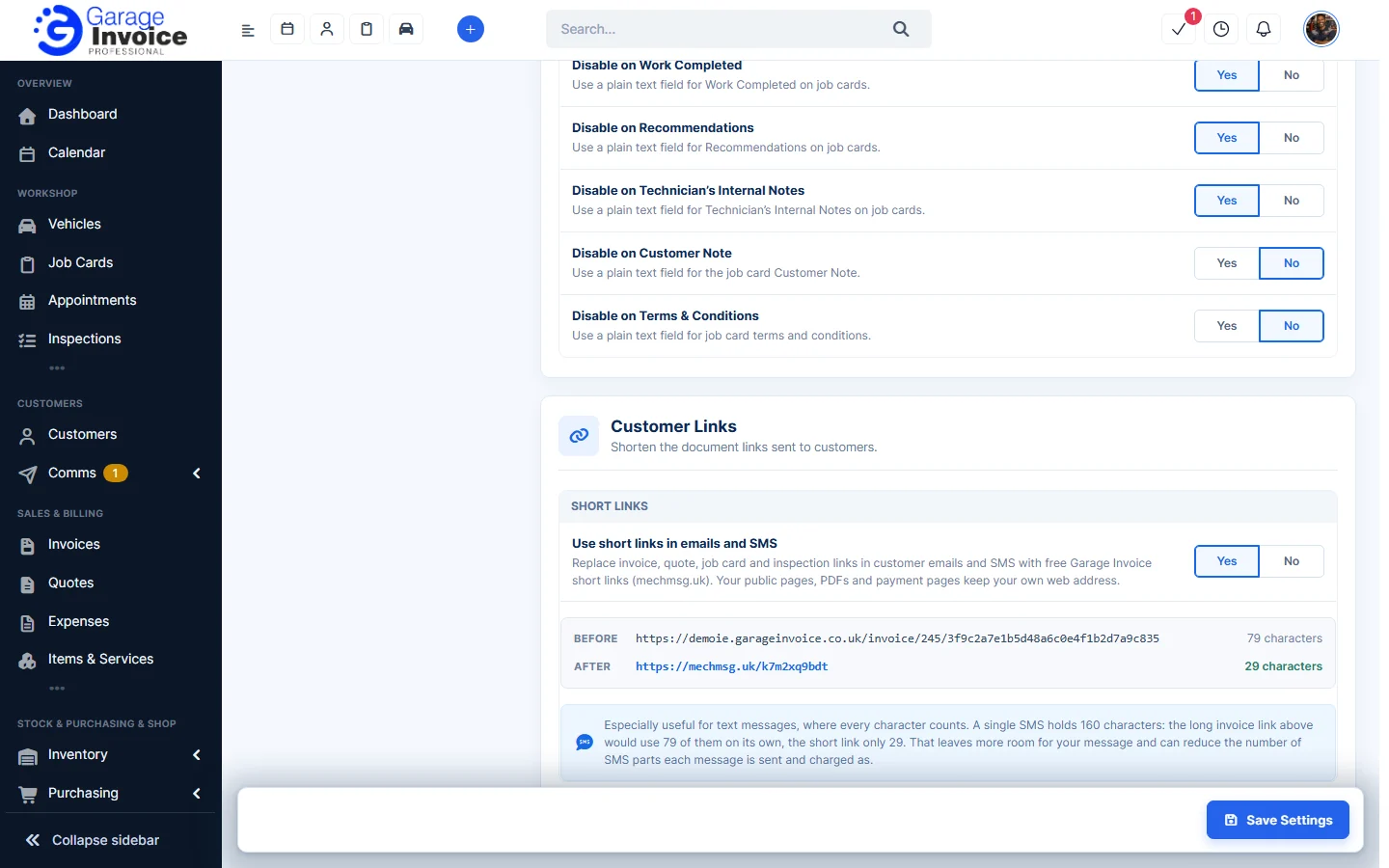
For each document field, choose Yes to use a plain text box instead of the rich-text editor. You can do this for the Customer Note and Terms & Conditions on invoices, quotes, credit notes, inspections and job cards, and for the job card’s Reported Issue, Technician Findings, Work Completed, Recommendations and Technician’s Internal Notes.
Customer Links
Use short links in emails and SMS: replaces invoice, quote, job card and inspection links in customer emails and text messages with free Garage Invoice short links (mechmsg.uk). Your public pages, PDFs and payment pages keep your own web address. This is useful for text messages: a shorter link leaves more room for your message and can mean fewer SMS parts are sent and charged.