
A draft invoice is one you’re still working on. It’s shown as INV-DRAFT and doesn’t get a real invoice number until you finalize it.
Save an invoice as a draft
When you create or edit an invoice, click Save as Draft in the bar at the bottom of the screen.

Finalize a draft
- Click Draft in the bar at the top of the Invoices page and click the draft to open it.
- Click Finalize Invoice in the blue “Draft Invoice · Not yet finalized” bar. You’ll also find Finalize Invoice in the More menu.
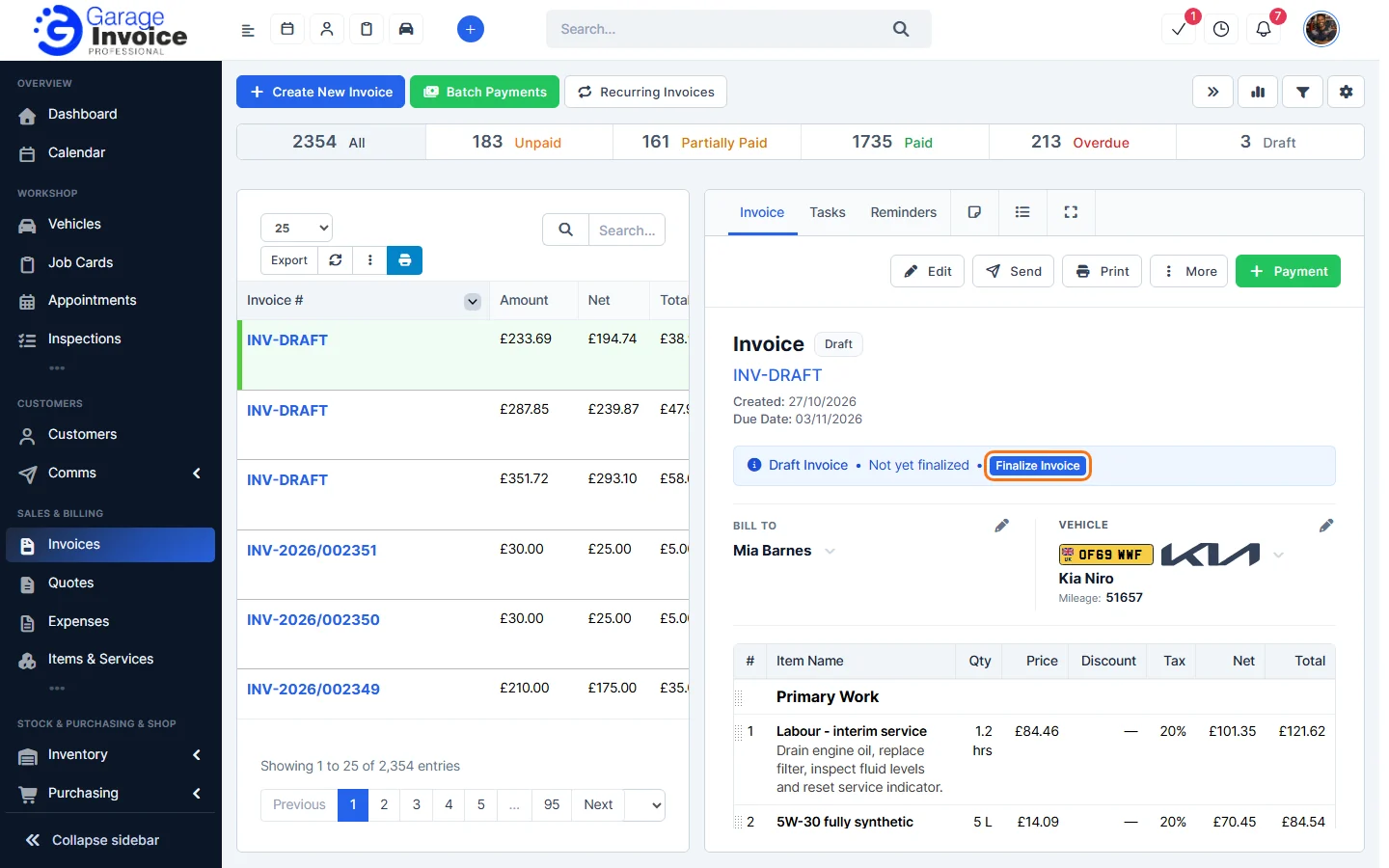
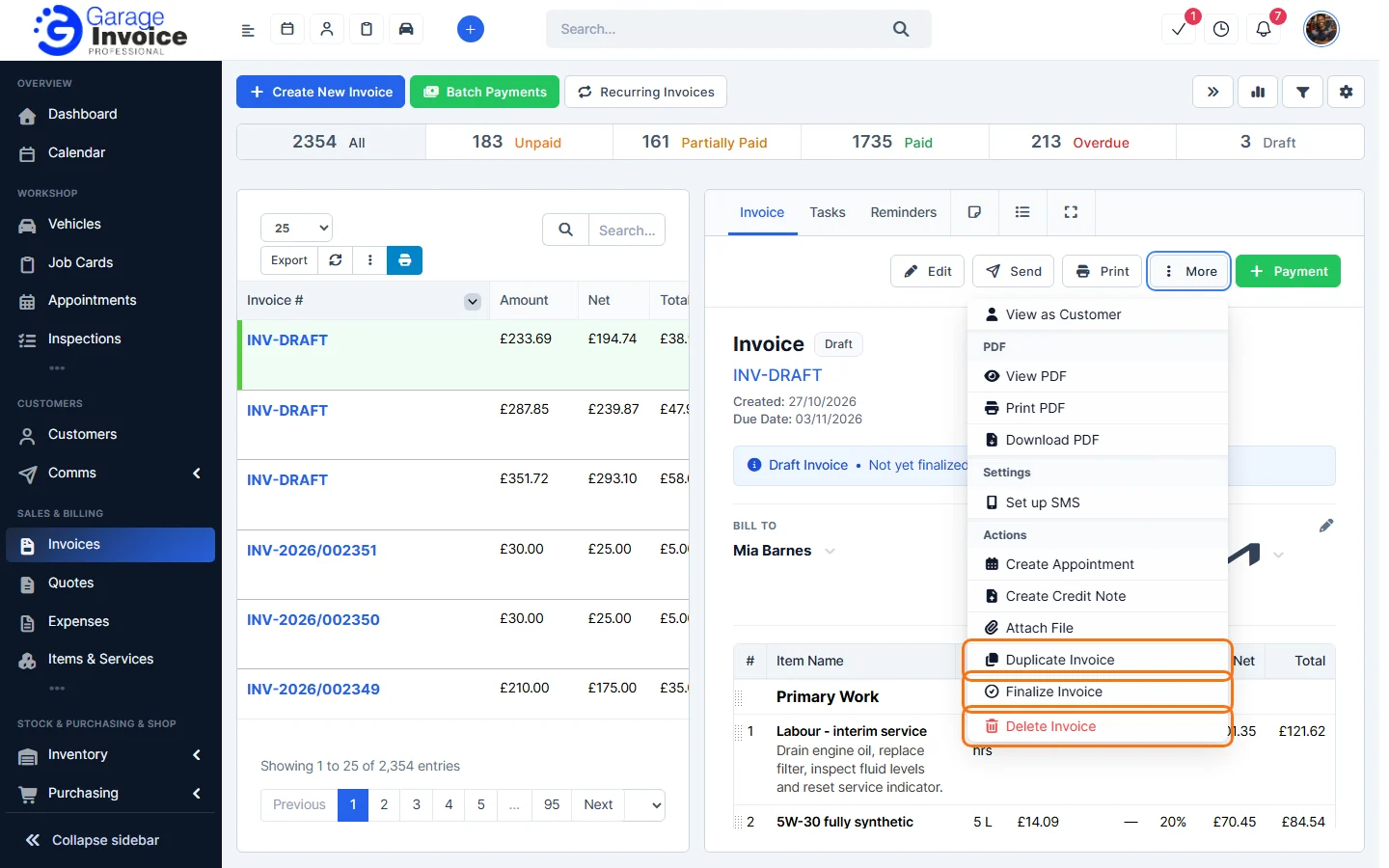
You’ll see Invoice finalized and moved to Unpaid status. The invoice now has its invoice number.
Note: if you record a payment on a draft invoice, it is finalized automatically.
Feature Garage invoicing software: see what it does and how it fits your workshop.