
Business Setup walks you through the essentials: your account, your business profile and the features you want to use. Everything saves as you go, so you can stop and come back at any time.
- Click Settings at the bottom of the sidebar, under Administration. Under the groups in the panel on the left, click Business Setup.
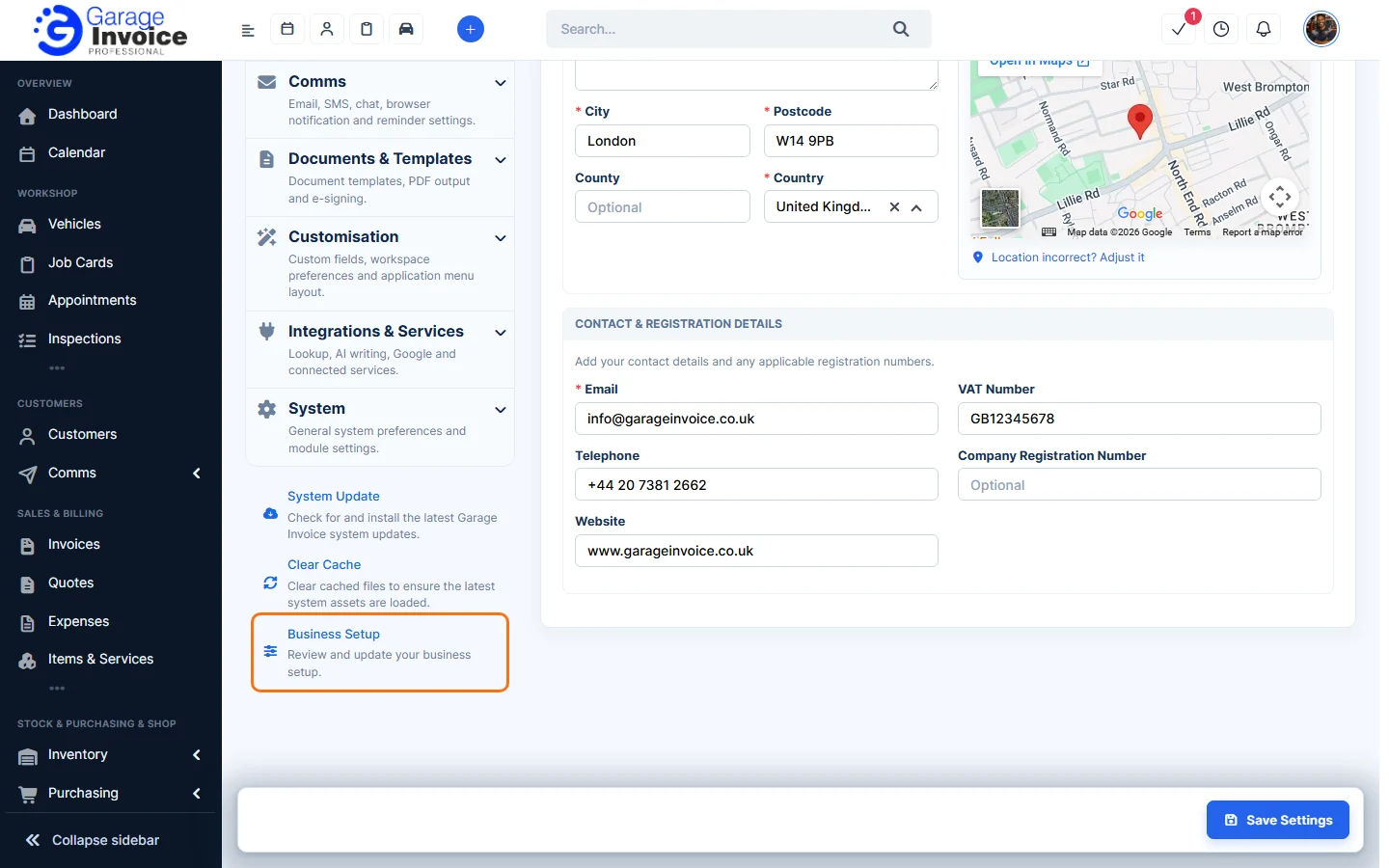
- On the welcome screen, click Start setup. The list shows the three steps and whether each is Done.
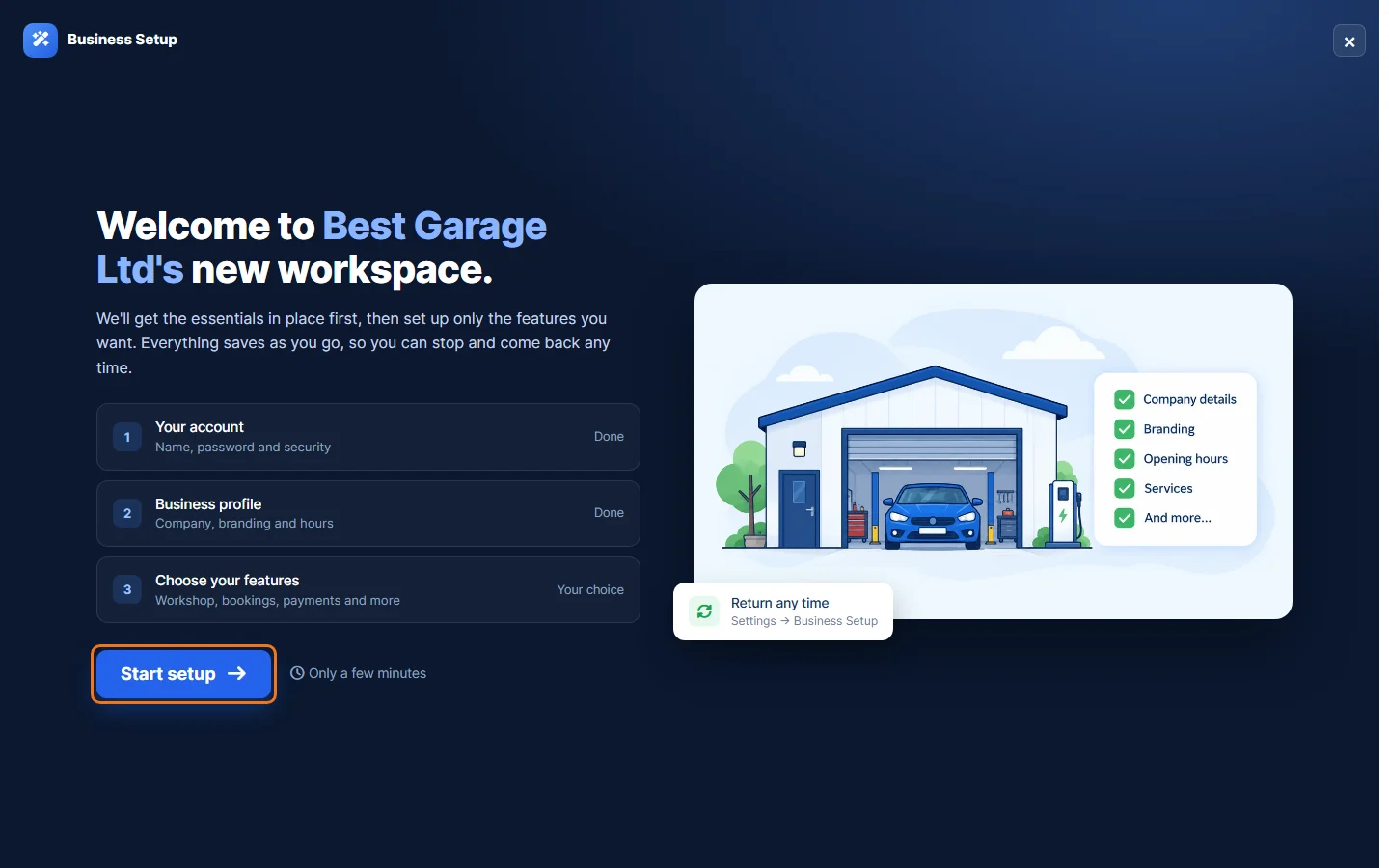
- Your account: check your details and your password.
- Your details: your name, email and contact information. Click Update to change them.
- Password: shows when it was last changed. Click Change password to set a new one.
- Two-factor authentication: an extra layer of security, if your account type supports it.
Click Continue.
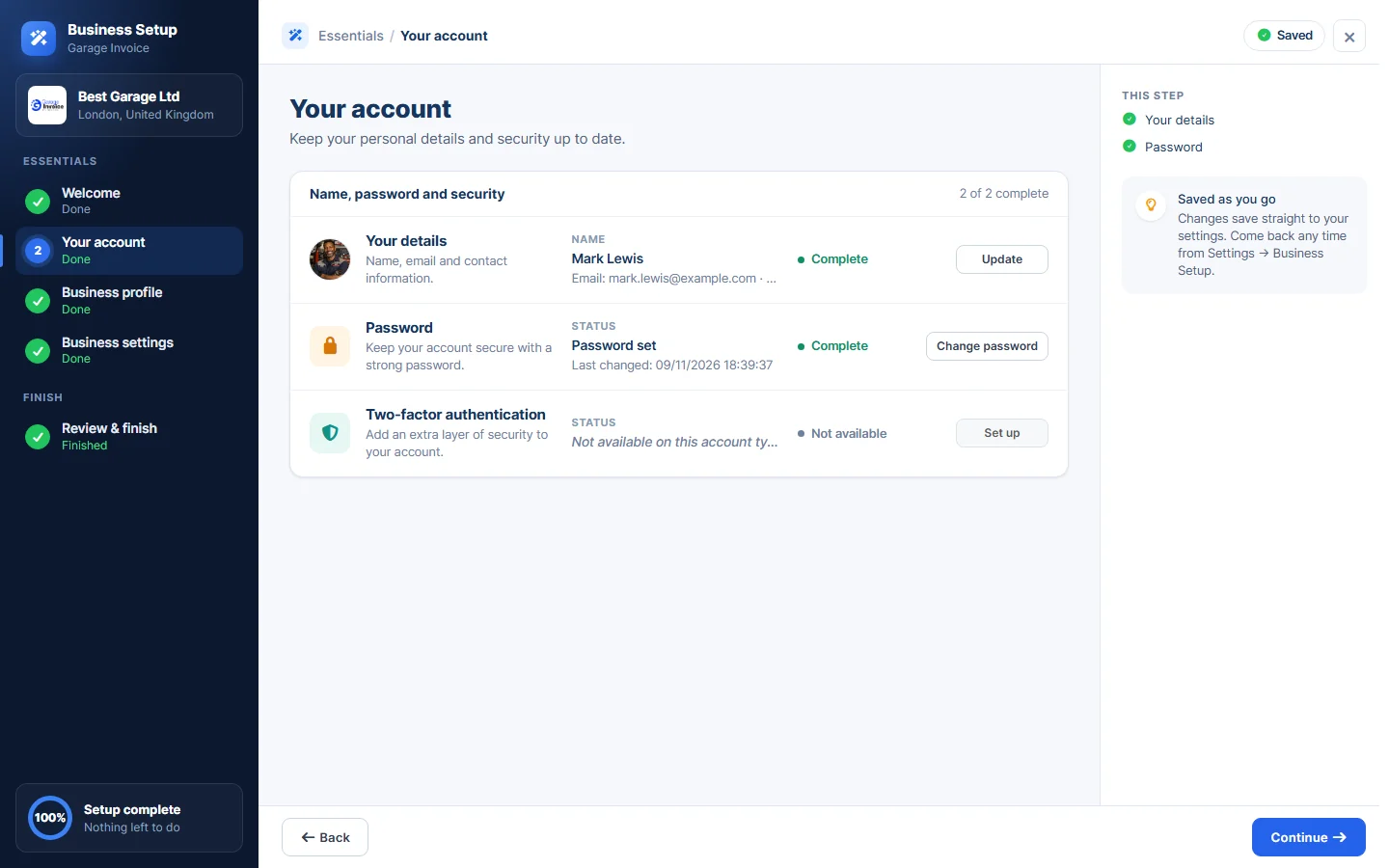
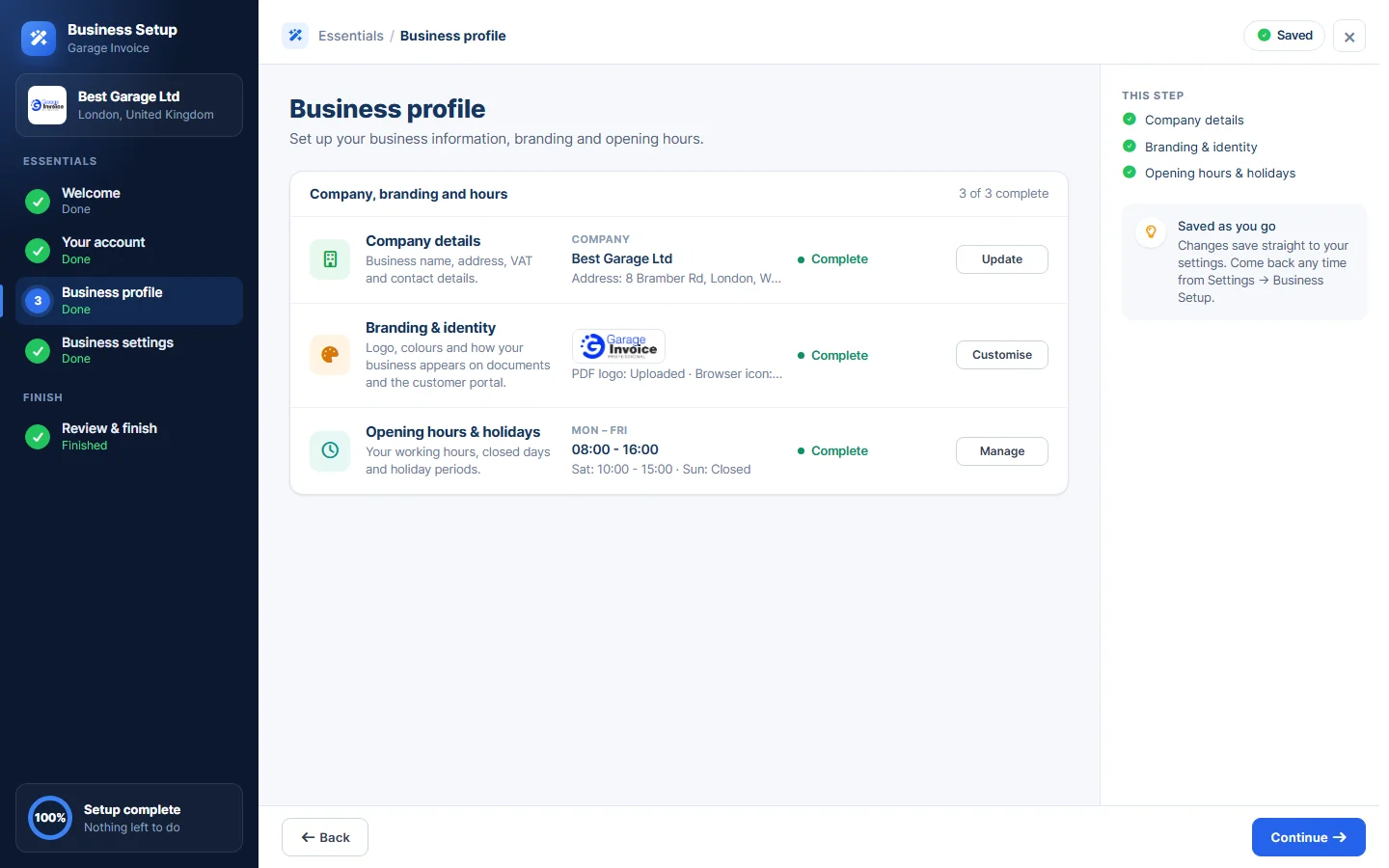
- Business profile: check your company details, branding and opening hours. Click Update, Customise or Manage next to an item to change it. See Company Details, Branding & Identity and Working Schedule. Click Continue.
- Business settings: under What will you use Garage Invoice for?, turn on the features you want, for example Appointments & online booking, Customer communication, AI assistant, Accounting integration or Customer portal. Click Info to read more about a feature. Each feature you turn on adds a short setup step to Your setup plan. Invoices & quotes is always included. Click Continue.
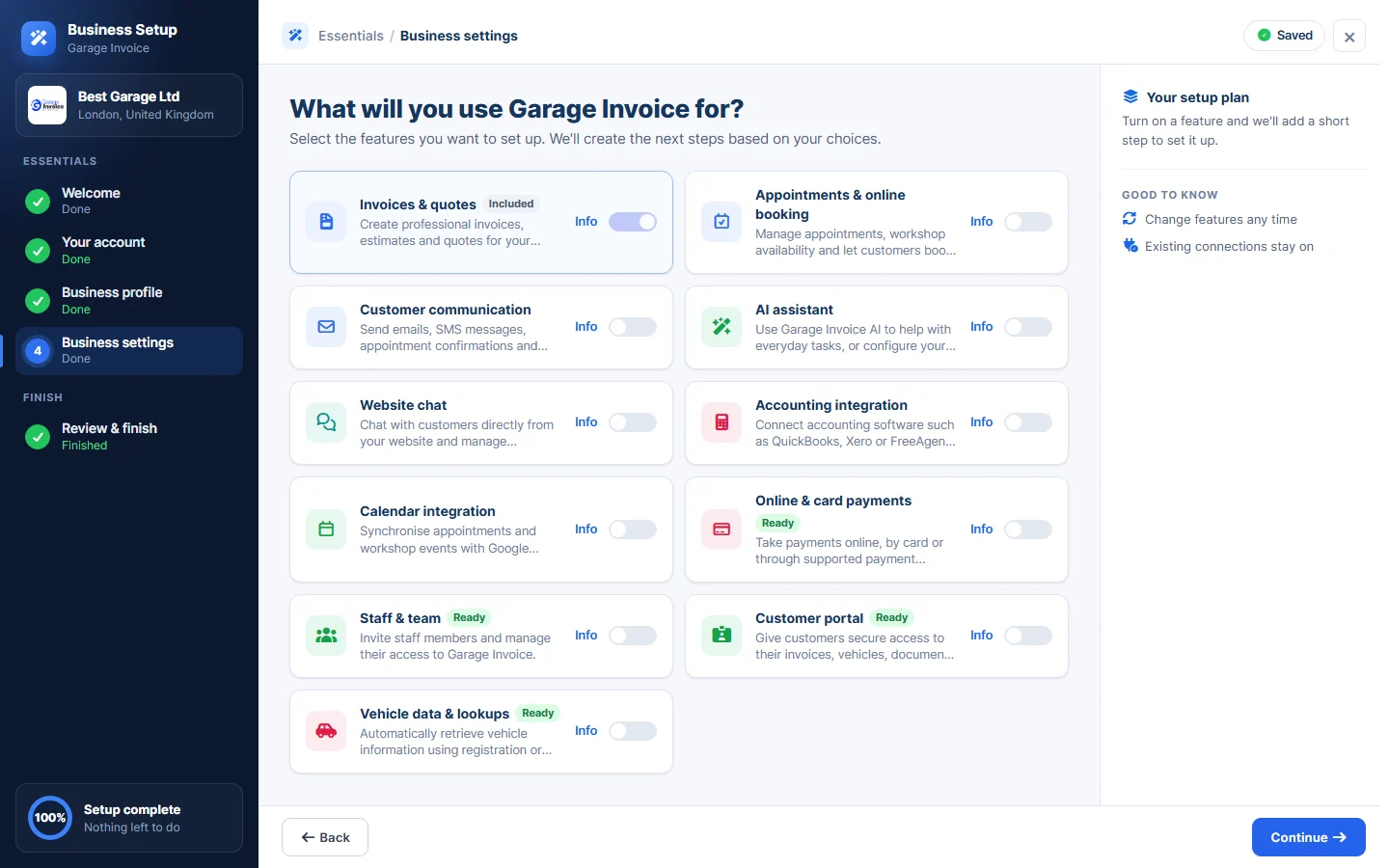
- Go through any steps added for your features.
- Review & finish shows how much of the setup is complete, what’s Completed, which integrations are Connected and what’s Still to do. Click Go to dashboard when you’re done.
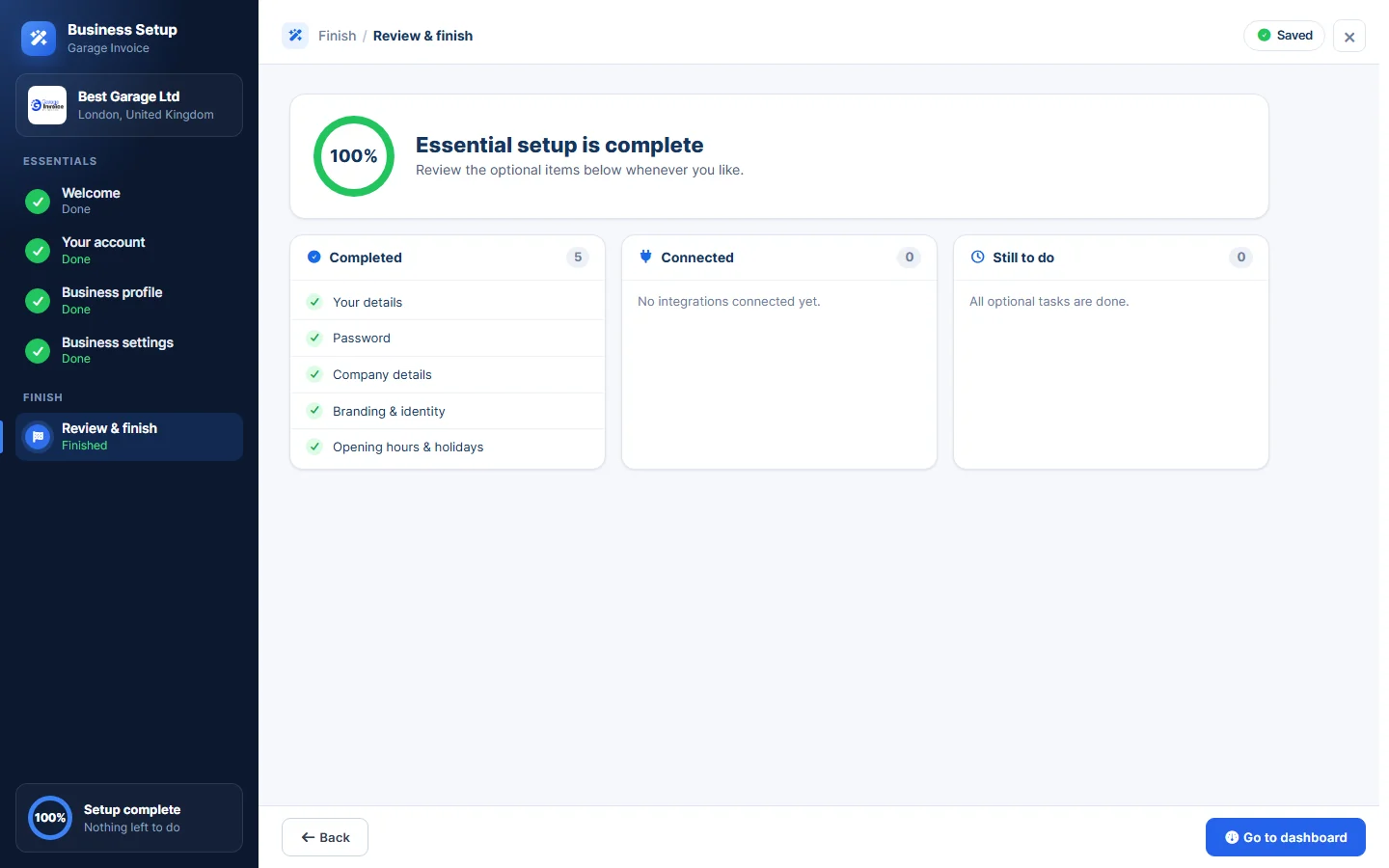
Tip: click any step in the list on the left to jump straight to it. You can change your features at any time, and connections you already have stay on.