
- Click Reports in the sidebar (under Insights) and click Sales.
- Choose a Period (This month, Last month and so on) or enter your own From and To dates, set any other filters and click Filter. Reset clears them. The Active filters line shows what you are looking at.
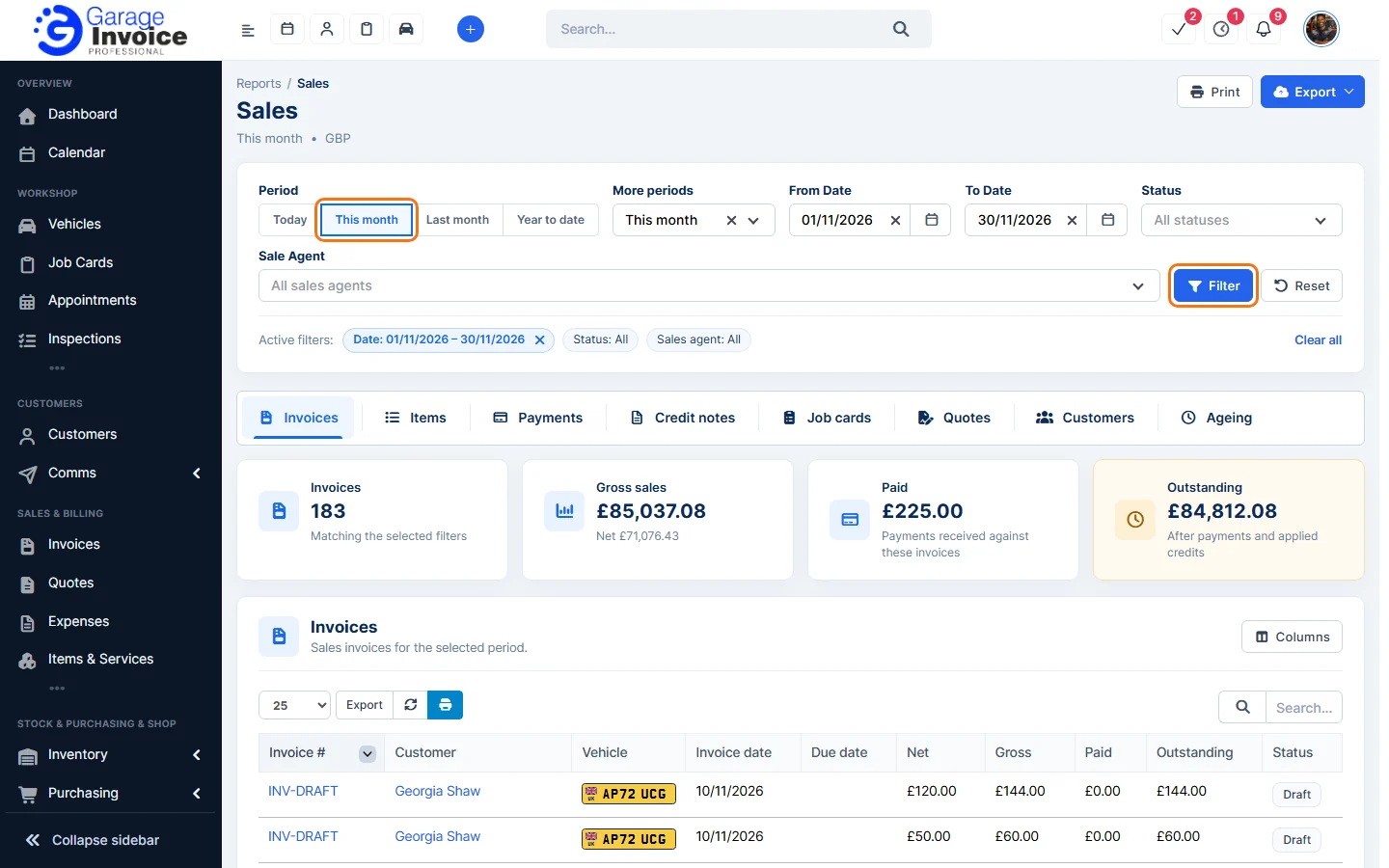
- Click the Ageing tab. You can filter by customer and by Ageing band: Current, 1–30 days, 31–60 days, 61–90 days or Over 90 days.
- The cards show the total Outstanding, how much is Overdue, how much is Over 90 days and how many Customers overdue there are. The table shows each customer’s balance in each band and the Total.
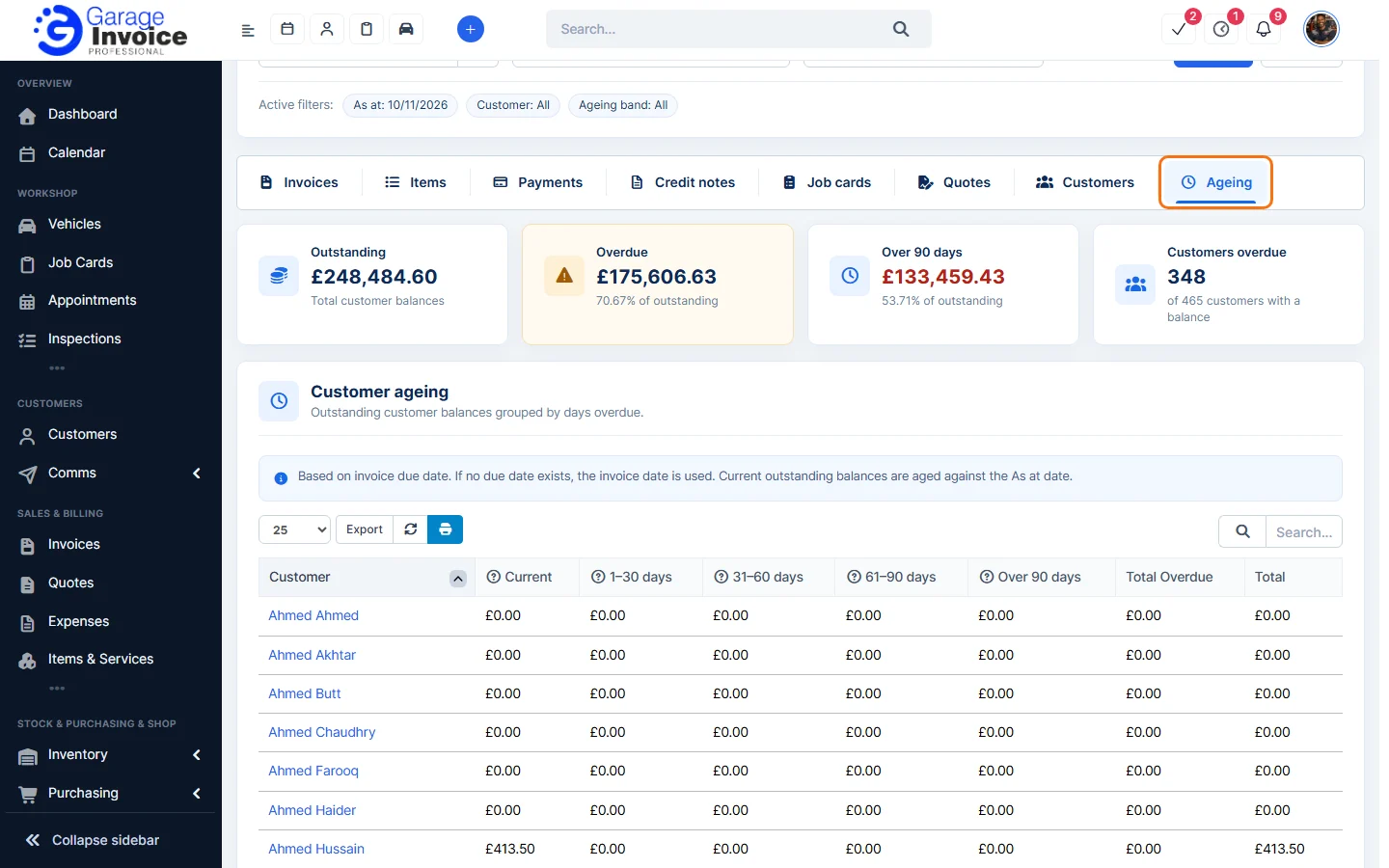
- Sort by Over 90 days or Total to see who to chase first, and use Export to save the list.
Note: ageing is based on the invoice due date. If an invoice has no due date, the invoice date is used.
See also: Sales Report: Customers · Cashflow Report
Feature Garage reports: see what it does and how it fits your workshop.