
- Click Settings, open Comms and click Chat. Make sure chat is on (see Activate Chat for Staff and Customers).
- On the General tab, under Customer Portal Chat, set Enable Customer Chat to Yes.
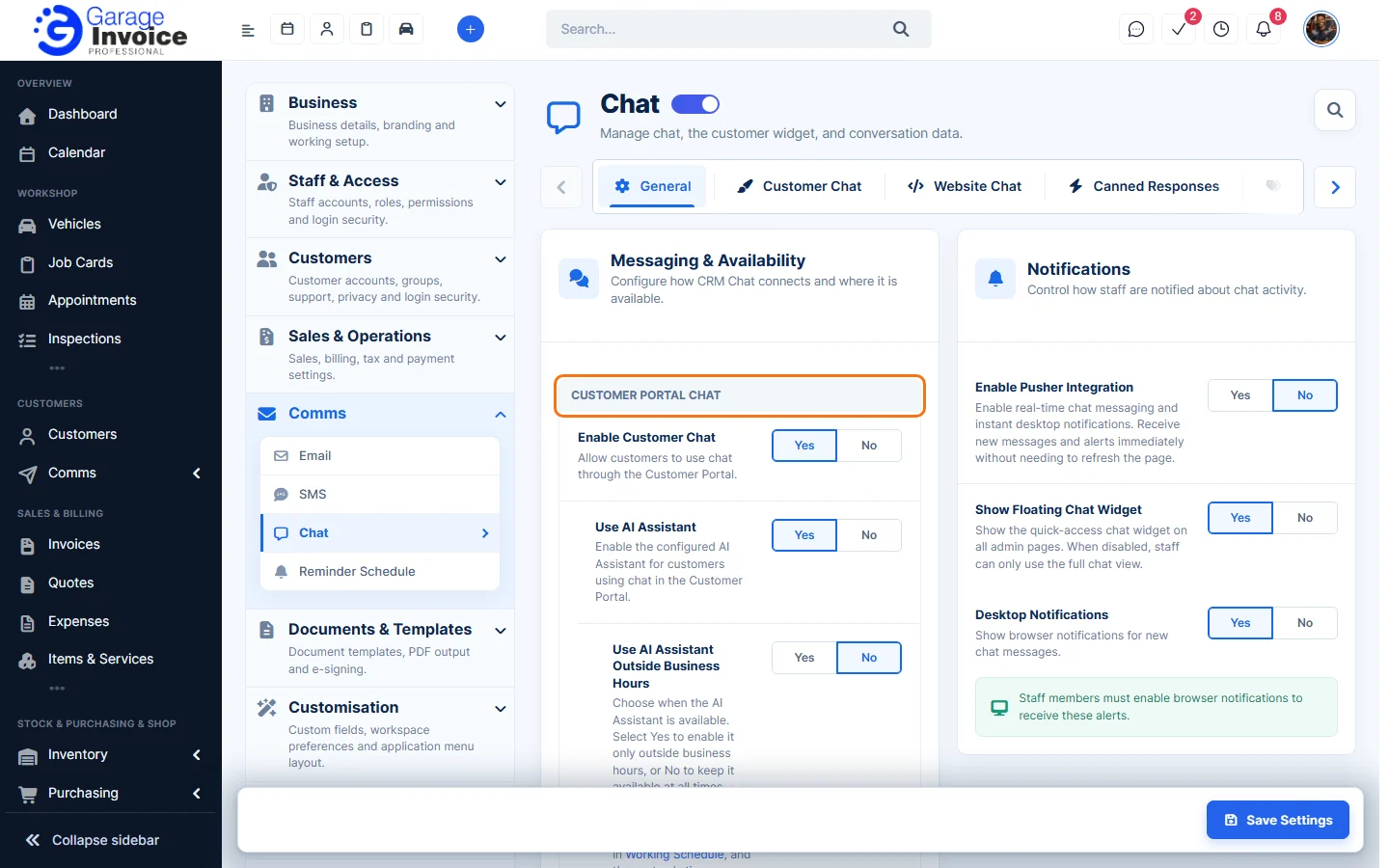
- Use AI Assistant: let the AI assistant answer customers.
- Use AI Assistant Outside Business Hours: Yes uses the AI assistant only outside your business hours; No keeps it available all the time.
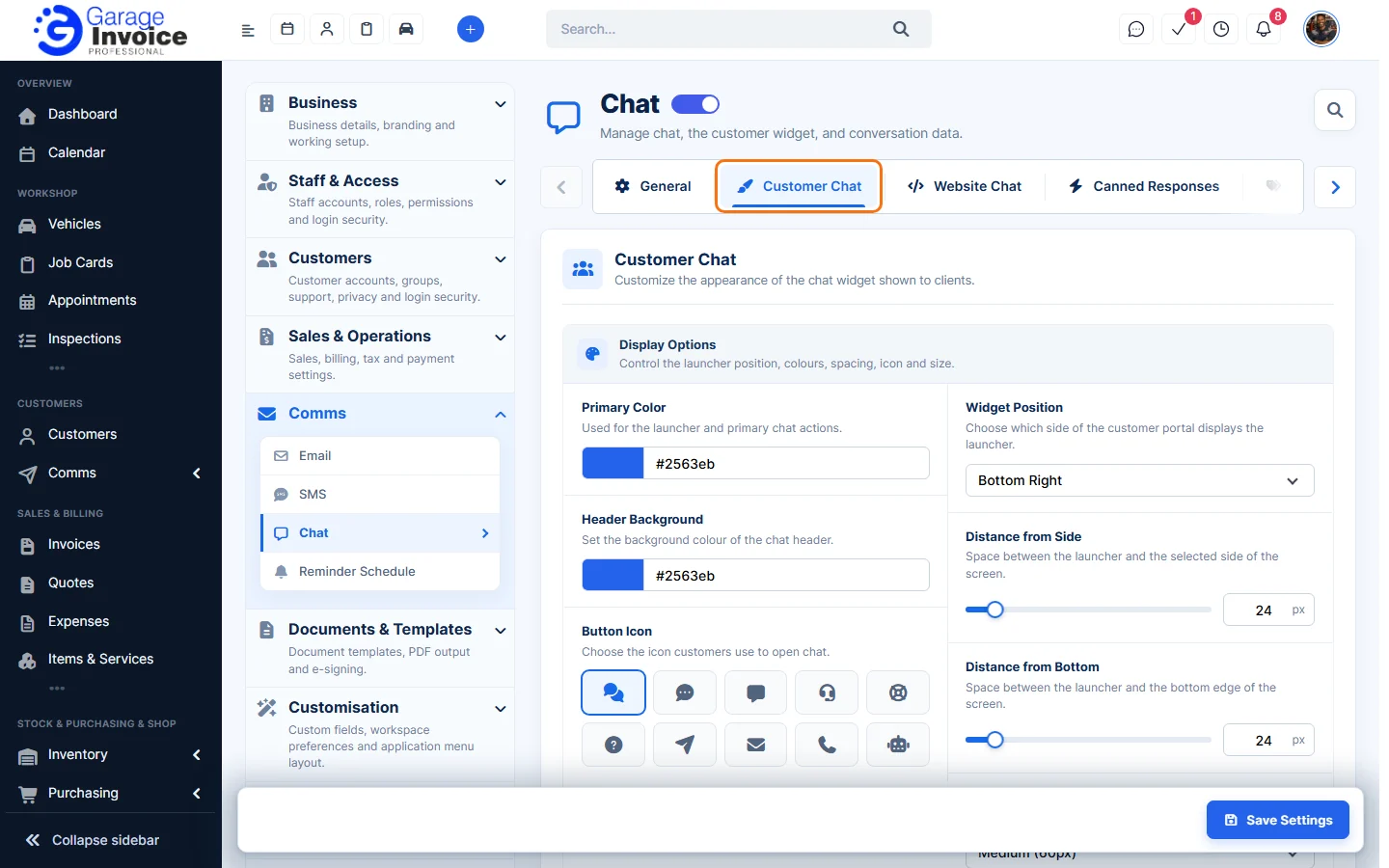
- Click the Customer Chat tab to choose how the chat looks in the portal: Primary Color, Header Background, Button Icon, Widget Position, distance from the side and bottom, launcher size, welcome message, input placeholder, header subtitle and whether to show your logo, staff names and roles.
- Click Save Settings.
Customers who log in to the Customer Portal see the chat button and can message you. Their messages appear on the Customers tab of the Chat page. See Send Chat Message to Customer.
Note: customers need a Customer Portal login. See Send ‘Set Password’ Email to Contact.