
- Click Settings at the bottom of the sidebar, under Administration. In the panel on the left, open Documents & Templates and click PDF.
- Under Company Information Format, edit the Template. Each line is one line on the PDF. Click a button under Available Fields (for example Telephone or VAT Number with Label) to add it, delete fields you don’t need, or type your own text, such as tel:. The Preview shows the result.
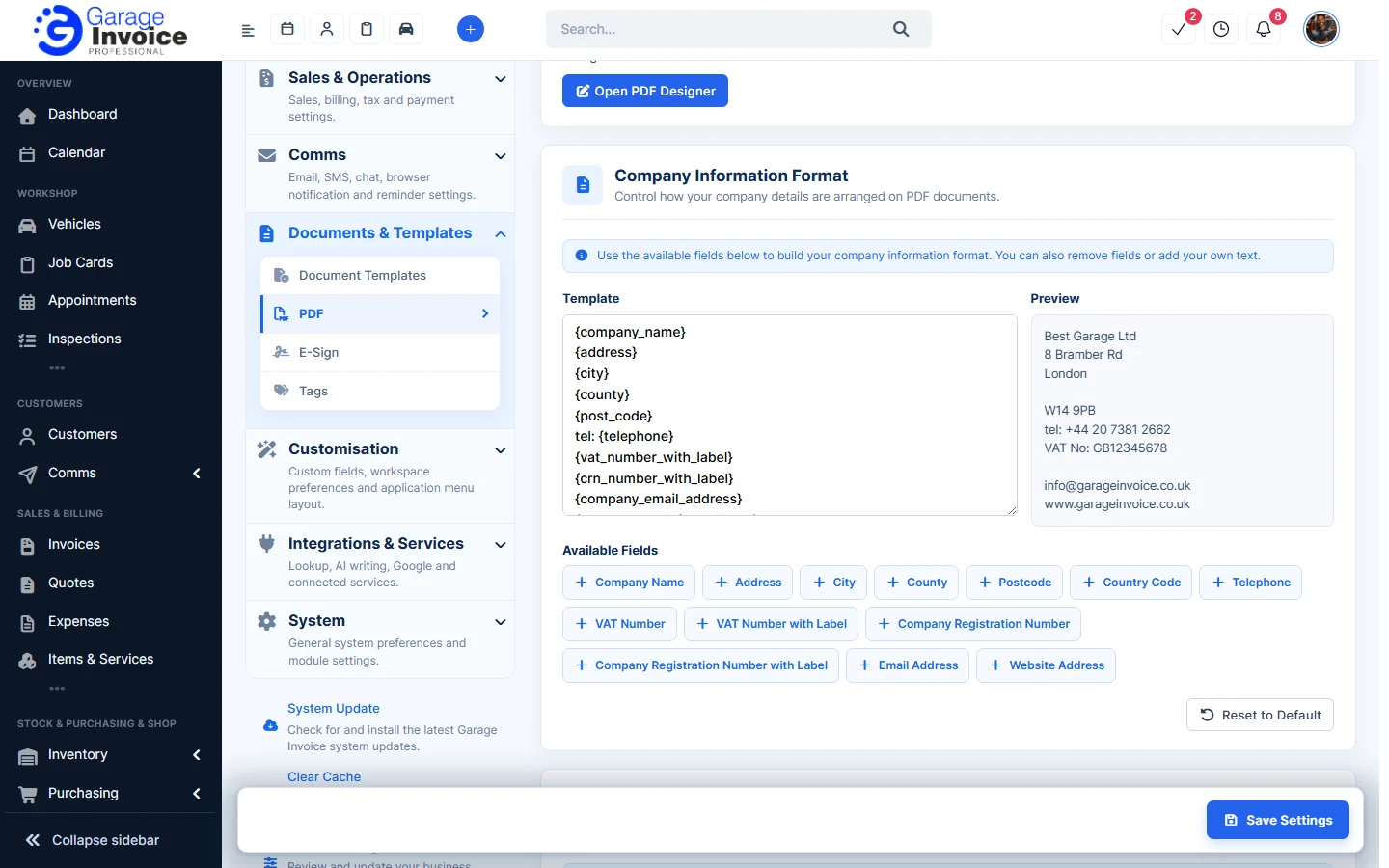
- Click Save Settings at the bottom right.
Tip: click Reset to Default to go back to the original format. The layout, colours and titles of your PDFs are set in the PDF Template Designer: click Open PDF Designer at the top of the same page.
Related: Change Customer Information Format displayed on PDFs · Company Details