
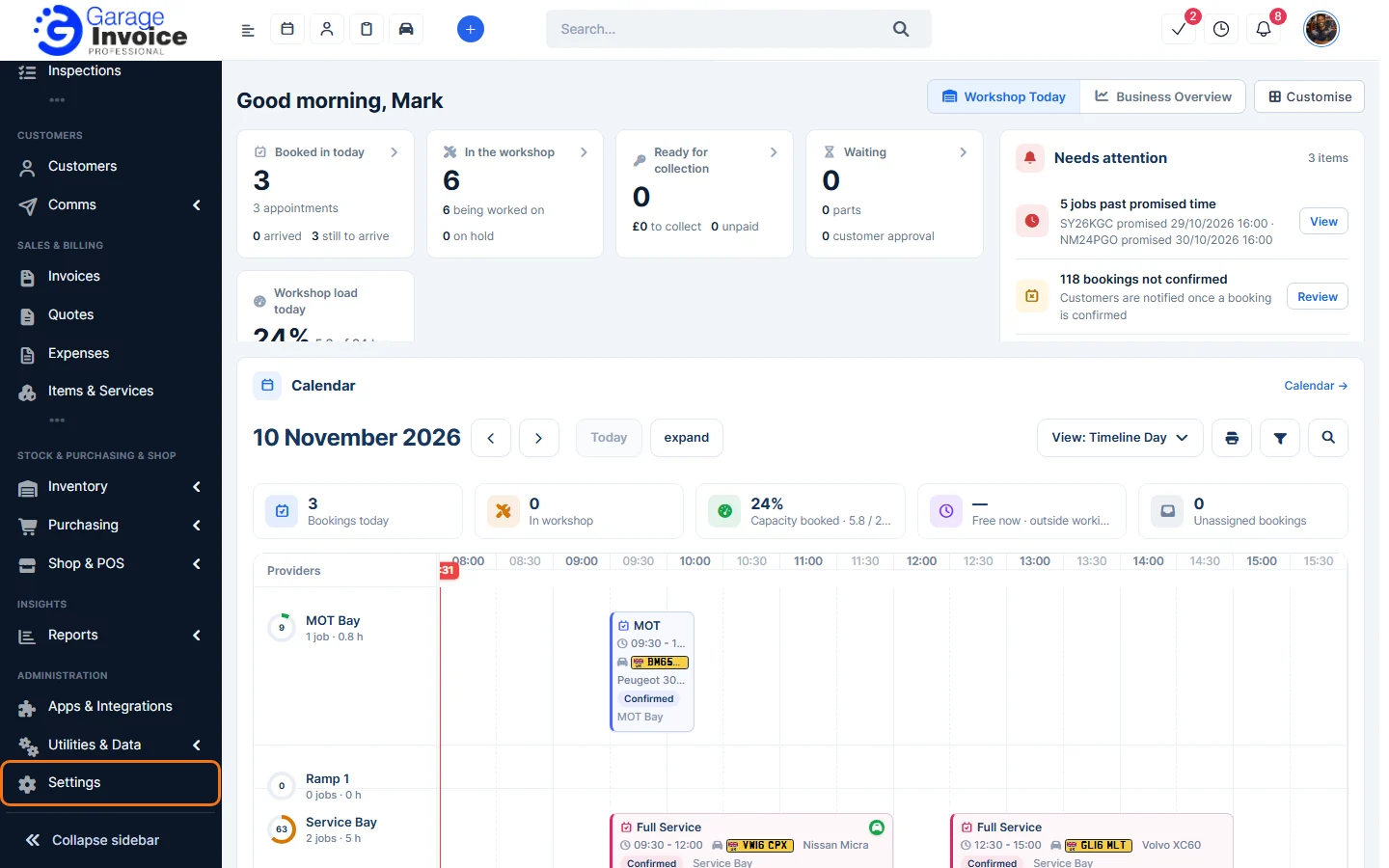
- Click Settings at the bottom of the sidebar, under Administration.
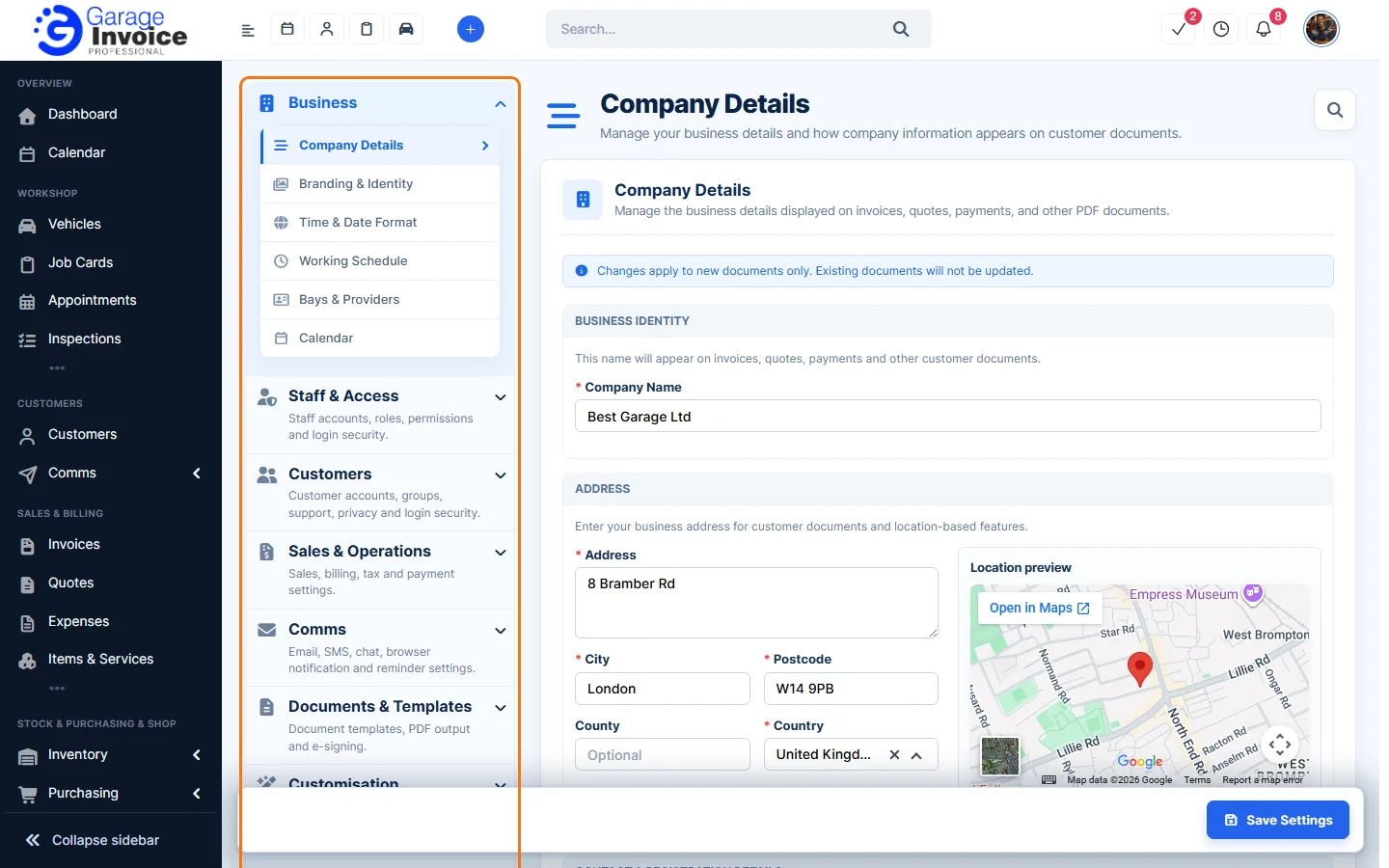
- Settings opens on Company Details. The panel on the left groups every setting. Click a group to open it, then click a page. Each group name below links to its guides:
- Business: Company Details, Branding & Identity, Time & Date Format, Working Schedule, Bays & Providers and Calendar.
- Staff & Access: Staff, Staff Roles and Staff Security: staff accounts, roles, permissions and login security.
- Customers: Customers, Customer Groups, Customer Contact Forms, Customer Tickets, GDPR and Customer Security.
- Sales & Operations: Sales Configuration, Invoices, Quotes, Credit Notes, Job Cards, Appointments, Inspections, Expenses, Tasks, Subscriptions, Tax Rates, Currencies and Payment Methods.
- Comms: Email, SMS and Reminder Schedule.
- Documents & Templates: Document Templates, PDF, E-Sign and Tags.
- Customisation: Custom Fields, GI System (workspace preferences) and Menu Builder (the sidebar menu layout).
- Integrations & Services: Apps & Integrations, Vehicle & Postcode Lookup, AI Settings and Google.
- System: Billing & Usage and Your day.
- Under the groups you’ll also find:
- System Update: check your version and install the latest updates.
- Clear Cache: clear cached files so the latest system files are loaded.
- Business Setup: review and update your business setup.
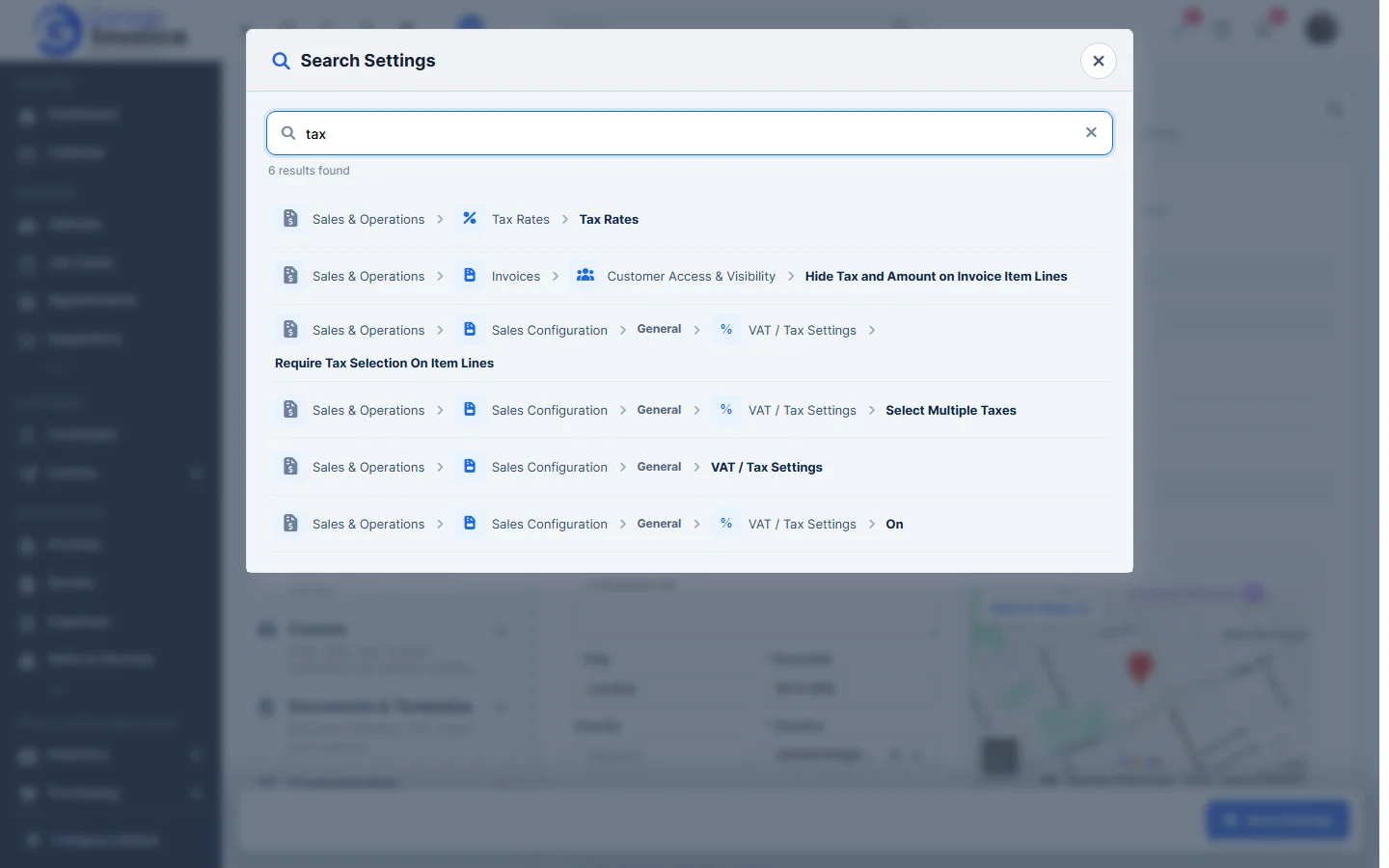
- To find a setting quickly, click the magnifying glass at the top right of any settings page. In Search Settings, type what you’re looking for, for example tax. Each result shows where the setting is. Click a result to go to it.
- After changing a page, click Save Settings at the bottom right. If you try to leave with unsaved changes, you’ll be warned first.
Tip: new to Garage Invoice? Start with Getting Started with Garage Invoice, then Company Details, Branding & Identity, Time & Date Format and your Working Schedule.