
- Click Comms in the sidebar and choose Bulk Email & SMS.
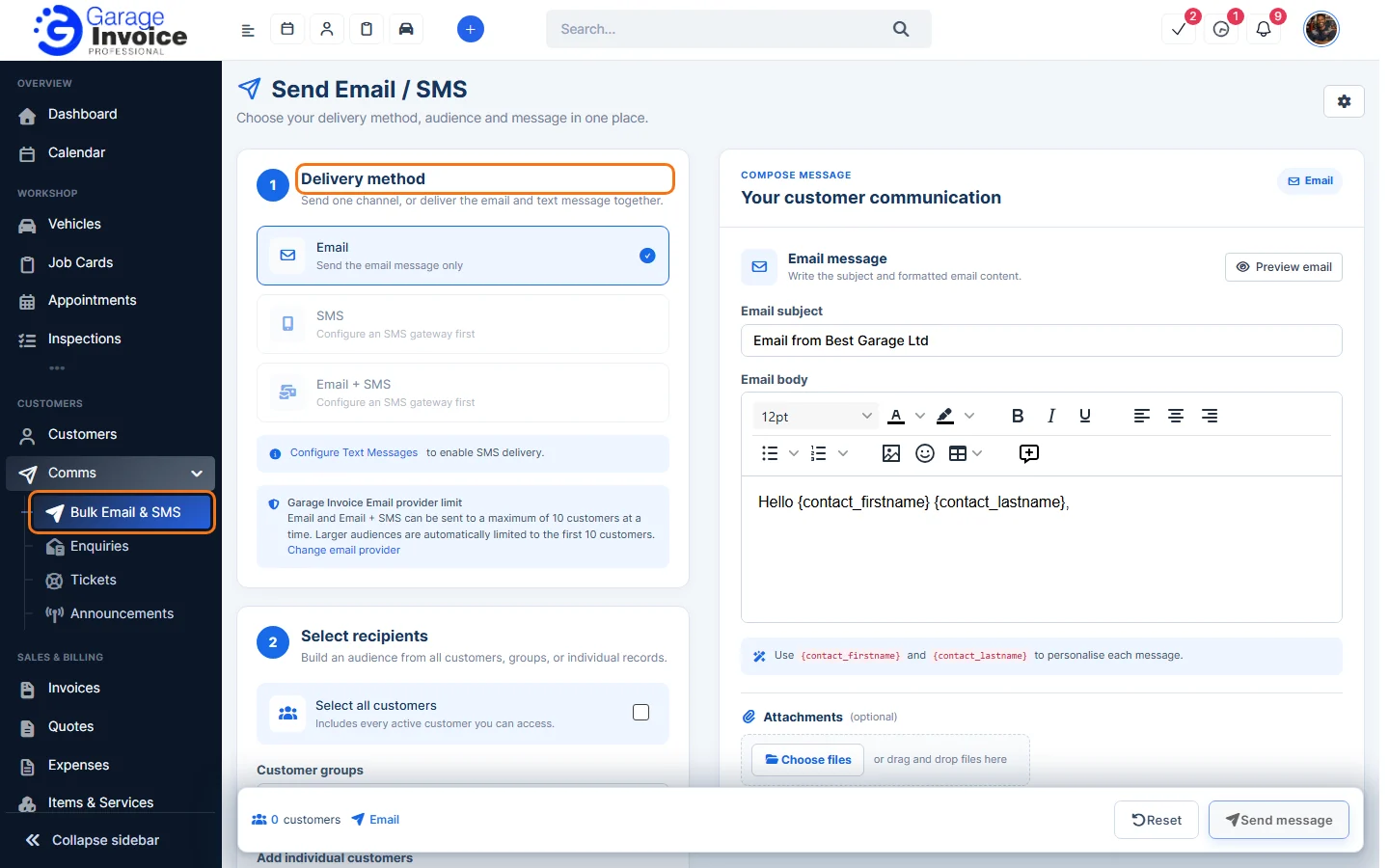
- Under 1 Delivery method, choose Email, SMS or Email + SMS. SMS needs a text message provider first: click Configure Text Messages. See Set Up Twilio Account.
- Under 2 Select recipients, tick Select all customers, or choose Customer groups, or search for customers under Add individual customers. Selected customers lists who will get the message.
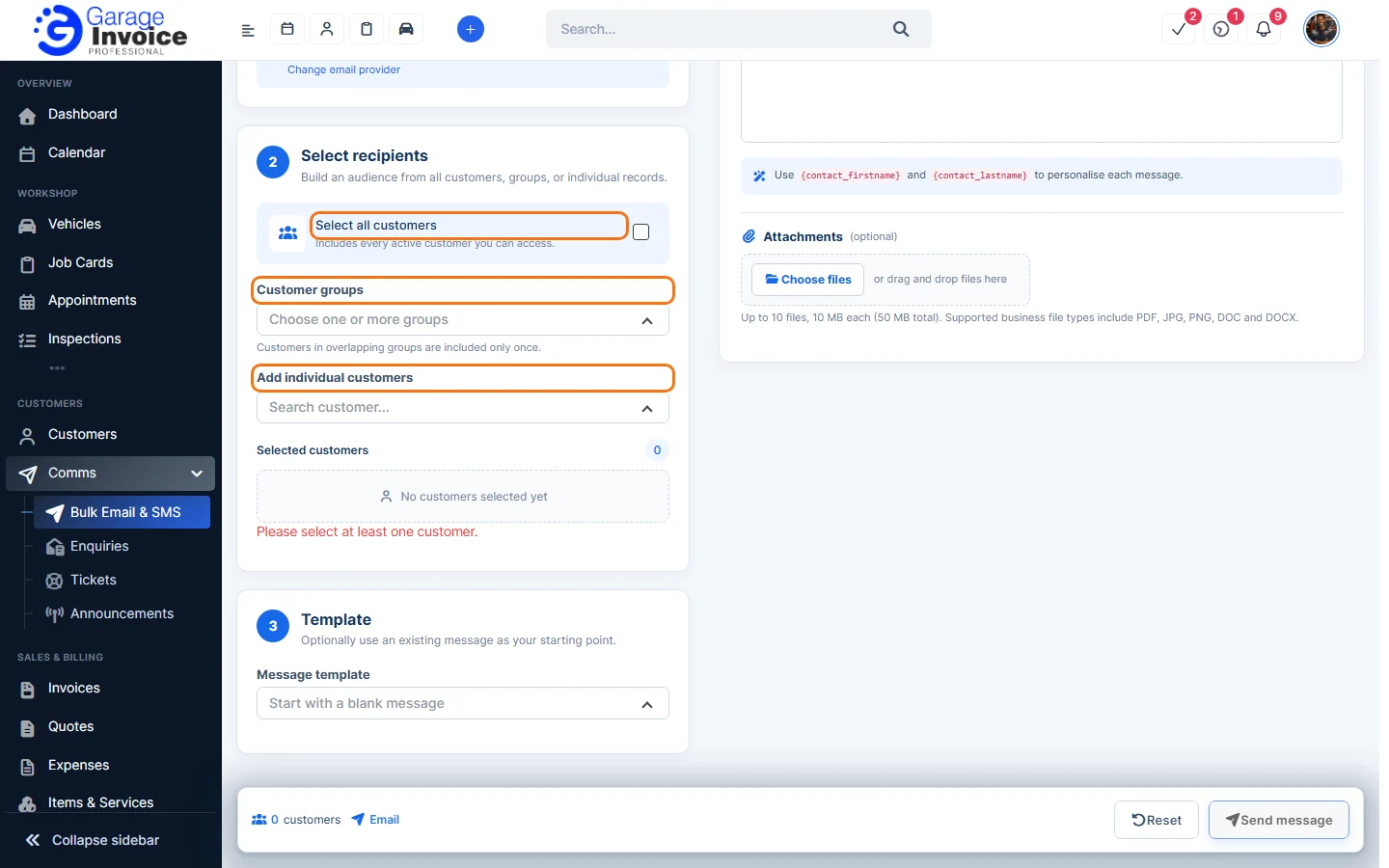
- Under 3 Template, choose a saved message to start from, or leave Start with a blank message. See Create Email or Text Message Templates.
- On the right, enter the Email subject and the Email body. Use {contact_firstname} and {contact_lastname} to add each customer’s name. Add files under Attachments if you need to. Click Preview email to check it.
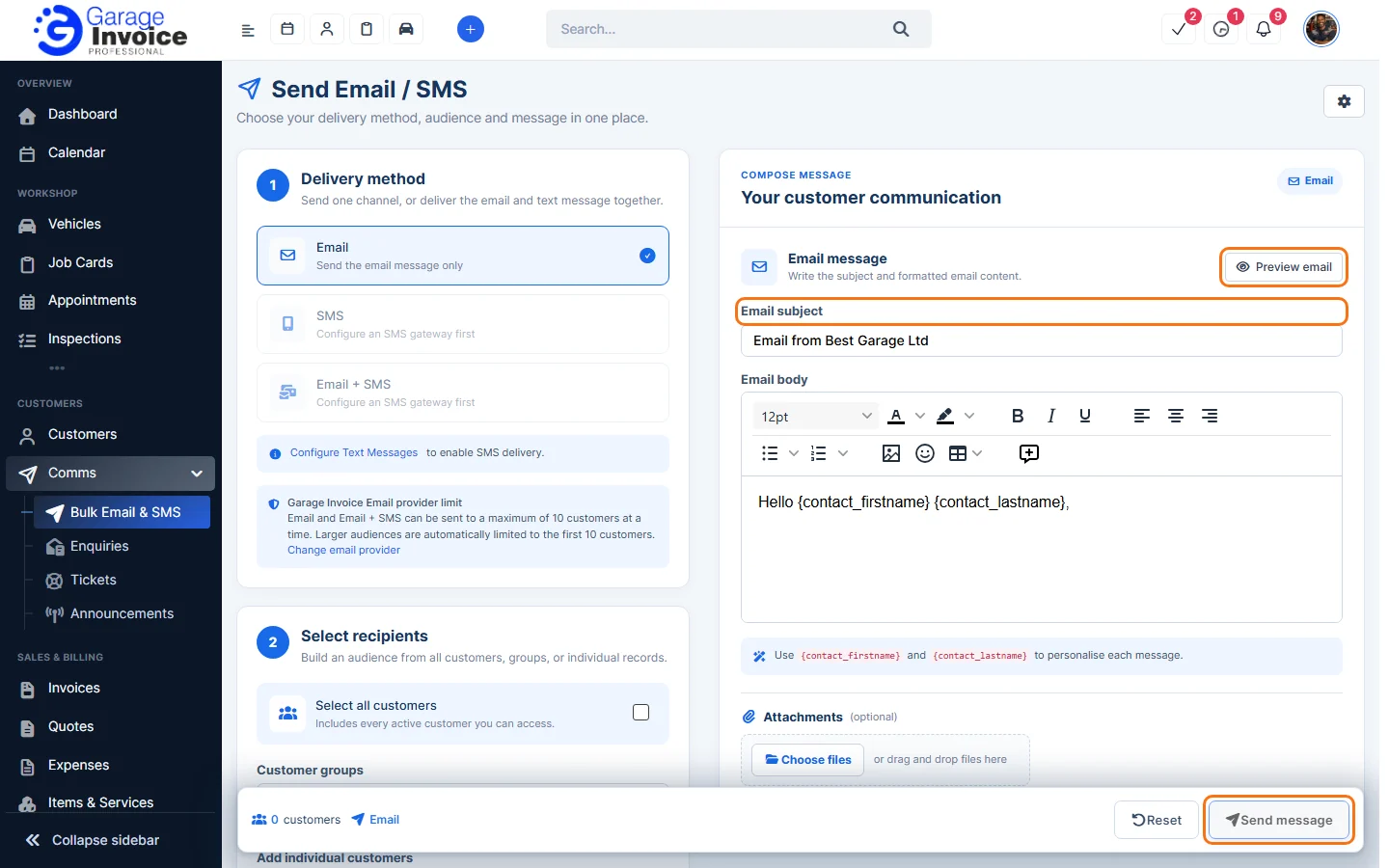
- Check the number of customers in the bar at the bottom and click Send message. Reset clears the form.
Note: with the built-in Garage Invoice Email provider you can send to up to 10 customers at a time. Larger lists are limited to the first 10. Click Change email provider to use your own email provider.
Feature Email and SMS notifications: see what it does and how it fits your workshop.