
The Customers settings page controls new customer records, the Customer Portal and customer statements.
- Click Settings at the bottom of the sidebar, under Administration.
- In the panel on the left, open Customers and click Customers.
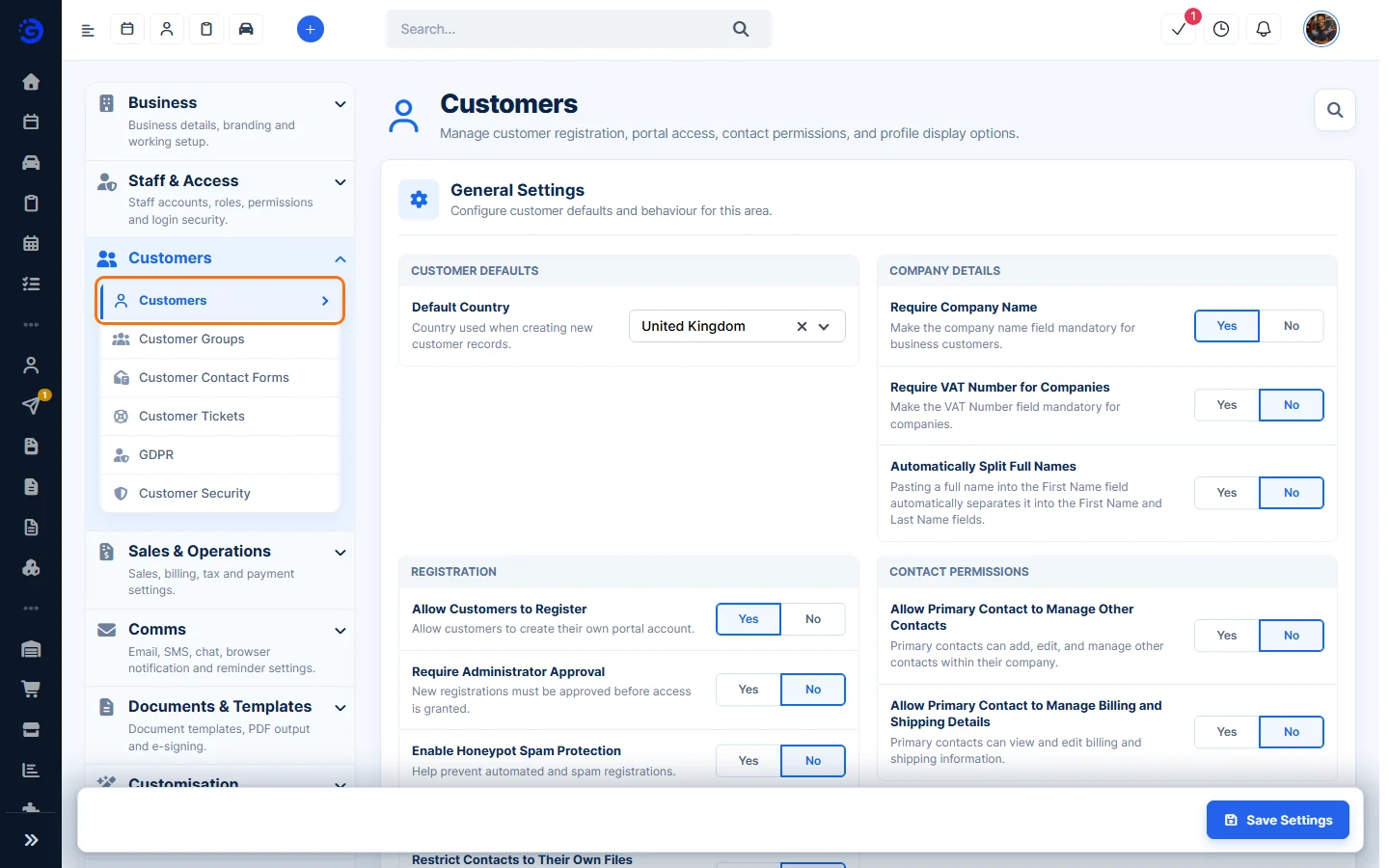
- Change the options you need (explained below) and click Save Settings at the bottom right.
General Settings
Customer Defaults
- Default Country: the country filled in when you create a new customer.
Company Details
- Require Company Name: the company name must be filled in for business customers.
- Require VAT Number for Companies: the VAT Number must be filled in for companies.
- Automatically Split Full Names: if you paste a full name into First Name, it is split into First Name and Last Name for you.
Registration
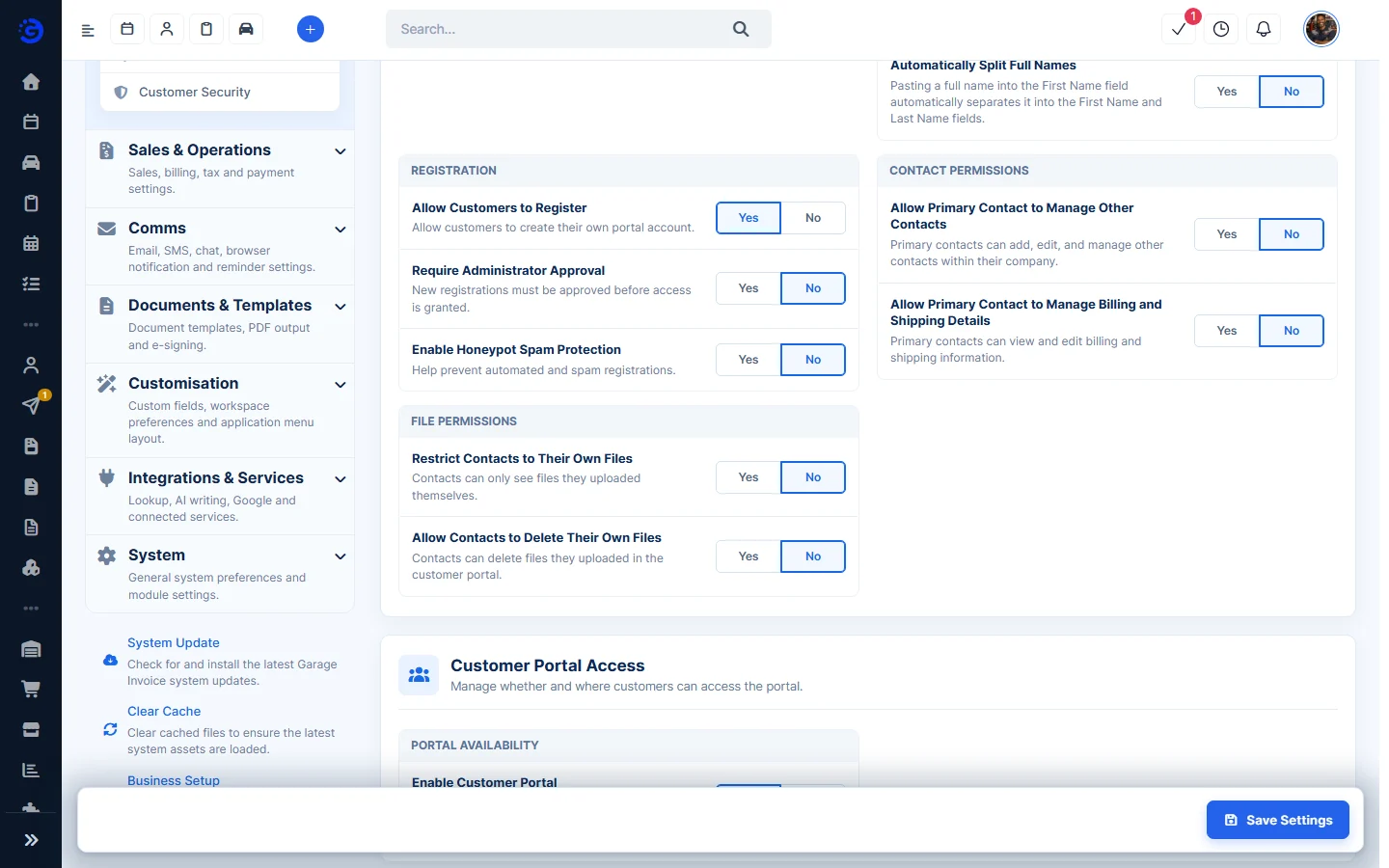
- Allow Customers to Register: customers can create their own Customer Portal account.
- Require Administrator Approval: new registrations must be approved before the customer can use the portal.
- Enable Honeypot Spam Protection: helps stop automated and spam registrations.
Contact Permissions
- Allow Primary Contact to Manage Other Contacts: the primary contact can add, edit and manage the other contacts in their company.
- Allow Primary Contact to Manage Billing and Shipping Details: the primary contact can view and edit billing and shipping information.
File Permissions
- Restrict Contacts to Their Own Files: contacts only see files they uploaded themselves.
- Allow Contacts to Delete Their Own Files: contacts can delete files they uploaded in the Customer Portal.
Customer Portal Access
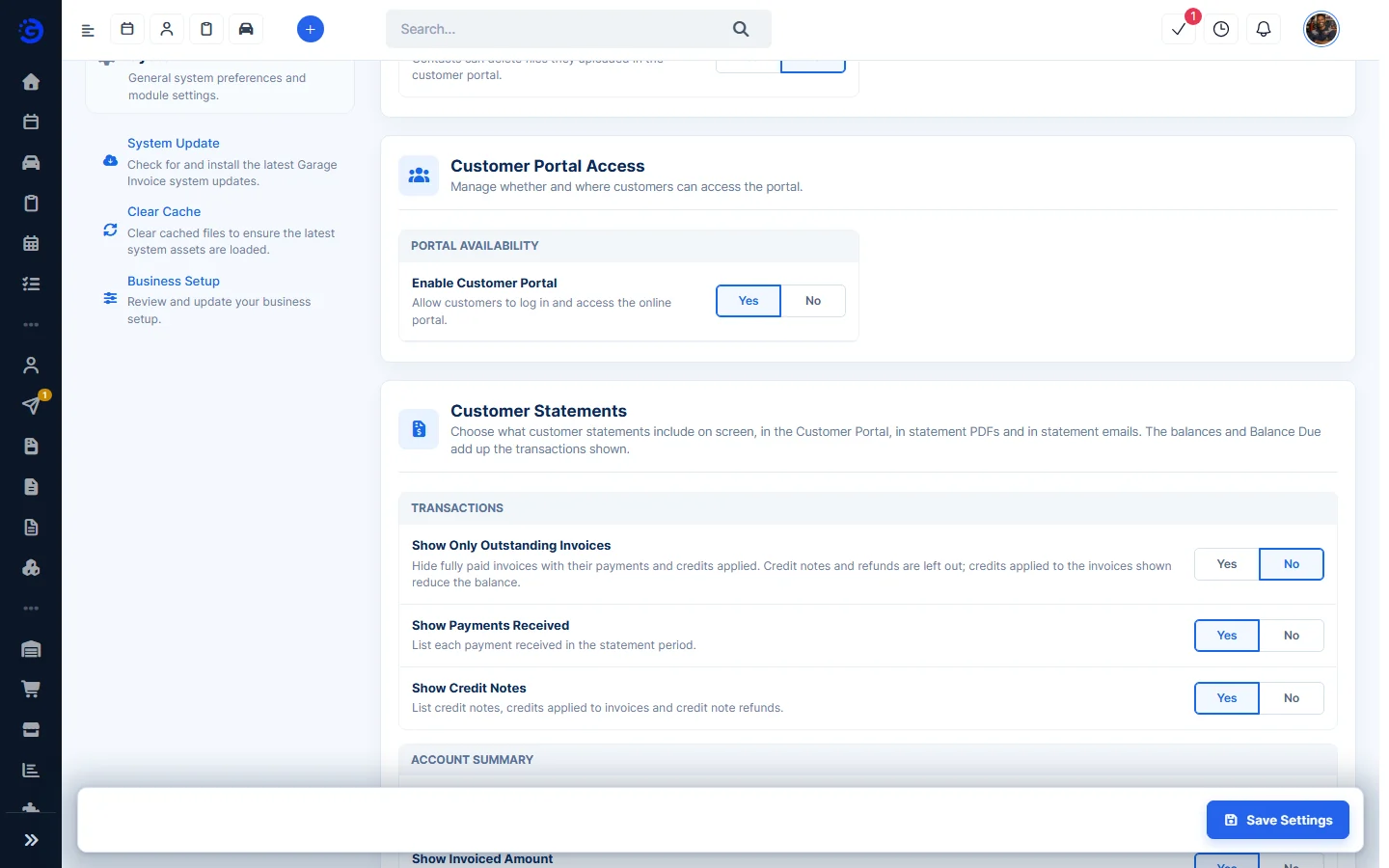
- Enable Customer Portal: lets customers log in to the online portal. Set it to No to switch the portal off for everyone.
Tip: to control who can use the portal by group, use the Portal tab of a customer group (see Add New Customer Group). To protect portal logins, see Customer Security.
Customer Statements
These options set what customer statements show on screen, in the Customer Portal, in statement PDFs and in statement emails. The balances and Balance Due add up the transactions shown.
Transactions
- Show Only Outstanding Invoices: hides fully paid invoices with their payments and credits. Credit notes and refunds are left out; credits applied to the invoices shown still reduce the balance.
- Show Payments Received: lists each payment received in the statement period.
- Show Credit Notes: lists credit notes, credits applied to invoices and credit note refunds.
Account Summary
- Include Beginning Balance: shows the balance brought forward in the summary and as the first transaction, and includes it in Balance Due.
- Show Invoiced Amount: the total of the invoices shown, less any credit notes shown.
- Show Amount Paid: the total of the payments and credits shown, less any refunds shown.
Details
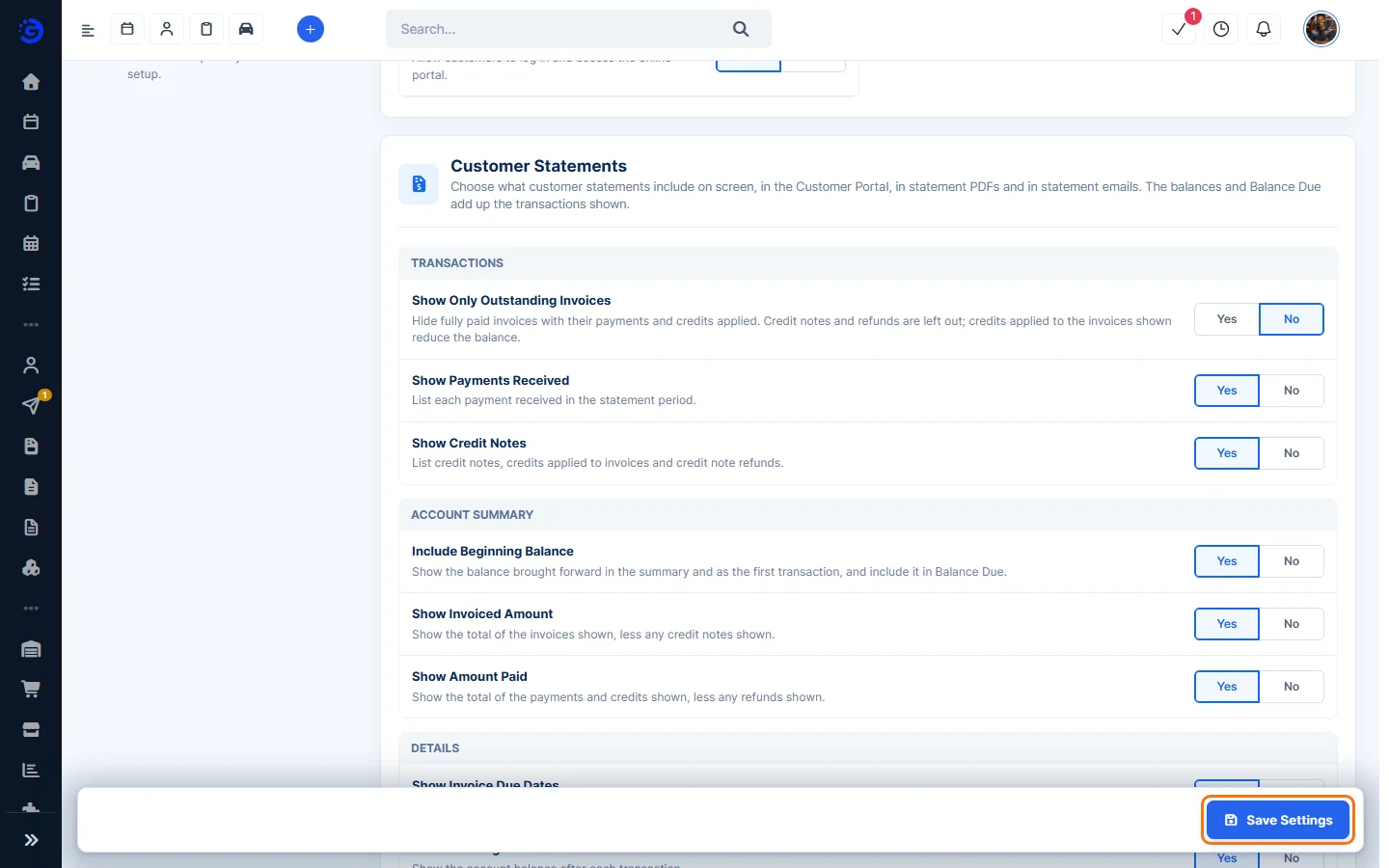
- Show Invoice Due Dates: the due date next to each invoice number.
- Show Running Balance Column: the account balance after each transaction.
- Vehicle Under Invoices: what vehicle details appear under each invoice linked to a vehicle: Registration Plate, Make and Model, Registration Plate Only or Do Not Show.
Click Save Settings when you’re done. See View Customer Statement and Send Customer Statement to Customer.