
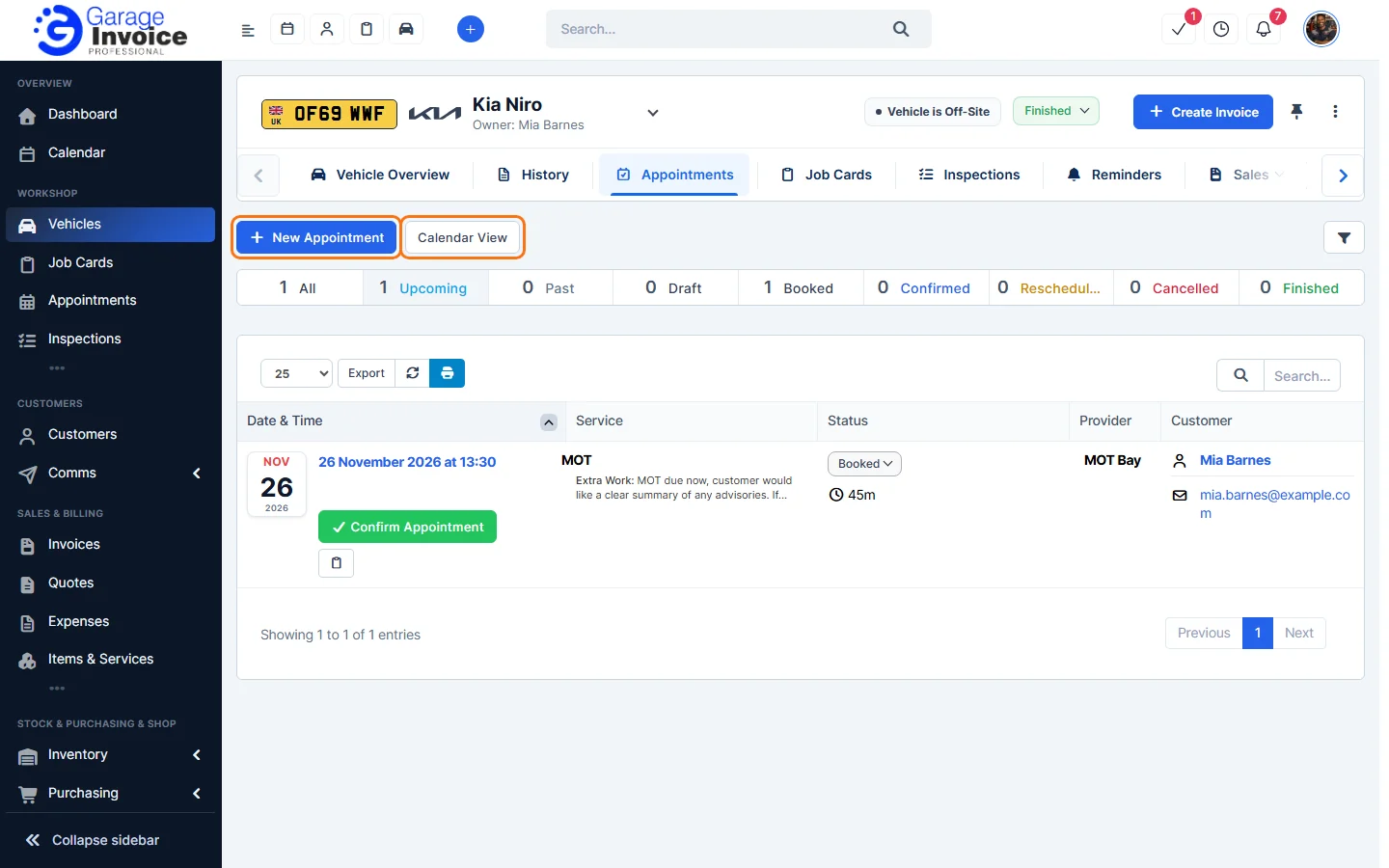
- Open the vehicle (see Search for Vehicle) and click the Appointments tab in the vehicle menu. If you can’t see it, use the arrow at the right end of the menu to scroll.
- You’ll see every appointment for the vehicle with its date and time, service, status and provider. The totals above the list show how many are Upcoming, Past, Draft, Booked, Confirmed, Rescheduled, Cancelled and Finished. Use Confirm Appointment on a booked appointment to confirm it.
- Click New Appointment to book one for this vehicle, or Calendar View to see the appointments in the calendar.
Step-by-step guides
These screens work in the same way as the main Booking Appointments pages, so the full guides apply:
- Booking Appointments: Appointments
- Booking Appointments: Calendar View
- Add New Appointment | Create New Appointment
- Change, Update Appointment Status
- Send Appointment Early Reminder to Customer
All guides: Booking Appointments
Feature Vehicle records: see what it does and how it fits your workshop.