
- Click Settings at the bottom of the sidebar, under Administration. In the panel on the left, open Comms and click Email. The Email Settings tab opens.
- Under BCC & Signature:
- BCC All Emails: enter an email address and every email Garage Invoice sends is also sent to it, as a hidden copy. Useful to keep a record of what customers were sent. Leave it empty to turn this off.
- Email Signature: type the signature for your emails, for example your name, garage name and phone number.
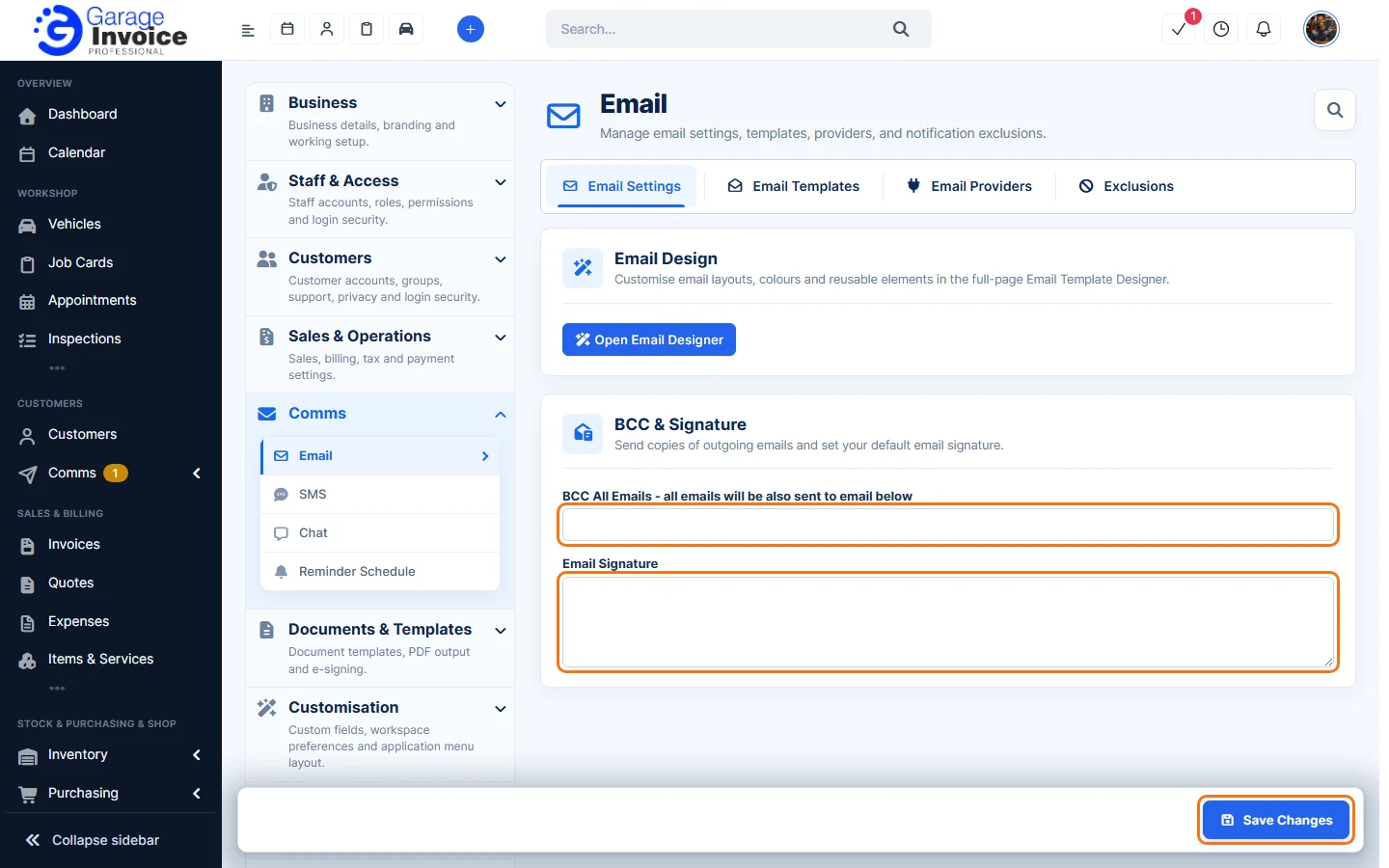
- Click Save Changes.
Note: addresses on the Exclusions tab get no notifications at all, including BCC copies. See Email Exclusions.
Tip: to change the look of your emails, click Open Email Designer on the same tab (see Email Designer). To change the wording of a particular email, see Edit Email Template.
Feature Email and SMS notifications: see what it does and how it fits your workshop.