
- Click Shop & POS in the sidebar (under Stock & Purchasing & Shop) and click Sales Channels. and click Channel Products on the POS System card.
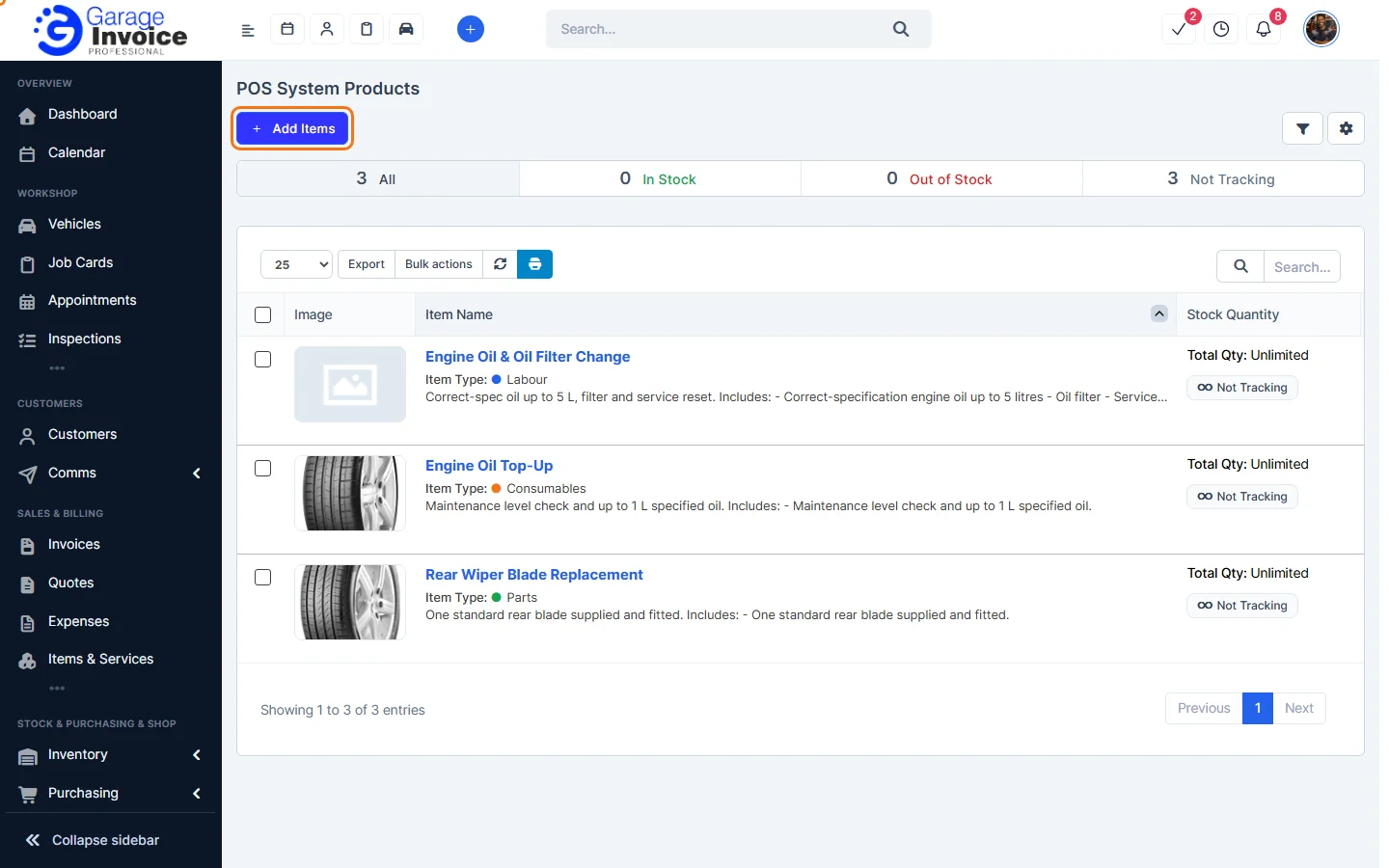
- Use the tabs All, In Stock, Out of Stock and Not Tracking to filter by stock. The filter button at the top right filters by price and margin. Each row shows the item, stock, price, shipment fee, tax, markup and margin.
- Hover over an item to see View, Edit and remove. Edit opens the item so you can change its price or details; remove takes it off this channel only (the item itself stays in Items & Services).
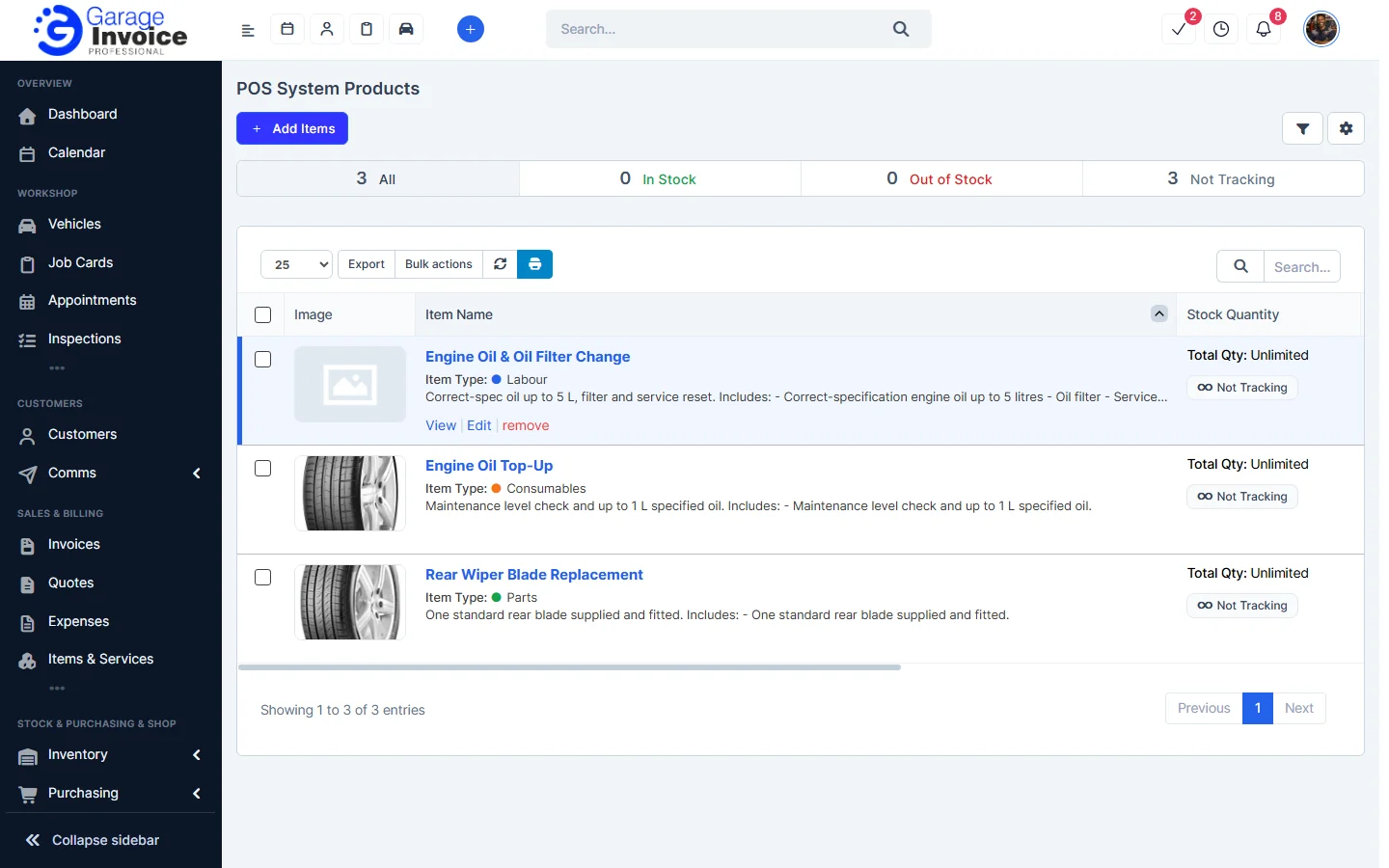
- To change many items at once, tick them and use Bulk actions.
See also: Add Products to POS · POS Screen
Feature Online shop and POS: see what it does and how it fits your workshop.