Open the enquiry
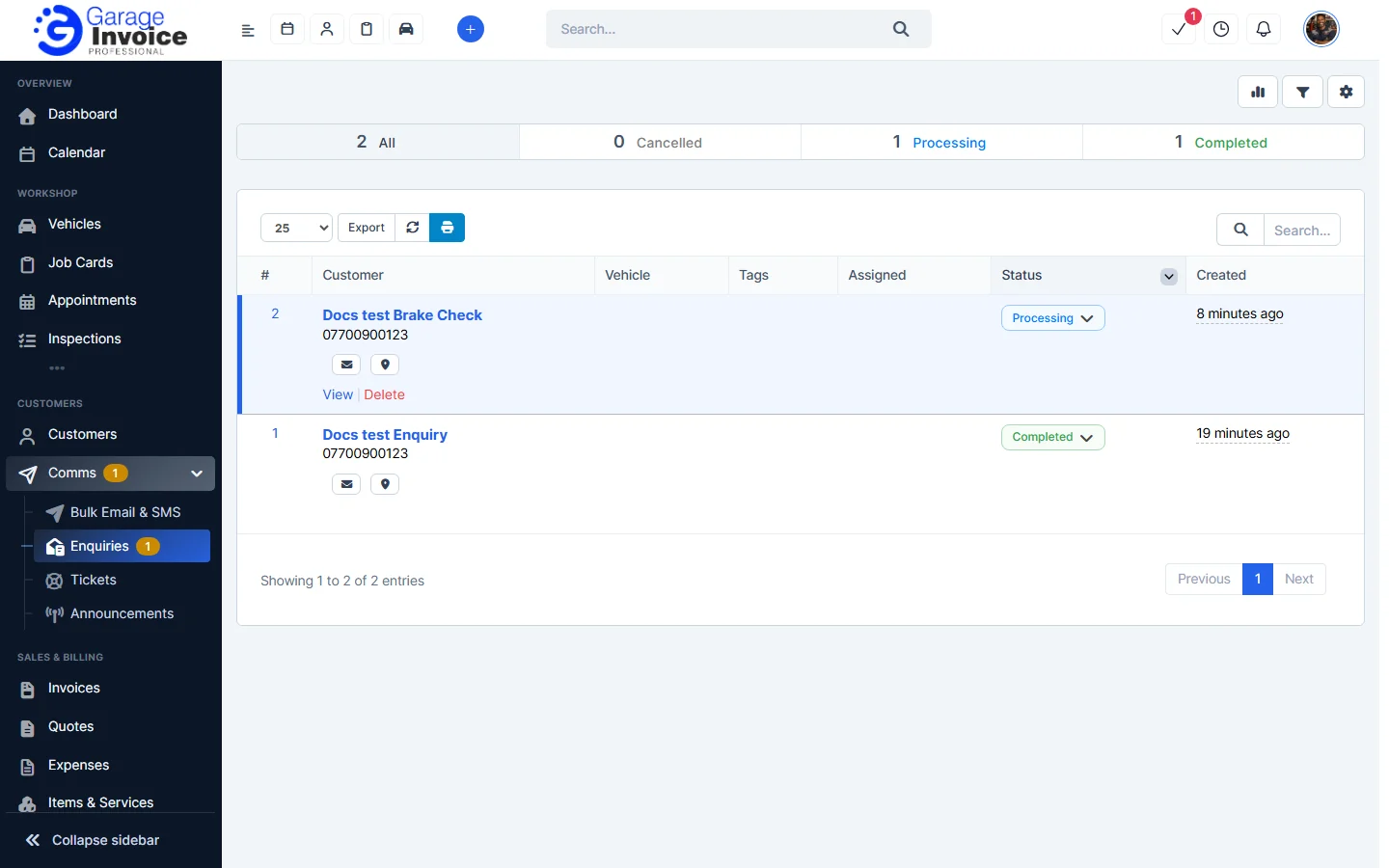
- Click Comms in the sidebar and choose Enquiries. Click the customer’s name, or hover over the row and click View.
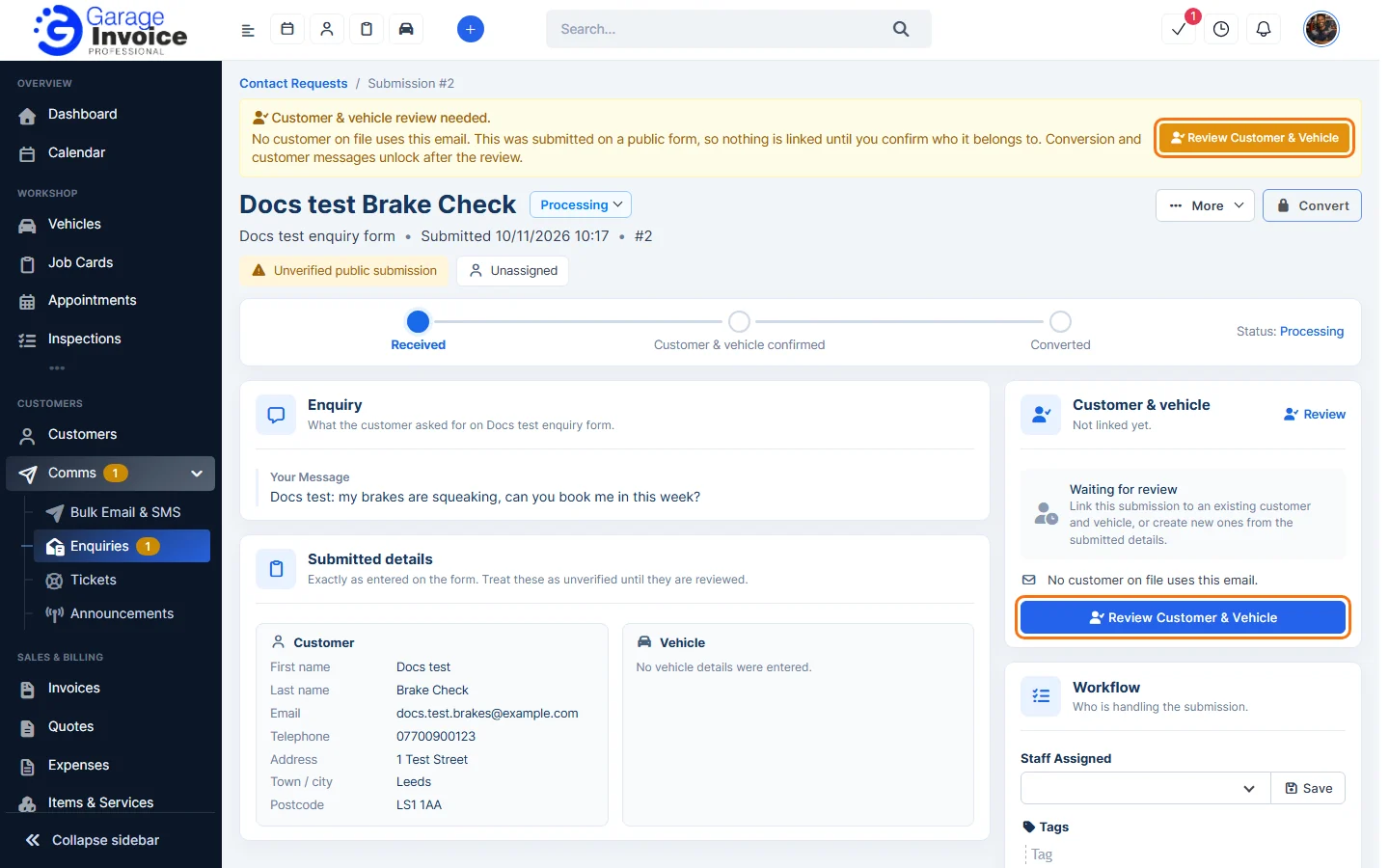
- The enquiry shows:
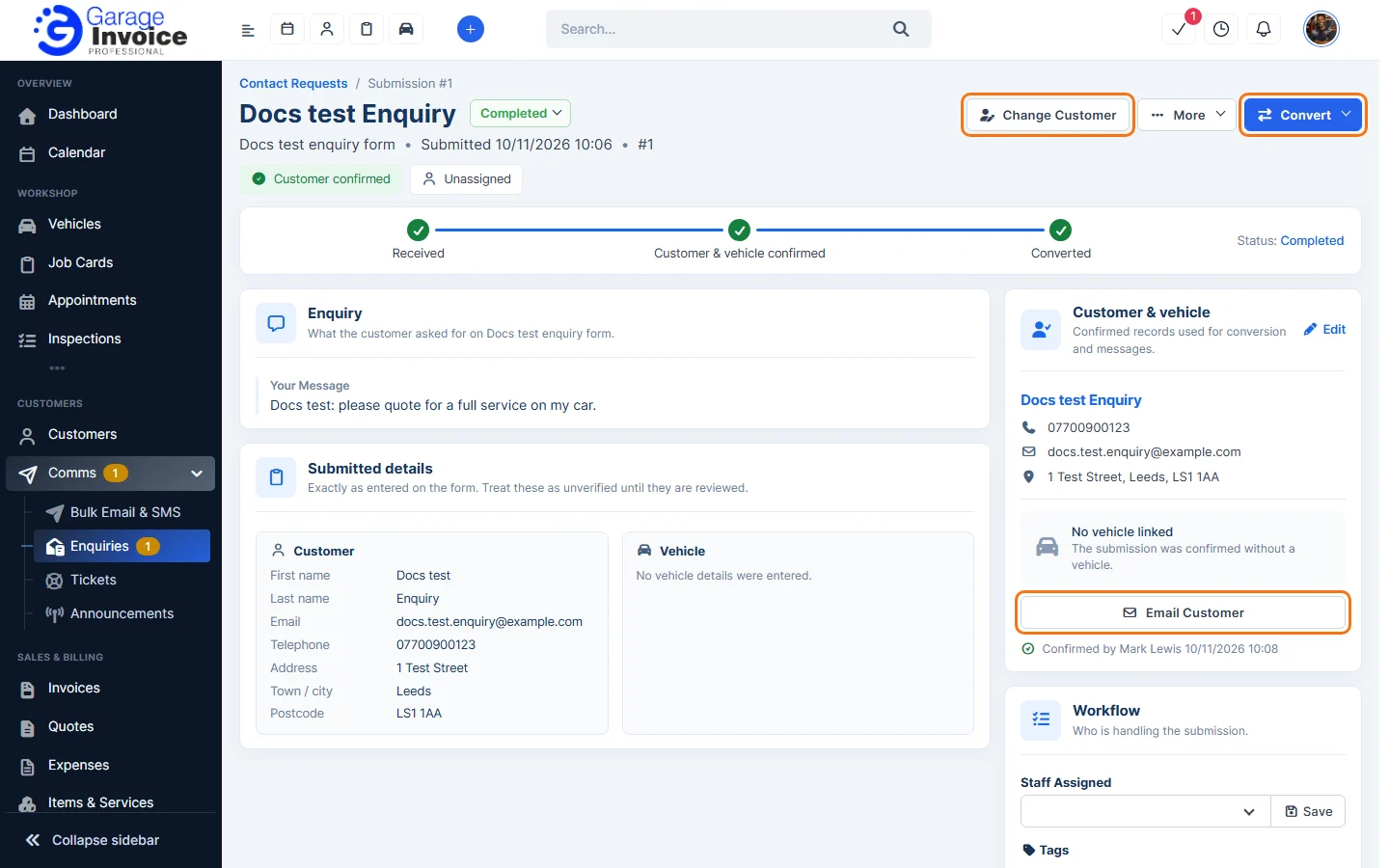
- The customer’s name, the status, the form it came from, when it was sent and who it is assigned to.
- The three stages: Received, Customer & vehicle confirmed and Converted.
- Enquiry: what the customer asked for.
- Submitted details: the customer and vehicle details exactly as typed on the form.
A new enquiry is marked Unverified public submission. Anyone can fill in a website form, so you must confirm who sent it before you can convert it or message the customer.
Confirm the customer and vehicle
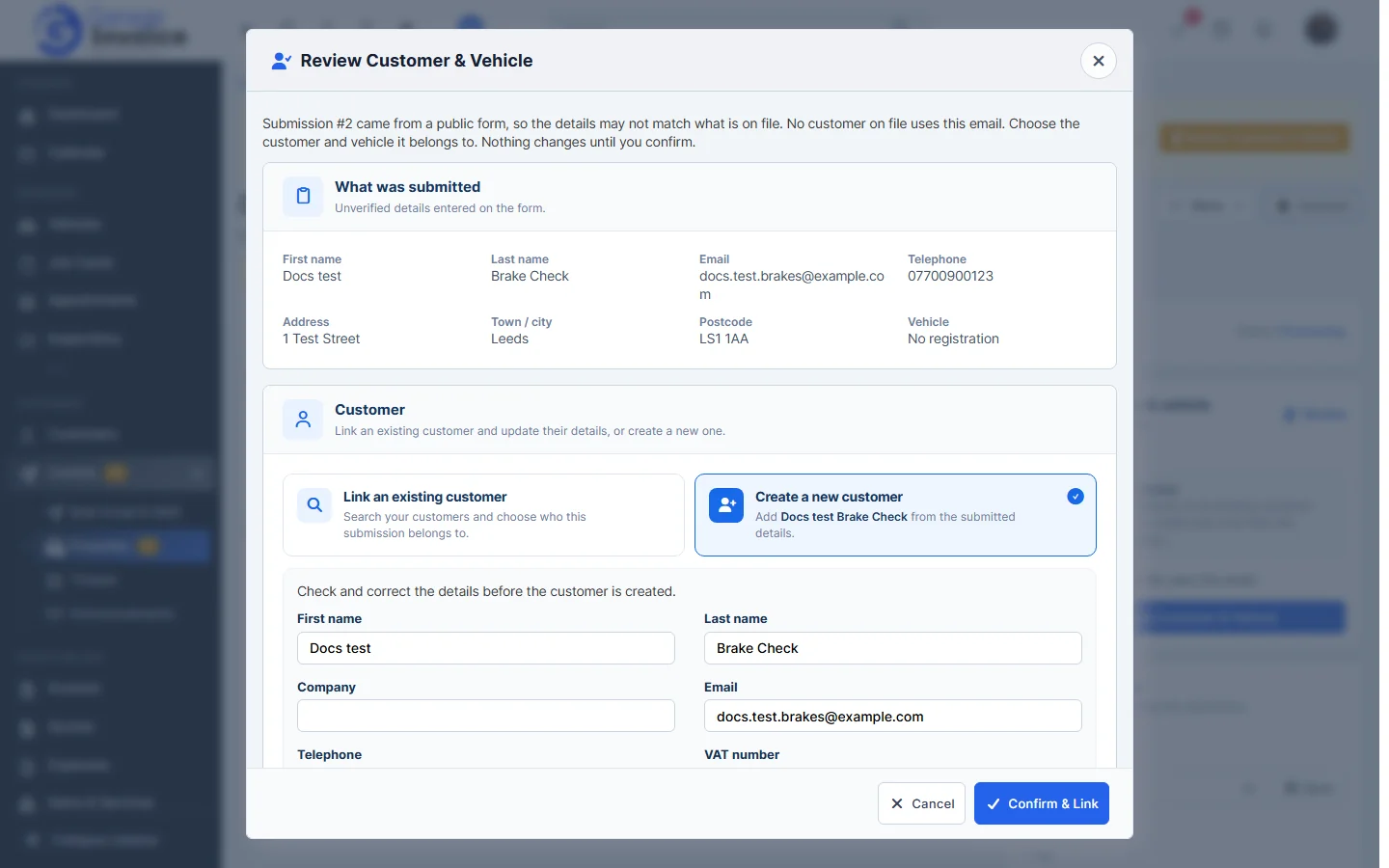
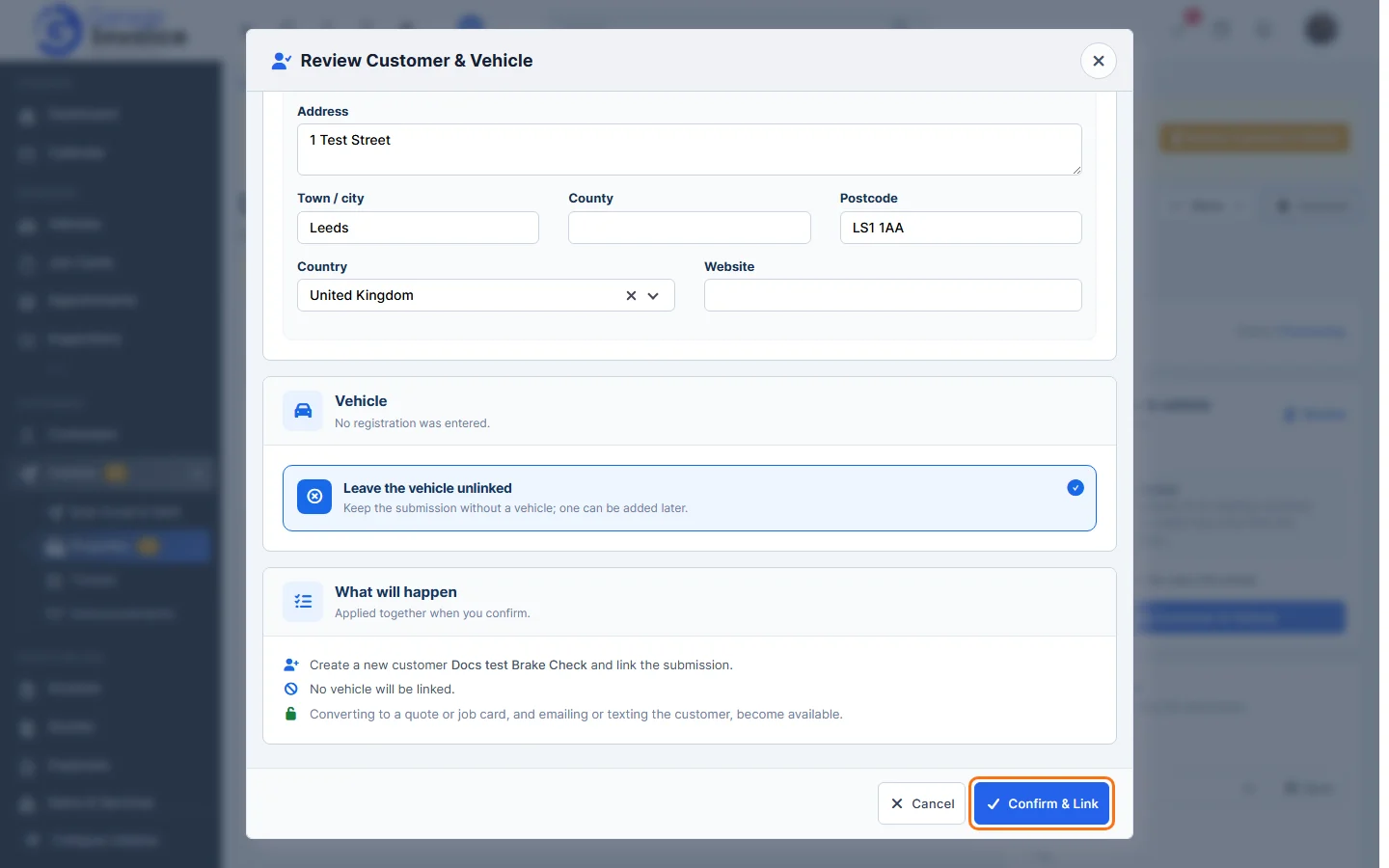
- Click Review Customer & Vehicle. The window shows what was submitted and tells you if a customer on file already uses that email address.
- Under Customer, choose one:
- Link an existing customer: search your customers and pick the right one. You can update their details from the form.
- Create a new customer: add a new customer from the submitted details. Check and correct the details first.
- Under Vehicle, choose the vehicle the enquiry is about, or Leave the vehicle unlinked if no registration was entered (you can add one later). What will happen sums up the changes. Nothing changes until you confirm.
- Click Confirm & Link.
The enquiry now shows Customer confirmed and the linked customer on the right. Convert and Email Customer become available. If you linked the wrong customer, click Change Customer (or Edit on the Customer & vehicle panel) and review it again.
Assign, tag and email
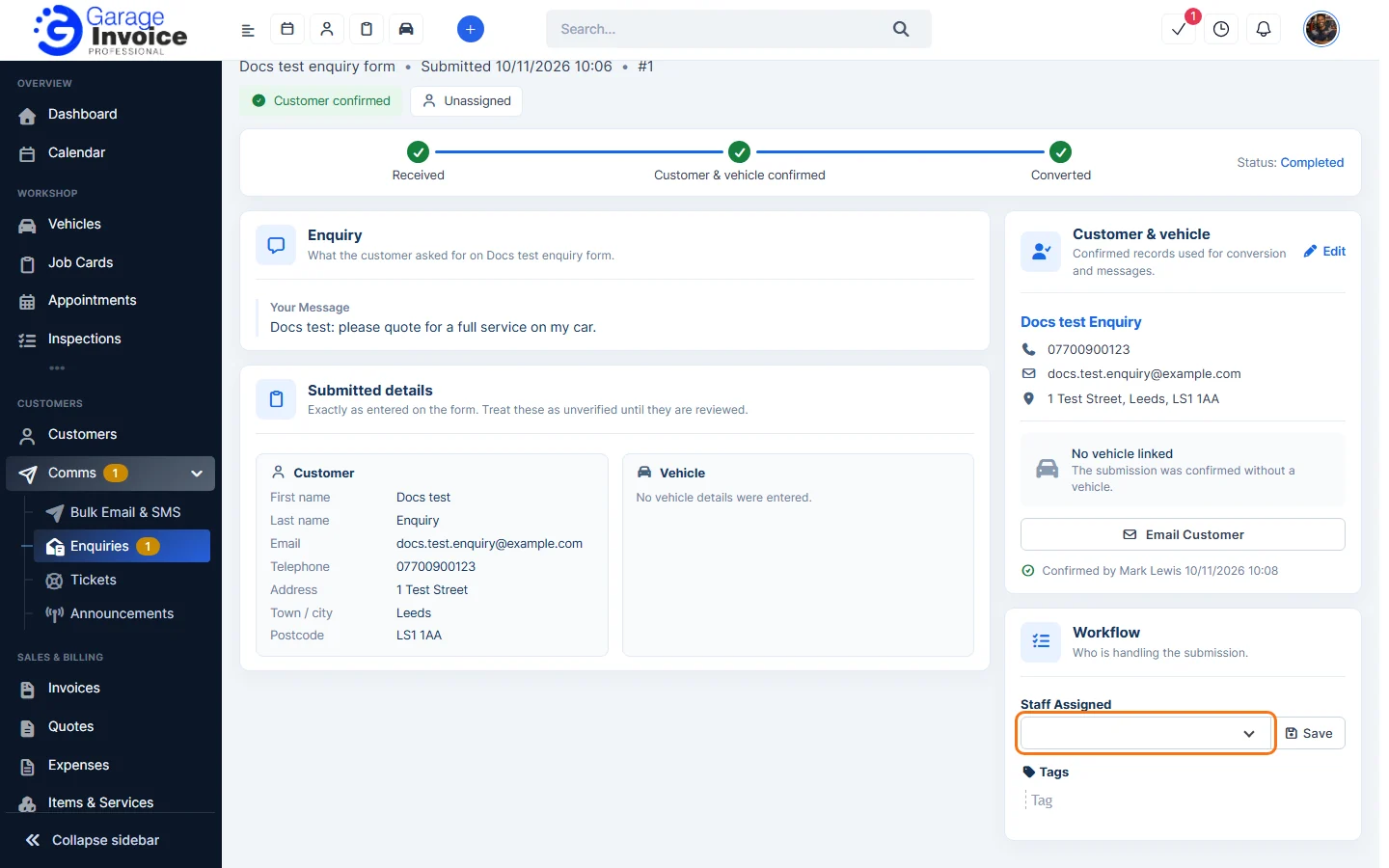
- Staff Assigned: under Workflow, choose who handles the enquiry and click Save. The staff member is emailed (the Estimate Request Assigned email).
- Tags: type a tag to group enquiries, for example Brakes or MOT.
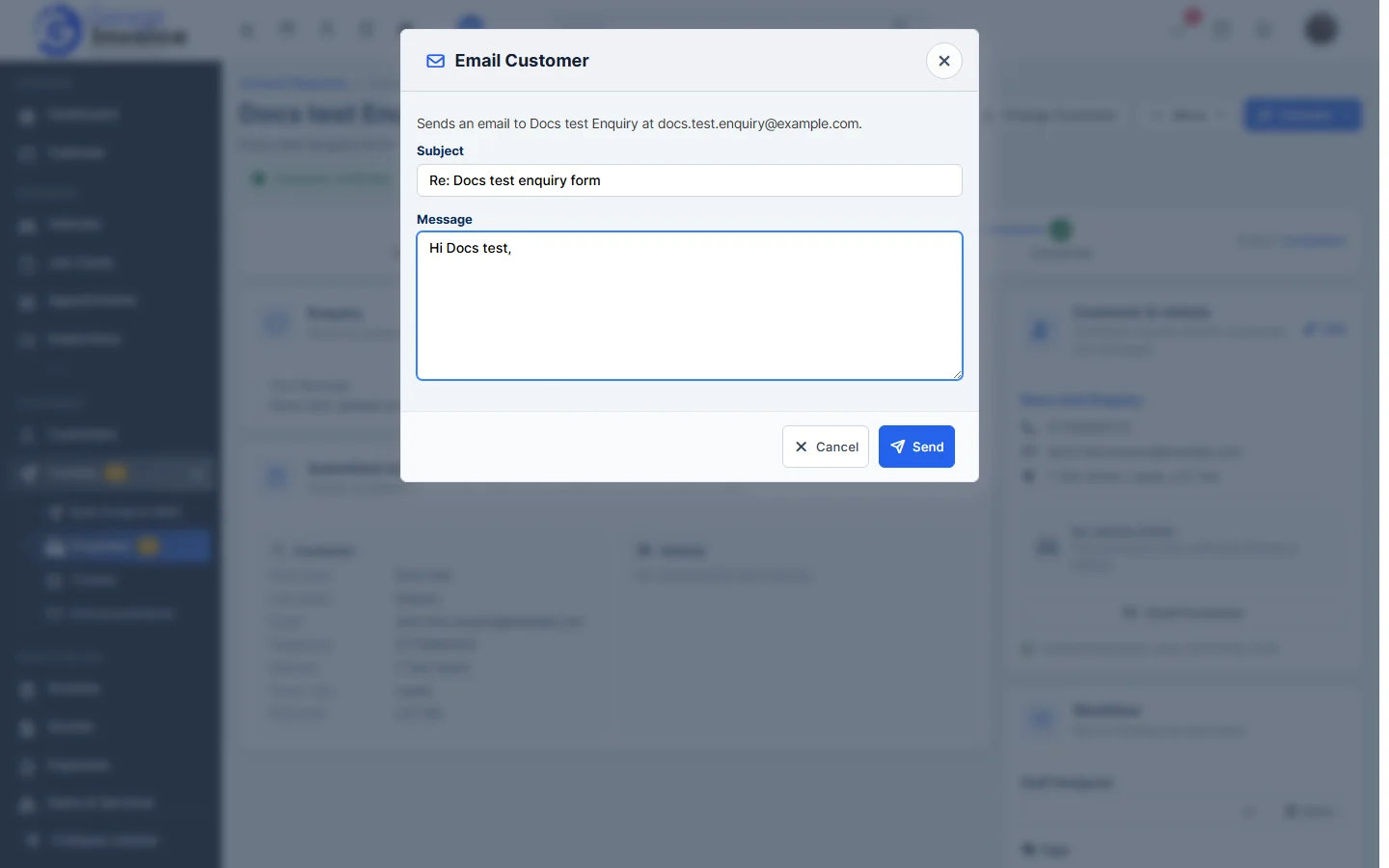
- Email Customer: the window fills in a Subject (Re: and the form name) and starts the Message with the customer’s name. Write your reply and click Send.
More options
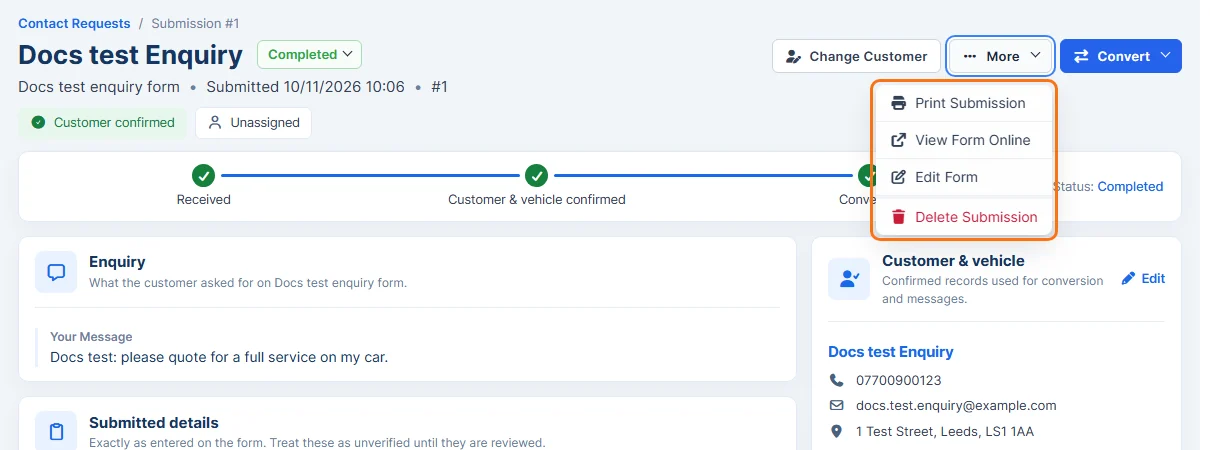
Click More for:
- Print Submission: print the enquiry.
- View Form Online: open the form the customer used.
- Edit Form: open that form in Settings.
- Delete Submission: see Delete an Enquiry.