
Start the job card
- Open the vehicle (see Search for Vehicle) and click the Job Cards tab, then New Job Card. The job card opens in a new browser tab.
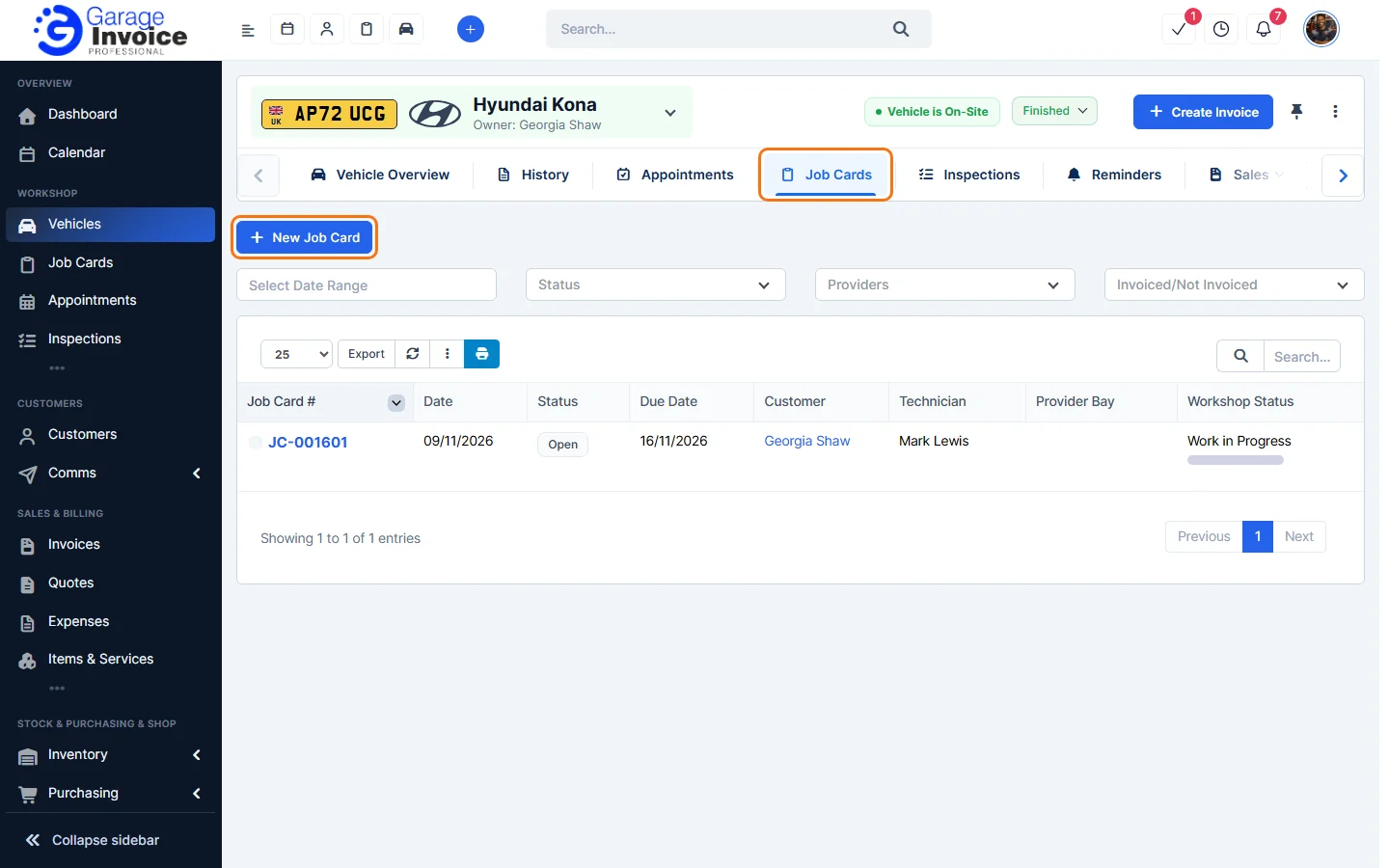
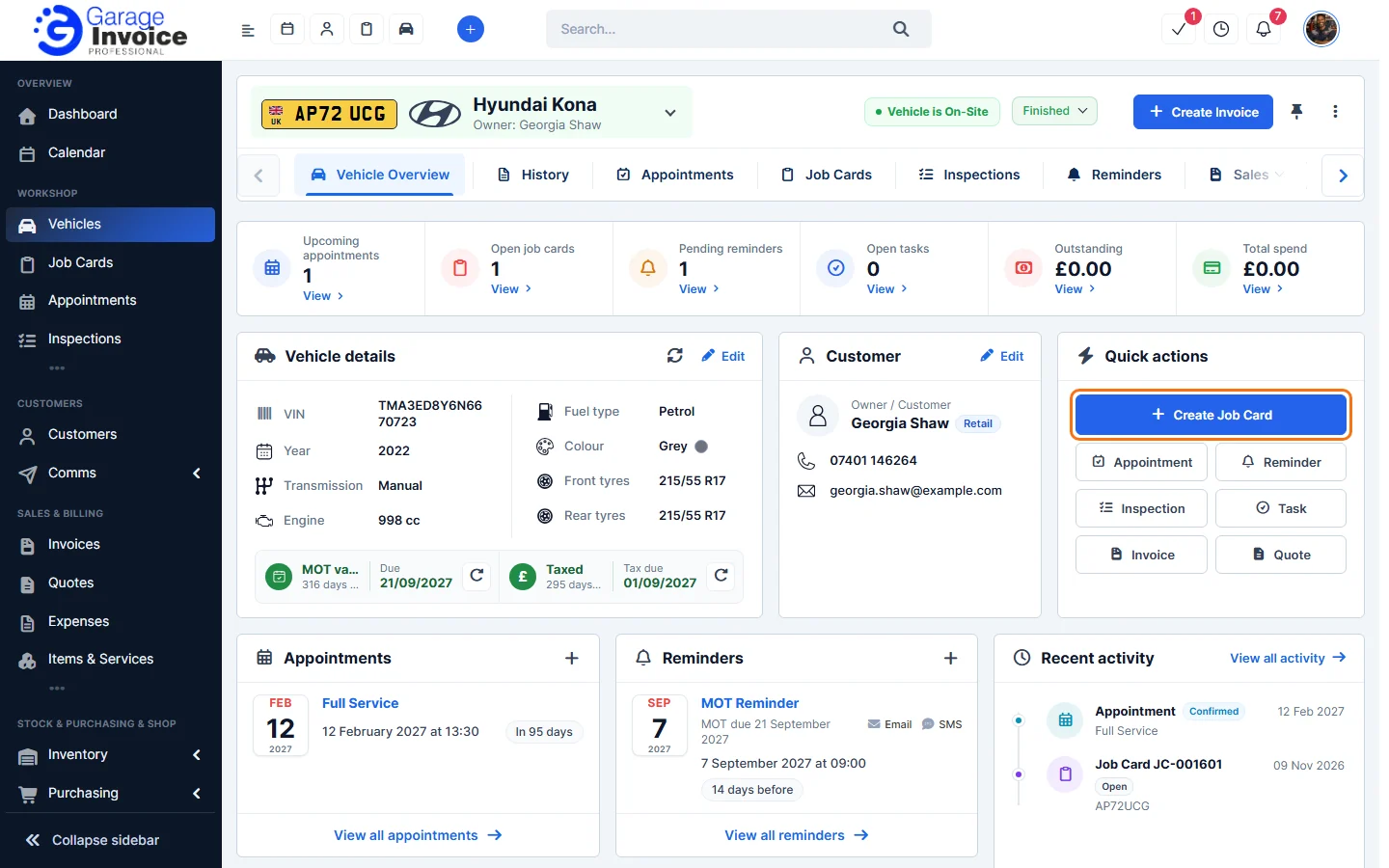
Tip: you can also click Create Job Card under Quick actions on the vehicle page, or New Job Card on the Job Cards list. See Vehicle Overview Screen.
- Under Job Card Details, the Customer and Vehicle are already filled in when you start from the vehicle. Check the Job Card Date and add the Mileage. You can also set:
- Start Date / Time and End Date / Time, and turn on Block Calendar to reserve the time in your calendar;
- the Technician and the Provider / Bay;
- Status (new job cards start as Open) and Workshop Progress.
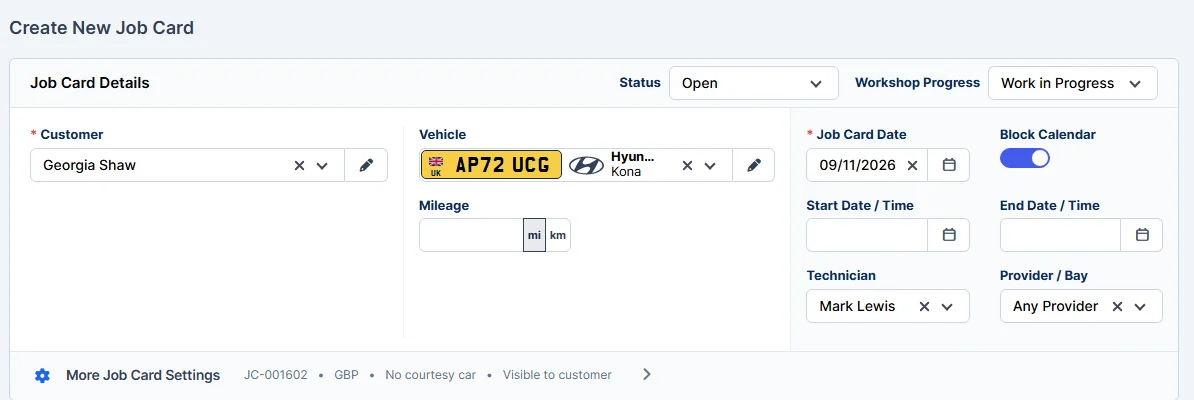
Note: click More Job Card Settings for the job card number, currency, tags, courtesy car, and whether the customer can see the job card, its prices and totals, and add comments.
Describe the job
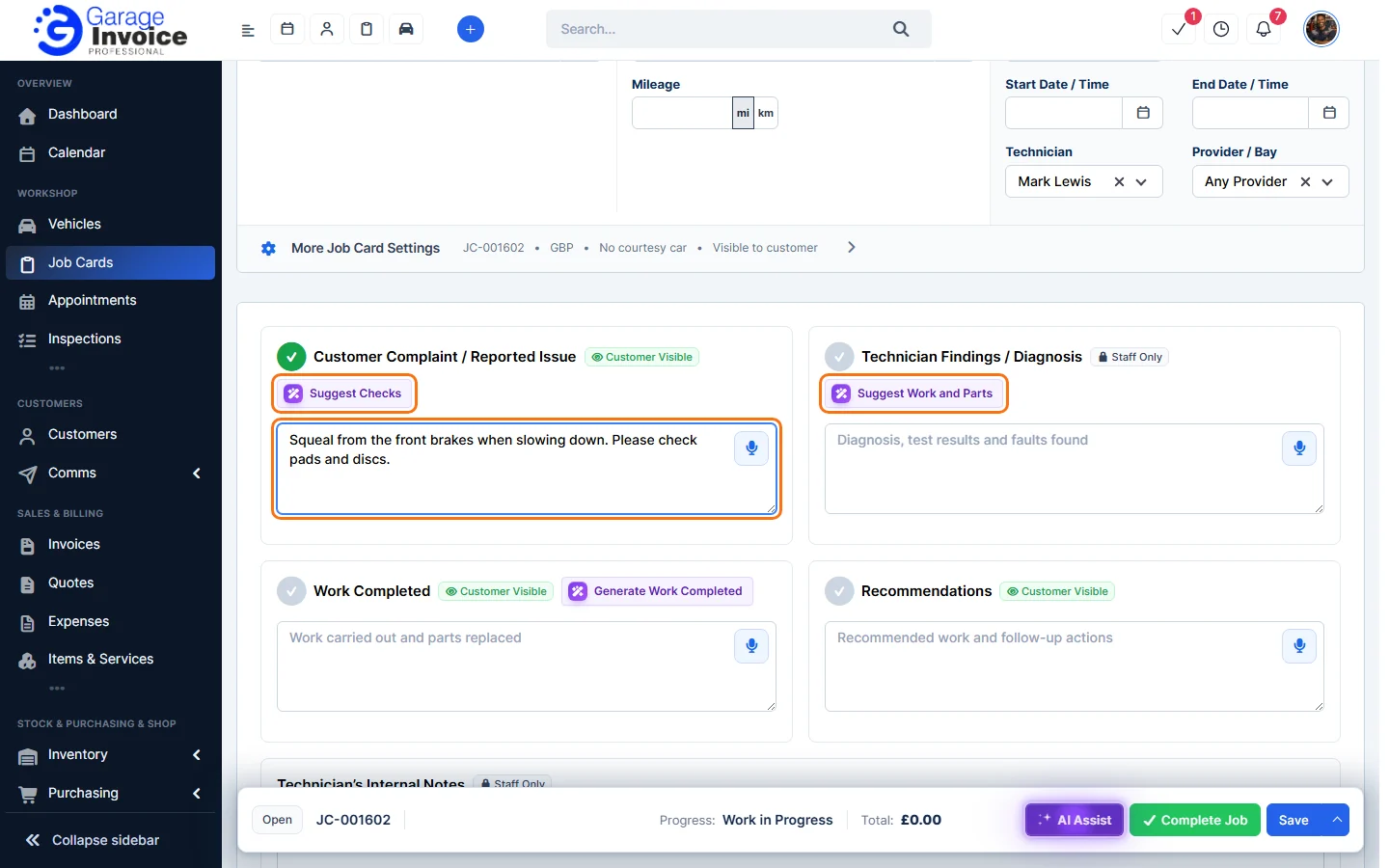
- Fill in the boxes that apply:
- Customer Complaint / Reported Issue: what the customer told you. The customer can see this.
- Technician Findings / Diagnosis: test results and faults found. Staff only.
- Work Completed and Recommendations: what was done and what’s needed next. The customer can see these.
- Technician’s Internal Notes: notes for staff only. They’re never shown to the customer.
Click the microphone in a box to dictate instead of typing. Suggest Checks, Suggest Work and Parts and Generate Work Completed suggest content based on what you’ve entered.
Add labour and parts
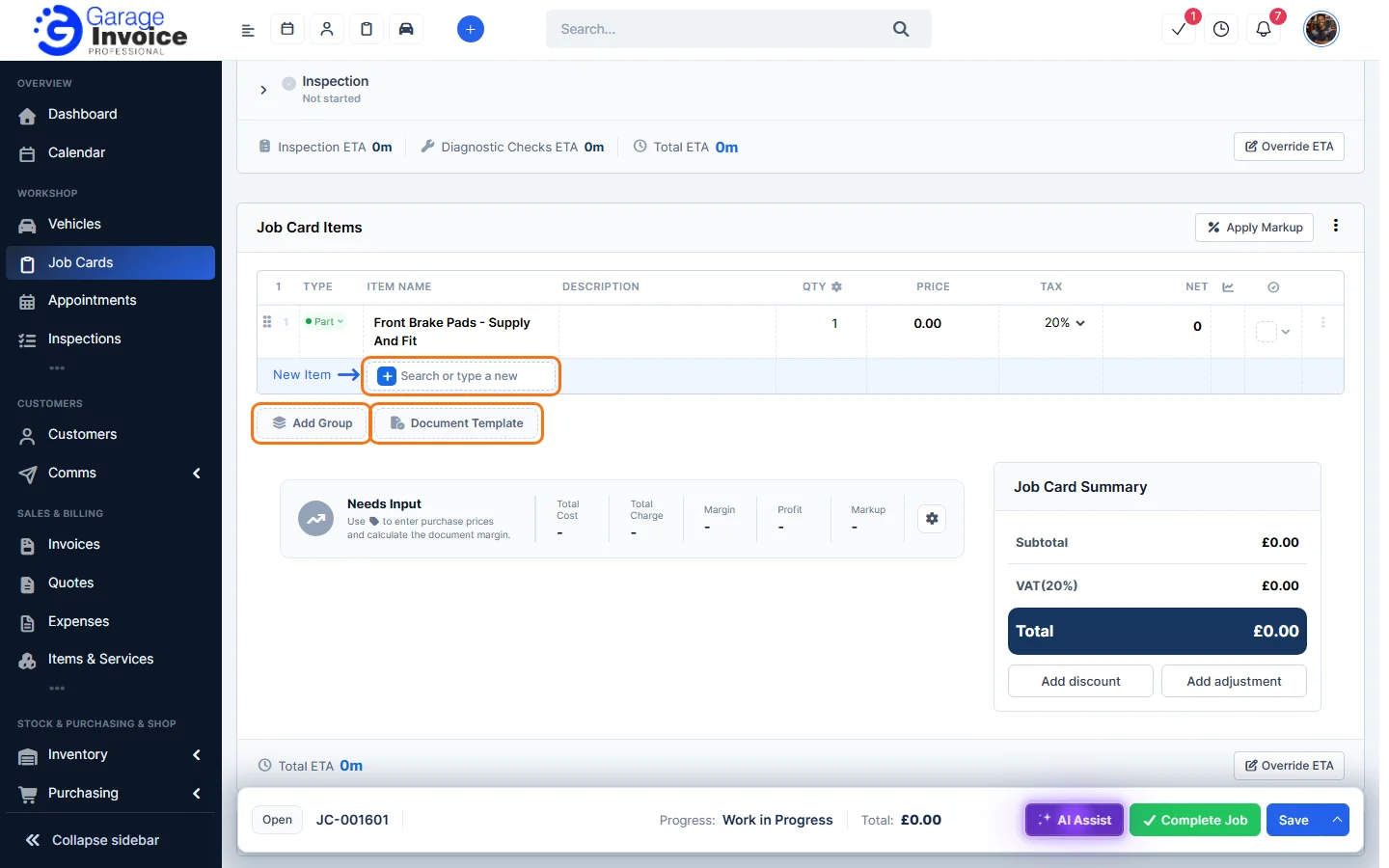
- Under Job Card Items, click Search or type a new item, type the item name (or choose a saved item) and press Enter. Then set the quantity, price and tax on the new line.
Use Add Group to group related lines, Document Template to use a saved template, Apply Markup to add a markup, and Add discount or Add adjustment under the totals.
Save
- Click Save in the bar at the bottom of the screen. Click the arrow next to Save and choose Save as Draft if it isn’t ready yet.

You’ll see Added successfully and the job card opens in the Job Cards list. Use AI Assist in the same bar to check the job card, suggest items or write a customer-friendly note, and Complete Job when the work is finished.
Next: Send Job Card to Customer · Convert Job Card to Invoice
Feature Digital job cards: see what it does and how it fits your workshop.