
Add a supplier quote
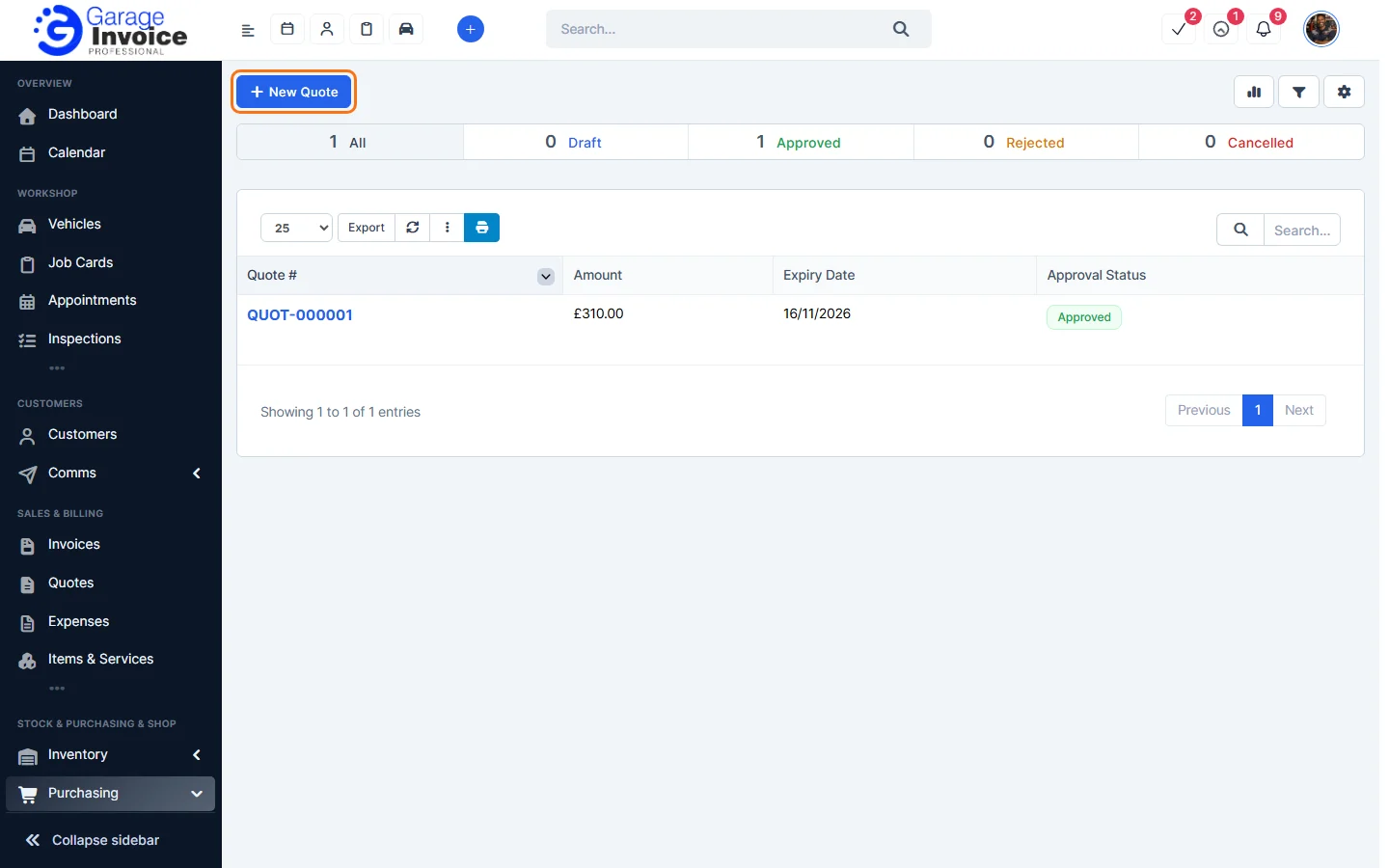
- Click Purchasing in the sidebar (under Stock & Purchasing & Shop) and click Supplier Quotes. Click New Quote.
- Choose the Vendor. The Buyer, Quote Number (QUOT-), Quote Date and Expiry Date are filled in; change them if you need to.
- To copy the items from a purchase request, choose it in the box under Quotation Items (type the PR number). The items are added with the note from #PR-…. You can also add items one by one.
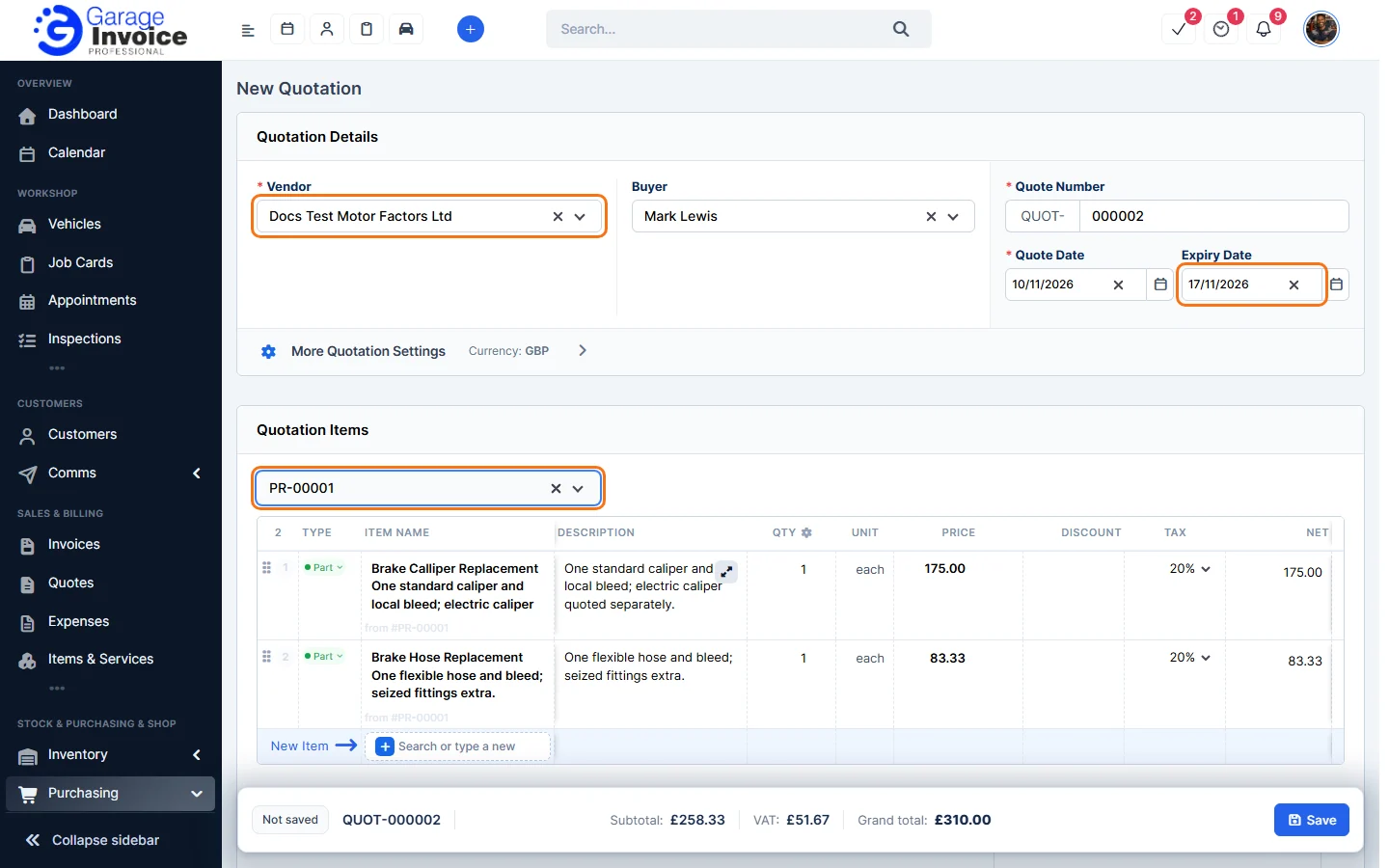
- Enter the supplier’s prices, check the totals and click Save.
Approve, send or change a quote
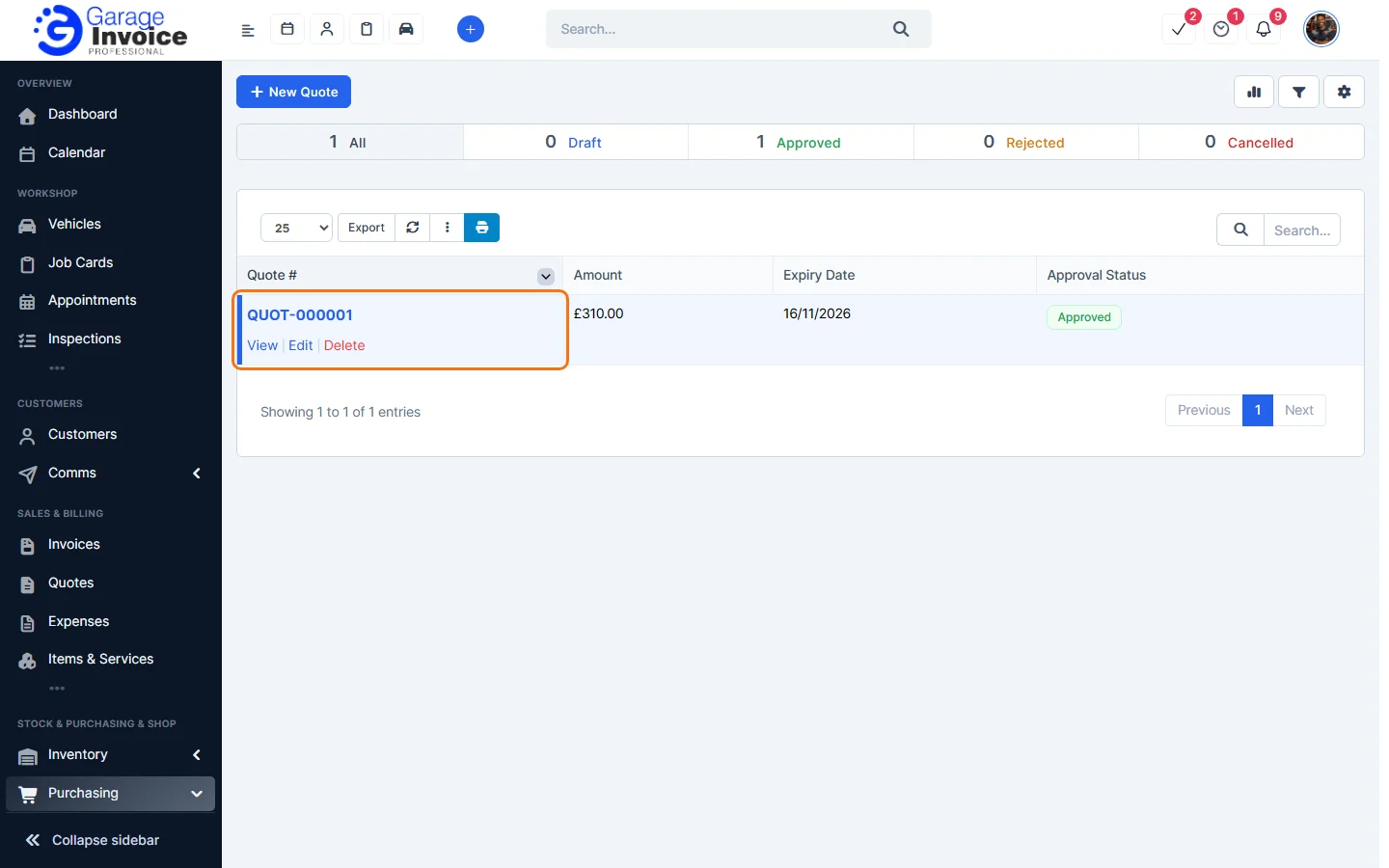
- Click the quote number in the list (or hover over it and click View). Hover and click Edit to change it.
- The quote opens on the right with the tabs Quote, Tasks, Discuss and Attachment, plus buttons to print, edit, email and download a PDF.
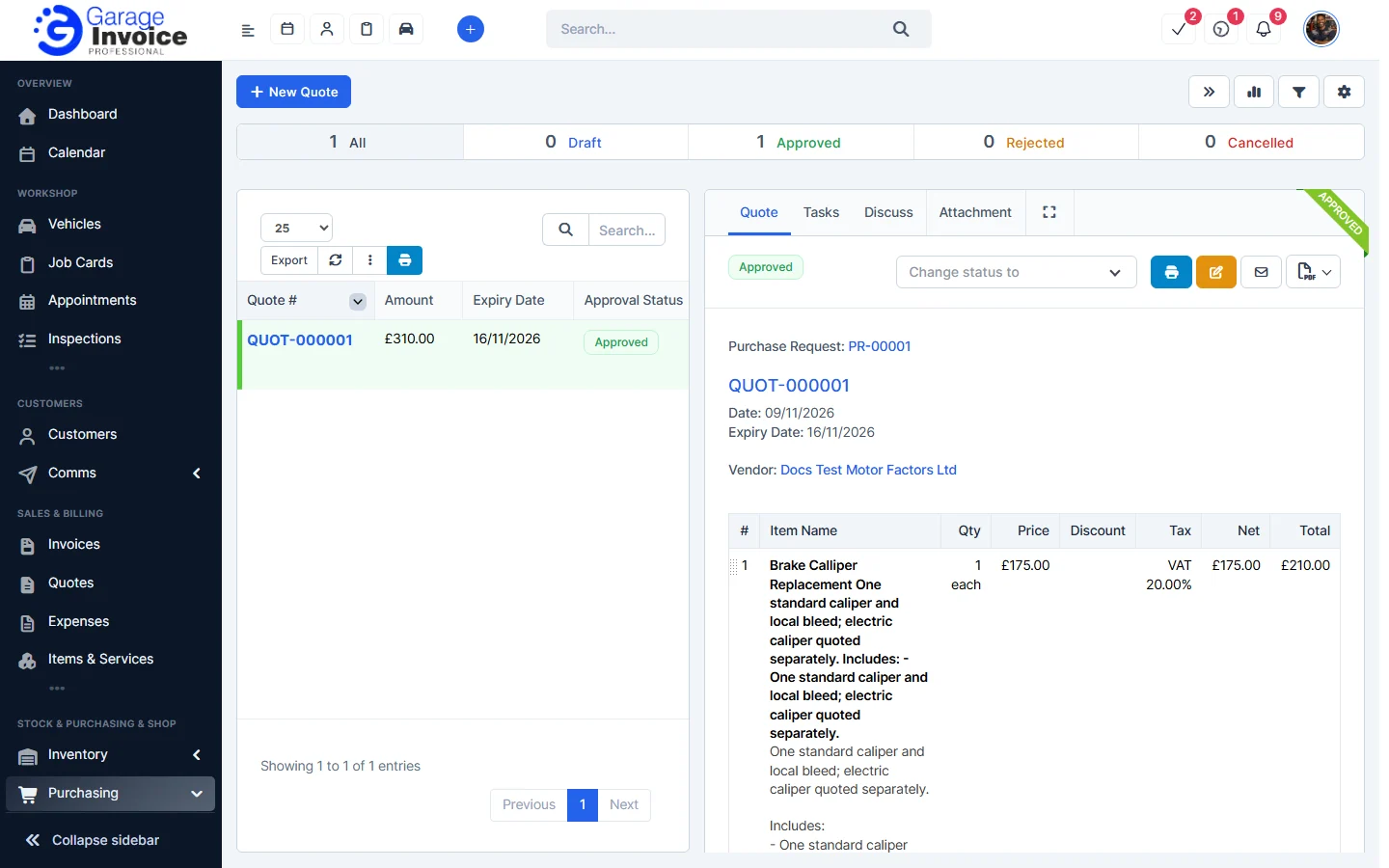
- Click Change status to to approve or reject the quote, or set it back to Draft.
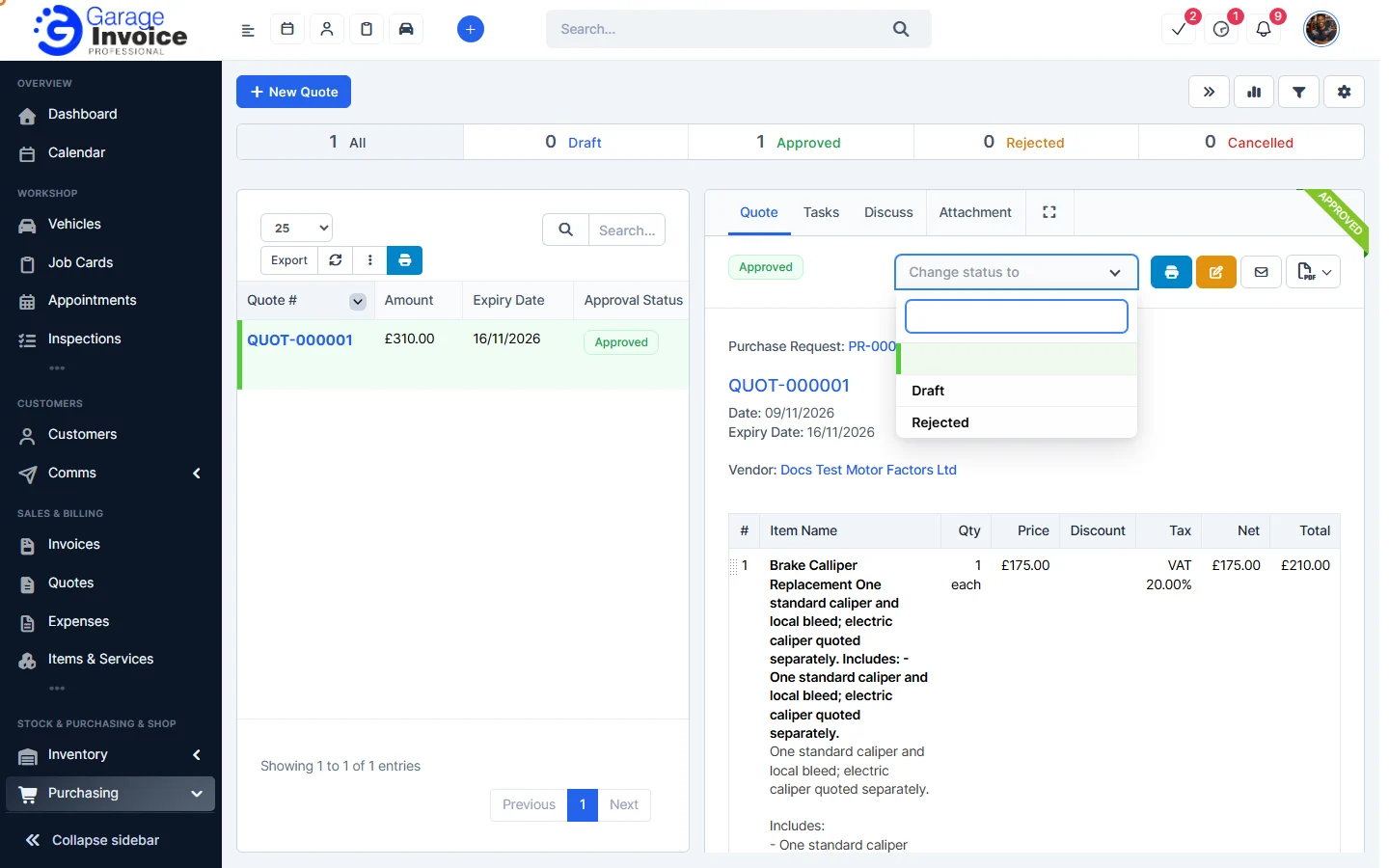
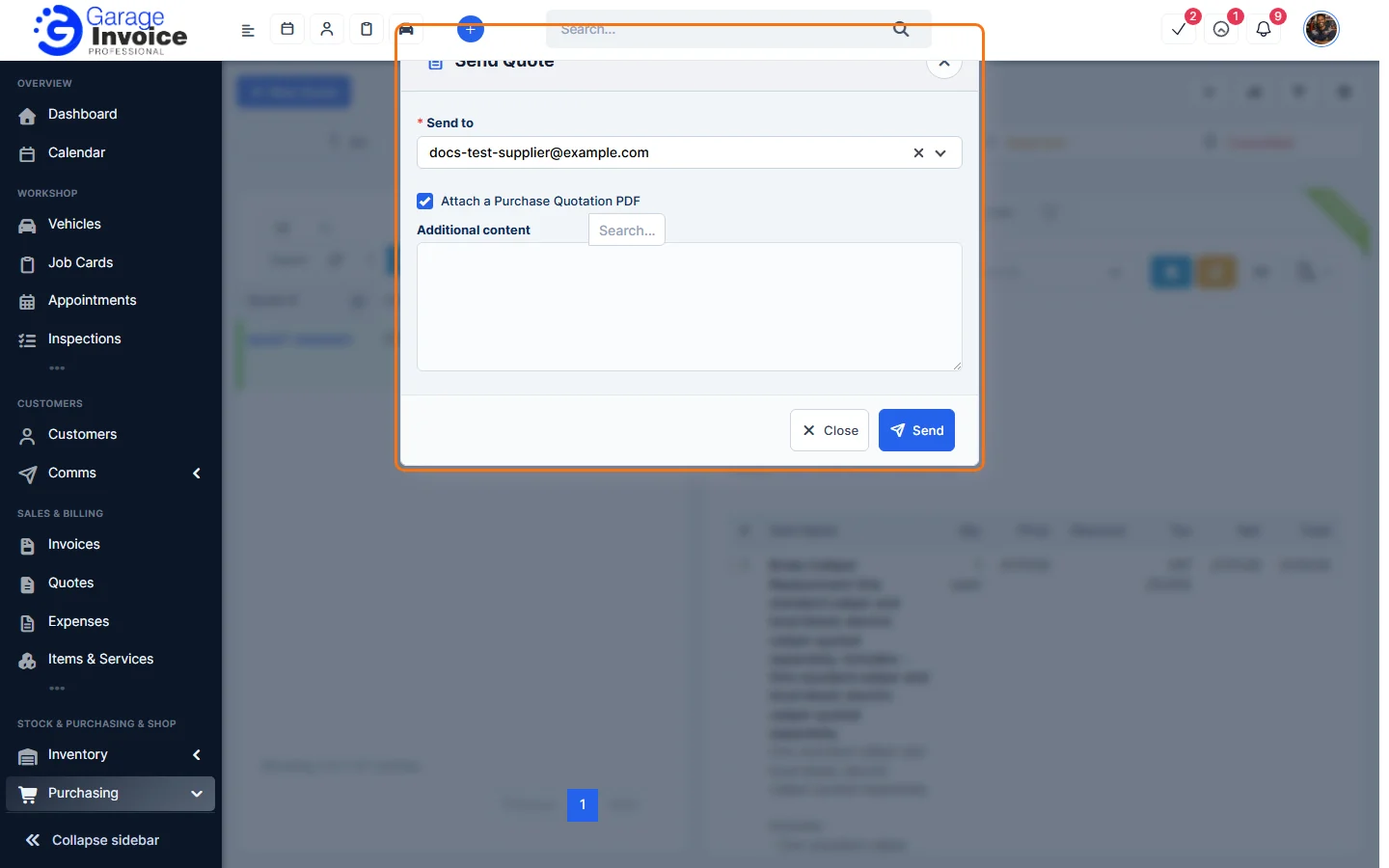
- Click the envelope button to send the quote to the supplier. Check Send to, tick Attach a Purchase Quotation PDF, add any Additional content and click Send.
Tip: quotes that came from a purchase request appear side by side on the request’s Compare Quotes tab. See Compare Quotes for a Purchase Request.
Feature Stock and inventory control: see what it does and how it fits your workshop.