
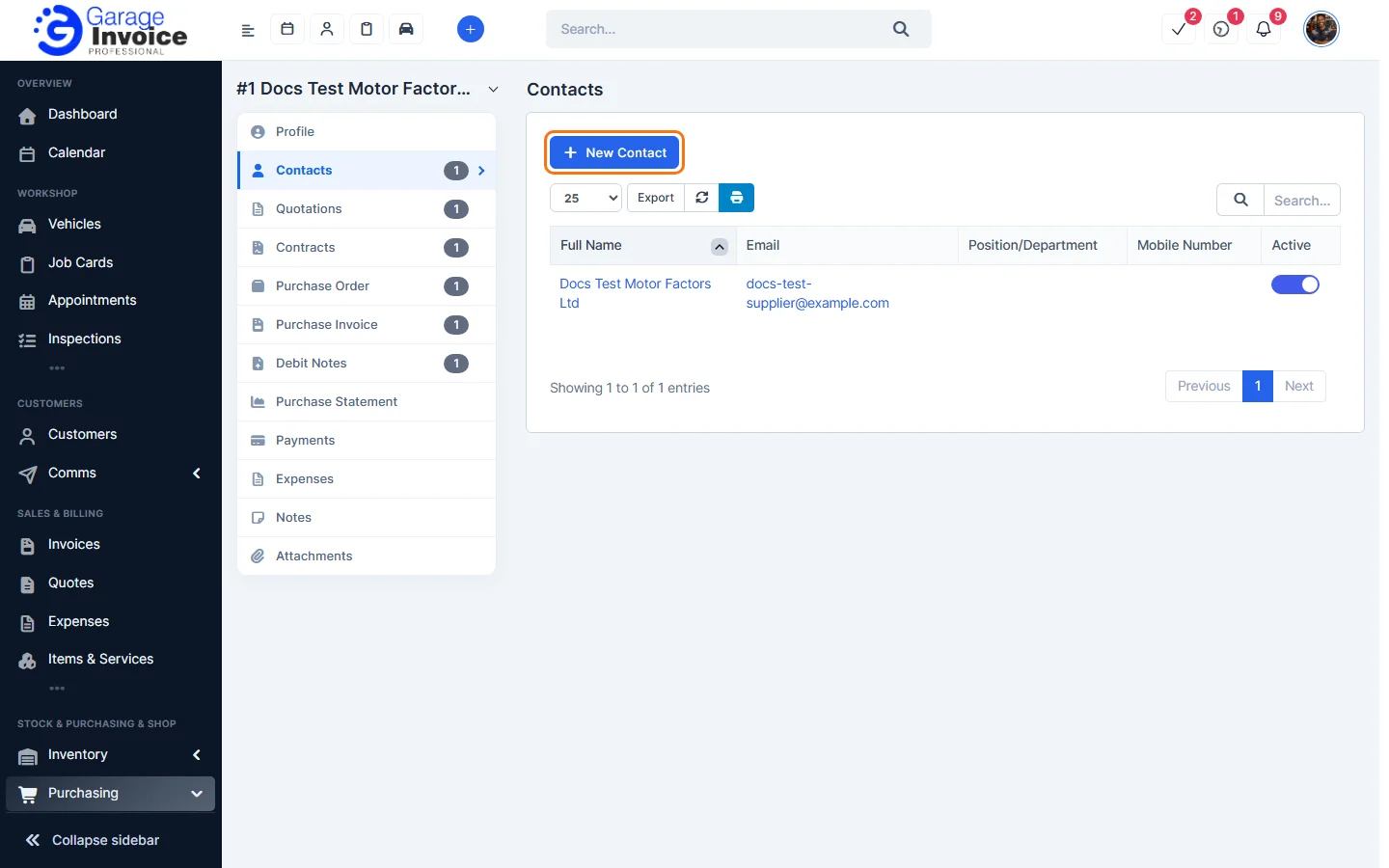
- Open the supplier (see View Supplier Details) and click Contacts in the menu on the left. You can also hover over the supplier in the list and click Contacts.
- Click New Contact.
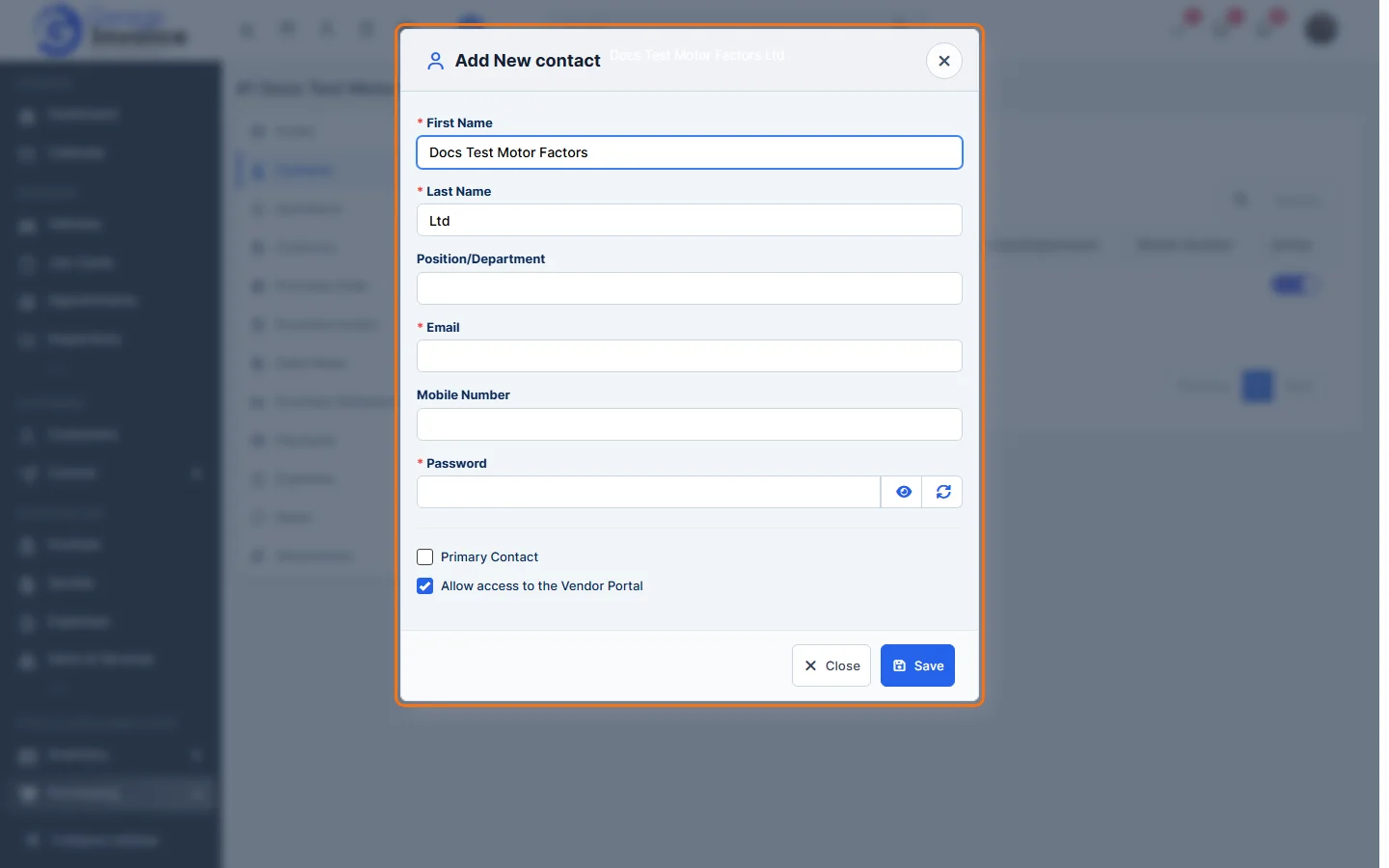
- Enter the First Name, Last Name, Email and Password (all required), plus the Position/Department and Mobile Number if you like.
- Tick Primary Contact to make this the main contact.
- Leave Allow access to the Vendor Portal ticked if they should be able to log in to the vendor portal.
Click Save.
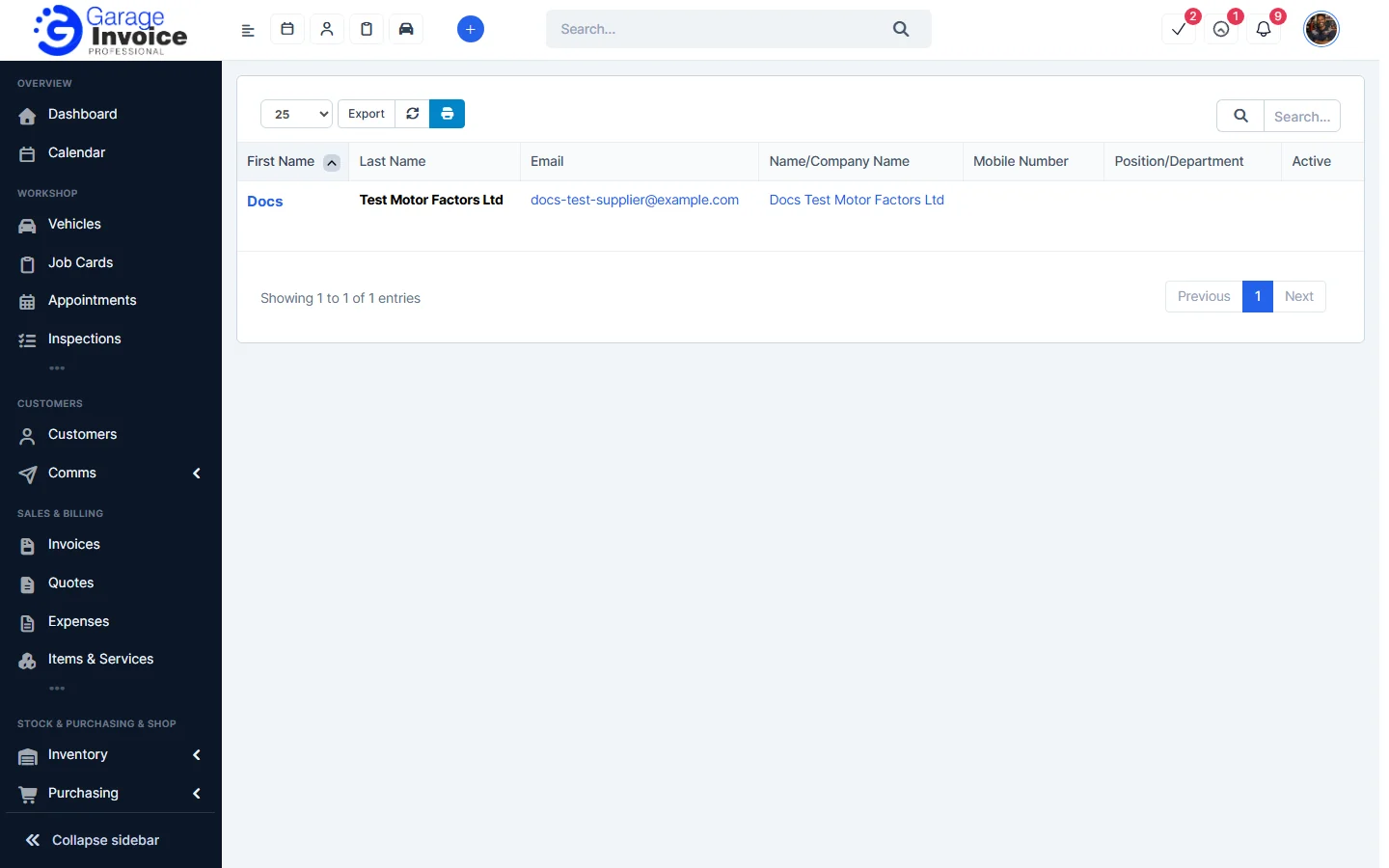
- To see the contacts of all your suppliers, go to the Suppliers list, click the settings (cog) button and choose Vendor’s Contacts. Hover over a contact to Edit or Delete it.
Feature Stock and inventory control: see what it does and how it fits your workshop.