
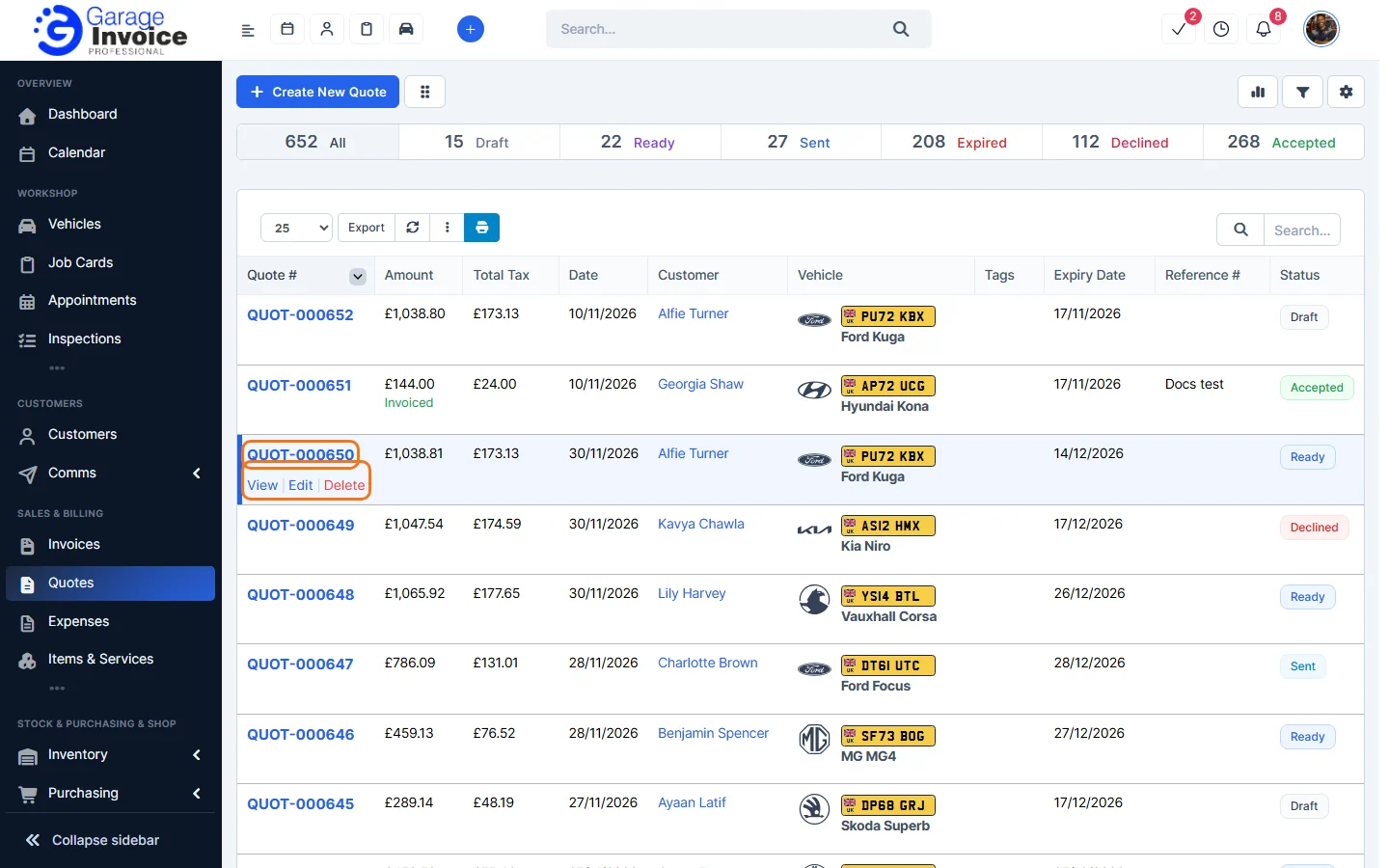
- Click Quotes in the sidebar, under Sales & Billing. Click the quote number, or hover over the quote and click View.
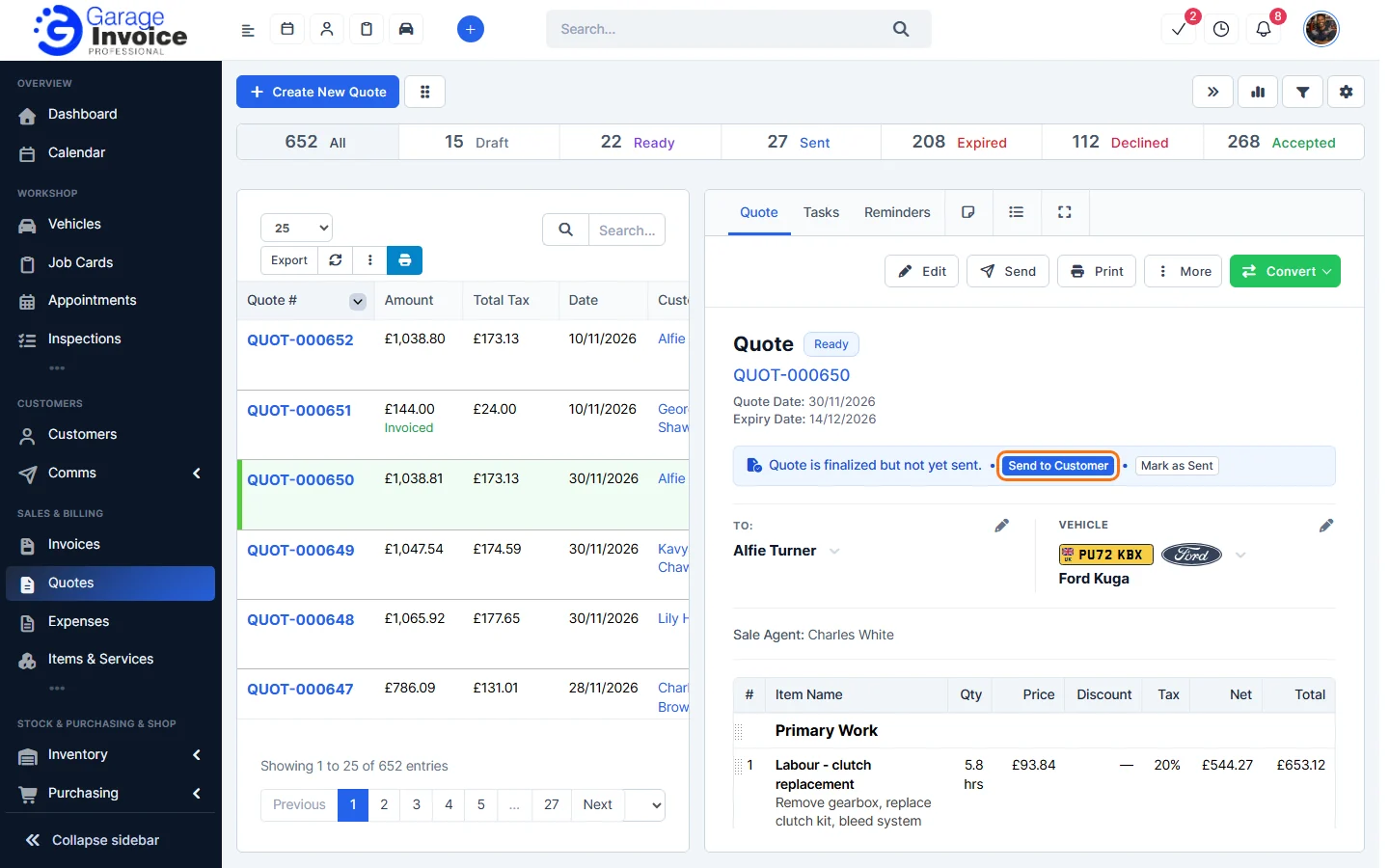
- Click Send at the top of the quote.
- In the Send Quote window, check:
- Template: the email template. It is picked for you from the quote’s status.
- Send to: the customer’s contacts. Click Add CC or Add BCC to copy someone in.
- Subject & message: change the email text if you like.
- Attachments: the Quote PDF is included. Click Preview PDF to check it. You can also attach the Customer Statement.
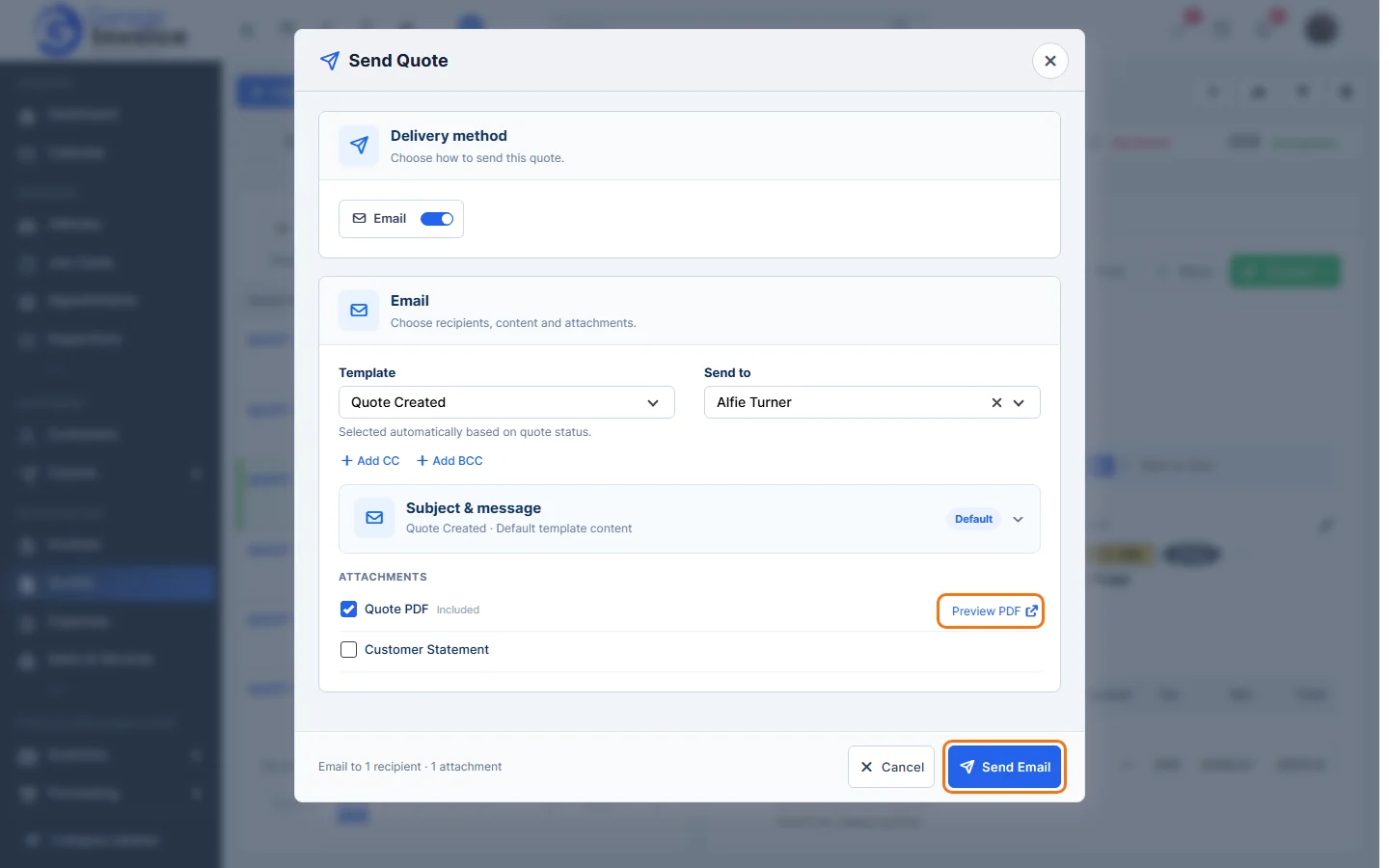
- Click Send Email. The quote’s status changes to Sent.
Tip: when you create or edit a quote, click the arrow next to Save and choose Save & Send to save and send in one step.
Your customer can open the quote online and accept or decline it. See Customer Accept or Decline Quote Online.
Feature Garage quoting software: see what it does and how it fits your workshop.