
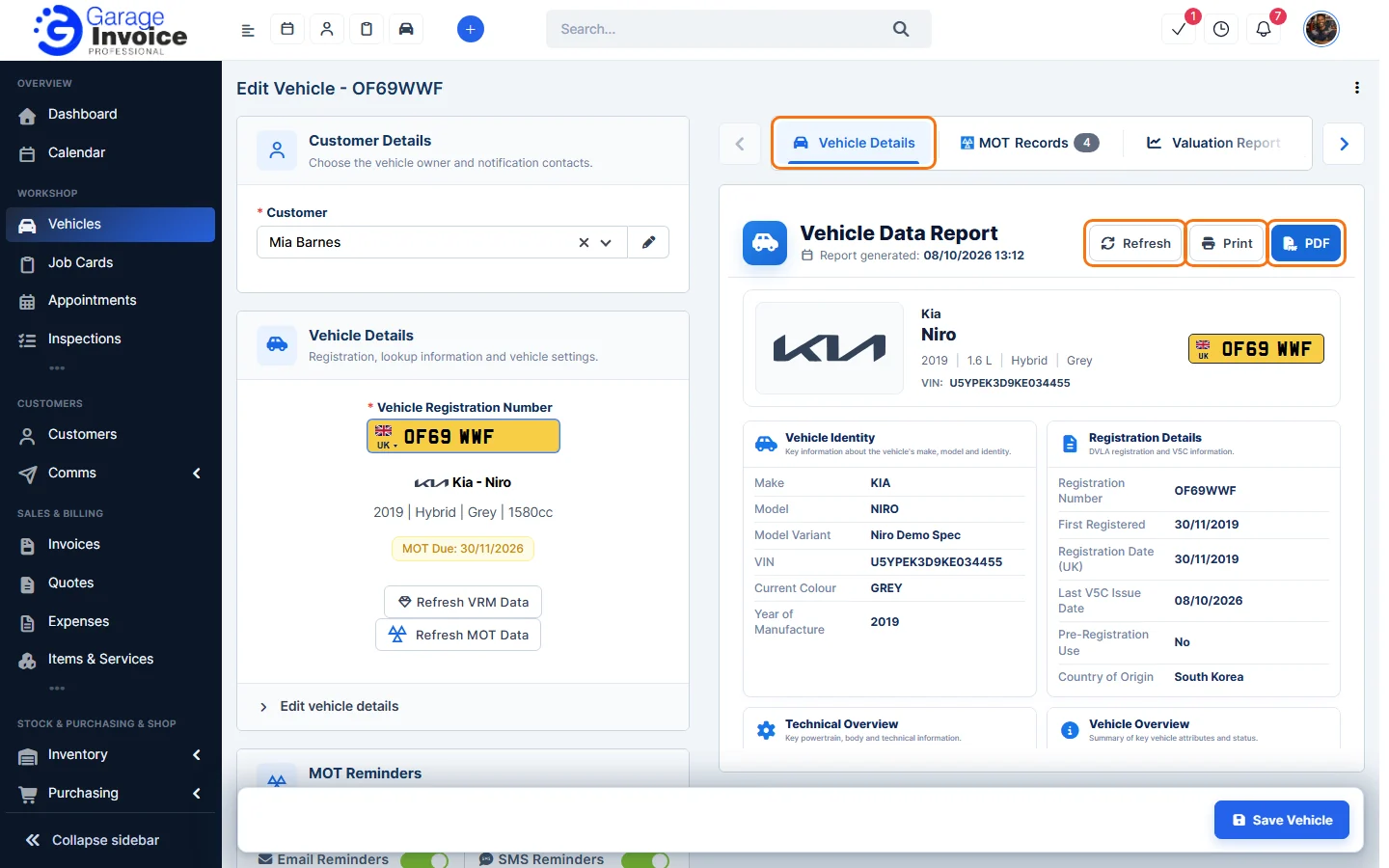
When you look a vehicle up by its registration, Garage Invoice saves a Vehicle Data Report. It’s shown on the right of the Edit Vehicle page.
- Open the vehicle’s Edit Vehicle page: on the vehicle page click ⋮ → Edit Vehicle, or hover over the vehicle in the Vehicles list and click Edit. See Edit Vehicle.
- The report opens on the Vehicle Details tab. It shows when the report was generated, then sections such as Vehicle Identity, Registration Details, Technical Overview and Vehicle Overview.
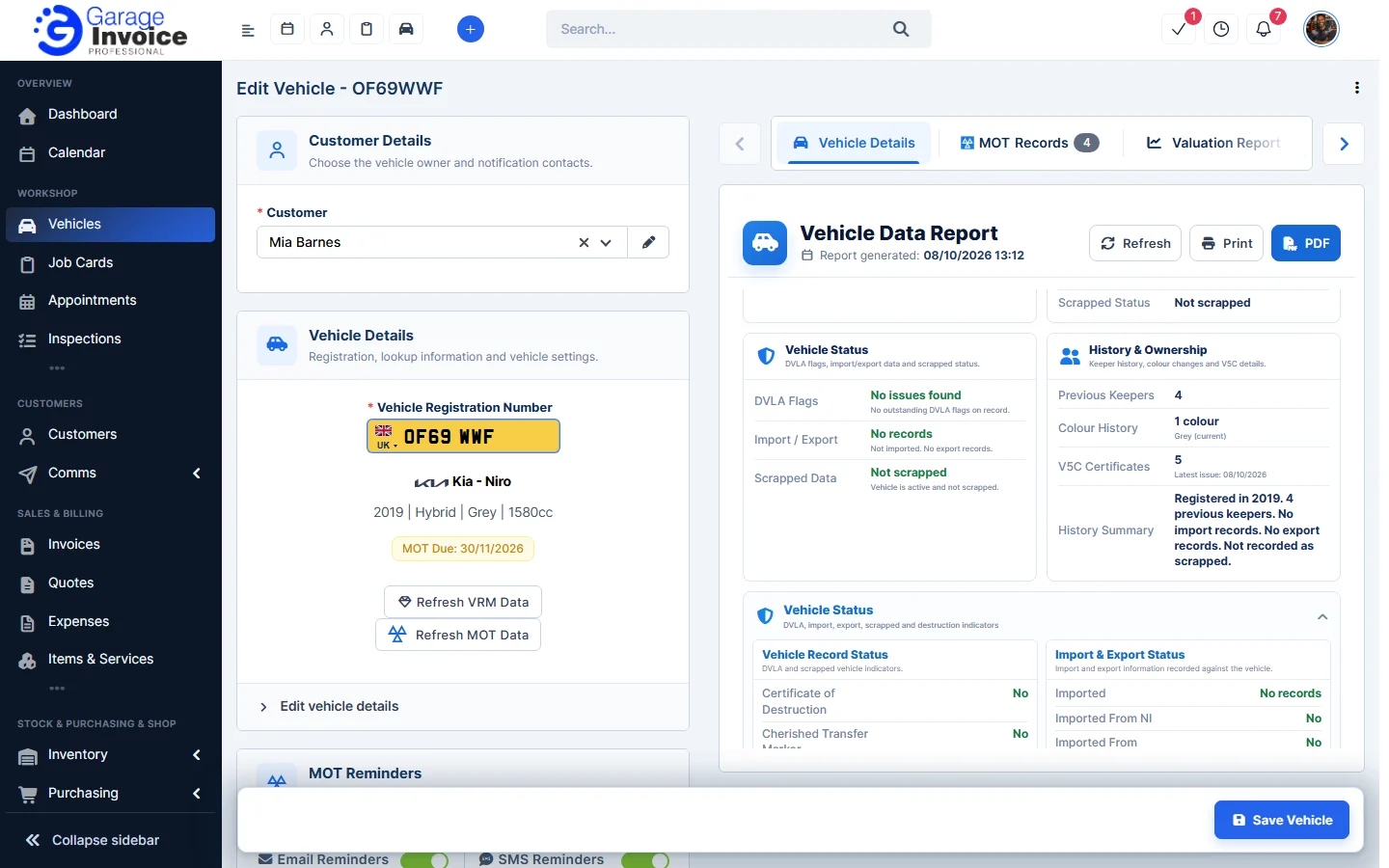
- Scroll down for more sections, for example Vehicle Status (DVLA, import, export and scrapped markers), History & Ownership (previous keepers, colour changes, V5C history), dimensions and weights, powertrain, emissions and road tax, performance, and tyres and wheels. Click a section heading to open or close it.
- Use the buttons at the top of the report:
- Refresh: look the vehicle up again for the latest data.
- Print: print the report.
- PDF: save the report as a PDF.
The other tabs above the report are MOT Records, Valuation Report and VDI Check. See View Vehicle MOT Records, Vehicle Valuation Report and VDI Check.
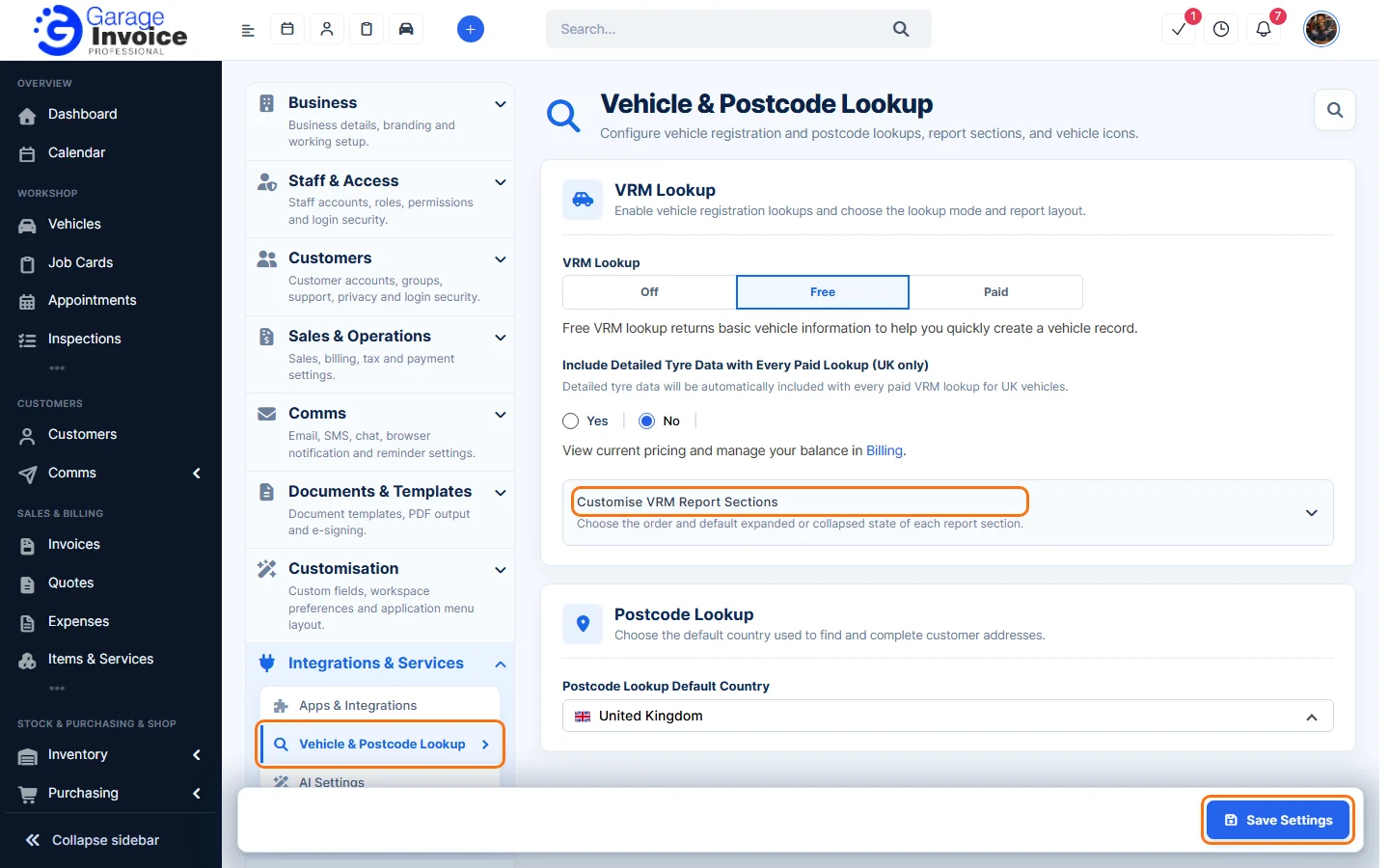
Note: how much the report shows depends on your VRM Lookup setting (Free or Paid). To choose the order of the sections and which ones start open, go to Settings → Integrations & Services → Vehicle & Postcode Lookup and open Customise VRM Report Sections. See Change VRM Lookup Country.
Feature Vehicle records: see what it does and how it fits your workshop.