
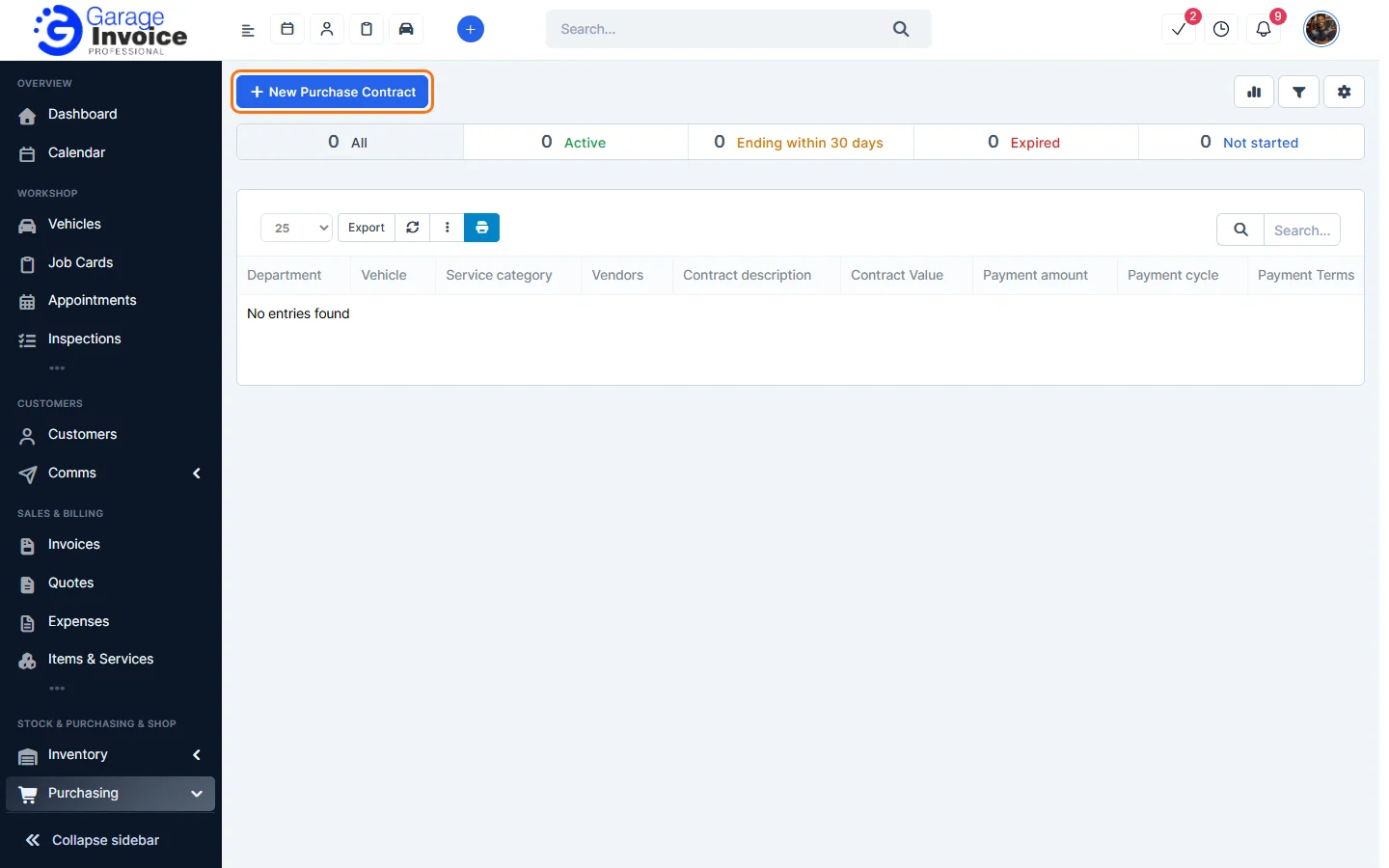
- Click Purchasing in the sidebar (under Stock & Purchasing & Shop) and click Supplier Contracts. The tabs show Active contracts, those Ending within 30 days, Expired and Not started. Click New Purchase Contract.
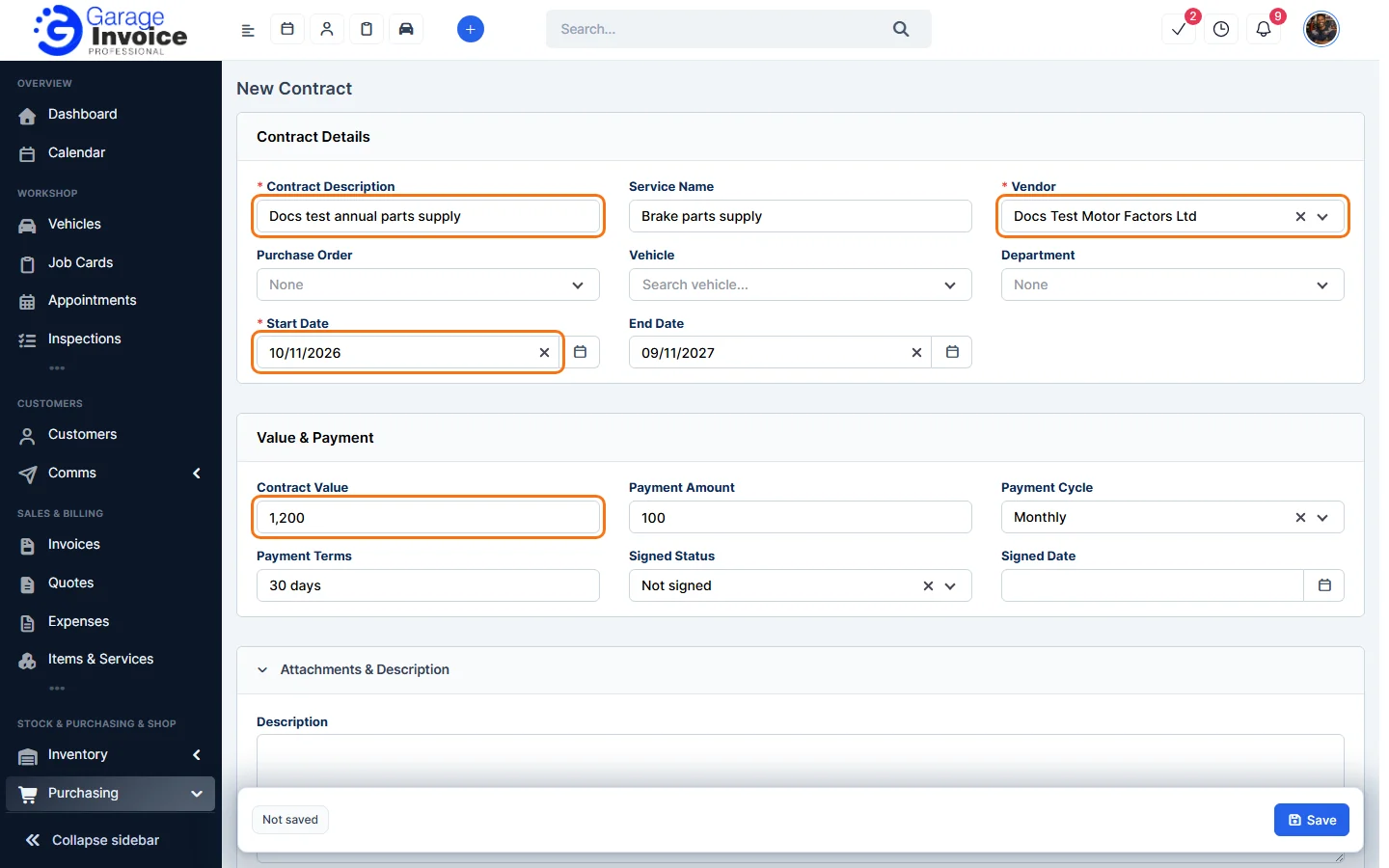
- Fill in the contract:
- Contract Description (required) and Service Name.
- Vendor (required), and if you like a Purchase Order, Vehicle and Department.
- Start Date (required) and End Date.
- Under Value & Payment: Contract Value, Payment Amount, Payment Cycle (One time, Monthly, Quarterly or Every 6 months), Payment Terms, Signed Status and Signed Date.
- A Description and Attachments.
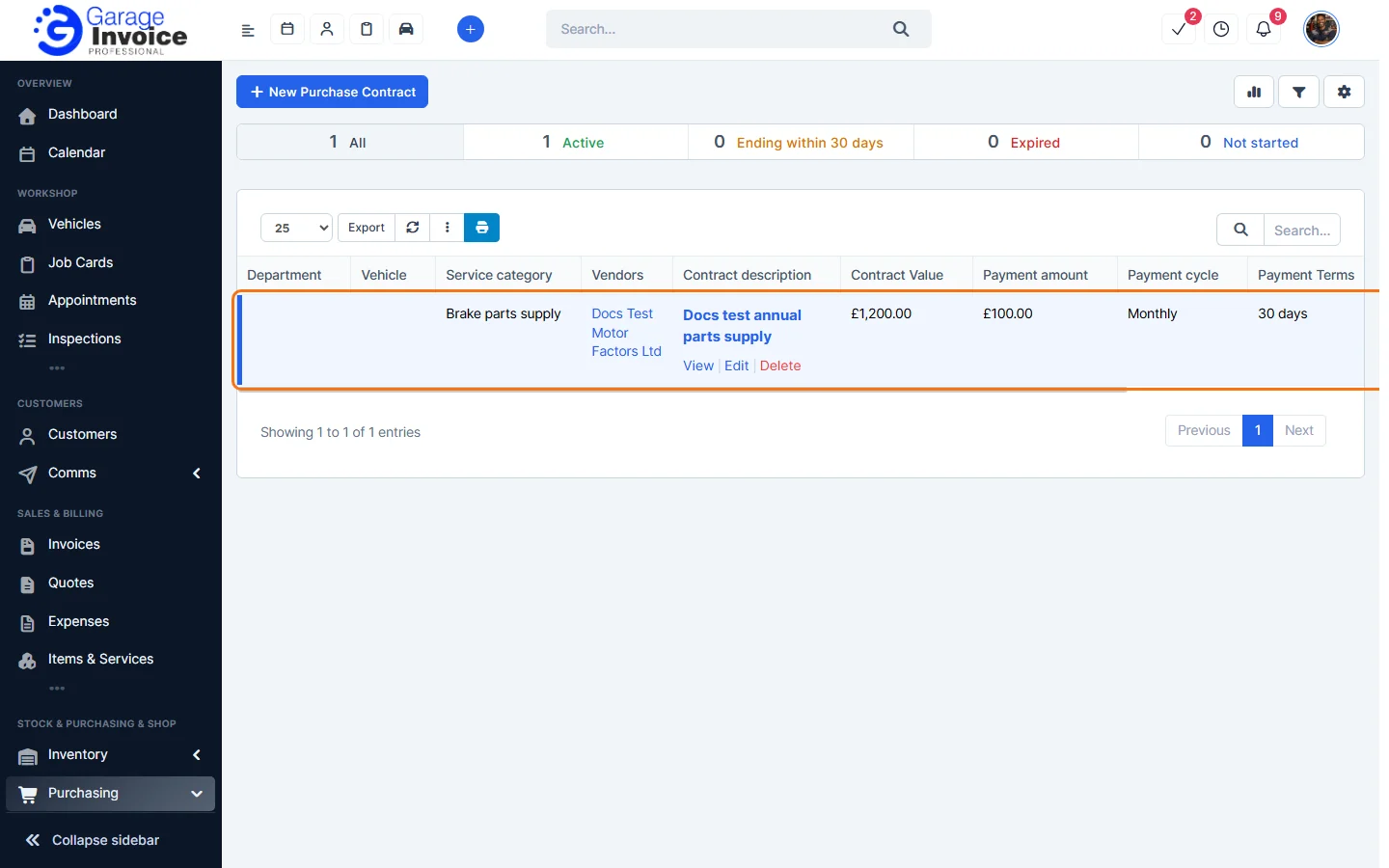
- Click Save. The contract appears in the list with its value, payment cycle, dates and status. Hover over it to View, Edit or Delete it.
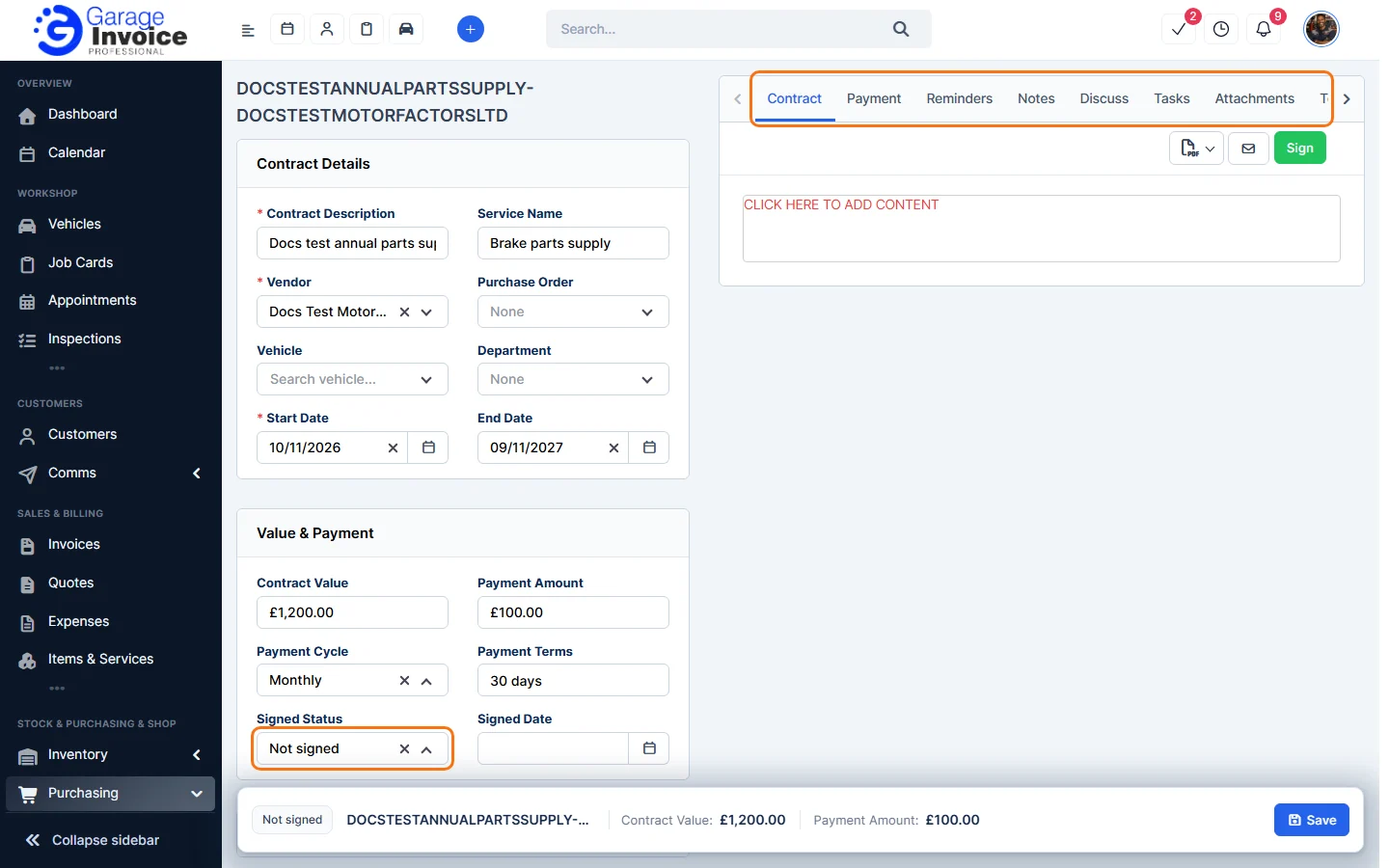
- Open the contract to change its details on the left. On the right, the tabs Contract, Payment, Reminders, Notes, Discuss, Tasks, Attachments and Templates let you write the contract text and track it. Use the envelope button to send it to the supplier and Sign to sign it.
Tip: you can load a contract’s items into a purchase invoice with Load items from Contract. See Purchase Invoices.
Feature Stock and inventory control: see what it does and how it fits your workshop.