
- Click Inventory in the sidebar (under Stock & Purchasing & Shop) and click Stock Items. Click the gear button at the top right to open Inventory Settings, then click Item Subgroups on the left.
- The page lists your item subgroups. Each row has a Name, a Code, the Item Group it belongs to and an Active switch.
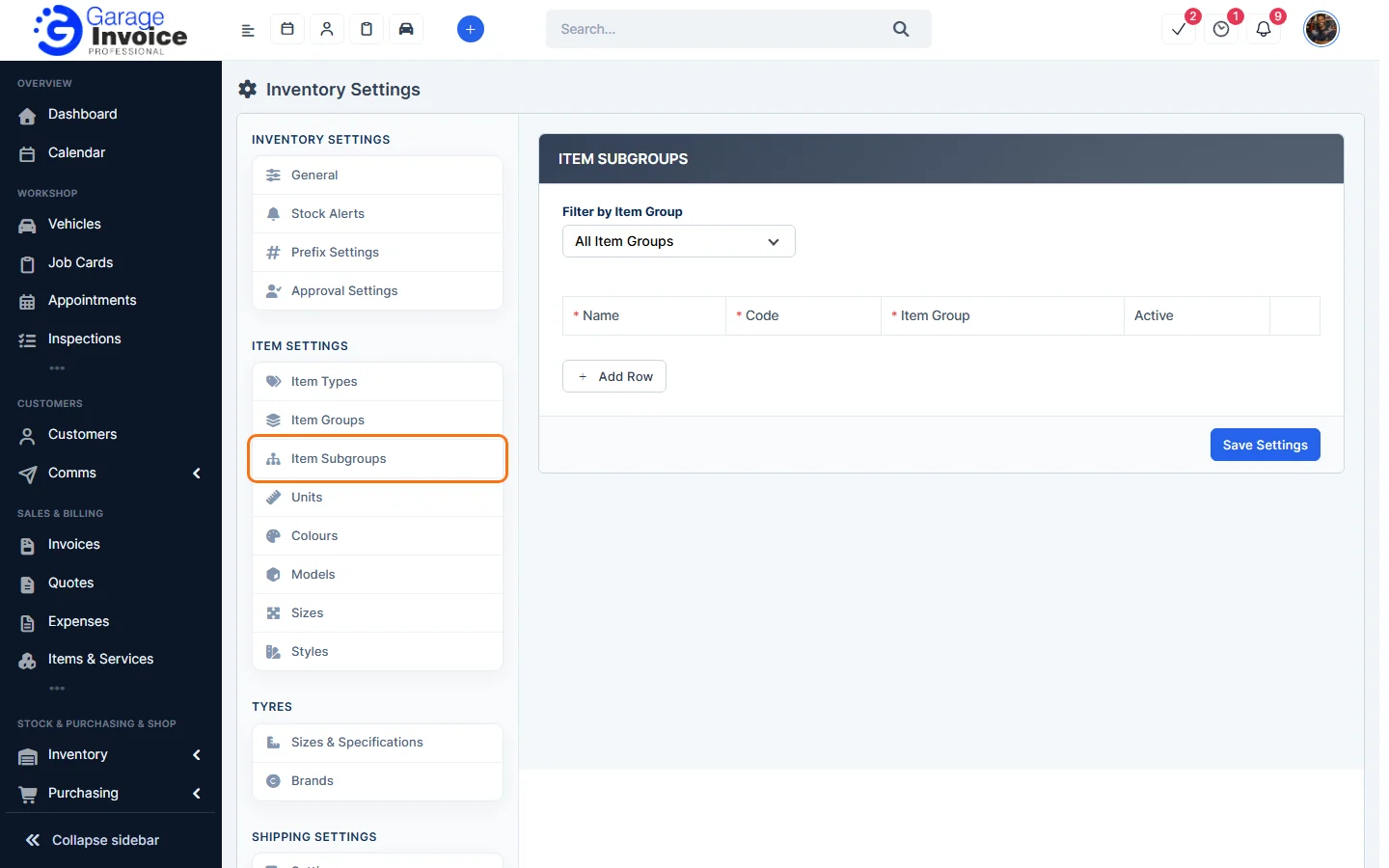
- To add one, click Add Row and fill it in. To change one, edit it in the list. Turn Active off to hide it without deleting it, or click the red button to delete it.
- Click Save Settings.
Tip: use Filter by Item Group at the top to show the subgroups of one group.
Feature Stock and inventory control: see what it does and how it fits your workshop.