
Use Add Stock to enter stock you already have, for example when you start using Inventory. For deliveries from a supplier, use a Goods Received Note instead.
- Click Inventory in the sidebar (under Stock & Purchasing & Shop) and click Stock Items. Click Add Stock. You can also open an item and click Manage Stock.
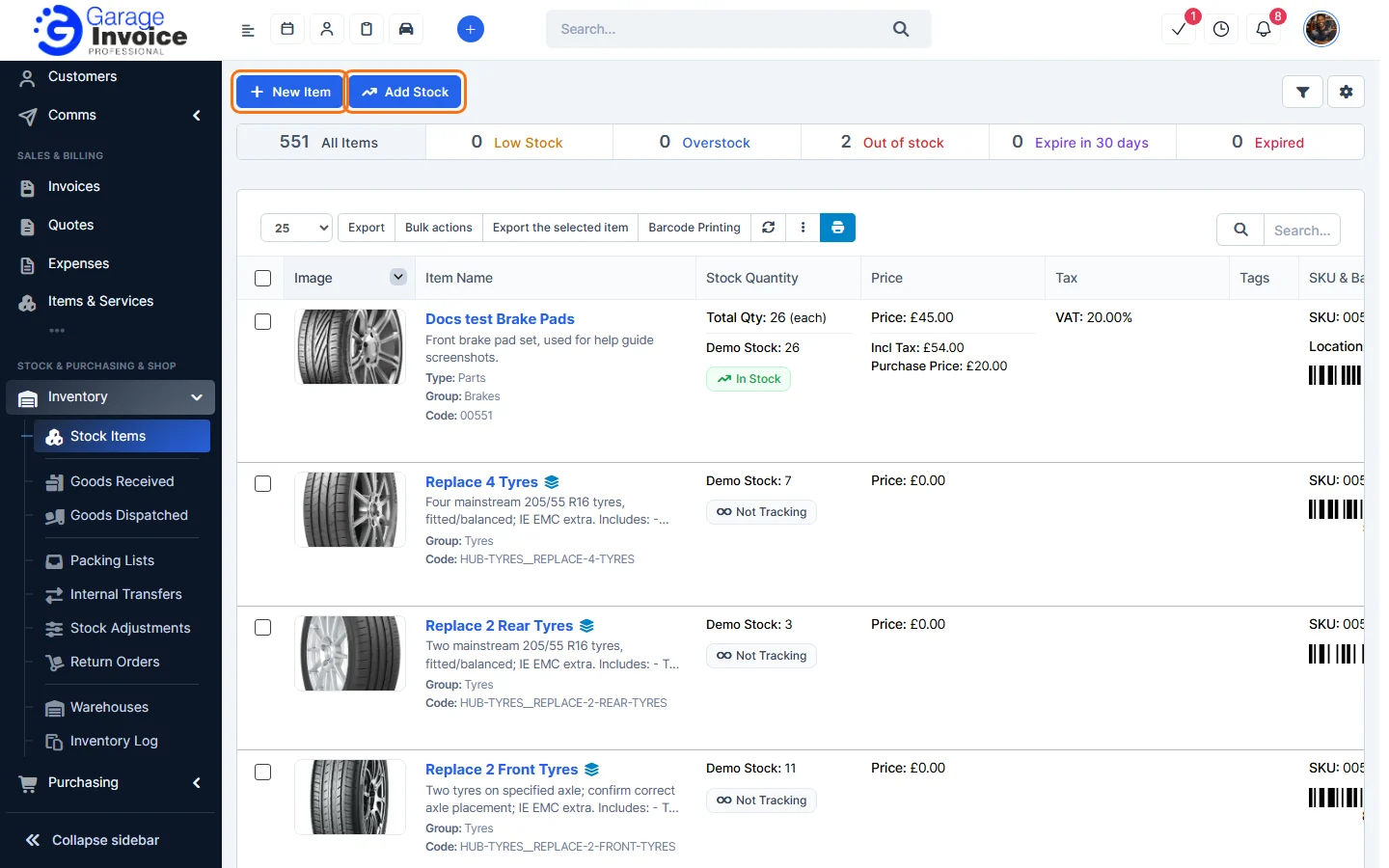
- In the Manage Stock window, fill in one row per item:
- Item Name (required): double-click the cell, start typing and pick the item.
- Warehouse Name (required): the warehouse the stock is in.
- Lot number and Expiry Date: if you track them.
- Stock Quantity (required): how many you’re adding.
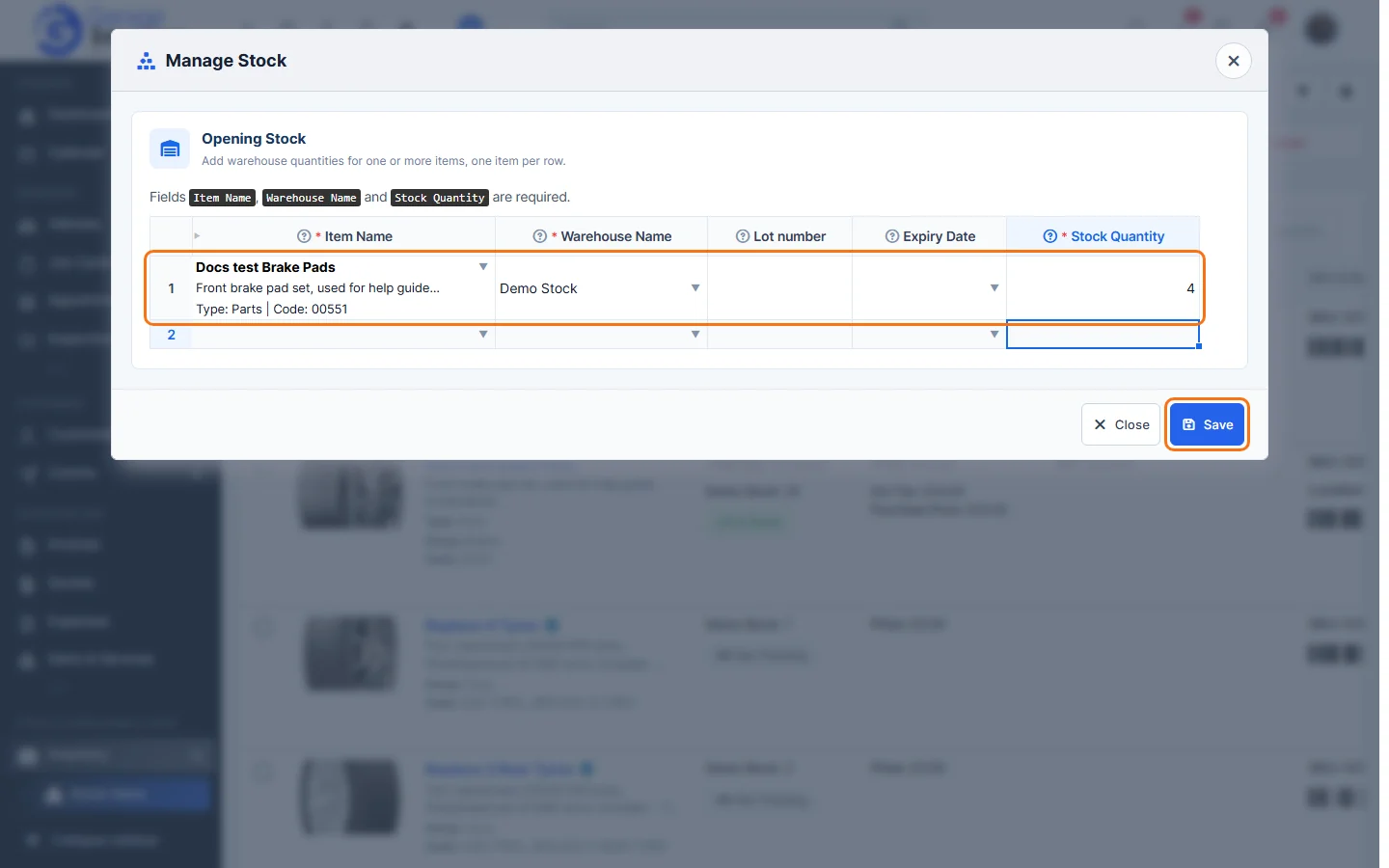
- A new empty row appears for the next item. When you’re done, click Save.
The app shows “Updated successfully” and the stock quantity goes up. The movement is listed on the item’s Stock Flow tab and in the Inventory Log.
Tip: to correct a wrong quantity, use a stock adjustment.
Feature Stock and inventory control: see what it does and how it fits your workshop.