
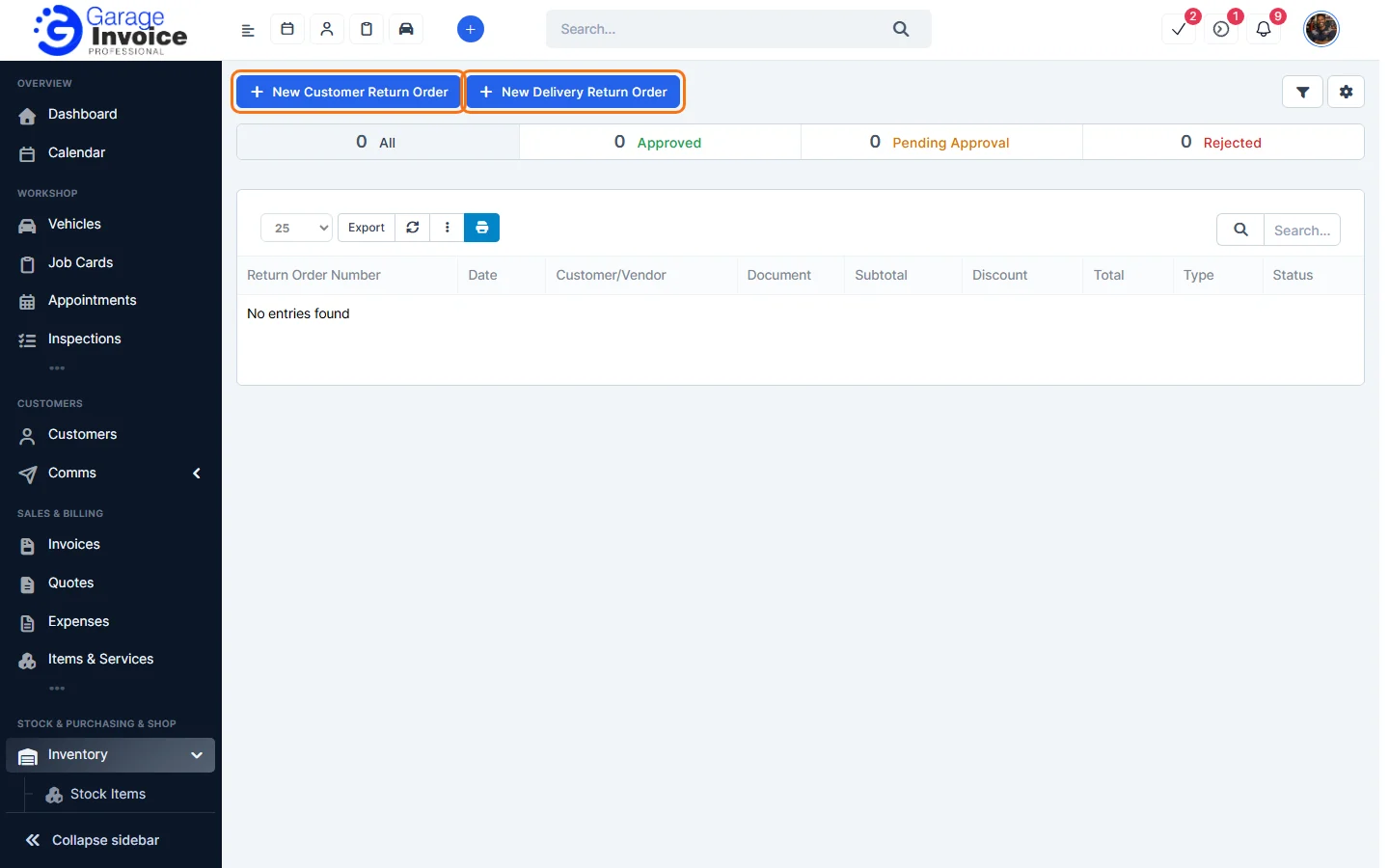
- Click Inventory in the sidebar (under Stock & Purchasing & Shop) and click Return Orders. Click New Customer Return Order.
- Click Goods Dispatched Note, type the note number and choose it. The Customer and the items are filled in from the note. The Return Order Number and Date created are filled in for you.
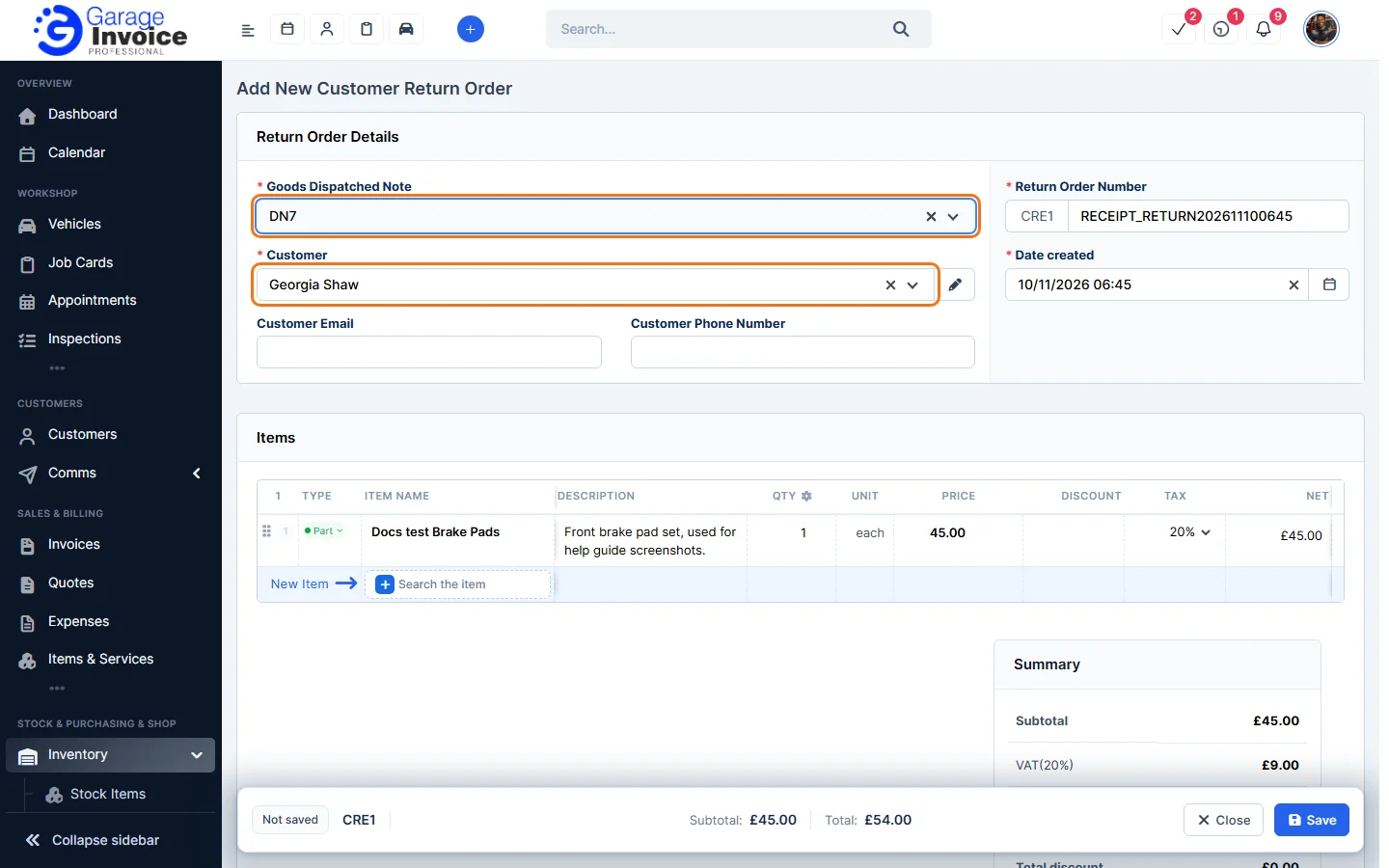
- Check the items and change the quantity if only some were returned.
- Type the Reason for the return. You can add an Admin note and Return policies information.
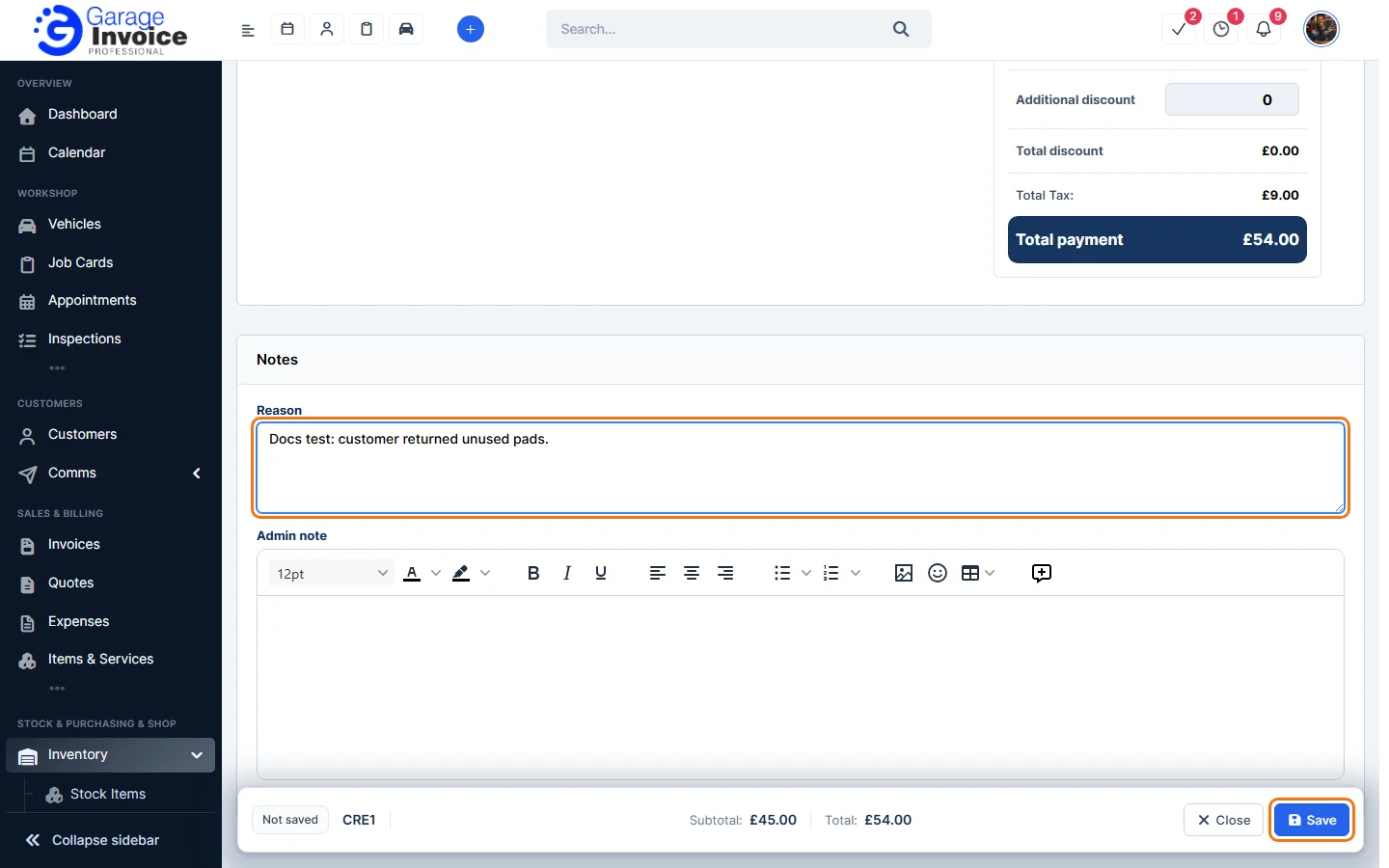
- Click Save in the bar at the bottom of the screen.
The return order opens on the right. The returned items go back into stock through a Goods Received Note that the app creates for you. Its number is shown on the return order.
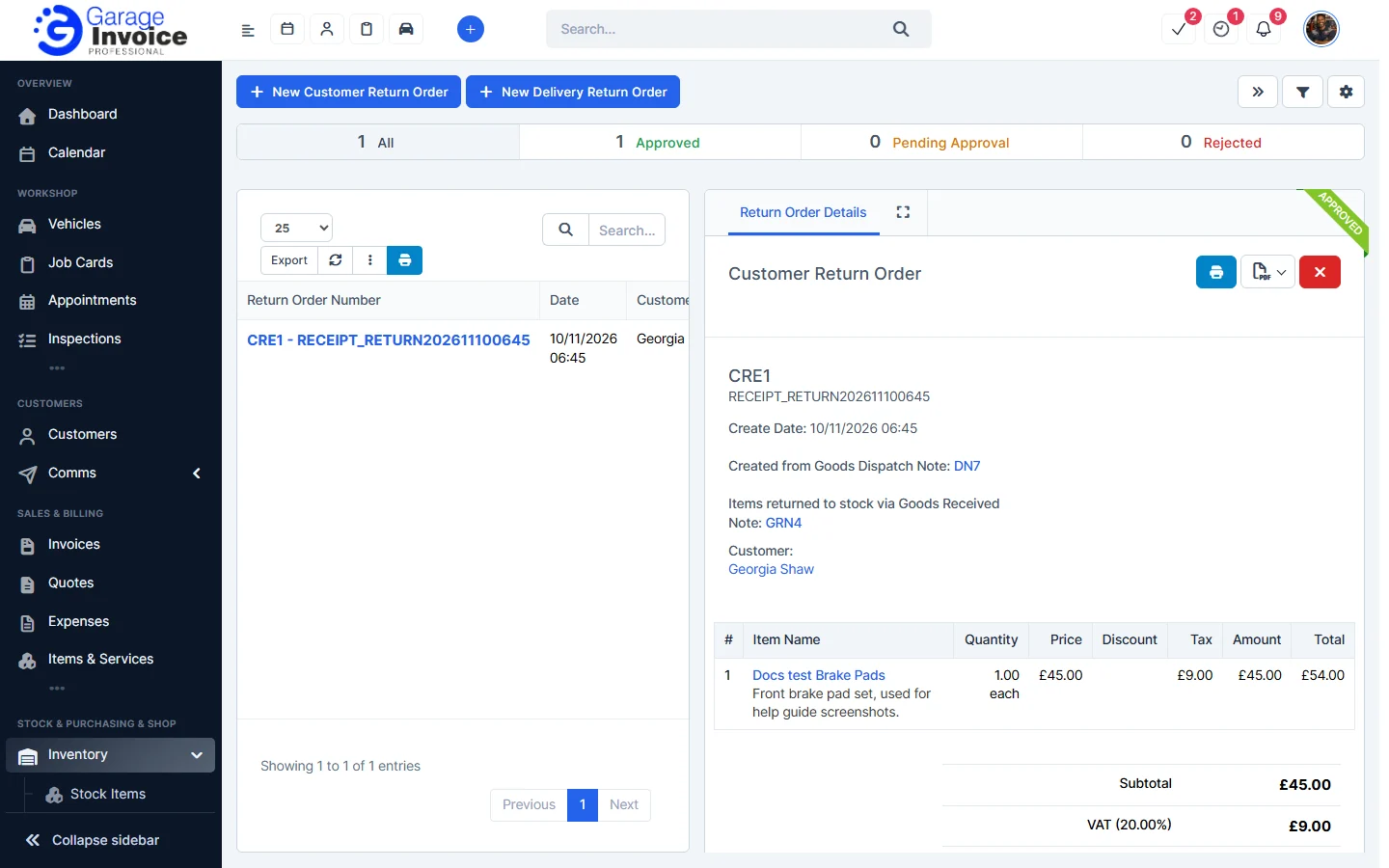
Note: the items go into the default warehouse for return orders. If none is set, the app creates a warehouse called “Warehouse receive return order”. See Default Warehouse.
Feature Stock and inventory control: see what it does and how it fits your workshop.