
- Click Quotes in the sidebar, under Sales & Billing. Click Create New Quote.
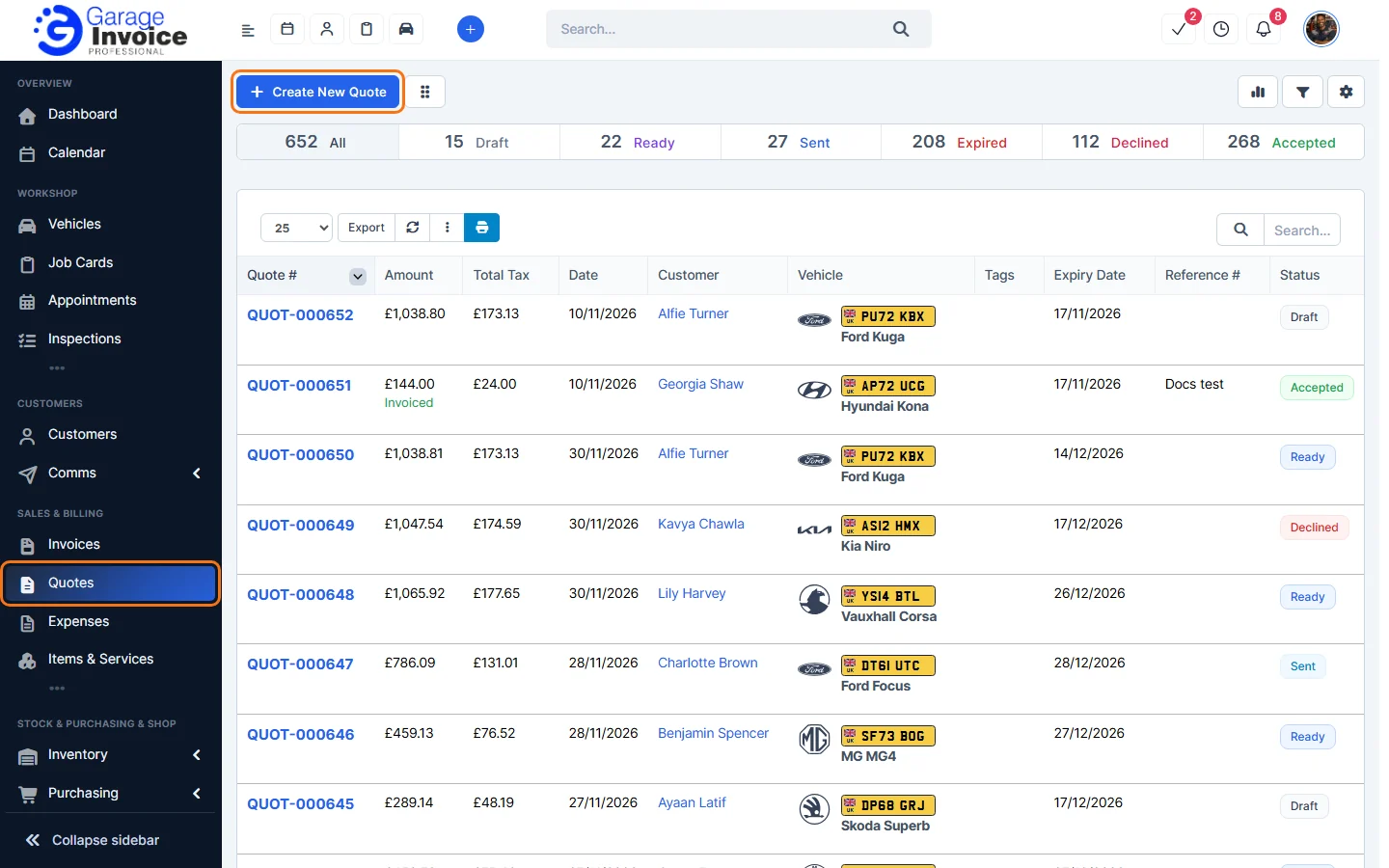
Tip: you can also create a quote from the + quick create button at the top of every page, or from a vehicle or customer page.
- Under Quote Details, search for the Customer and the Vehicle. Click + to add a new customer or vehicle without leaving the page.
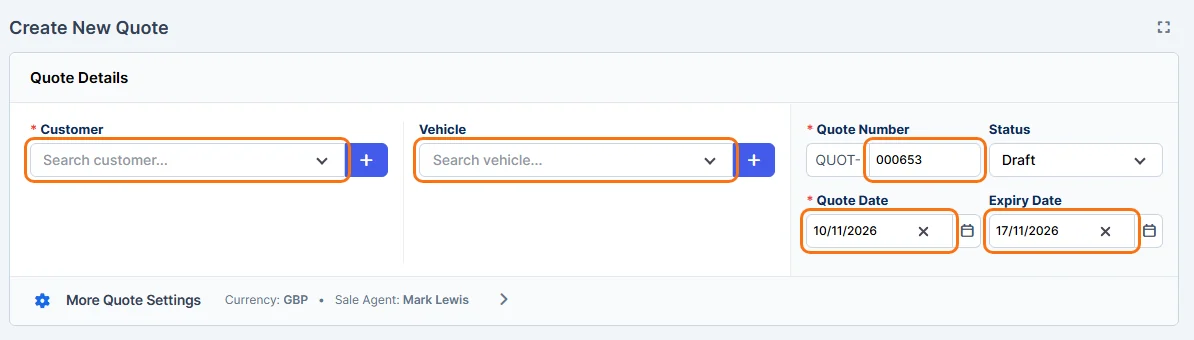
- Check the Quote Number, Status (a new quote is a Draft), Quote Date and Expiry Date. The expiry date is filled in from your settings. See Set Default Quote Expiry.
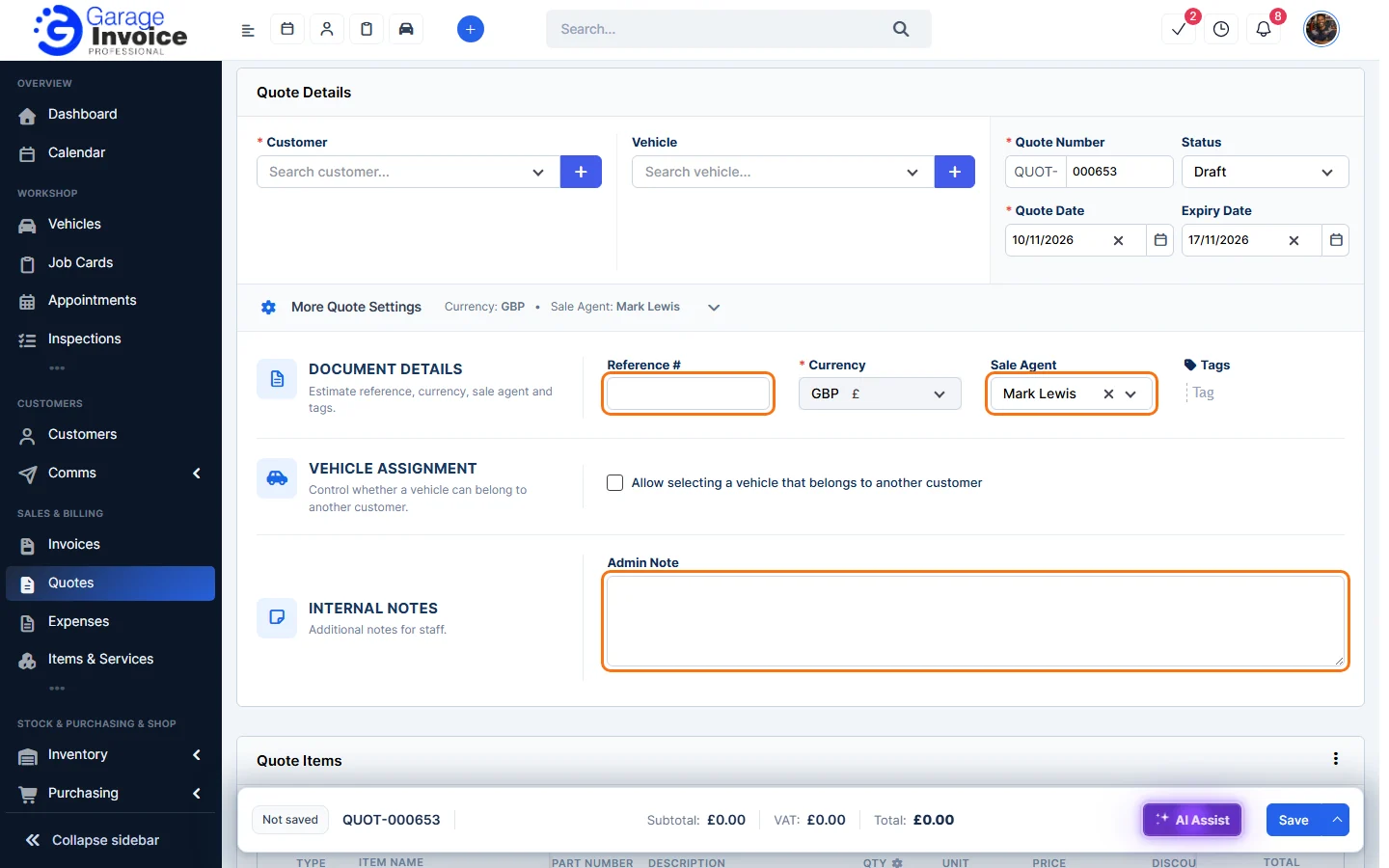
- Click More Quote Settings if you need any of these:
- Reference #, Currency, Sale Agent and Tags.
- Allow selecting a vehicle that belongs to another customer.
- Admin Note: an internal note your customer doesn’t see.
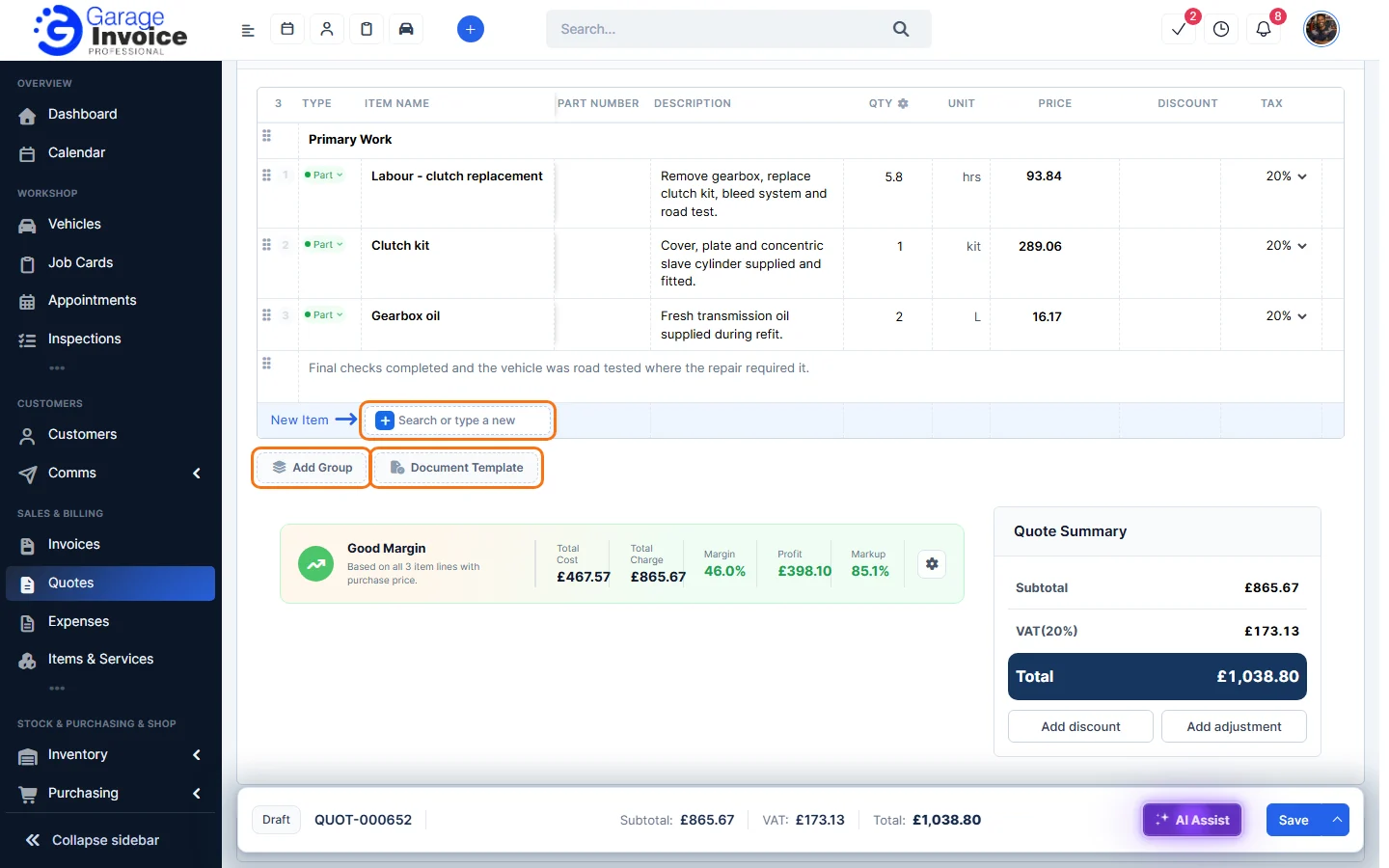
- Under Quote Items, click in Search or type a new… and type a part, labour or service. Choose an item from your list or type a new one, then set the quantity, price, discount and tax. Use Add Group to split the quote into groups, or Document Template to add a saved set of items.
- Open Notes & T&Cs to change the Customer Note and Terms & Conditions for this quote. Your defaults are filled in. See Add Quote Note and Add Quote Terms.
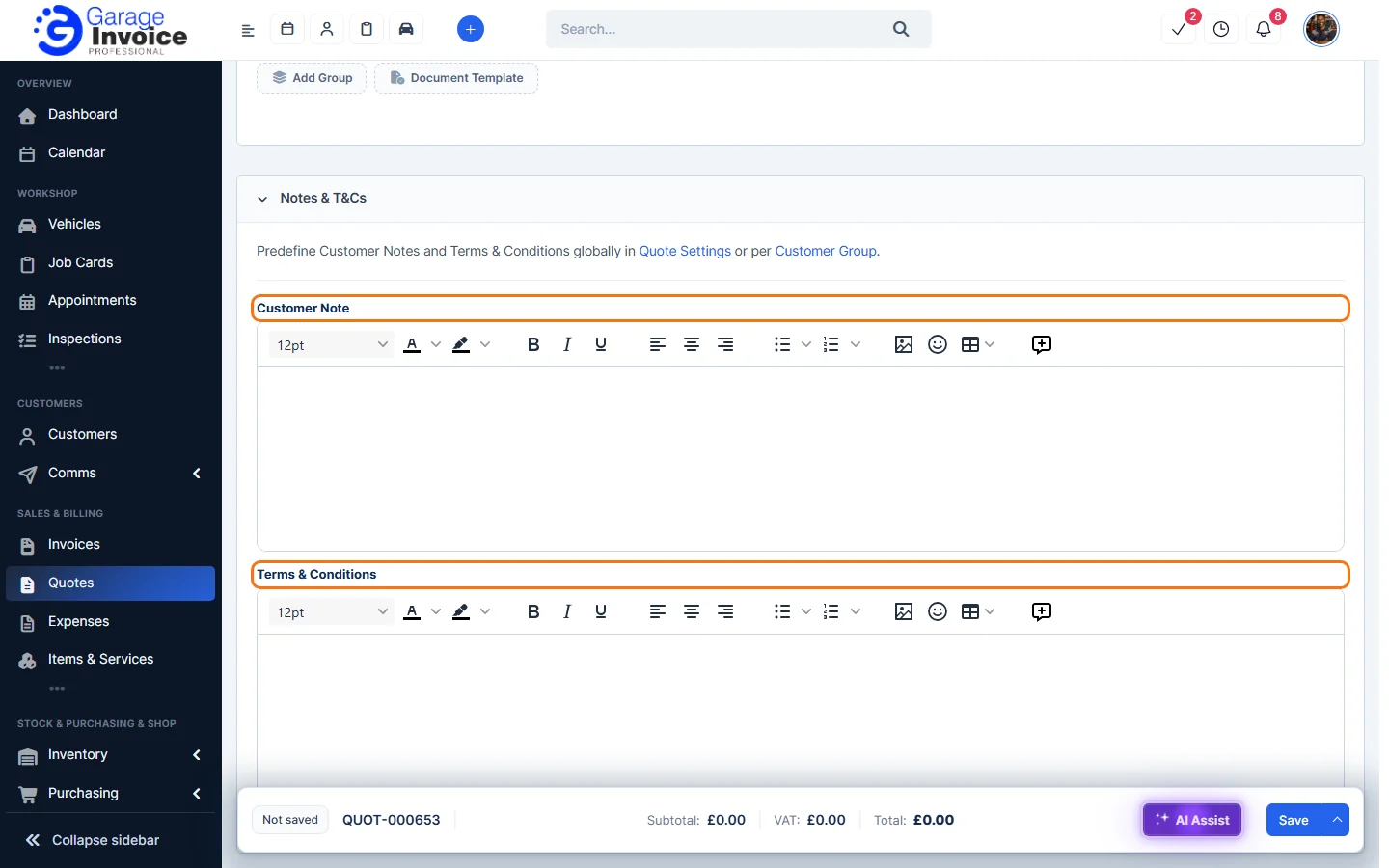
- Check the totals in the bar at the bottom and click Save. Click the arrow next to Save for Save & Send (save and email the quote now) or Save and Send Later.

Tip: AI Assist in the bottom bar can help you write item descriptions and notes.
Next: Send Quote to Customer · Quote Status Explained
Feature Garage quoting software: see what it does and how it fits your workshop.