
- On the POS screen, click the + on a product card to add it straight to the cart. Click it again to add one more.
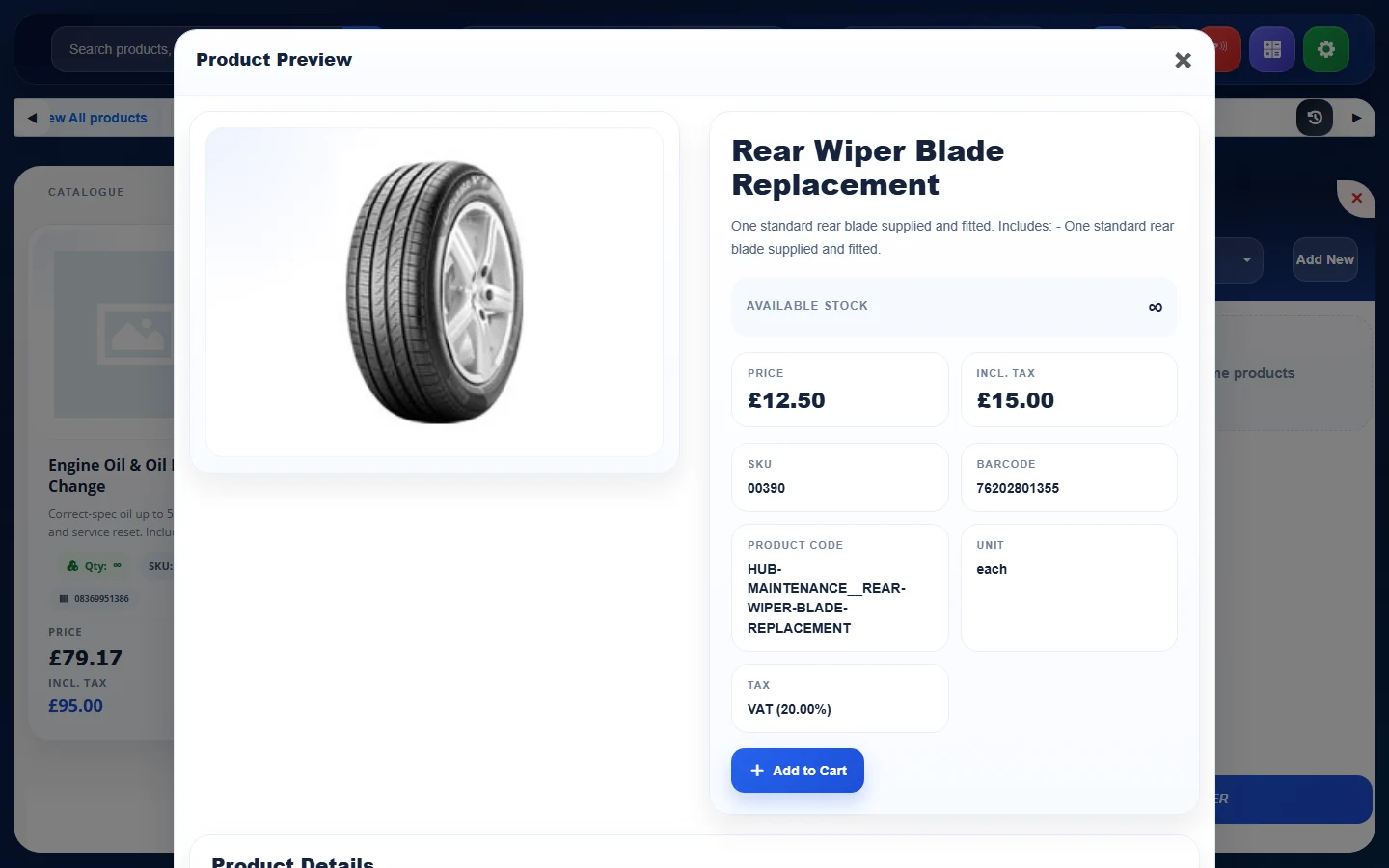
- Or click the product to open its preview with the description and price, and click Add to Cart.
- In the SHOPPING CART, use + and − to change the quantity and the bin icon to remove a line. Click Add Discount Code to apply a voucher. The cart shows the Sub Total, Discount, Tax and Shipping fee.
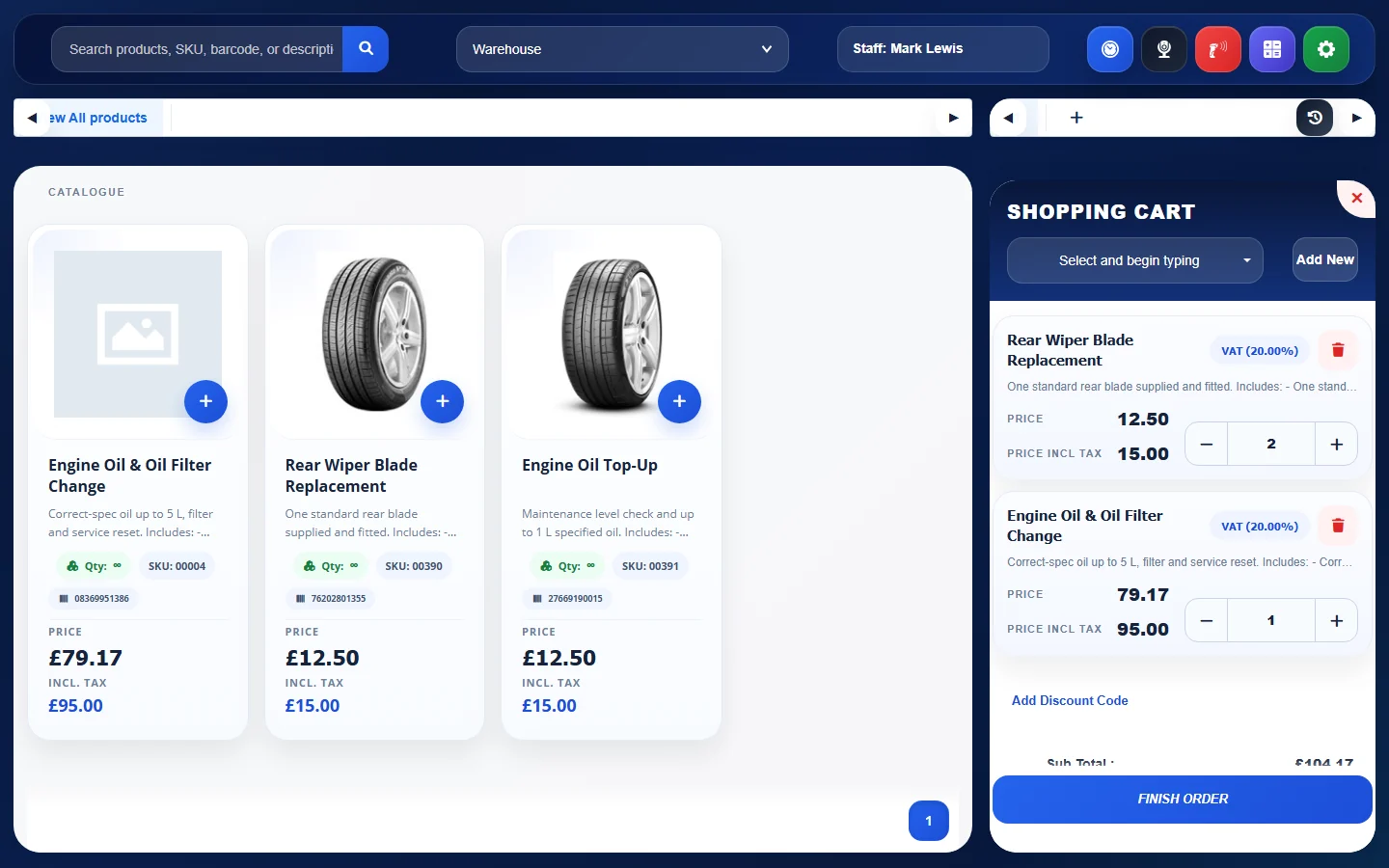
Tip: the cart tabs at the top of the cart let you serve more than one customer at a time. Click + to open a new cart.
See also: Add a Customer from the POS · Take Payment and Finish a POS Order
Feature Online shop and POS: see what it does and how it fits your workshop.