
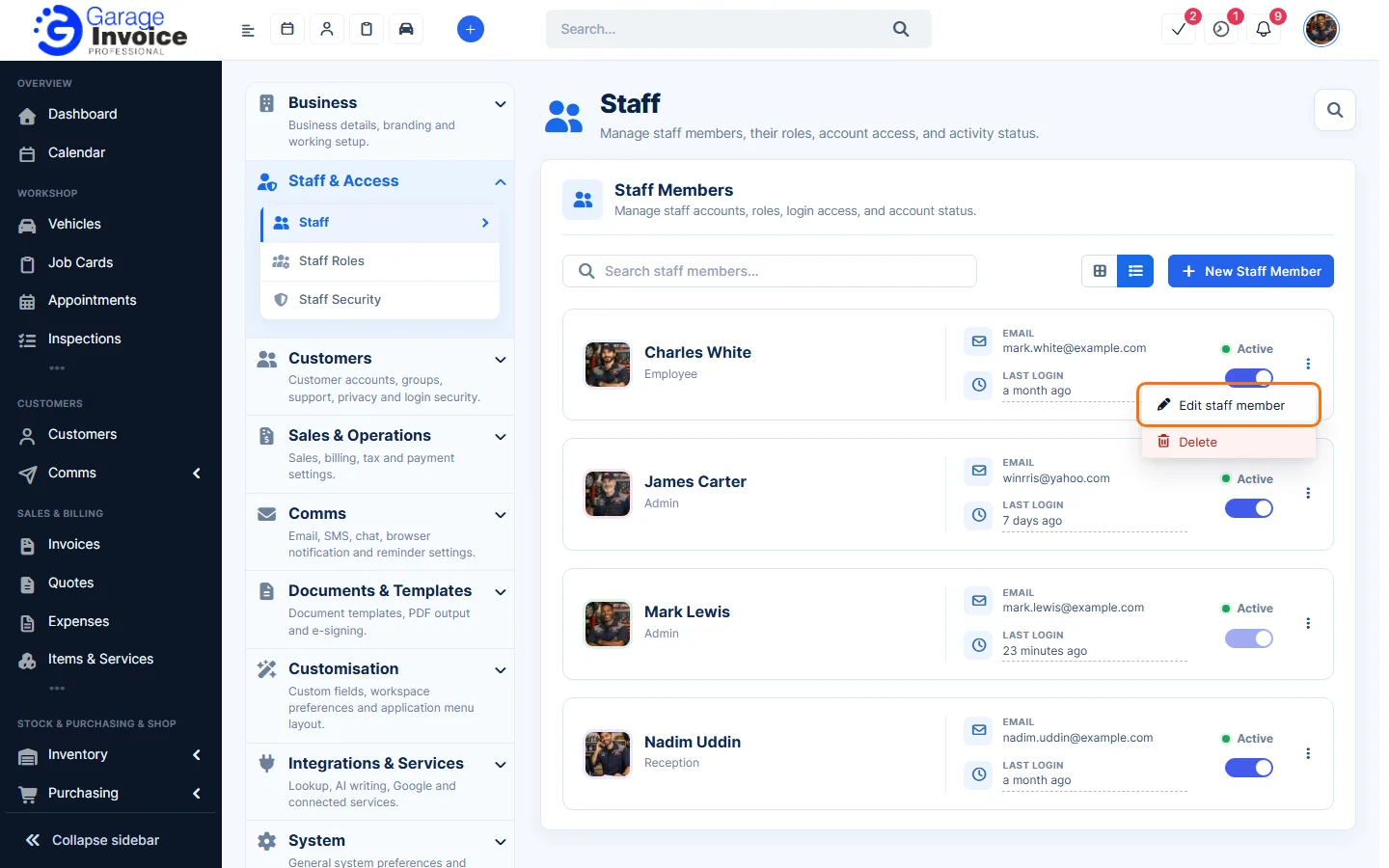
- Click Settings at the bottom of the sidebar, under Administration. In the panel on the left, open Staff & Access and click Staff. Each card shows the staff member’s role, email, last login and whether they are active. Use the search box to find someone, and the buttons next to it to switch between card view and list view.
- Click ⋮ on the staff member’s card and choose Edit staff member. (On your own card, the option is Edit my profile.)
- The staff member’s page has three tabs: Profile (details, role, departments and password), Permissions and Staff Activity.
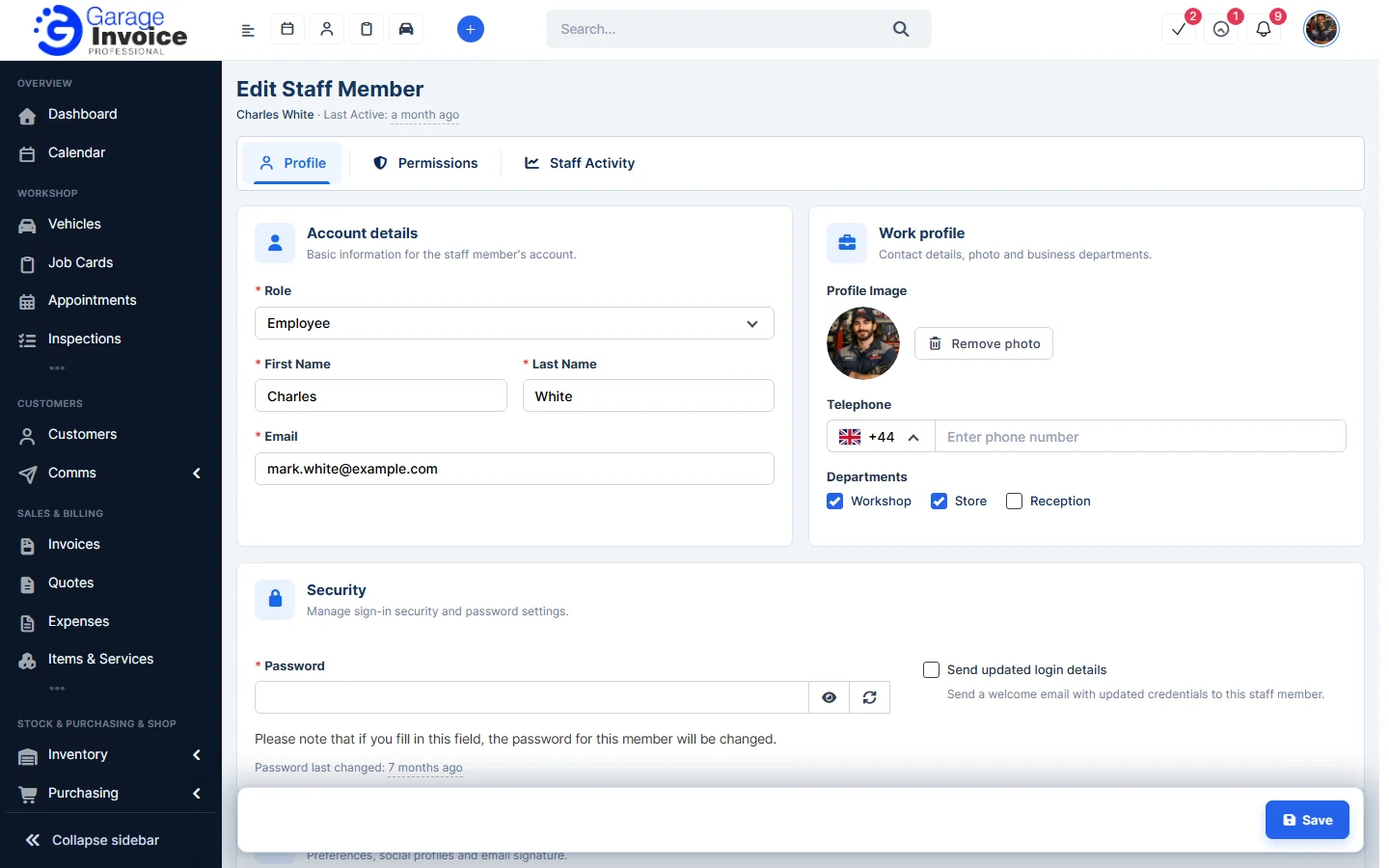
- Make your changes and click Save.
Change a staff member’s role
- On the Profile tab, choose a different Role.
- Click Save.
Change one person’s permissions
- Open the Permissions tab. The role fills these in; tick or untick what this person can see and do.
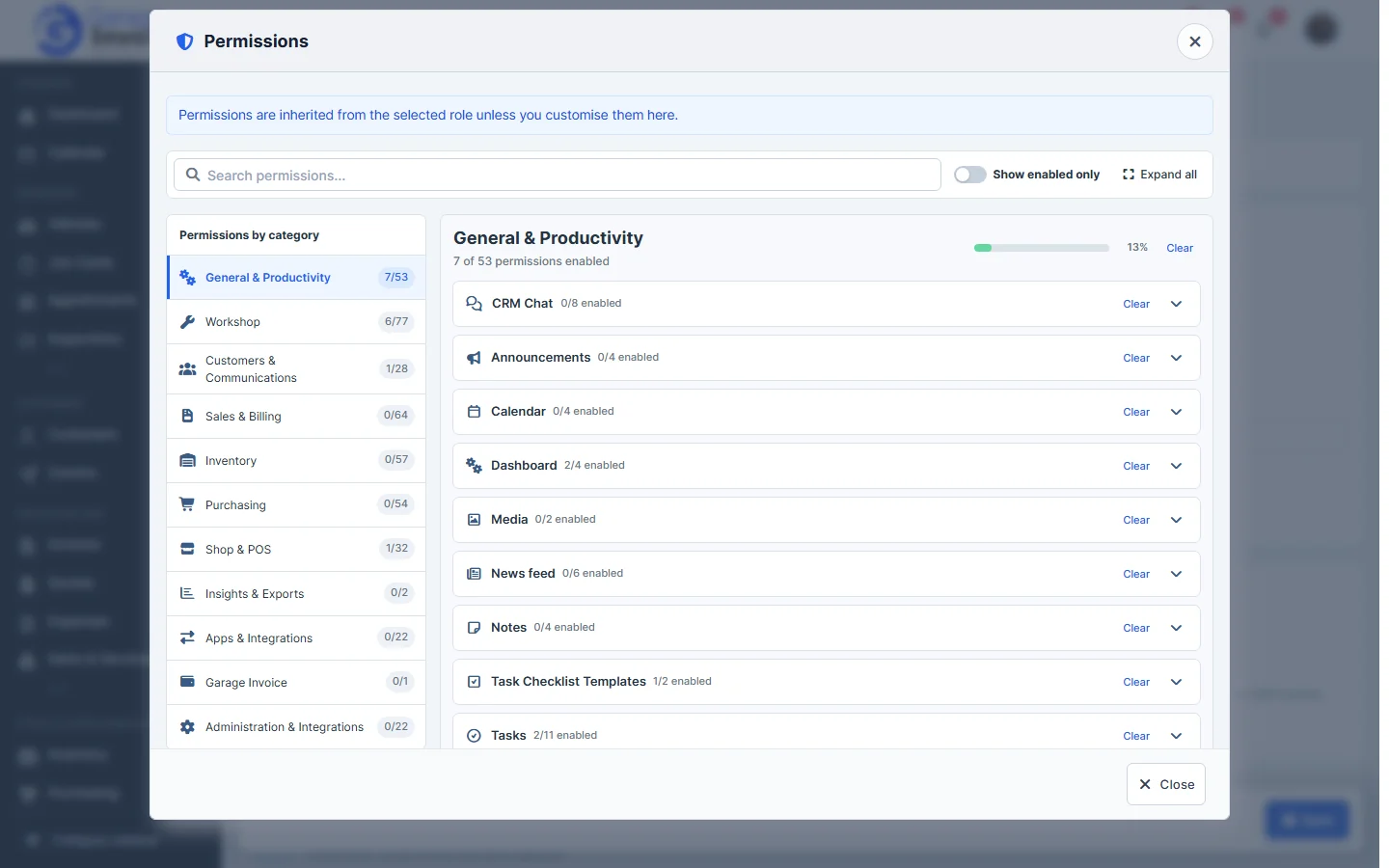
- Click Save.
Tip: to change permissions for everyone with the same role, edit the role instead. See Edit Staff Member Role.