
- Click Shop & POS in the sidebar (under Stock & Purchasing & Shop) and click POS. and open a shift (see Create POS Shift).
- The left side lists the products in the POS channel, with stock quantity, SKU and price with and without tax. The top bar shows the Warehouse and Staff. The right side is the SHOPPING CART, with the customer box and FINISH ORDER.
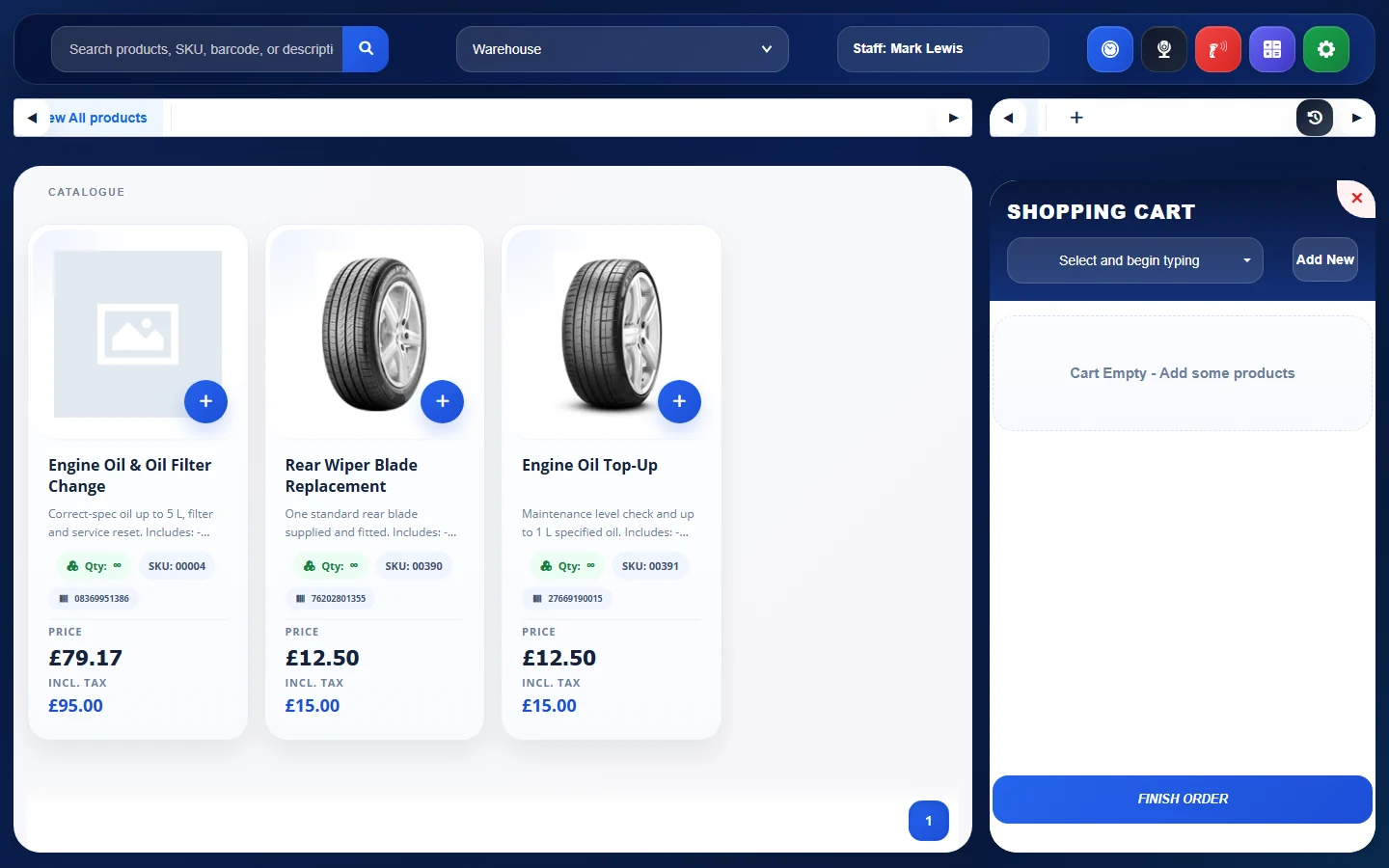
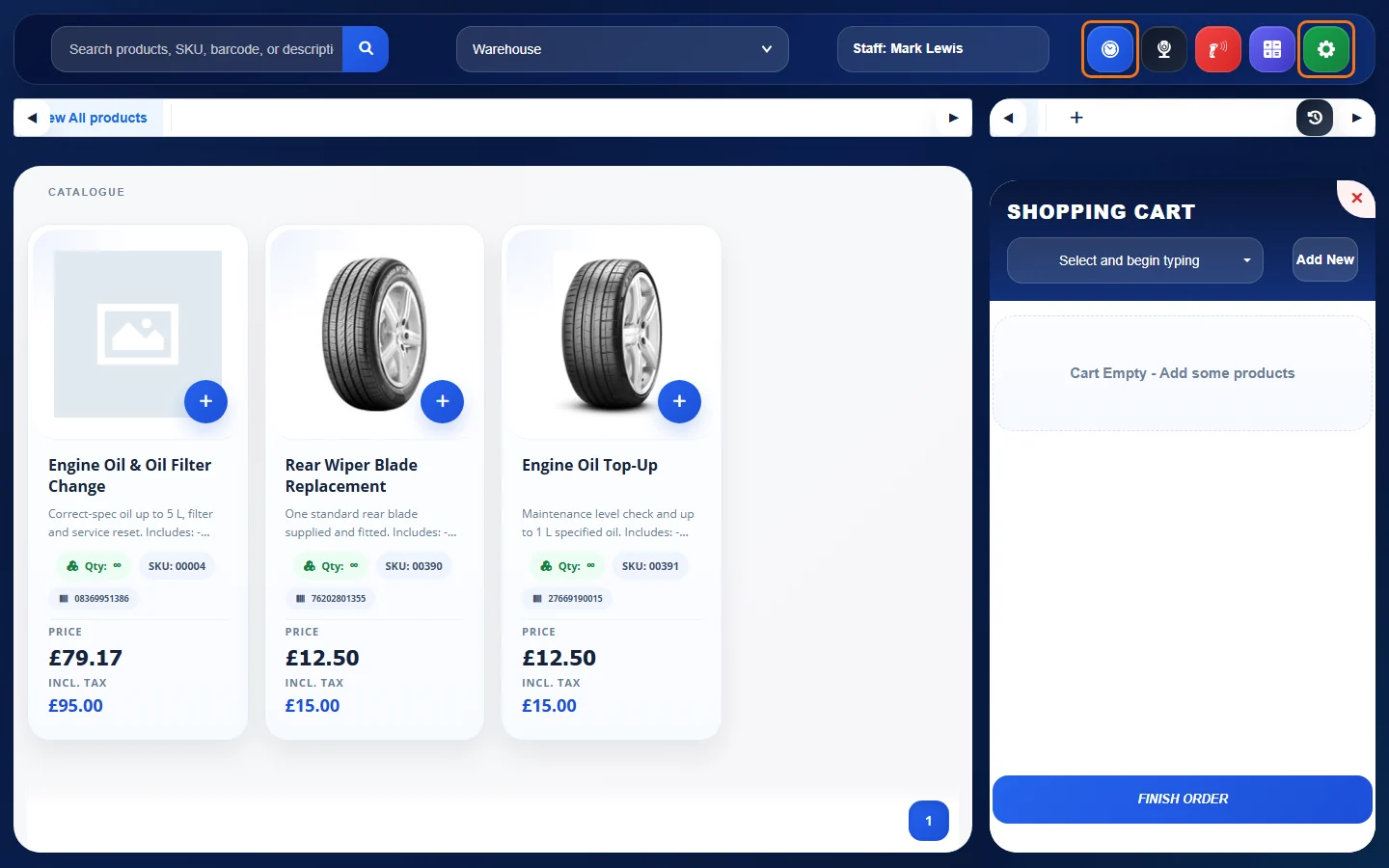
- The coloured icons at the top are, from left to right: Shift (shift details and close shift), Camera, Barcode Scanner, Calculator and Setting. The clock button above the cart shows the Transaction history.
Next steps
- Search for POS Products
- Add Products to the POS Cart
- Add a Customer from the POS
- Take Payment and Finish a POS Order
Feature Online shop and POS: see what it does and how it fits your workshop.