
- Click Settings in the sidebar, open Sales & Operations and click Job Cards.
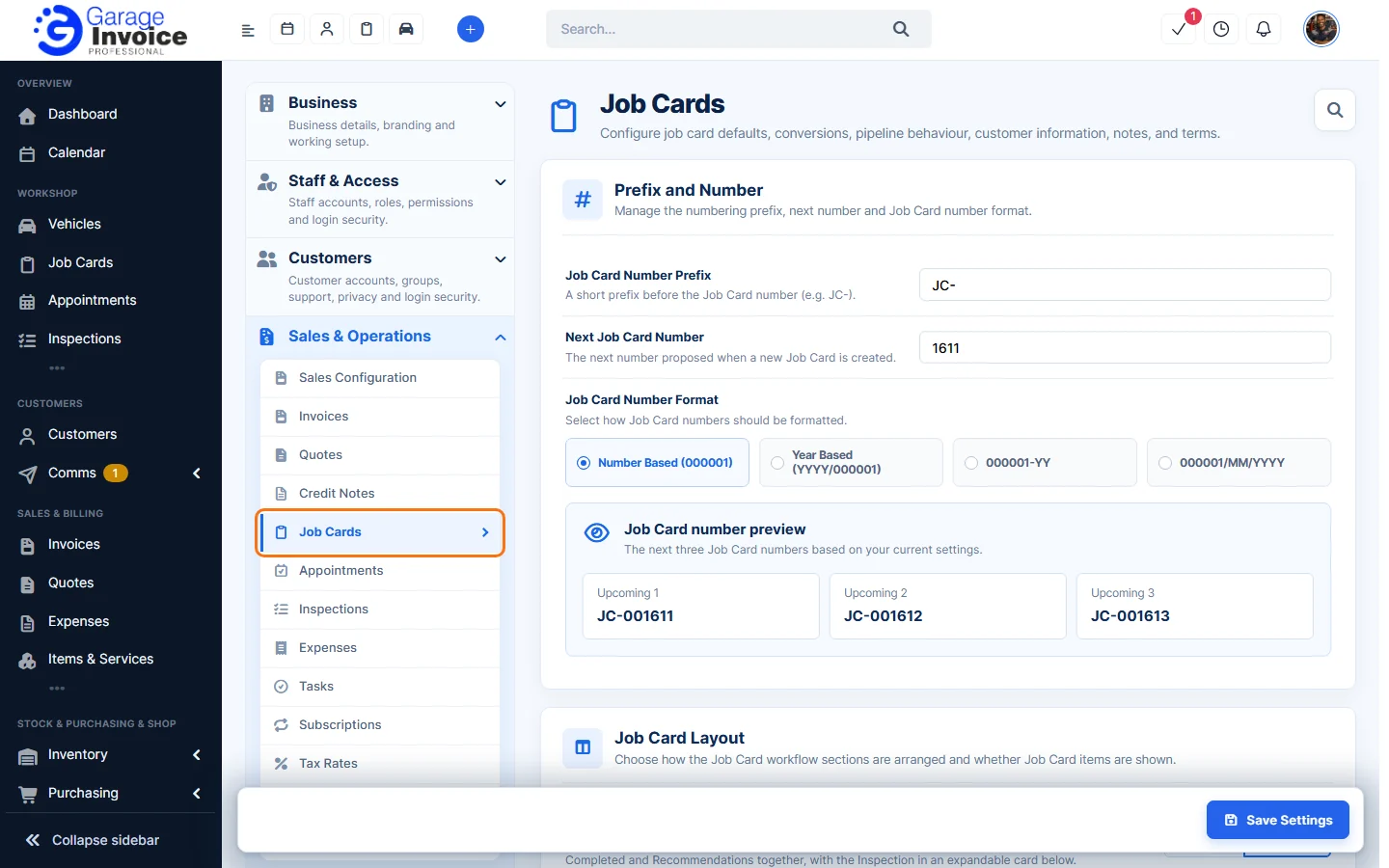
- Change what you need and click Save Settings.
Prefix and Number
- Job Card Number Prefix: a short prefix before the number, for example JC-.
- Next Job Card Number: the number proposed for the next new job card.
- Job Card Number Format: Number Based (000001), Year Based (YYYY/000001), 000001-YY or 000001/MM/YYYY. Job Card number preview shows the next three numbers.
Job Card Layout
- Job Workflow Style: Use Tabs shows one workflow section at a time. Use Boxes shows Reported Issue, Technician Findings, Work Completed and Recommendations together, with the inspection in an expandable card below.
- Show Job Card Items: shows the Items card in the job card editor and the items and totals on job card PDFs.
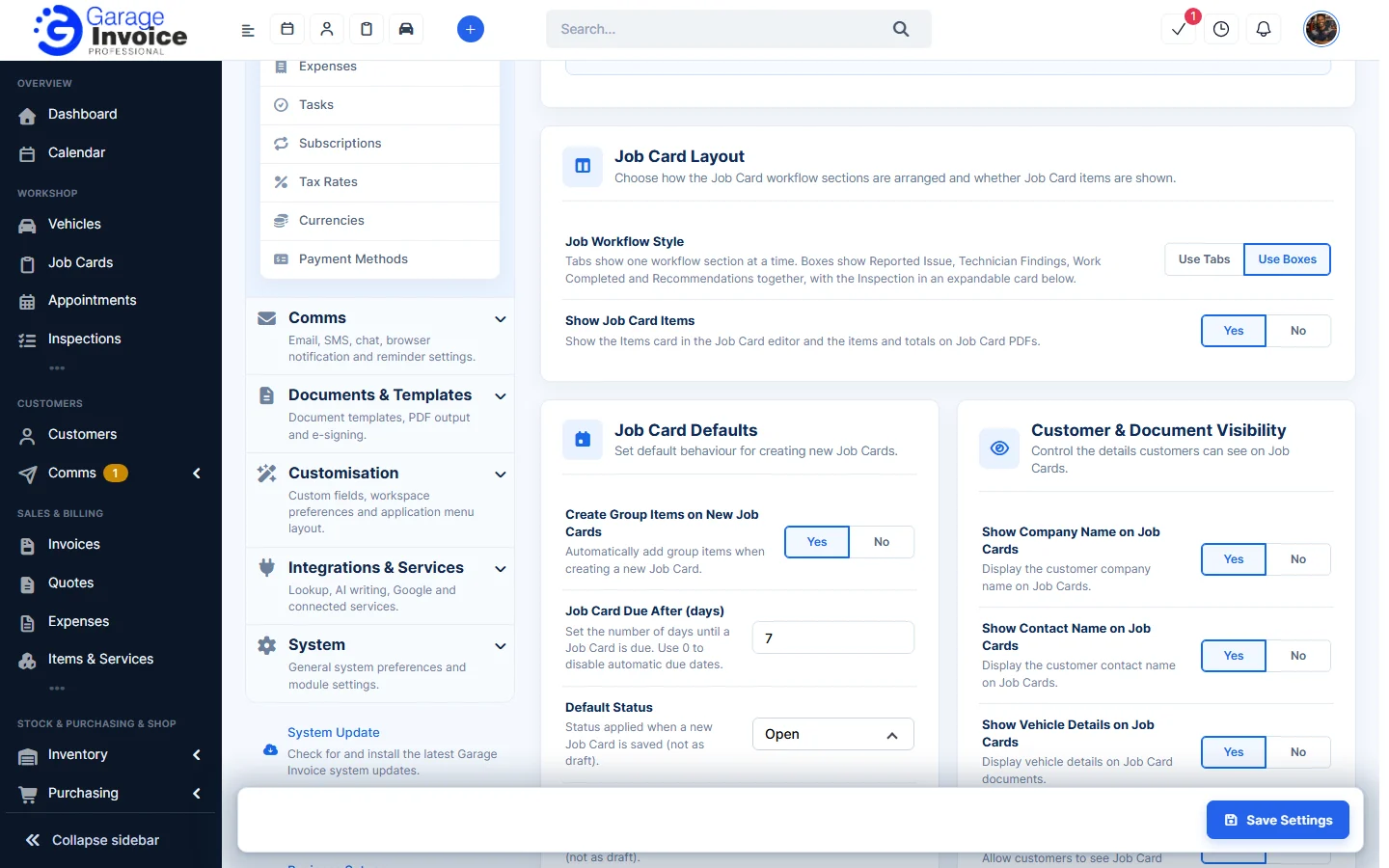
Job Card Defaults
- Create Group Items on New Job Cards: adds group items automatically when you create a new job card.
- Job Card Due After (days): the number of days until a job card is due. Use 0 to turn off automatic due dates.
- Default Status: the status given to a new job card when it’s saved (not as a draft), for example Open.
- Default Workshop Status: the workshop progress given to a new job card when it’s saved (not as a draft), for example Work in Progress.
Customer & Document Visibility
- Show Company Name on Job Cards and Show Contact Name on Job Cards: show the customer’s company name and contact name.
- Show Vehicle Details on Job Cards: shows the vehicle details on job card documents.
- Show Prices & Totals to Customers: lets customers see job card prices and totals.
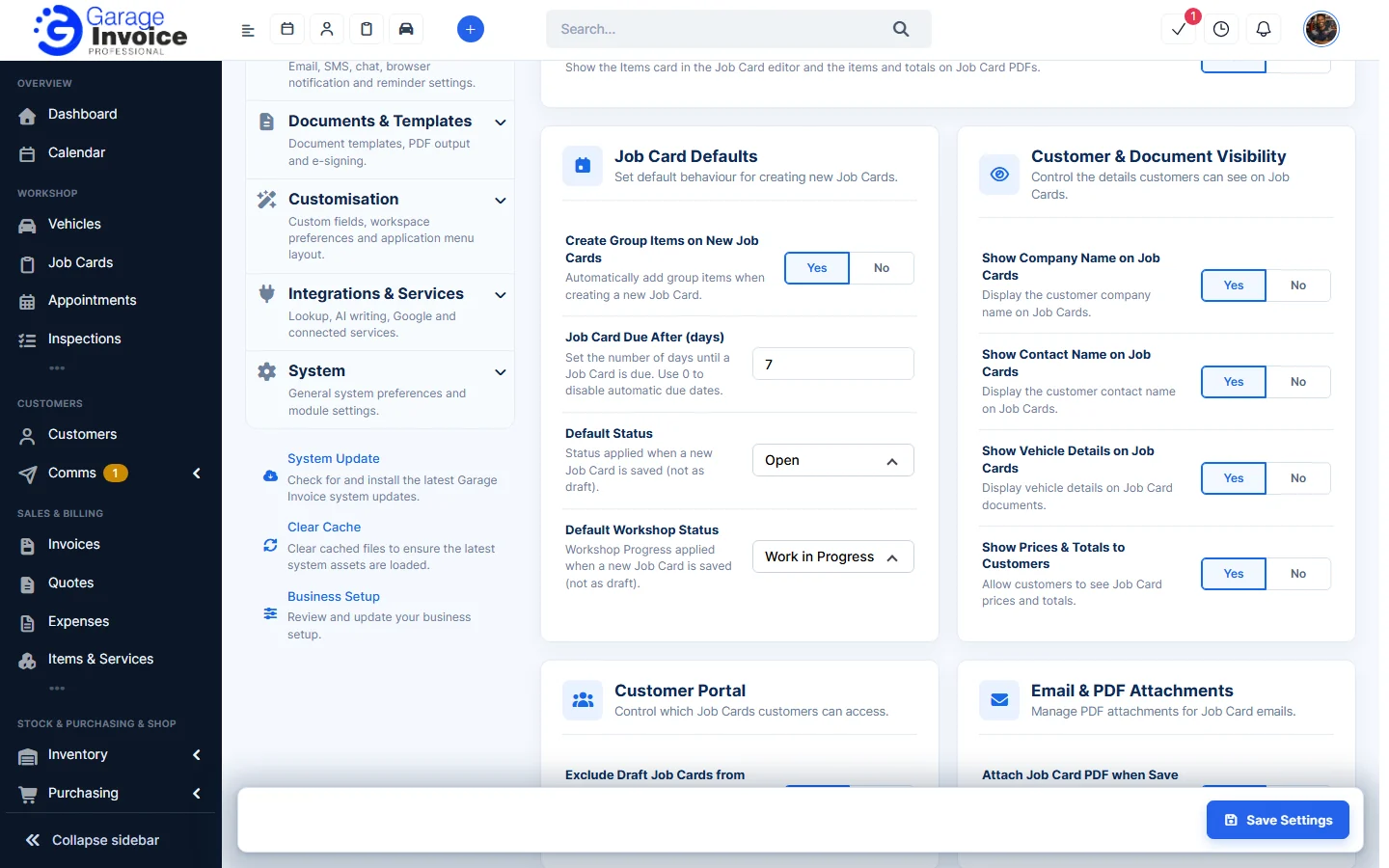
Customer Portal and Email
- Exclude Draft Job Cards from the Customer Portal: draft job cards aren’t shown in the customer portal.
- Attach Job Card PDF when Save & Send is used: attaches a PDF copy automatically when you use Save & Send.
Convert Job Cards
For Invoice and Quote separately (see Convert Job Card to Invoice and Convert Job Card to Quote):
- Transfer Mileage: carries the recorded mileage into the new document.
- Transfer Customer Note: carries the selected job card notes into the new document.
- Transfer Terms & Conditions: carries the job card terms and conditions into the new document.
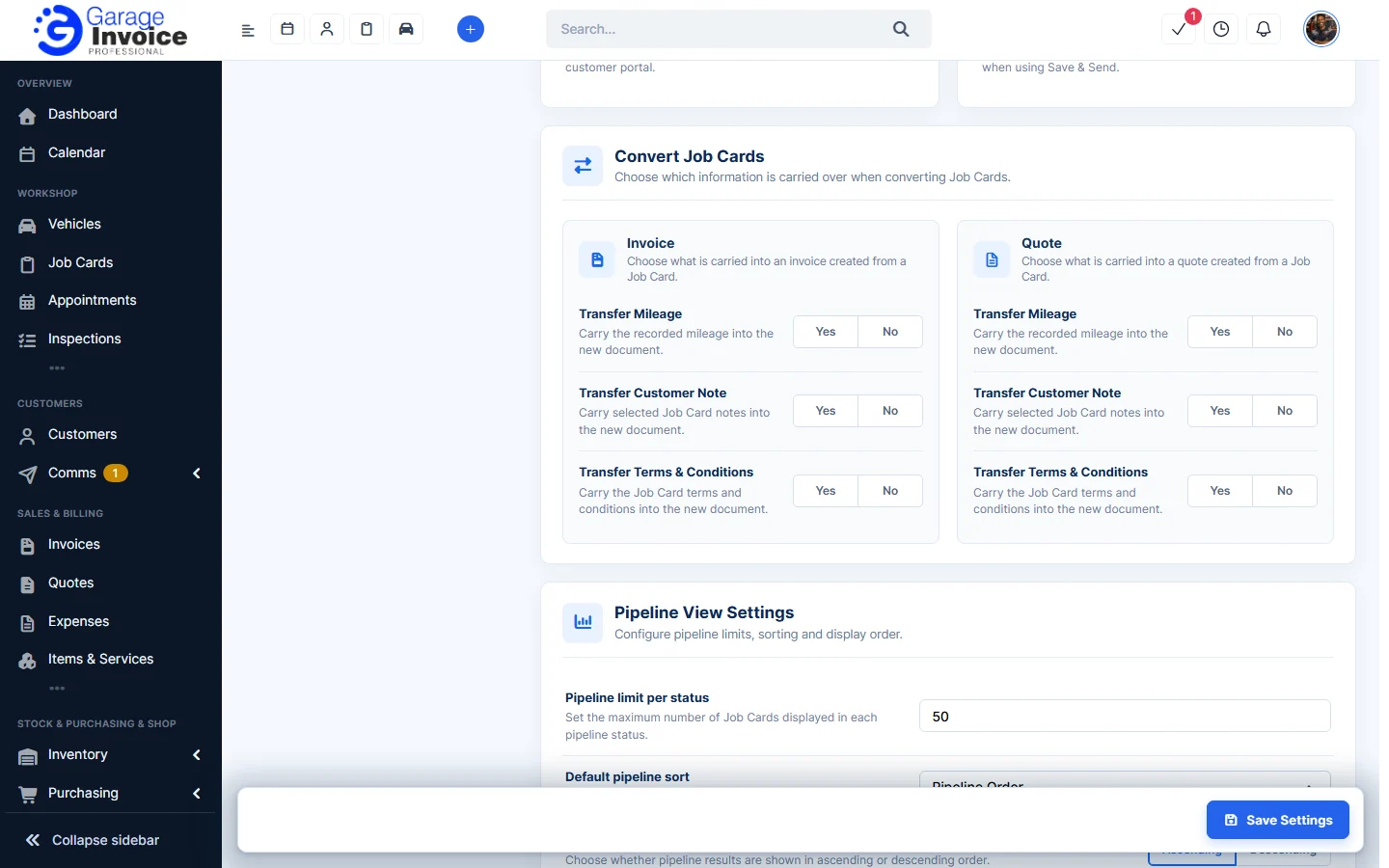
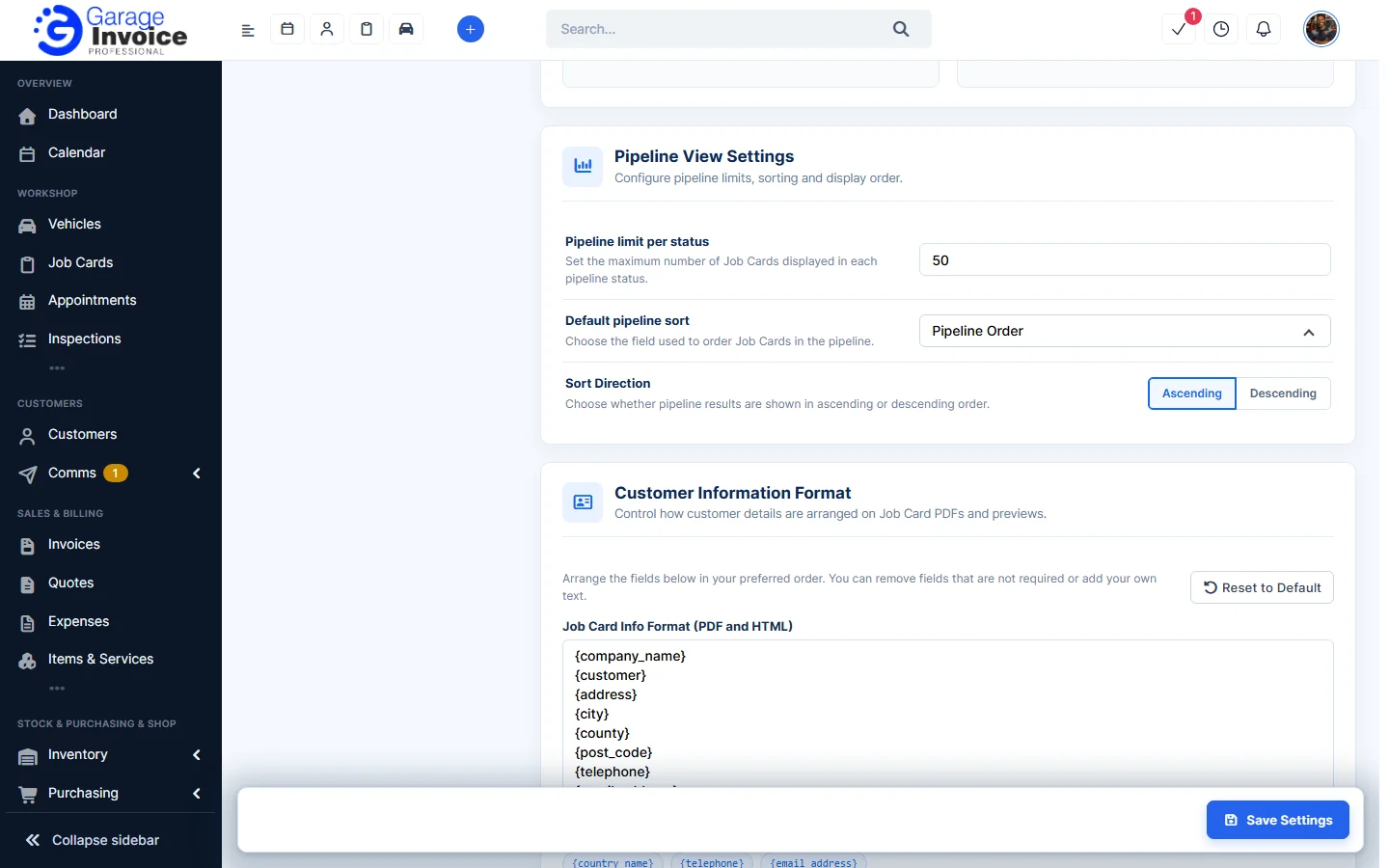
Pipeline View Settings
For the Pipeline View:
- Pipeline limit per status: the most job cards shown in each status.
- Default pipeline sort: the field used to order job cards, for example Pipeline Order.
- Sort Direction: Ascending or Descending.
Customer Information Format
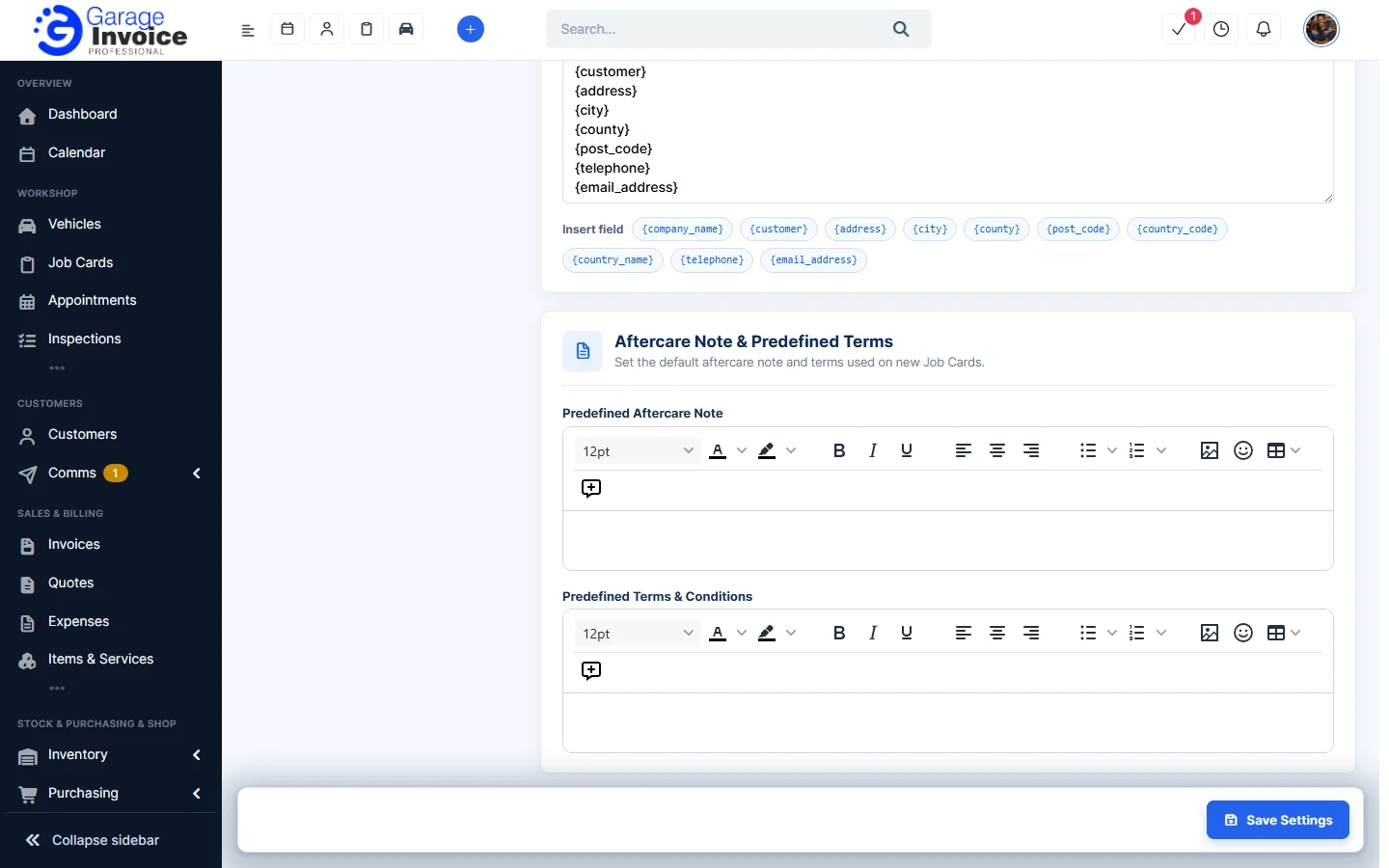
Under Job Card Info Format (PDF and HTML), arrange how the customer’s details appear on job card PDFs and previews. Click a field under Insert field (for example {customer}, {address} or {telephone}) to add it, remove fields you don’t need, or type your own text. Click Reset to Default to go back to the original layout.
Aftercare Note & Predefined Terms
Write the Predefined Aftercare Note and Predefined Terms & Conditions used on new job cards.
Feature Digital job cards: see what it does and how it fits your workshop.