
- Add the products and choose the customer (see Add Products to the POS Cart and Add a Customer from the POS).
- Click FINISH ORDER. The Choose a payment method window opens.
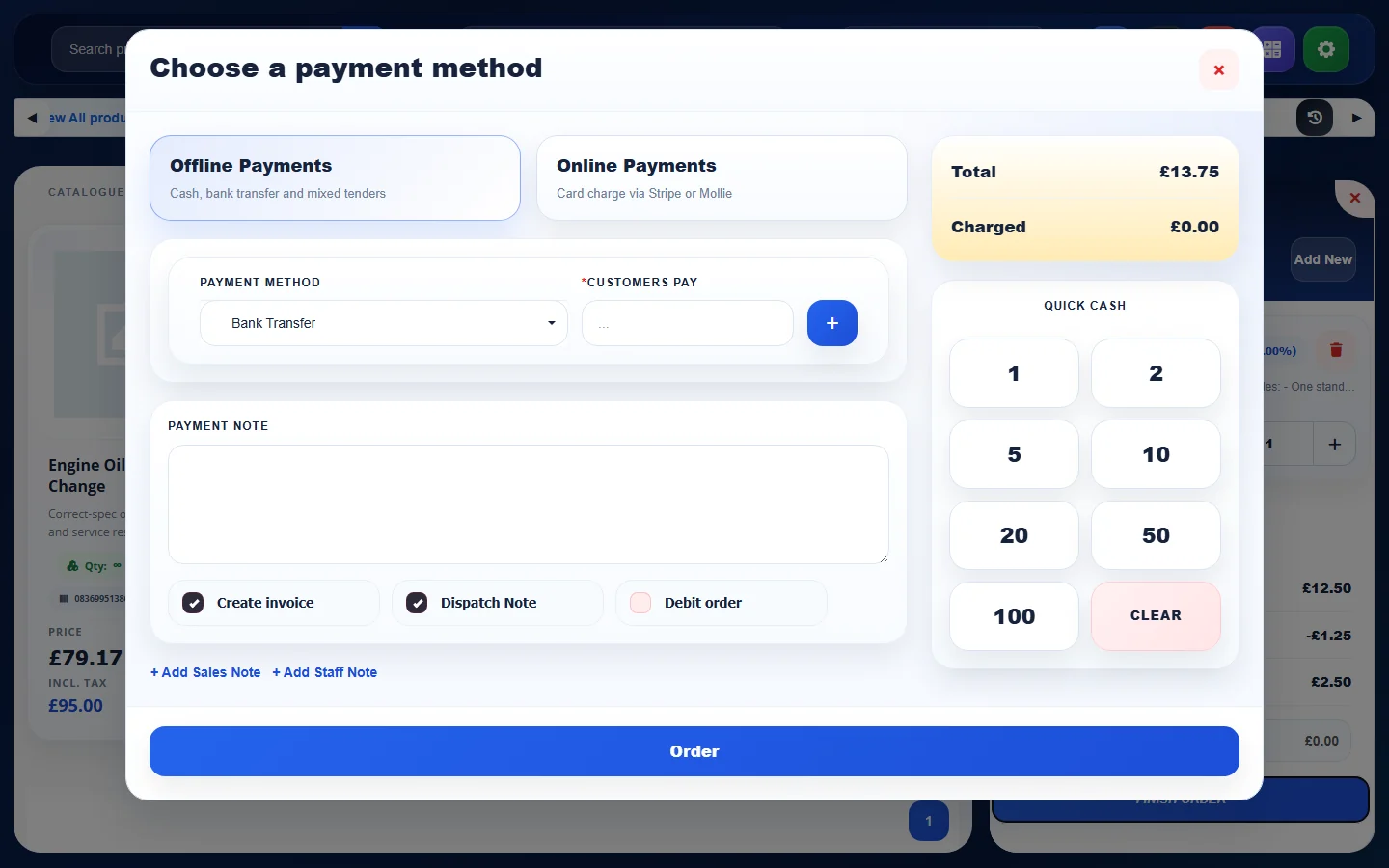
- On Offline Payments, choose the Payment method (for example Cash) and enter what the customer gives you in Customers pay, or tap the Quick cash amounts. Click + to split the payment between methods. The box at the top right shows the Total, what is Charged and the Change.
- Add a Payment note, or click + Add Sales Note or + Add Staff Note, if you like. Tick the options you need:
- Create invoice: creates and pays an invoice for the order.
- Dispatch Note: creates a dispatch note for the items.
- Debit order: places the order without taking payment now.
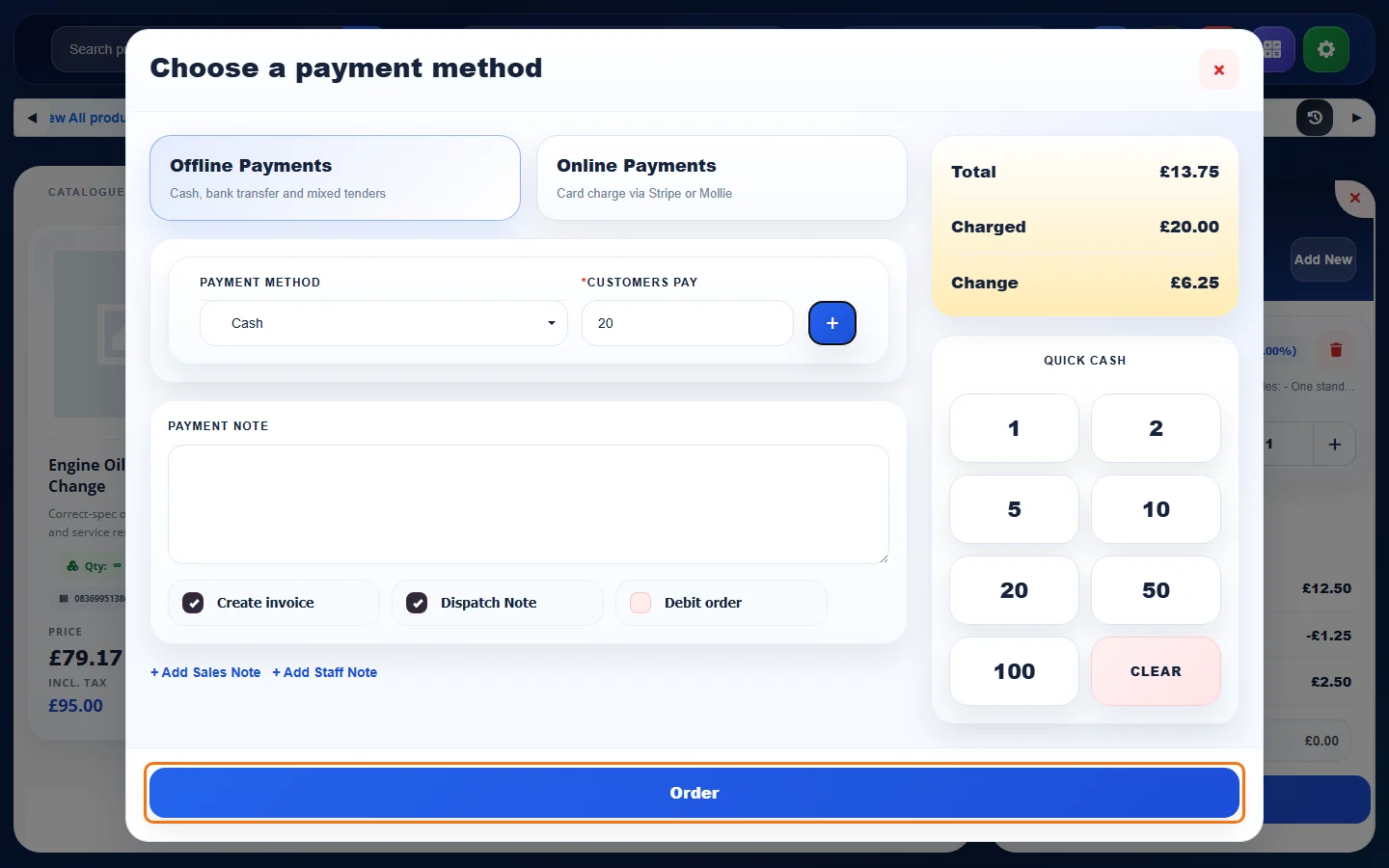
- Click Order. The order appears in Orders with channel POS.
Note: tick Create invoice or Debit order. Without one of them the POS will not place the order.
Tip: Online Payments takes a card charge through Stripe or Mollie, if you have connected them.
See also: Orders Overview · Close POS Shift
Feature Online shop and POS: see what it does and how it fits your workshop.