Subscriptions let you charge a customer automatically every billing period through Stripe, for example a monthly service or care plan. The customer starts the subscription from a link you send them, and Garage Invoice keeps track of each payment.
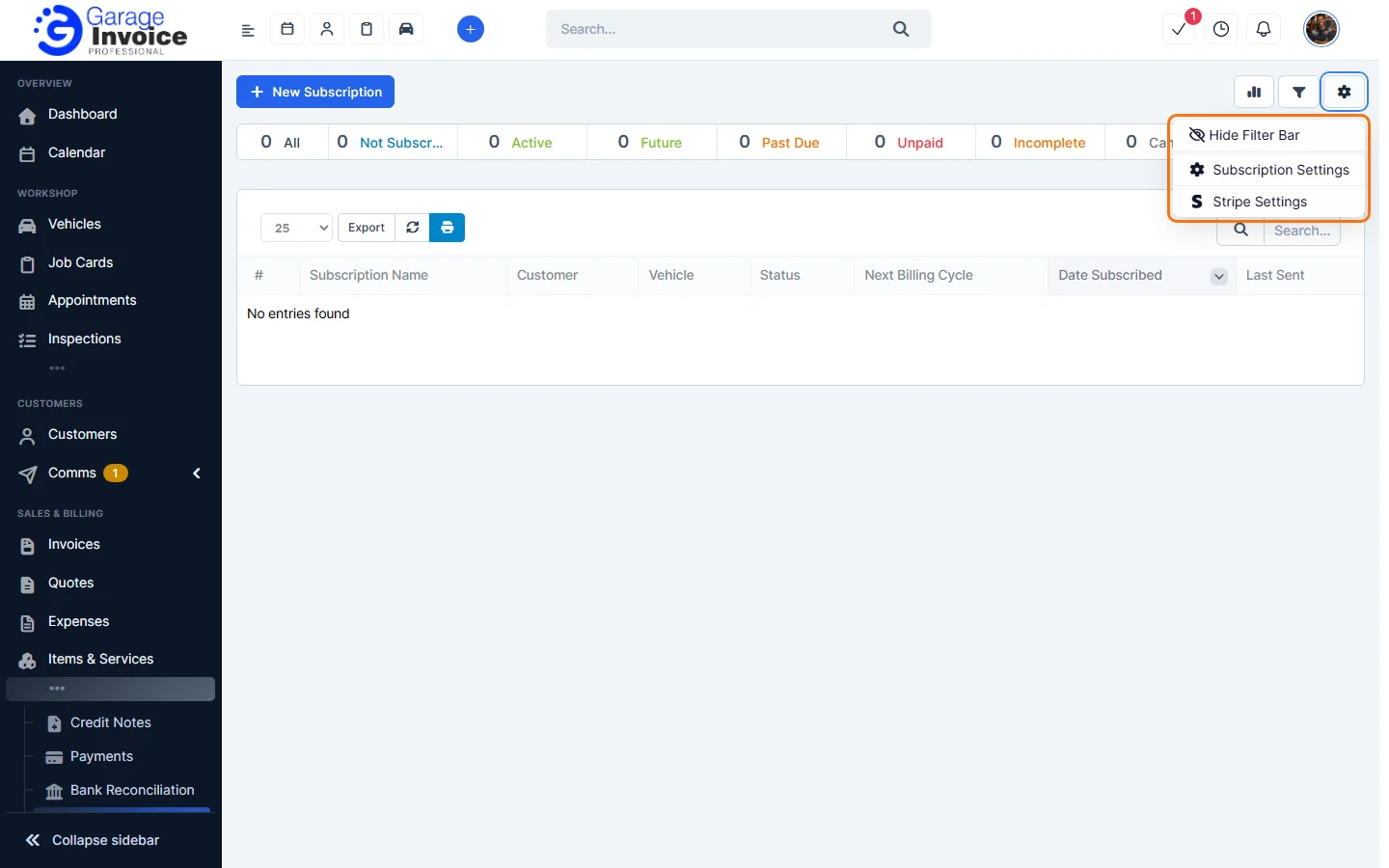
Note: subscriptions use Stripe. You need Stripe set up with valid keys, and the plans you sell must exist in your Stripe account. To check, click the cog button on the Subscriptions page and choose Stripe Settings. See also Accept Online Payments for Invoices.
- Click Subscriptions in the sidebar, under Sales & Billing. Click the ••• there if you can’t see it.
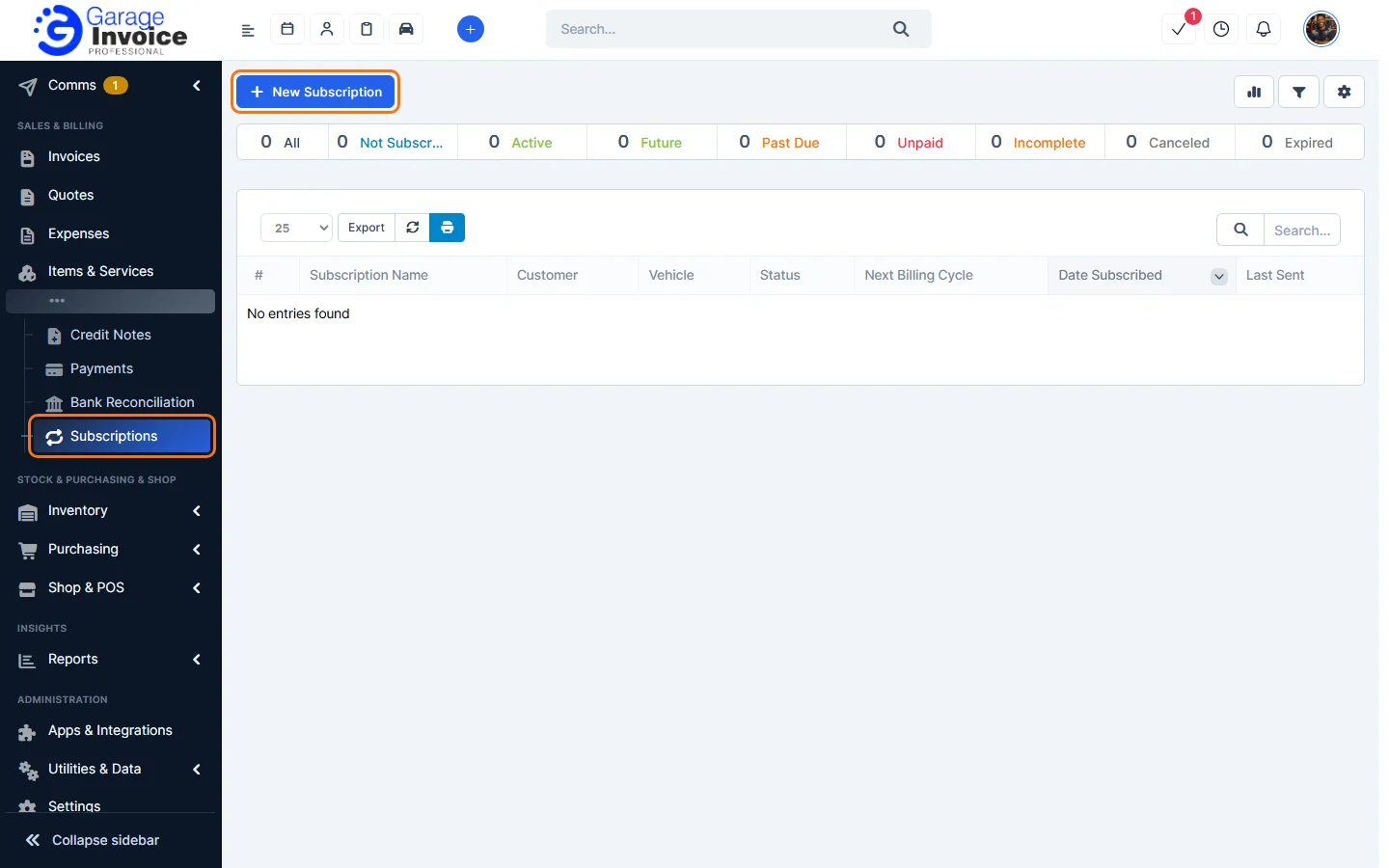
- The bar at the top shows how many subscriptions are All, Not Subscribed, Active, Future, Past Due, Unpaid, Incomplete, Canceled and Expired. Click one to show only those.
- The list shows the Subscription Name, Customer, Vehicle, Status, Next Billing Cycle, Date Subscribed and Last Sent.
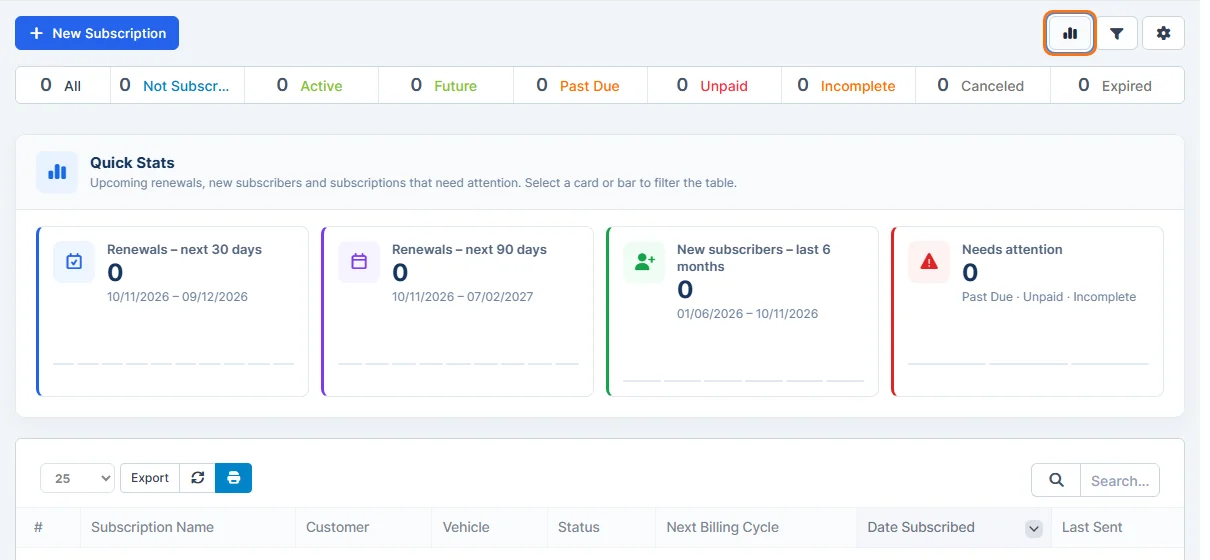
- Click the chart button at the top right for Quick Stats: Renewals – next 30 days, Renewals – next 90 days, New subscribers – last 6 months and Needs attention (Past Due, Unpaid and Incomplete). Click a card to filter the list.
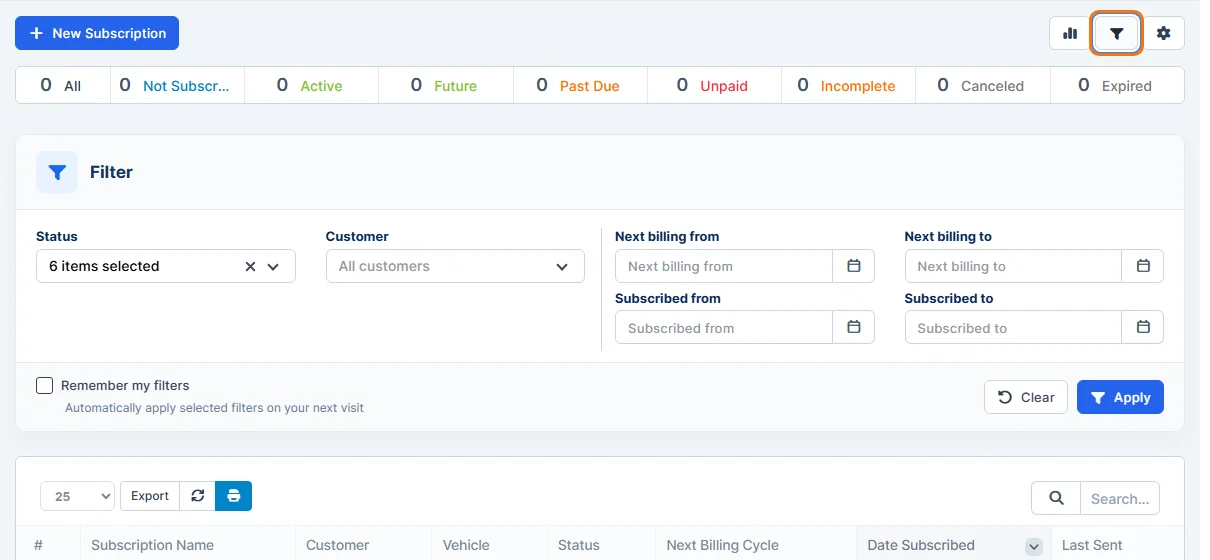
- Click the filter button to filter by Status, Customer, Next billing from / to and Subscribed from / to. Tick Remember my filters to apply them on your next visit, then click Apply.
- Click the cog button for Hide Filter Bar, Subscription Settings and Stripe Settings.