
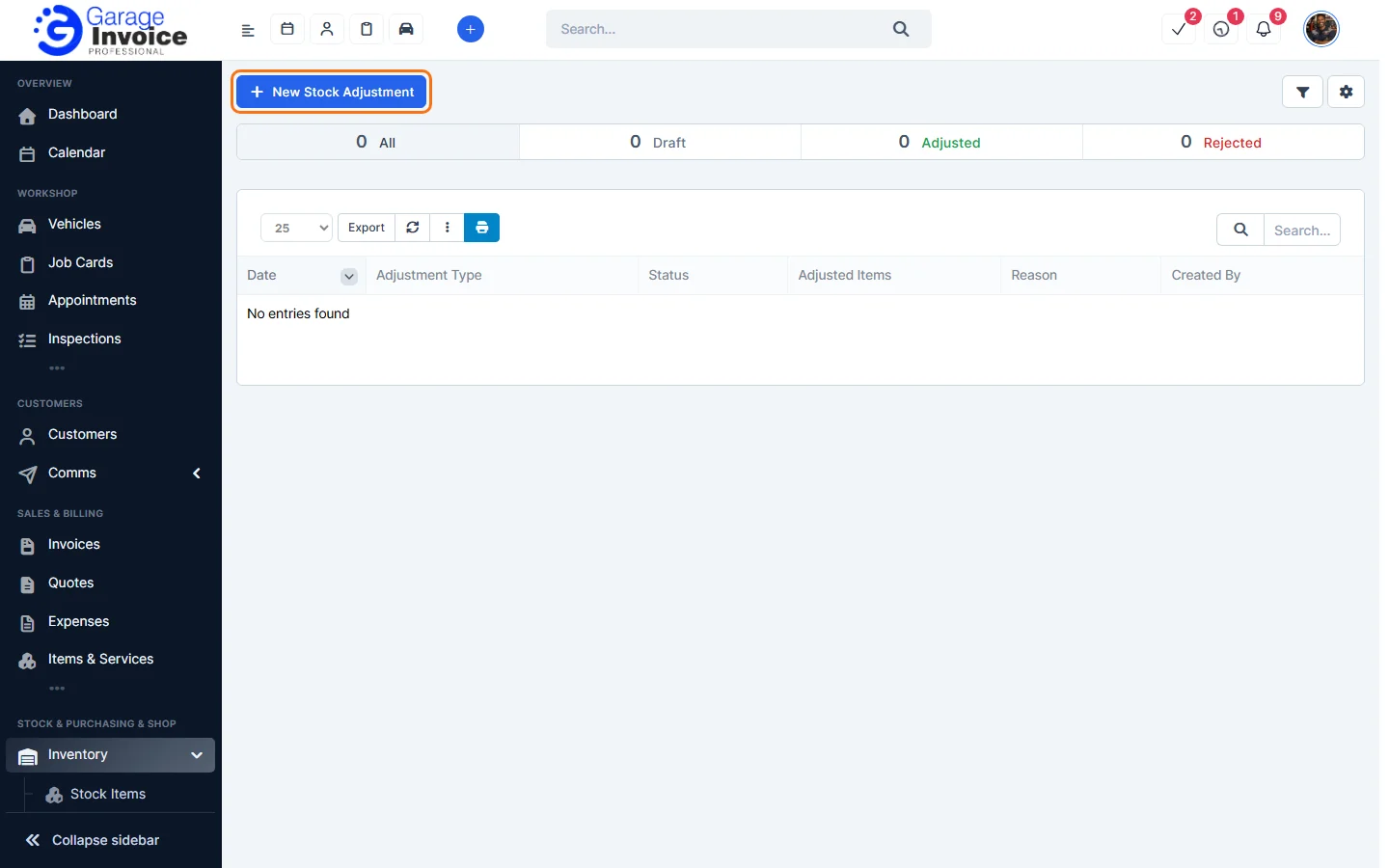
- Click Inventory in the sidebar (under Stock & Purchasing & Shop) and click Stock Adjustments. Click New Stock Adjustment.
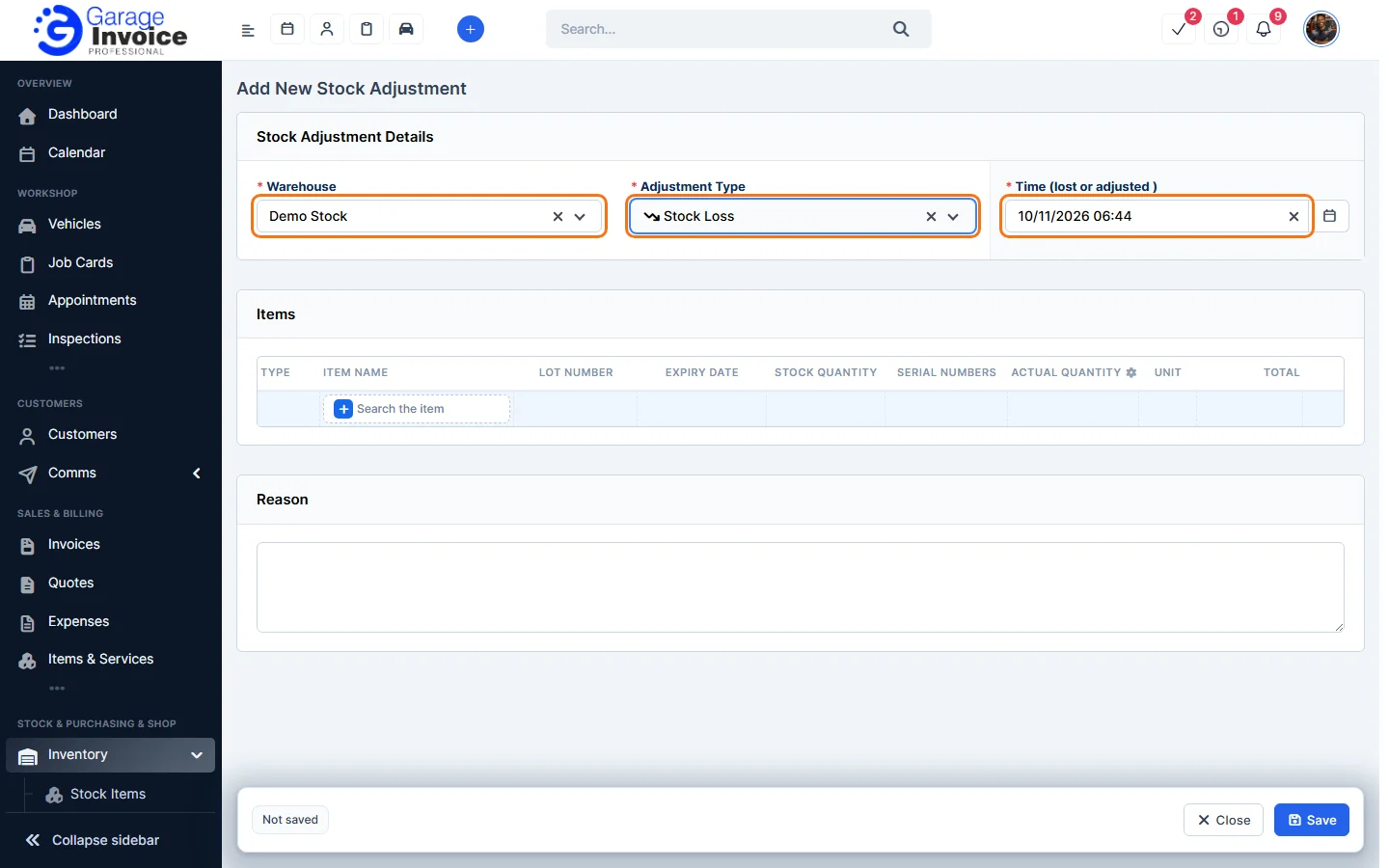
- Choose the Warehouse and the Adjustment Type: Stock Loss or Stock Increase. The Time (lost or adjusted) is filled in for you.
- Under Items, click Search the item, type part of the item name and click it in the results. The Stock Quantity shows how many the app thinks you have.
- Enter the Actual Quantity, the number you really have. Fill in the lot number, expiry date or serial numbers if you track them.
- Type the Reason, for example “Damaged in storage”.
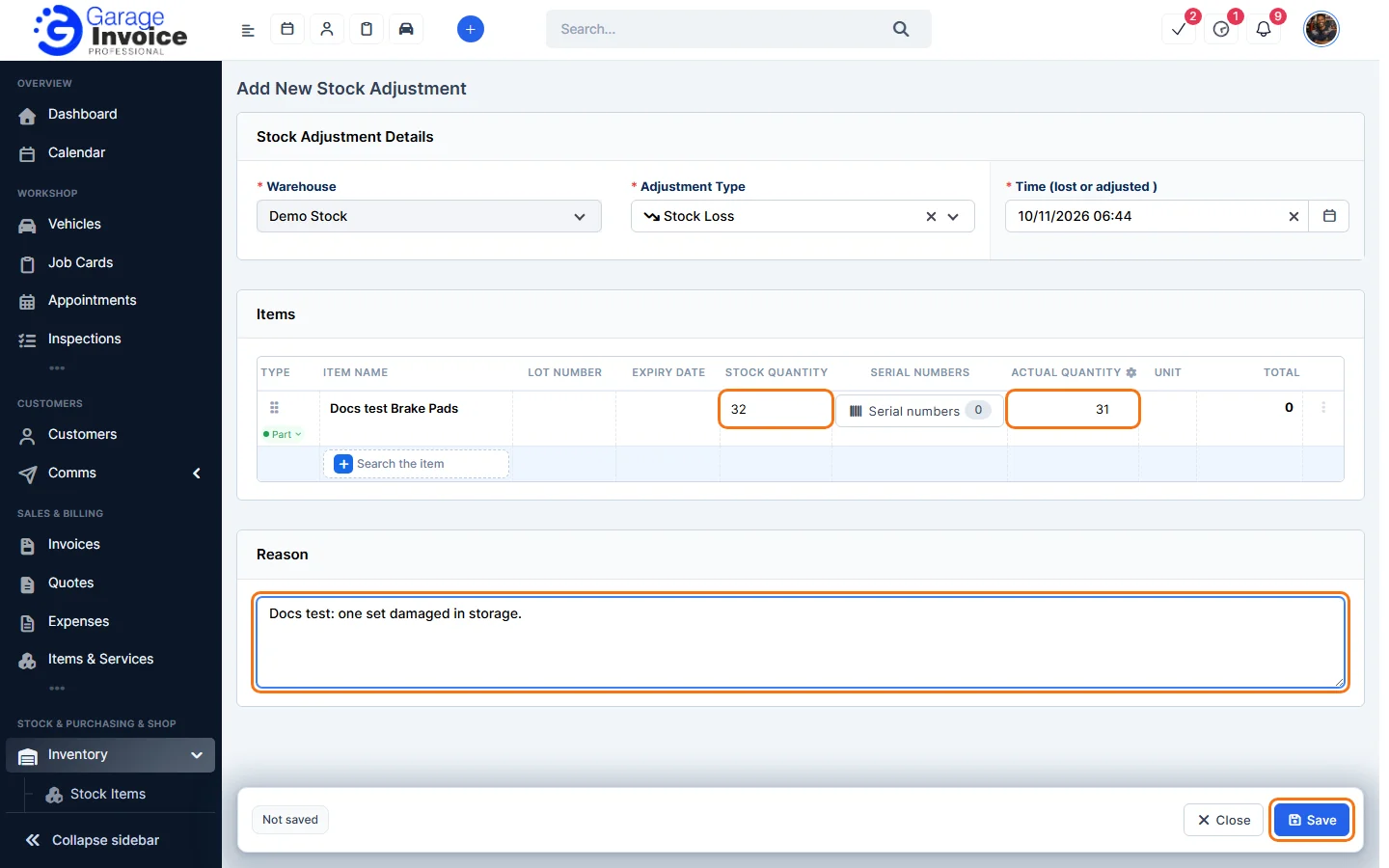
- Click Save.
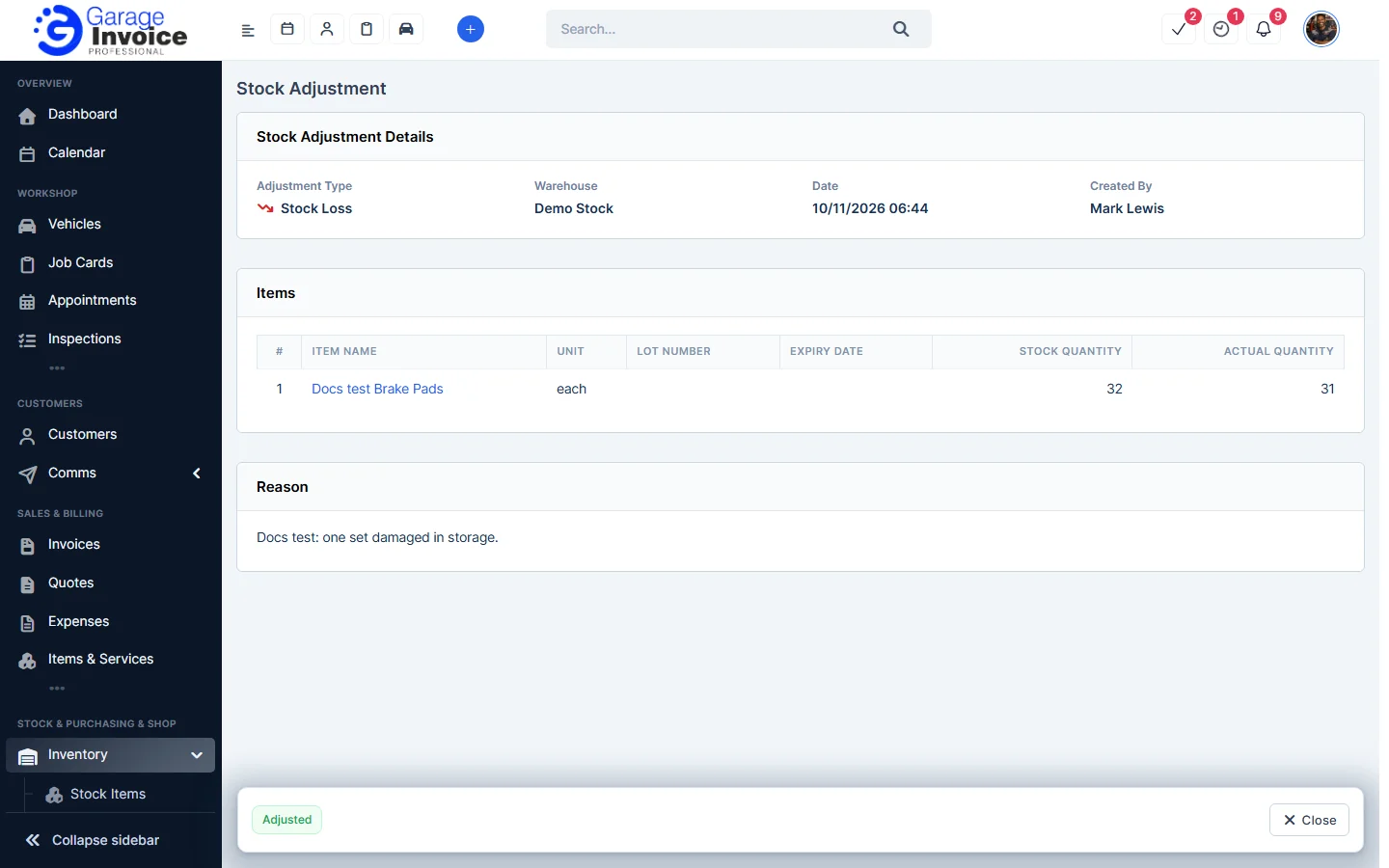
The adjustment is saved as Adjusted and the stock changes to the actual quantity. See View Stock Adjustment.
Feature Stock and inventory control: see what it does and how it fits your workshop.