
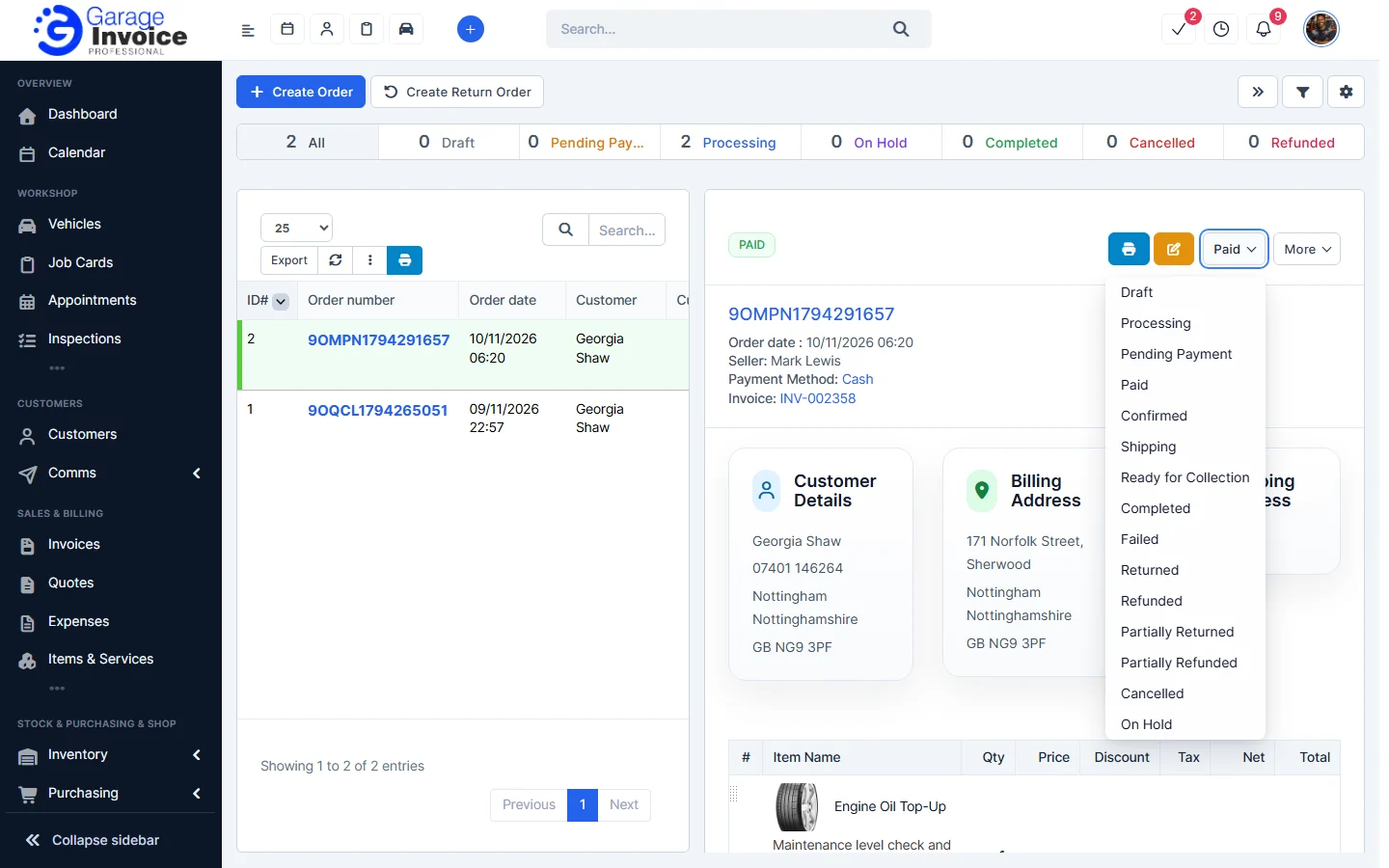
- Click Shop & POS in the sidebar (under Stock & Purchasing & Shop) and click Orders. and click the order number to open it.
- For a draft order, click Create Invoice at the top of the order. The invoice is created, linked to the order, and the order changes to Pending Payment.
- Record the customer’s payment on the invoice (see Record Invoice Payment).
- To change the order status, click the status button at the top of the order (it shows the current status) and choose Paid. Other statuses include Processing, Confirmed, Shipping, Ready for Collection, Completed, Cancelled and On Hold.
Note: changing the order status does not record a payment on the invoice. Record the payment on the invoice as well.
See also: Orders Overview
Feature Online shop and POS: see what it does and how it fits your workshop.