
History: the vehicle’s timeline
- Open the vehicle (see Search for Vehicle) and click History in the vehicle menu.
- The timeline lists the vehicle’s invoices, quotes, inspections, job cards, appointments, events and tasks, with the date, mileage and details. The totals above the list show how many records of each kind there are.
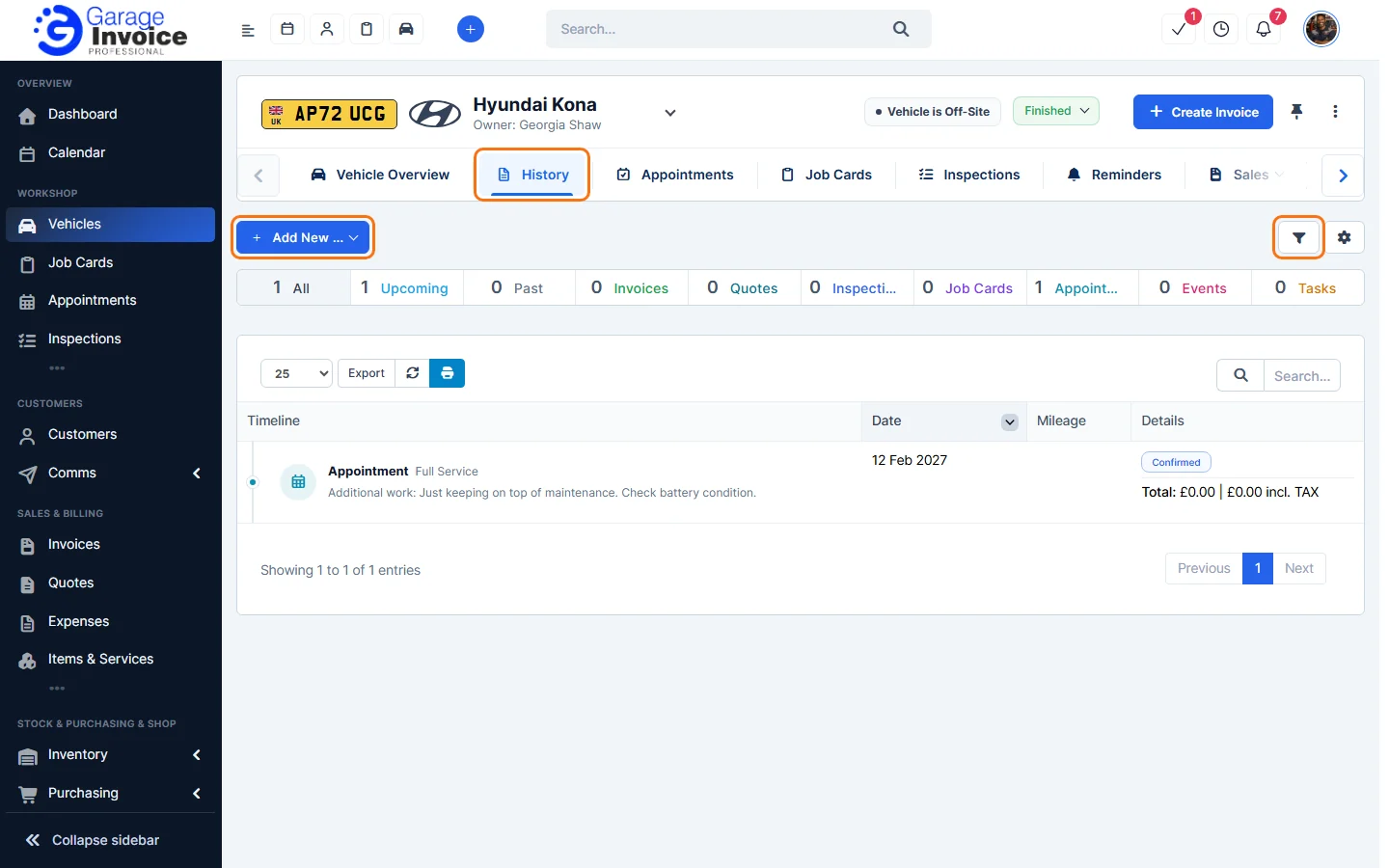
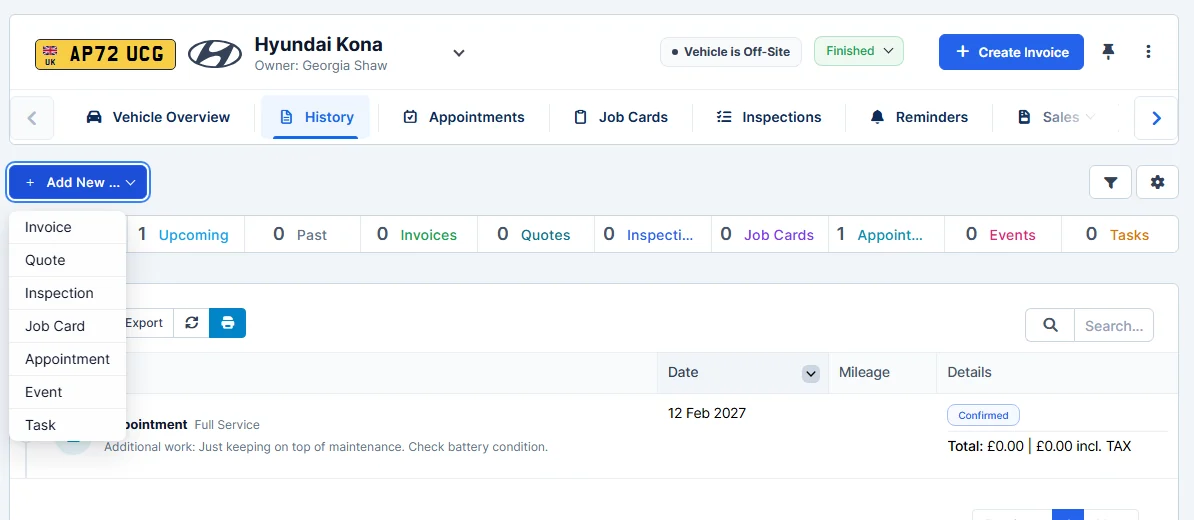
- Click the filter button to filter by date range, type or status. Click Add New … to create an invoice, quote, inspection, job card, appointment, event or task for this vehicle.
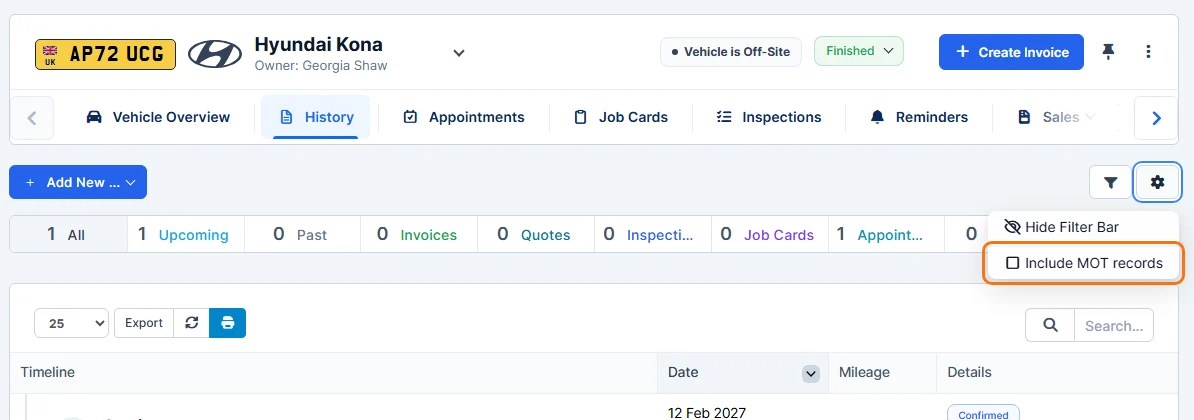
- Click the cog button and tick Include MOT records to add the vehicle’s MOT tests to the timeline.
System Activity: a log of every change
- Click Communication in the vehicle menu, then System Activity.
- You’ll see who changed what and when, for example uploaded files, new discussions and on-site status changes.
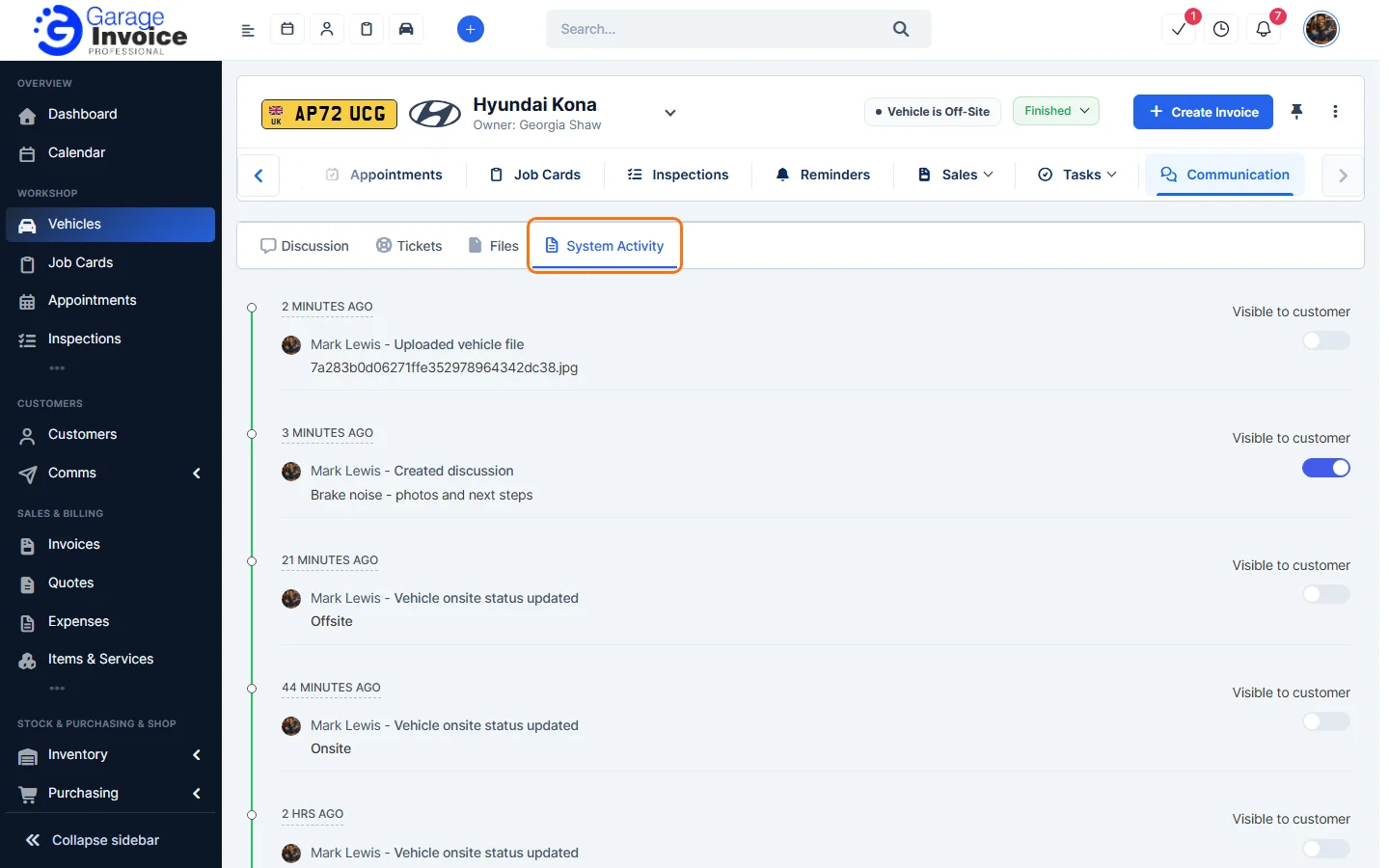
To let the customer see an entry, see Make Activity Records Visible/Not Visible to Customer.
Feature Vehicle records: see what it does and how it fits your workshop.