
Each dashboard (Workshop Today and Business Overview) has its own set of widgets. You choose which ones appear in Customise mode.
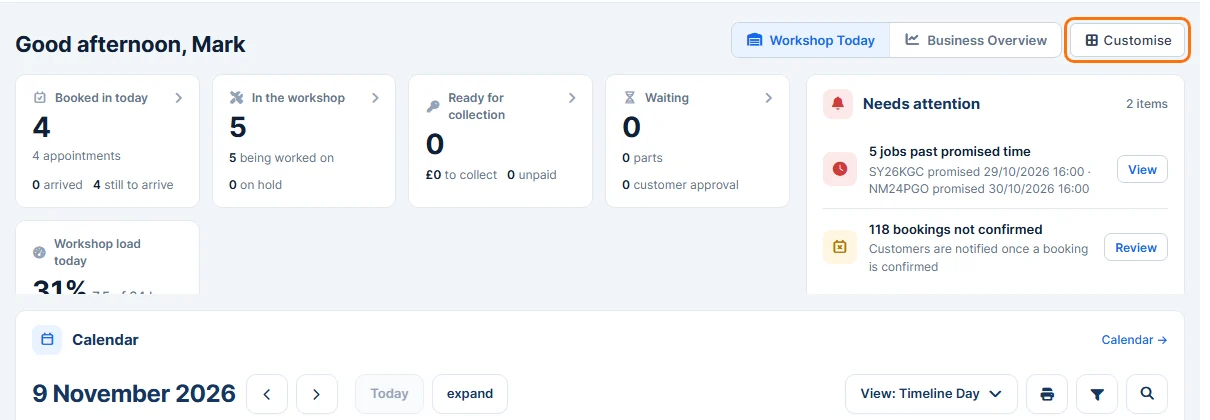
- Open the dashboard you want to change, and click Customise in the top right corner.
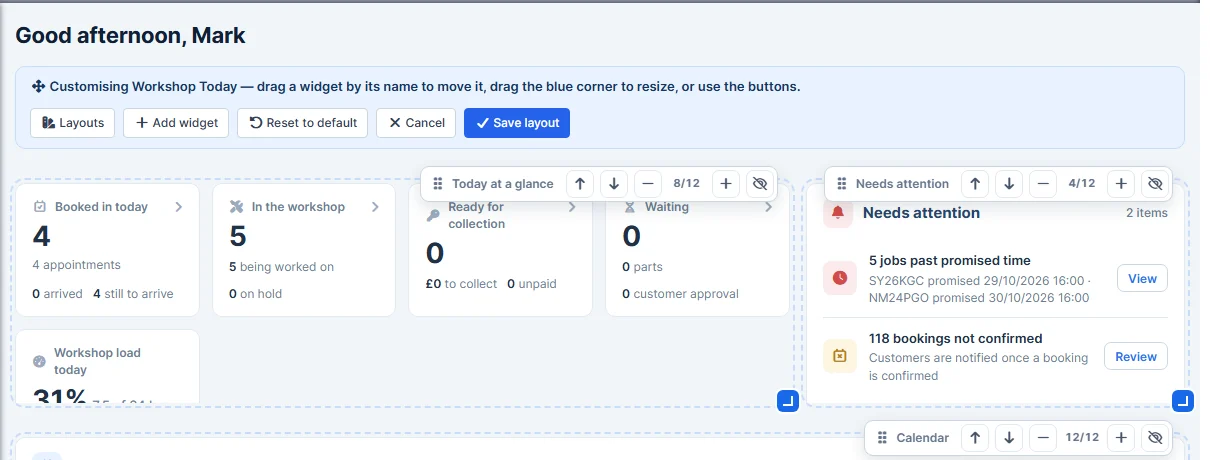
- Every widget now has a small toolbar. To hide a widget, click the eye button at the right end of its toolbar.
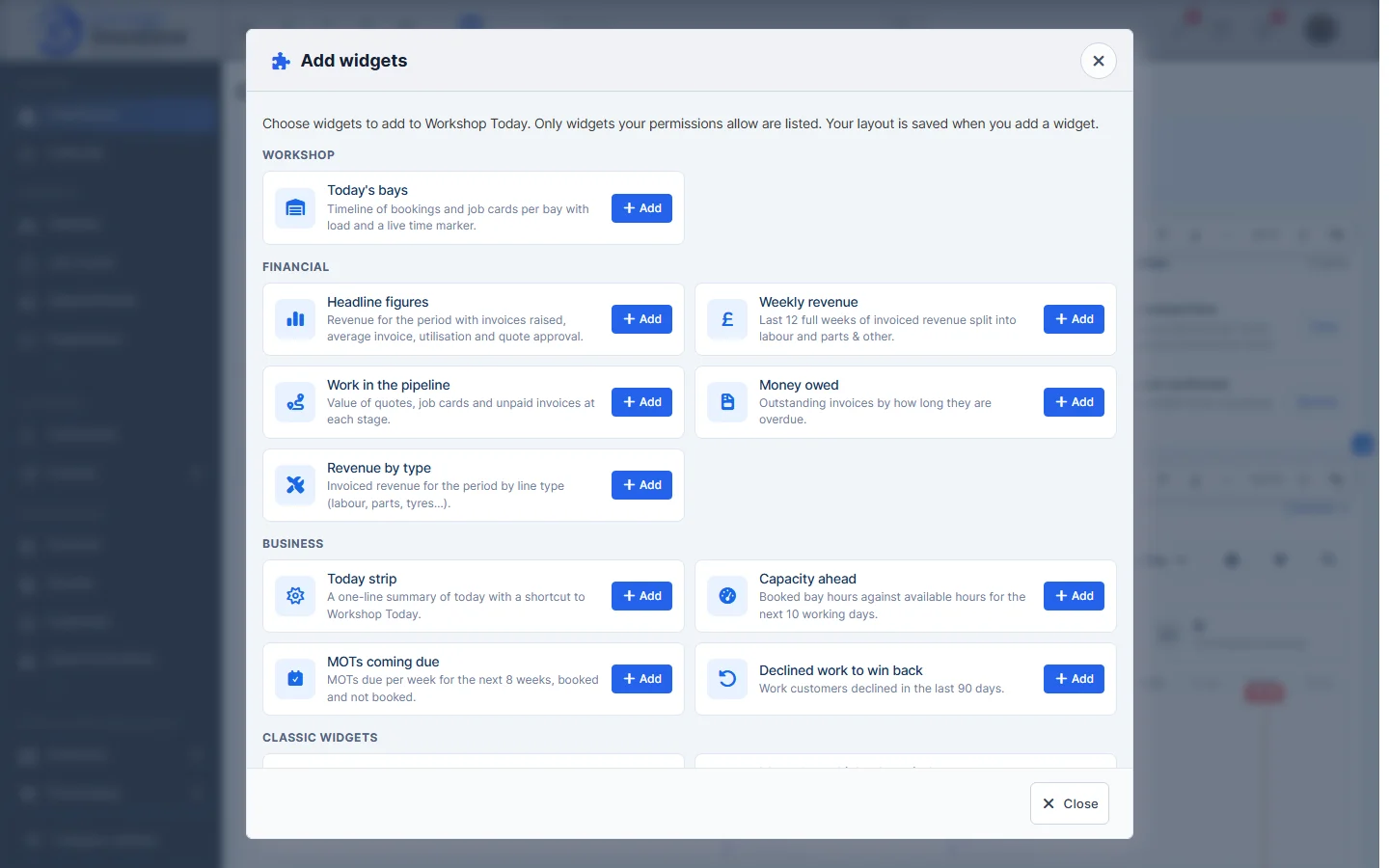
- To add a widget, click Add widget and then Add next to the widget you want. Only widgets your permissions allow are listed.
Note: your layout is saved as soon as you add a widget.
- When you are happy with the dashboard, click Save layout. To leave without keeping your changes, click Cancel.

Want to start from a ready-made set of widgets instead? See Ready-made Dashboard Layouts.