
Use a debit note when a supplier owes you money, for example for a returned or faulty part.
Create a debit note
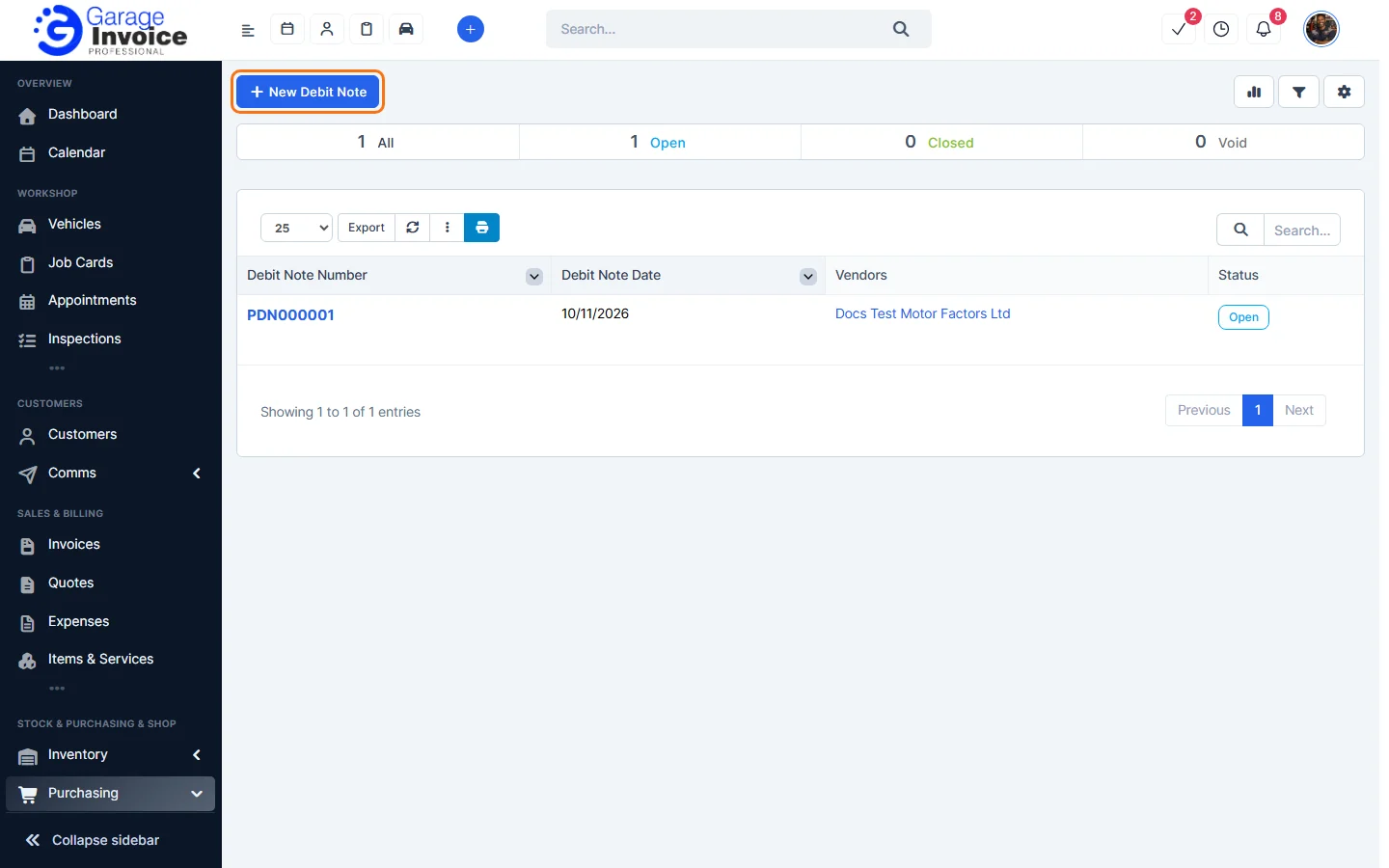
- Click Purchasing in the sidebar (under Stock & Purchasing & Shop) and click Debit Notes. The tabs show Open, Closed and Void debit notes. Click New Debit Note.
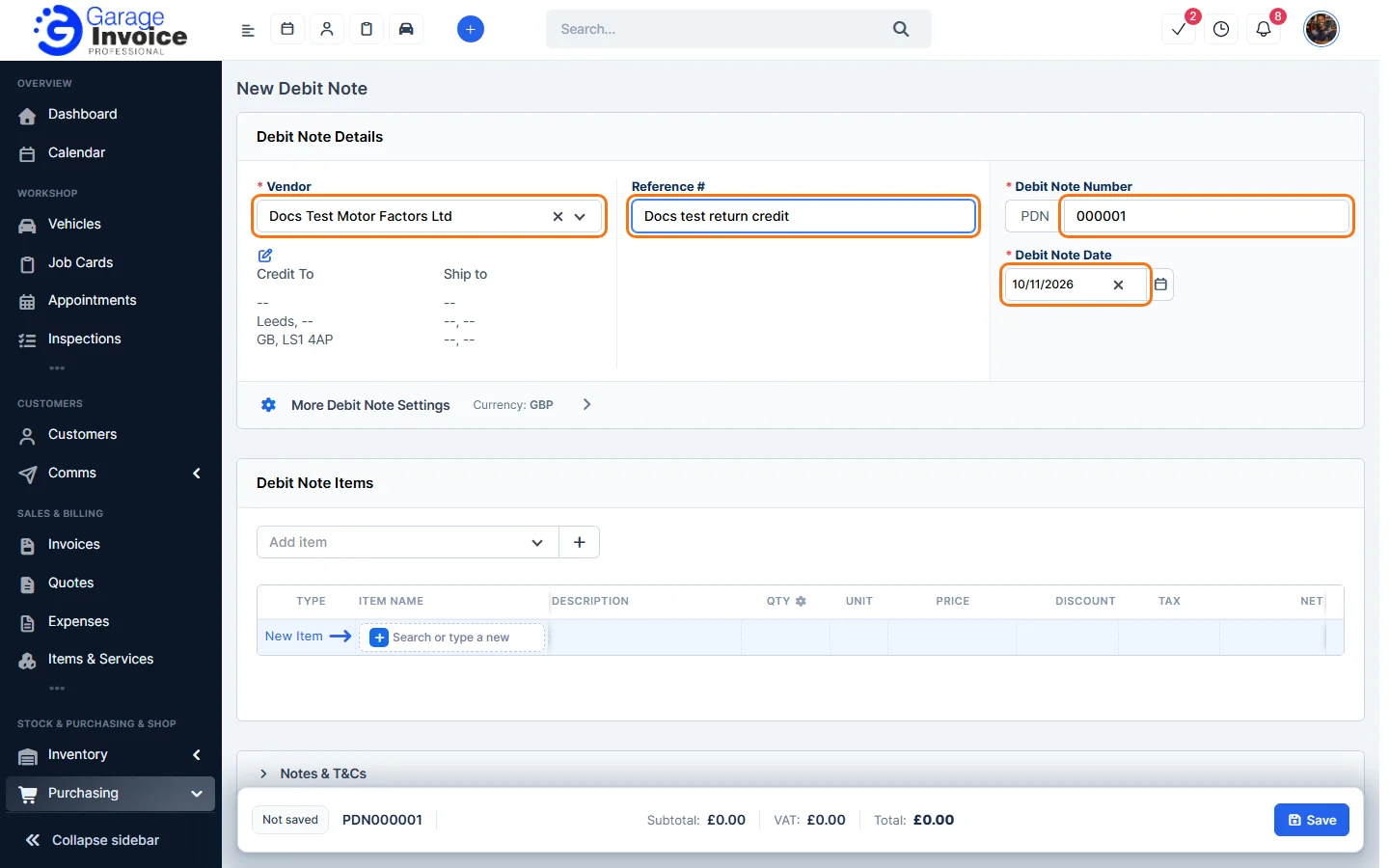
- Choose the Vendor, add a Reference # if you like and check the Debit Note Number (PDN) and Debit Note Date.
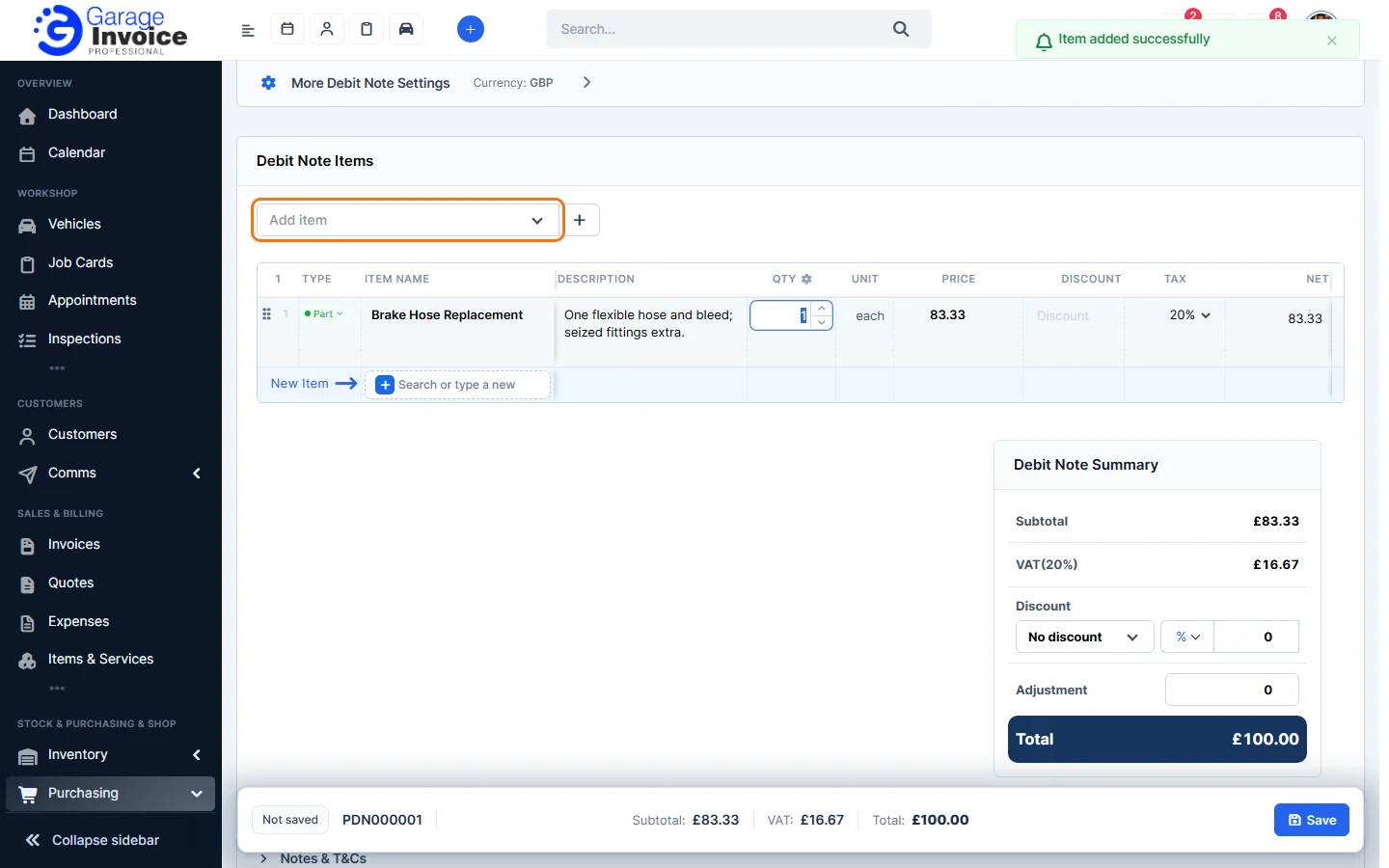
- Under Debit Note Items, choose items in Add item or type a new one, then click Save.
Use the debit note
- The debit note opens with the status Open. The tabs are Debit Note, Invoices Debited, Refunds and Reminders.
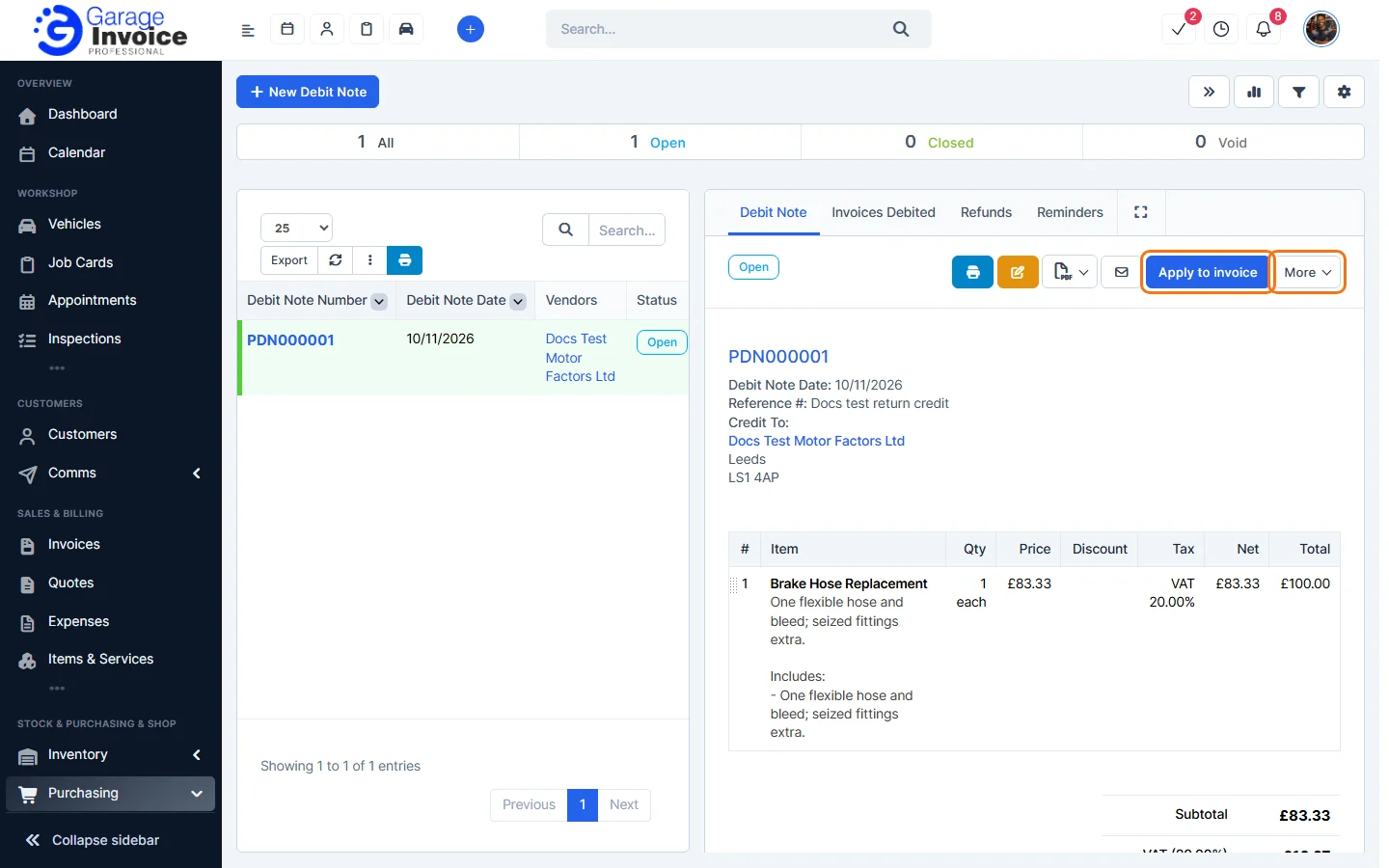
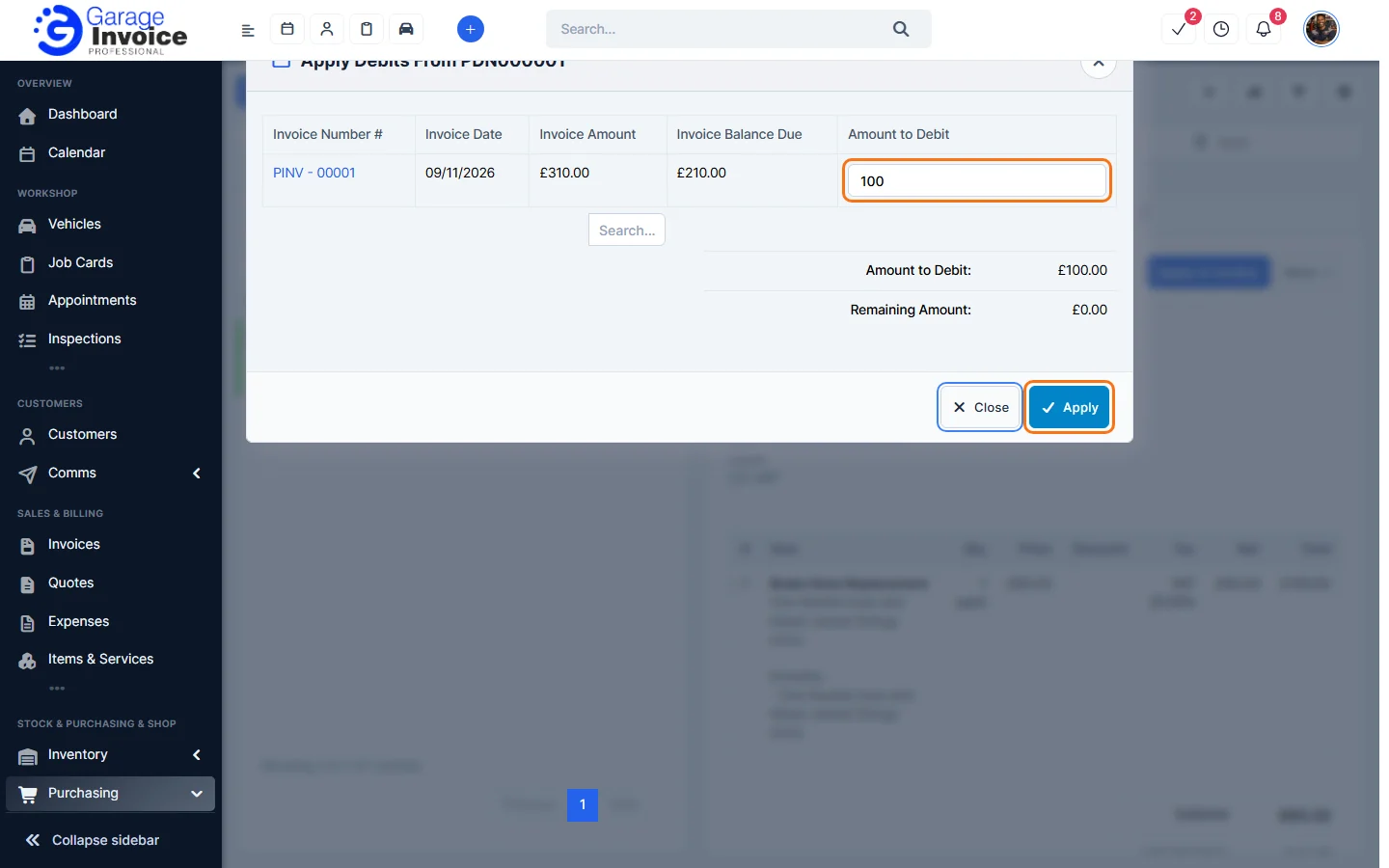
- To take it off a supplier’s bill, click Apply to invoice. Enter the Amount to Debit next to the purchase invoice and click Apply. The invoice’s balance goes down by that amount.
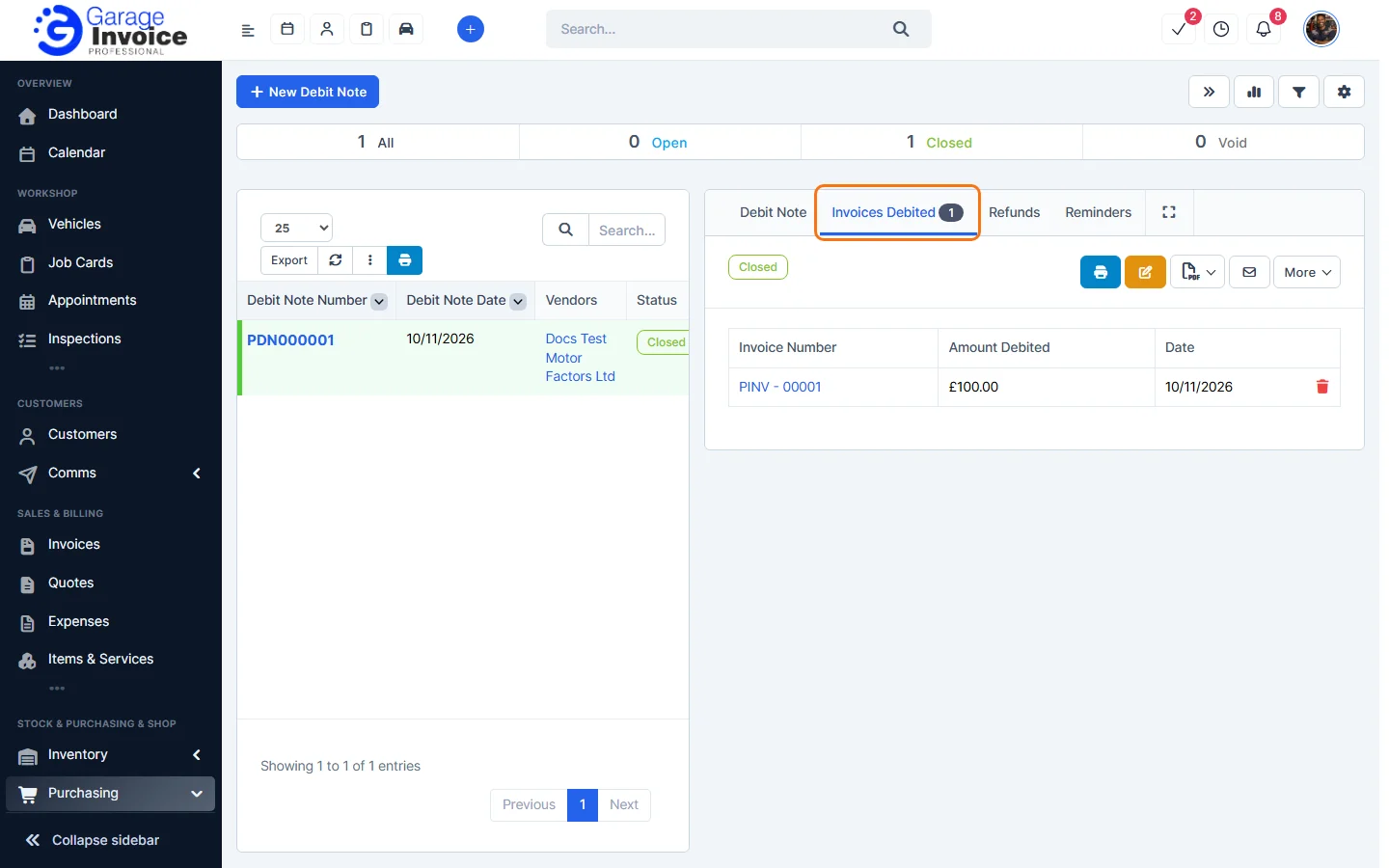
- The Invoices Debited tab shows where the debit note was used.
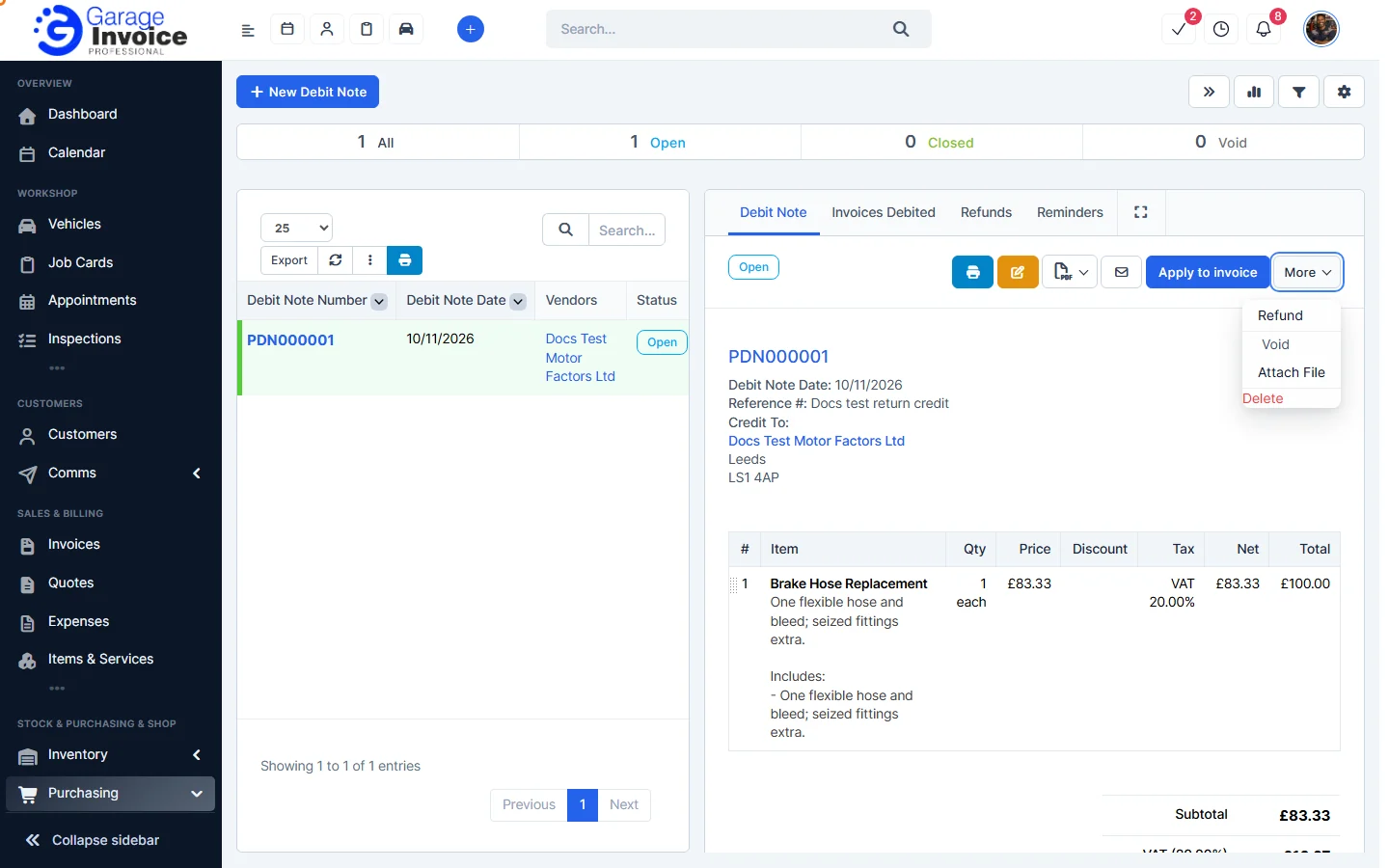
- If the supplier pays you back instead, click More → Refund. The More menu also has Void, Attach File and Delete.
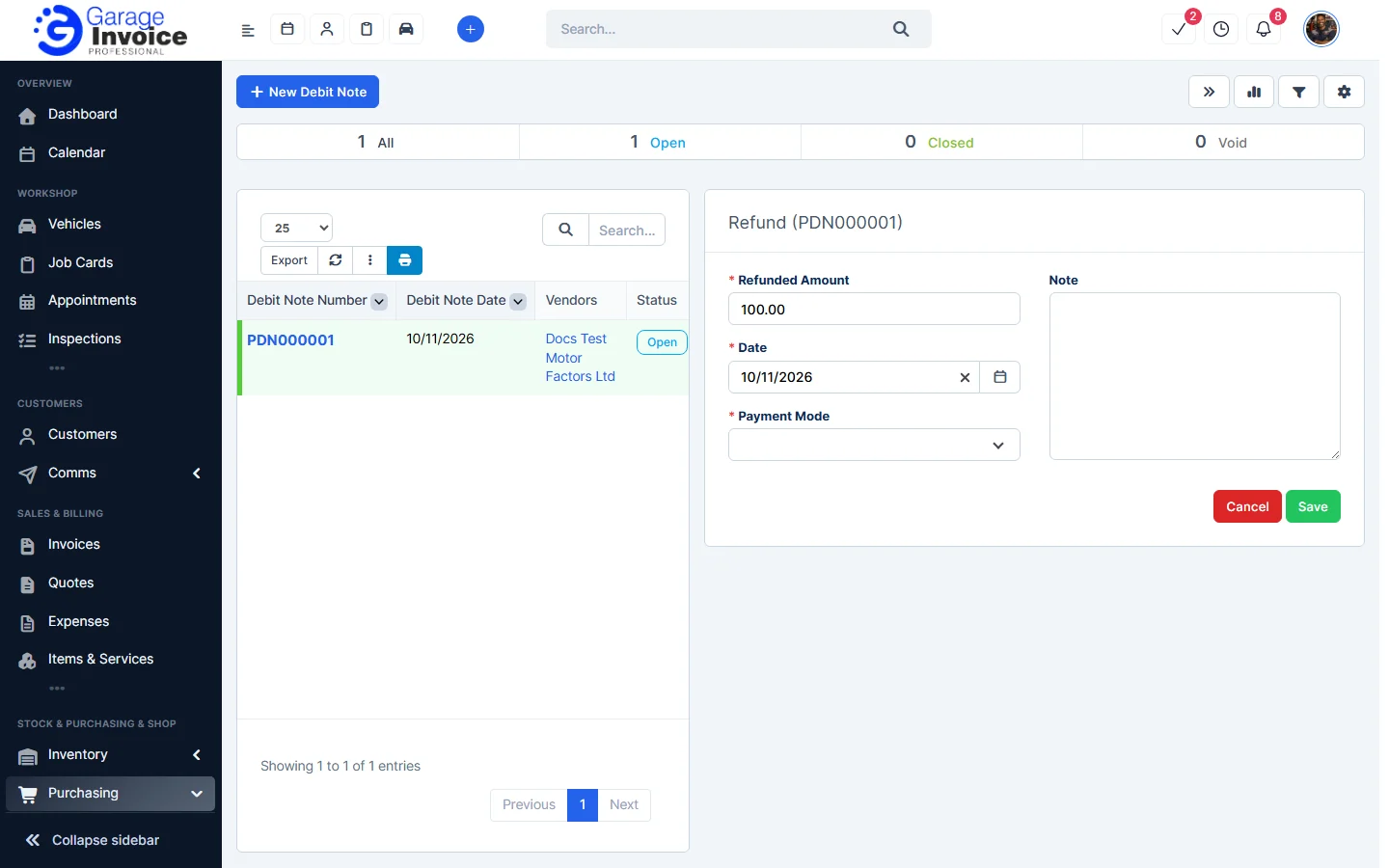
- Enter the Refunded Amount, Date and Payment Mode, add a note if you like, and click Save.
Feature Stock and inventory control: see what it does and how it fits your workshop.