
Instead of arranging widgets yourself, you can start from a ready-made layout. Each dashboard has its own set of layouts.
- Open the dashboard you want to change, and click Customise in the top right corner.
- Click Layouts.
- Click Preview under the layout you want. It opens as a preview you can still adjust; nothing changes until you click Save layout.
Workshop Today layouts
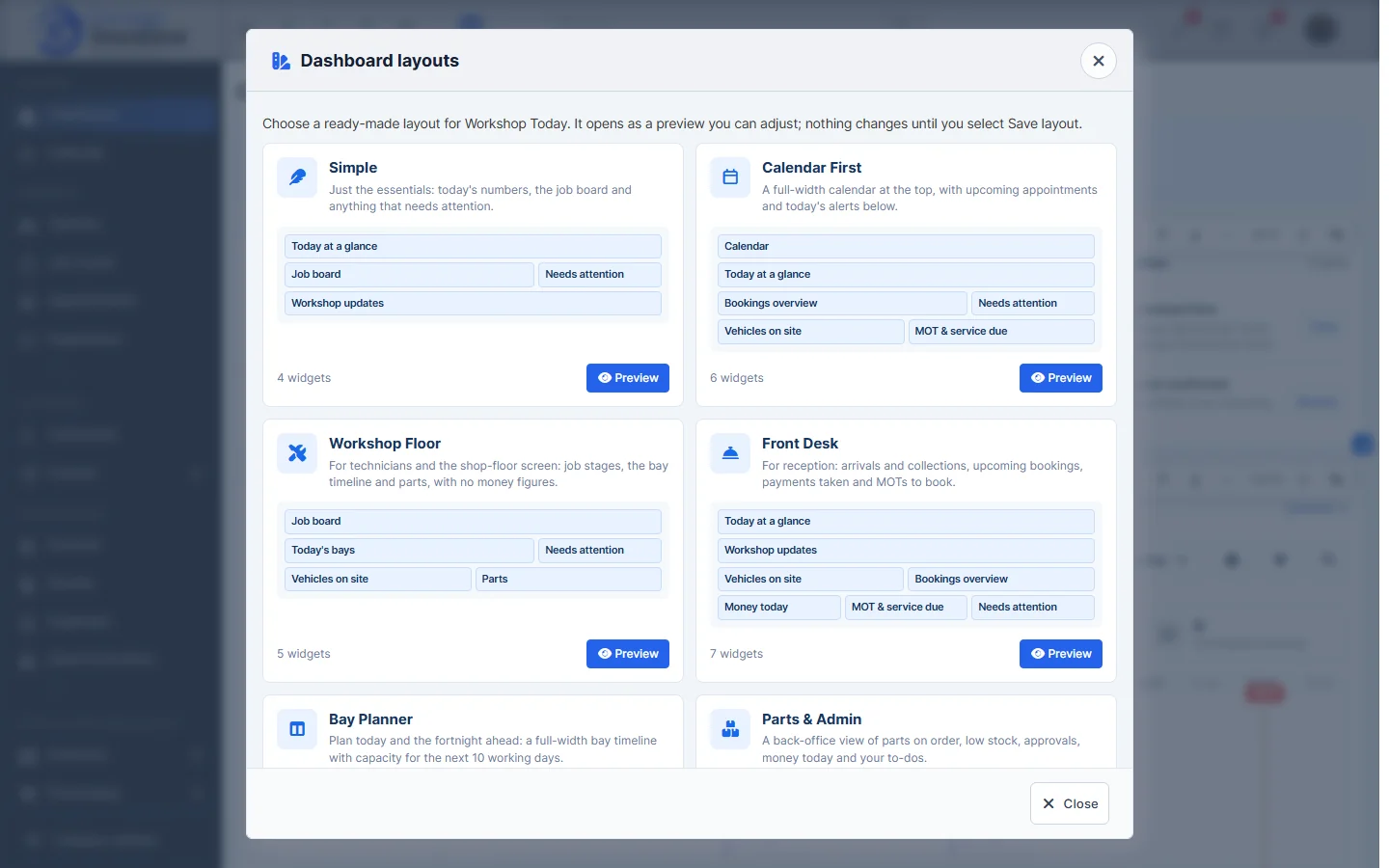
- Simple: just the essentials, with today’s numbers, the job board and anything that needs attention.
- Calendar First: a full-width calendar at the top, with upcoming appointments and today’s alerts below.
- Workshop Floor: for technicians and the shop-floor screen, with job stages, the bay timeline and parts, and no money figures.
- Front Desk: for reception, with arrivals and collections, upcoming bookings, payments taken and MOTs to book.
- Bay Planner: plan today and the fortnight ahead with a full-width bay timeline and capacity for the next 10 working days.
- Parts & Admin: a back-office view of parts on order, low stock, approvals, money today and your to-dos.
Business Overview layouts
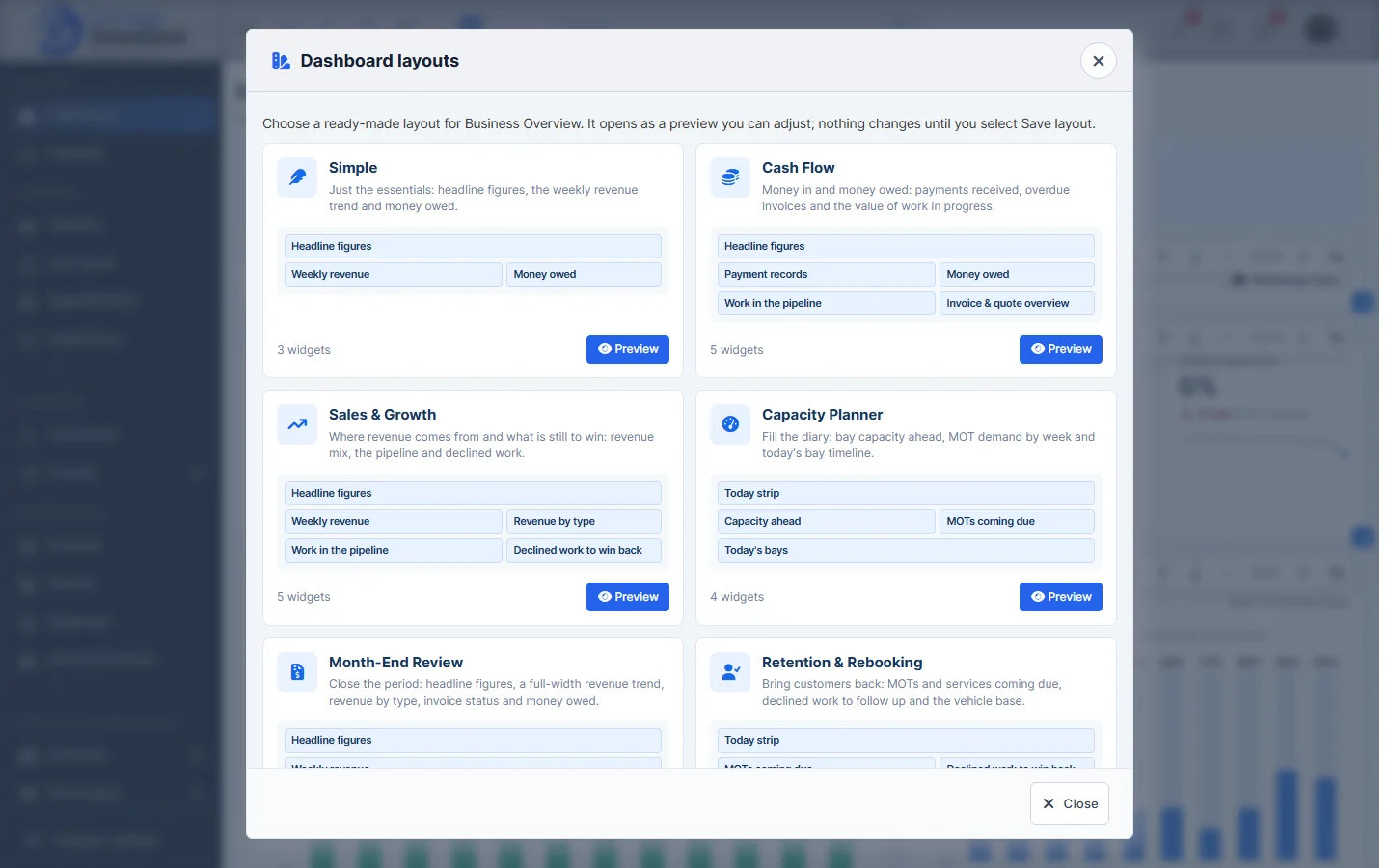
- Simple: headline figures, the weekly revenue trend and money owed.
- Cash Flow: payments received, overdue invoices and the value of work in progress.
- Sales & Growth: where revenue comes from and what is still to win, including declined work.
- Capacity Planner: bay capacity ahead, MOT demand by week and today’s bay timeline.
- Month-End Review: headline figures, a full-width revenue trend, revenue by type, invoice status and money owed.
- Retention & Rebooking: MOTs and services coming due, declined work to follow up and the vehicle base.
After choosing a layout you can still hide, add, move and resize widgets. See Show, Hide and Add Dashboard Widgets and Resizing and Rearranging Dashboard Widgets.