
- Click Job Cards in the sidebar and click the job card number. The job card opens on the right, with Edit, Send, Print, More and Convert at the top.
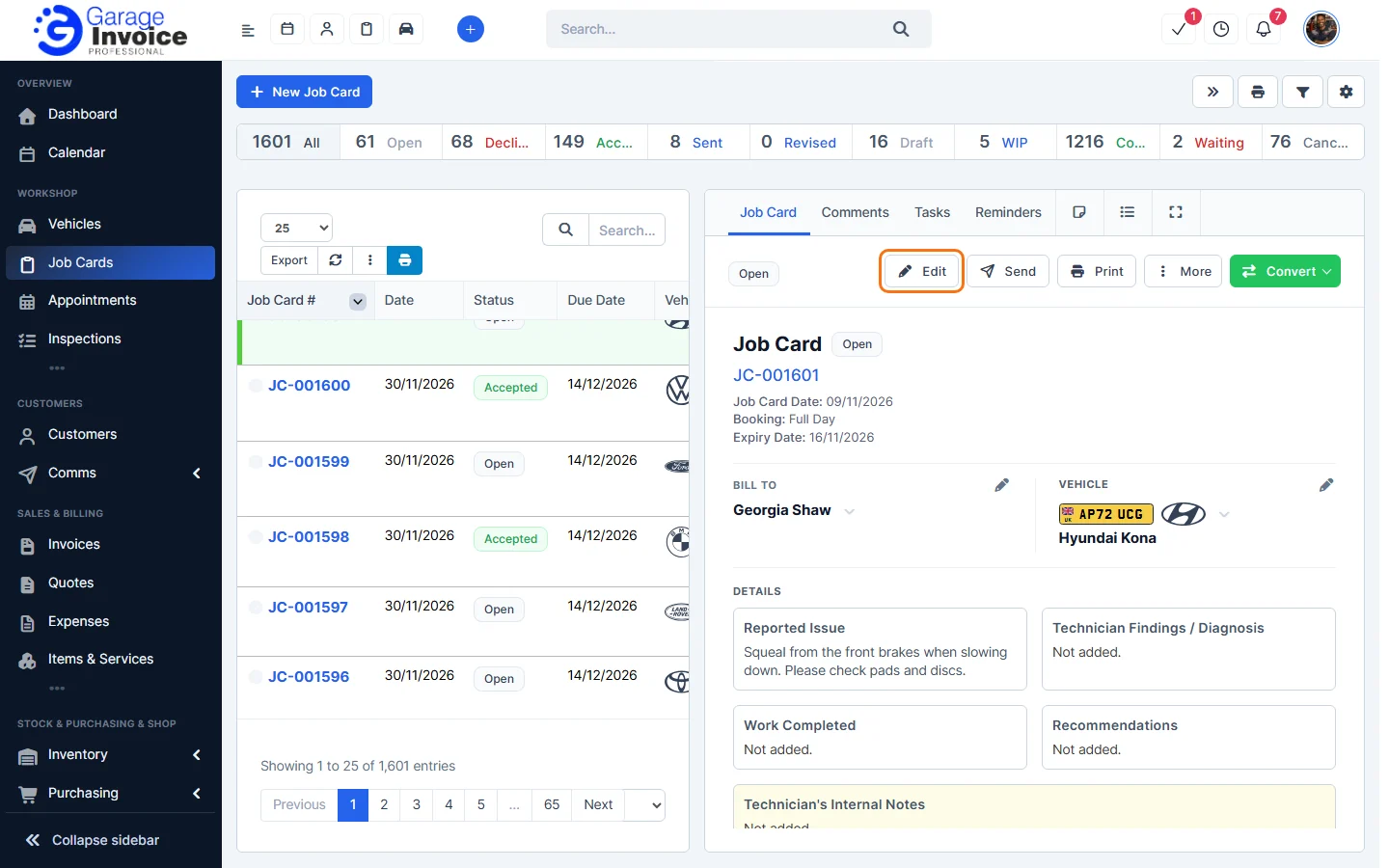
Tip: to see only one vehicle’s job cards, open the vehicle and click the Job Cards tab.
- Click More and choose Attach File.
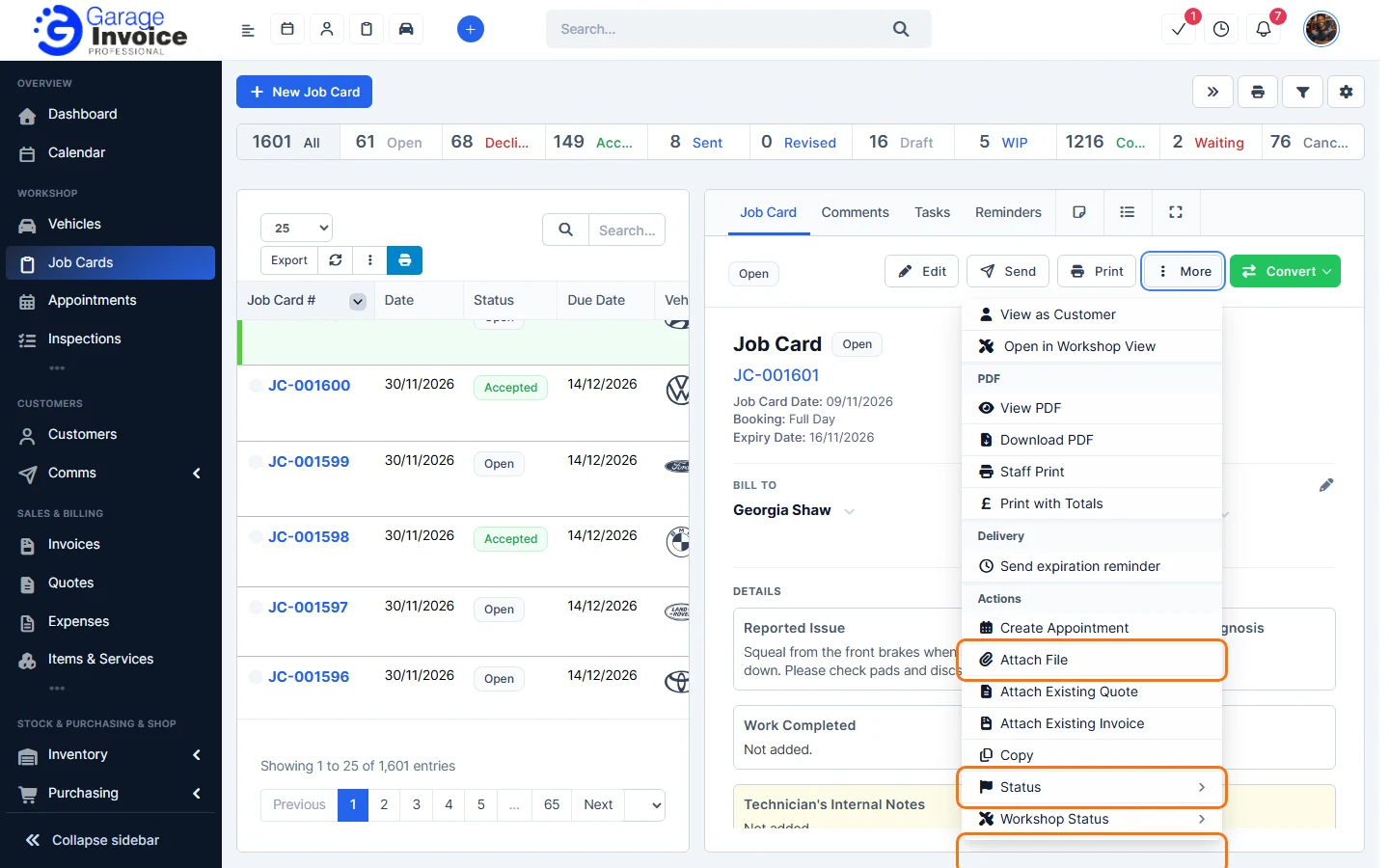
- In the Attach File window, choose where the files come from:
- Upload from this device: drop files into the box, or click it to browse. You can add several files at once (pictures, PDFs and common document types).
- Upload from phone: scan the QR code with your phone to take photos or pick them from your gallery. They upload straight to the job card.
- Cloud storage: attach a file from cloud storage.
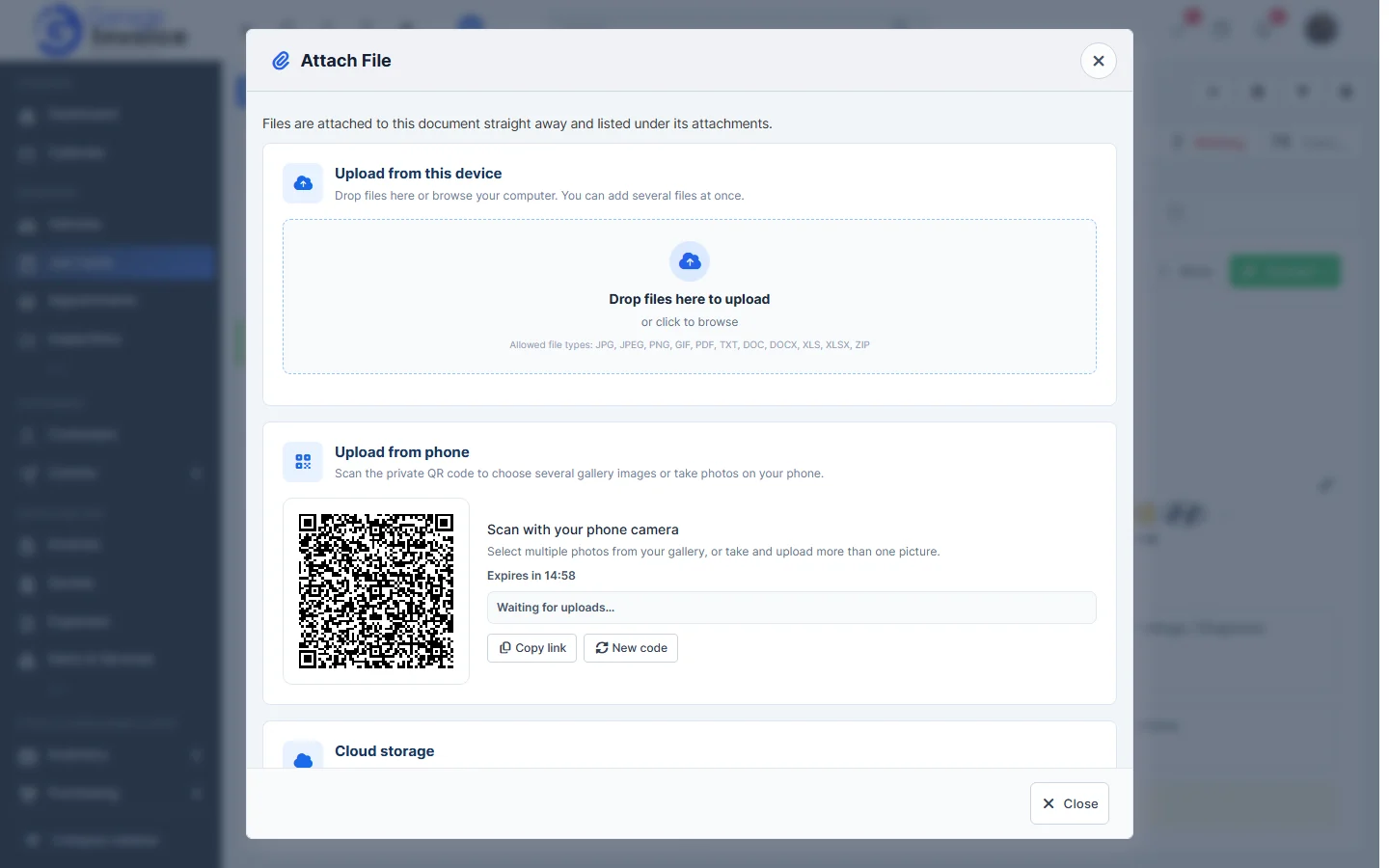
- Files are attached straight away. Click Close. You’ll find them under Attached Files on the job card.
Tip: in the same More menu, Attach Existing Quote and Attach Existing Invoice link a quote or invoice you already have to this job card.
Feature Digital job cards: see what it does and how it fits your workshop.