
Set up your payment methods
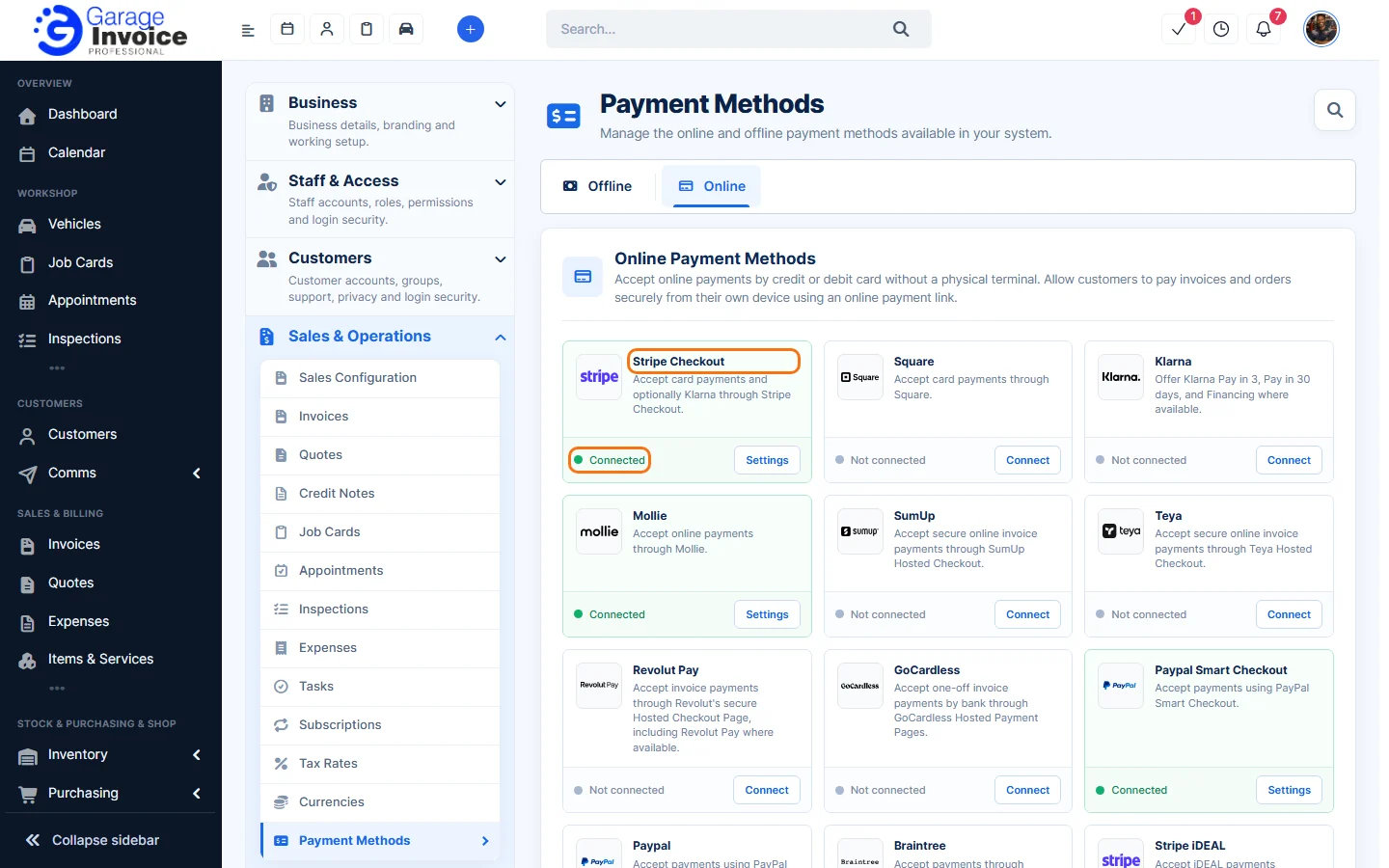
- Click Settings in the sidebar, open Sales & Operations and click Payment Methods.
- On the Online tab, click Connect on the provider you use, for example Stripe Checkout, Square, Mollie, SumUp, GoCardless or PayPal, and follow the steps. Connected providers show Connected and a Settings button.
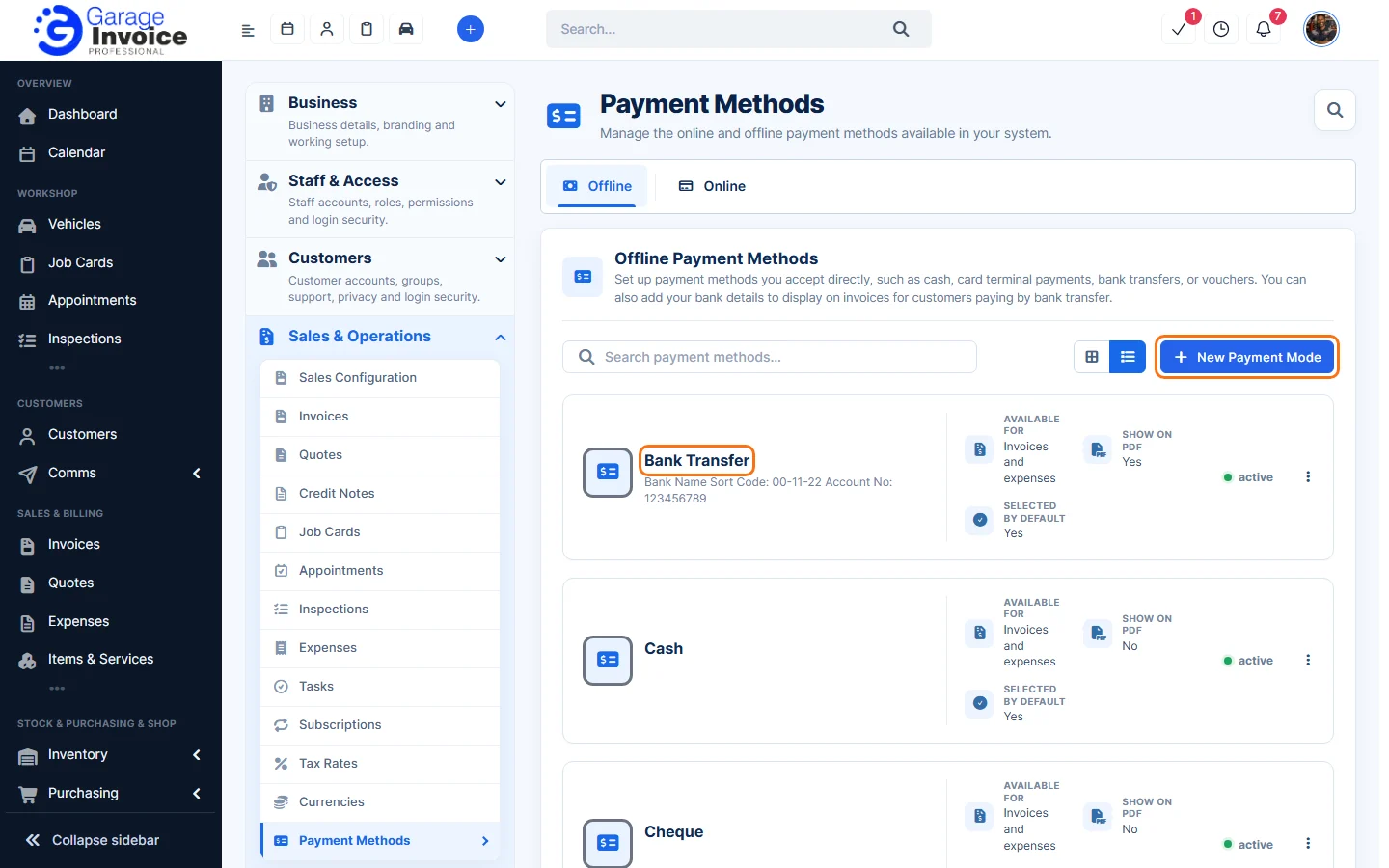
- On the Offline tab are payment methods you take yourself, such as Bank Transfer, Cash, Cheque and Credit/Debit Card. Each shows whether it’s available for invoices, selected by default and shown on the PDF (useful for your bank details). Click New Payment Mode to add your own.
Choose the payment methods for one invoice
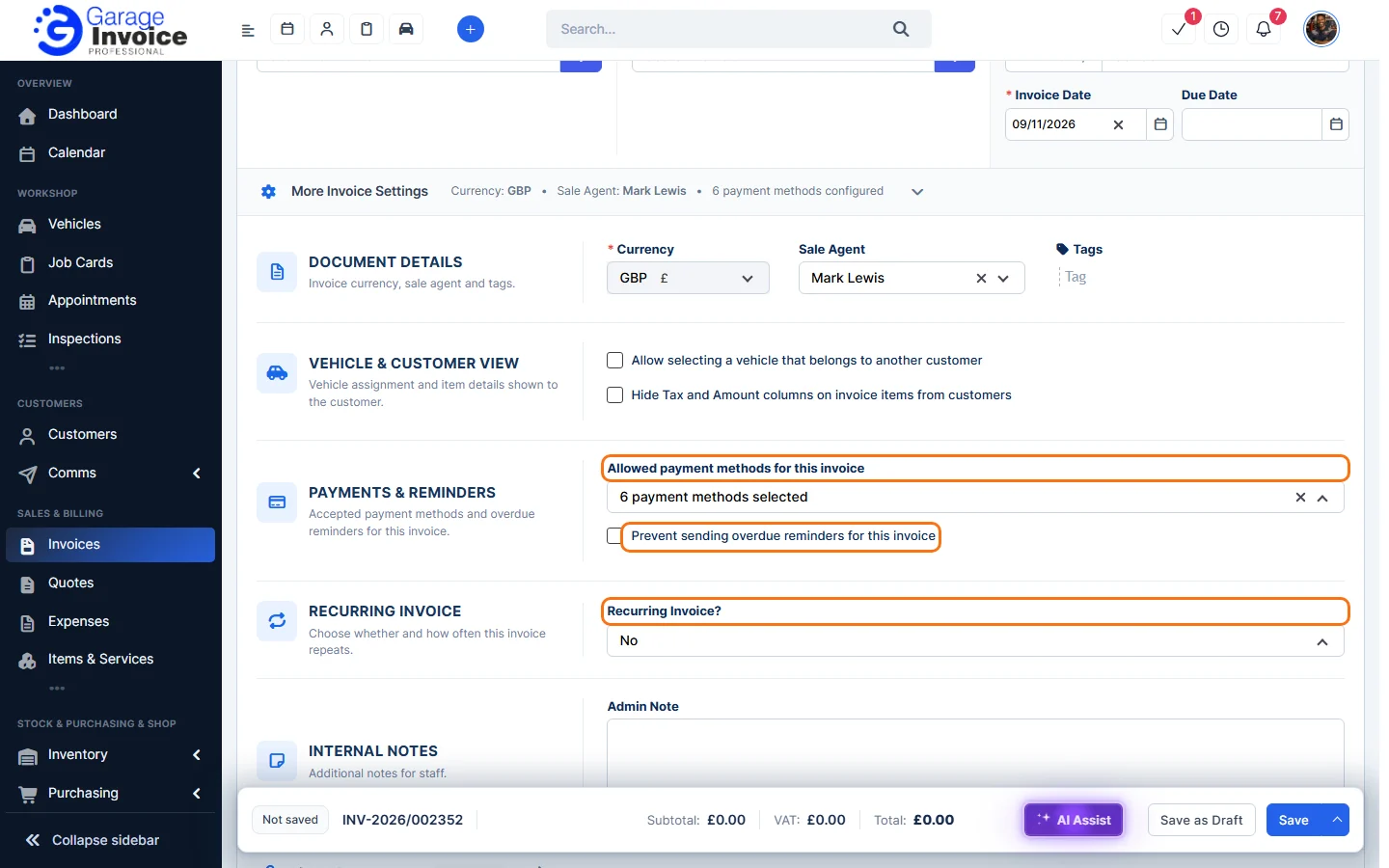
When you create or edit an invoice, click More Invoice Settings and use Allowed payment methods for this invoice.
Let customers pay part of an invoice
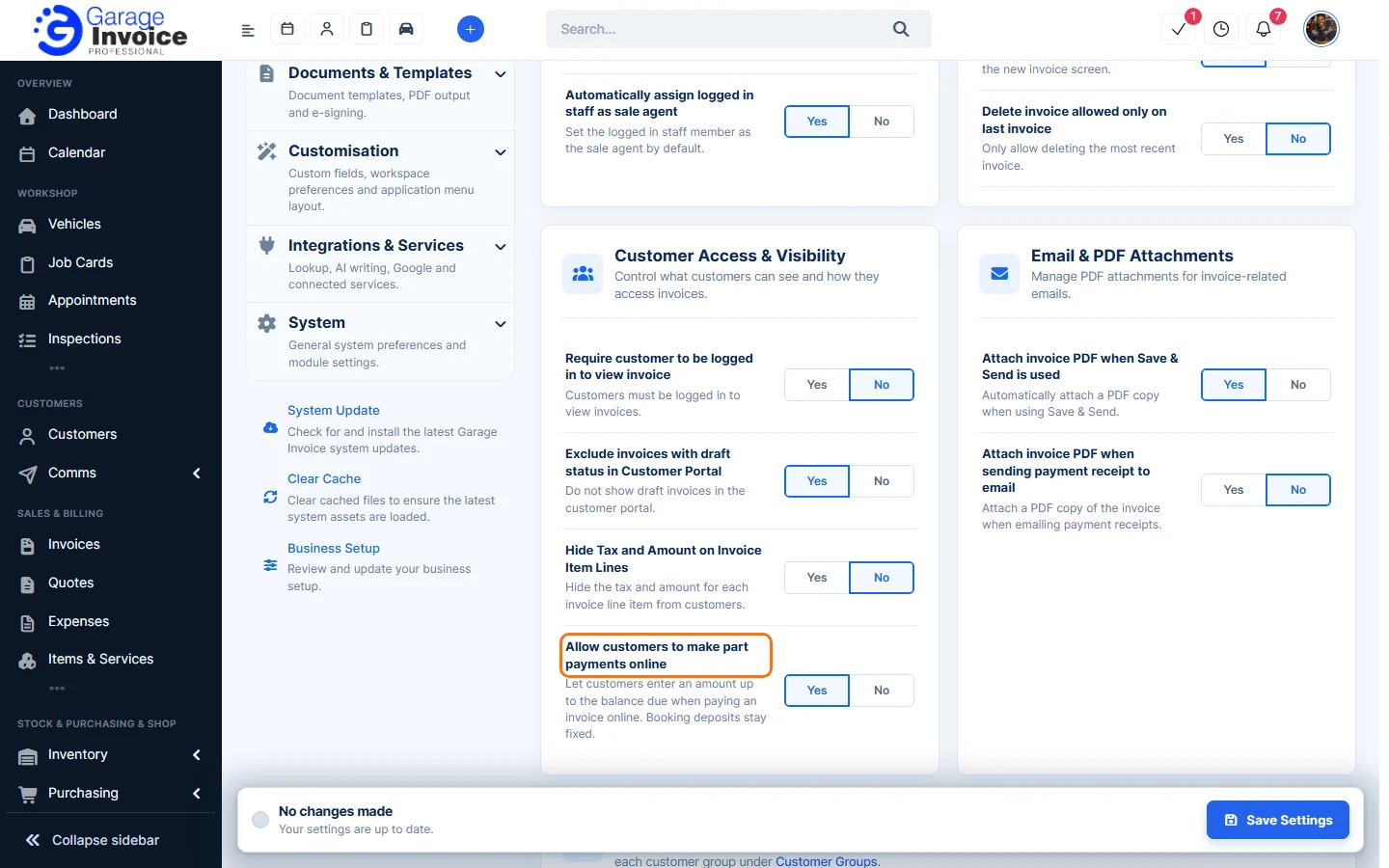
In the invoice settings (click Settings near the bottom of the sidebar, open Sales & Operations and click Invoices. You can also click the cog button on the Invoices page and choose Invoice Settings.), set Allow customers to make part payments online to Yes to let customers enter an amount up to the balance due.
For payments you take yourself, see Record Invoice Payment.
Feature Garage invoicing software: see what it does and how it fits your workshop.