
- Click Settings in the sidebar, open Sales & Operations and click Appointments. Open the Booking Forms tab. Each form shows how many bookings it has received.
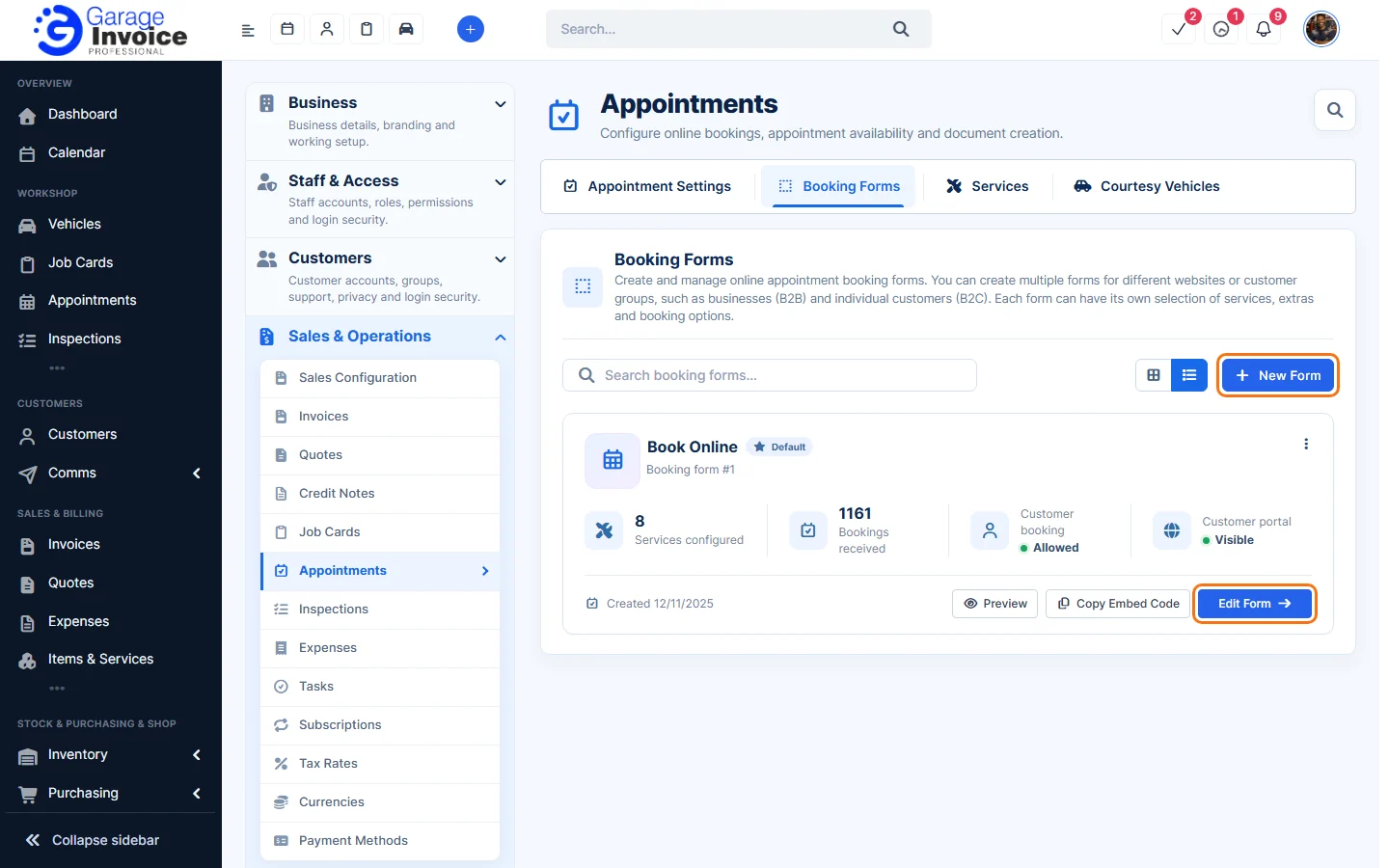
- Click Preview to open the form as customers see it, or Copy Embed Code to copy the code for your website.
- Click Edit Form to change a form, or New Form to create one. The Booking Form tab has seven steps: General Settings, Vehicle Information, Services & Providers, Date & Time, Customer Information, Confirmation and After Submission.
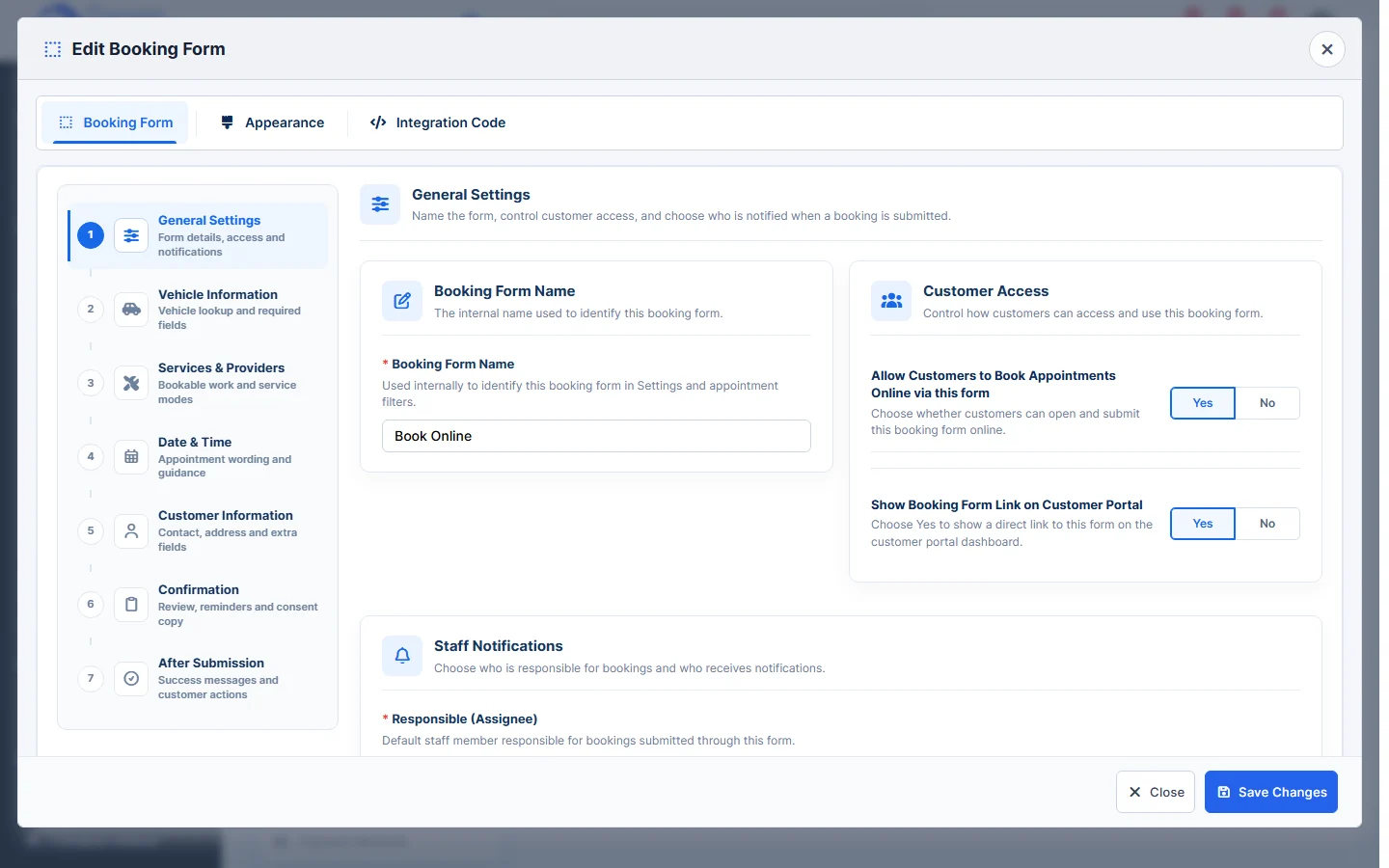
- Allow Customers to Book Appointments Online via this form turns the form on or off.
- Show Booking Form Link on Customer Portal adds a link to the customer portal.
- Responsible (Assignee) and Notify on Booking Form Submission choose who handles and hears about new bookings.
- Use the Appearance tab to style the form. On the Integration Code tab, click Copy code under Website embed code and paste it into an HTML or code block on your website, or copy one of the Shareable links (with or without your logo) for social media or a Book Now button.
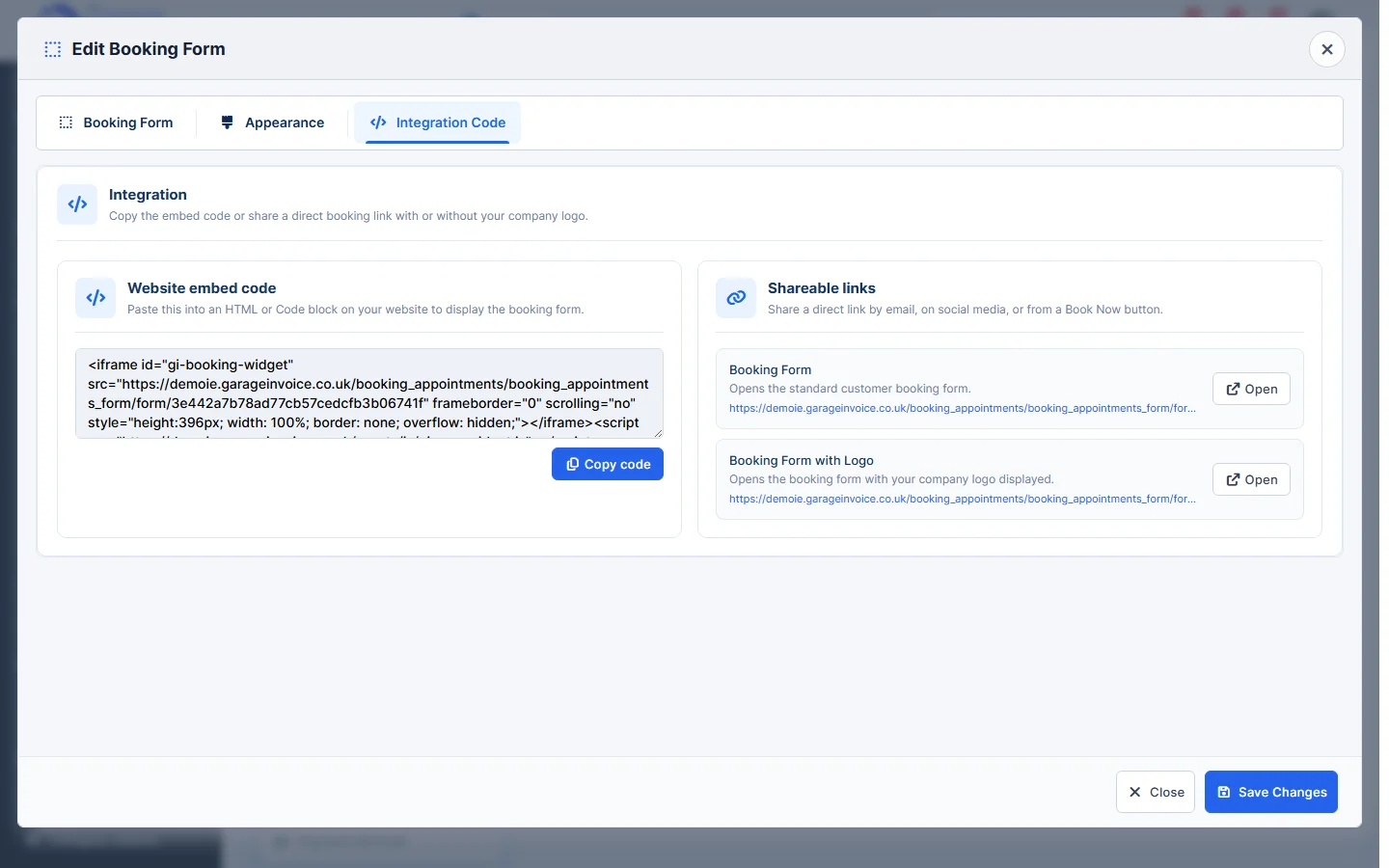
- Click Save Changes.
Related: Review Unconfirmed Appointments · Appointment Settings
Feature Online booking and appointments: see what it does and how it fits your workshop.