
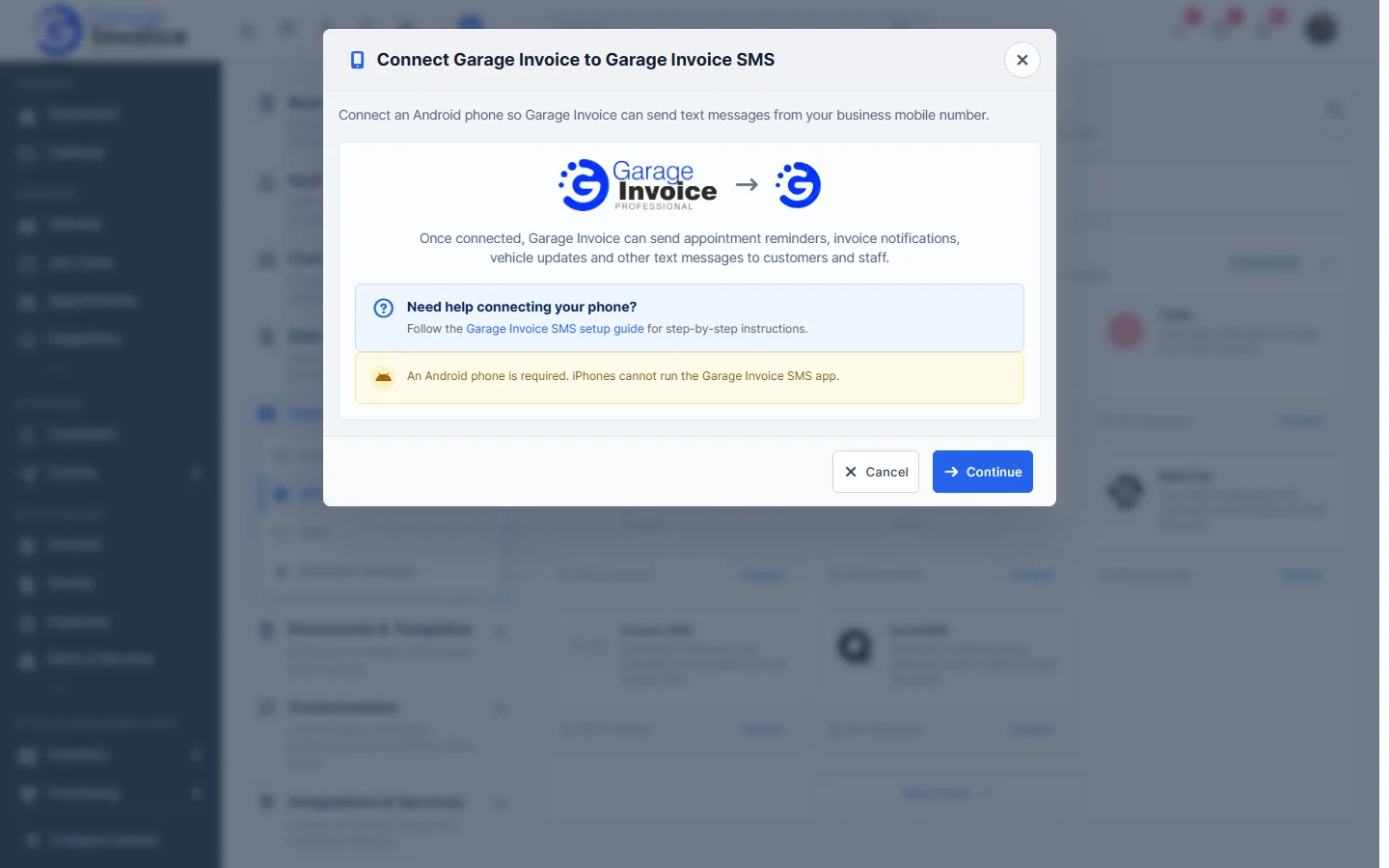
Garage Invoice SMS (FREE) sends text messages from your business mobile. You need an Android phone; iPhones can’t run the app.
Connect in Garage Invoice
- Click Settings at the bottom of the sidebar, under Administration. In the panel on the left, open Comms and click SMS. Click the SMS Providers tab. SMS Connections lists every provider and whether it’s connected.
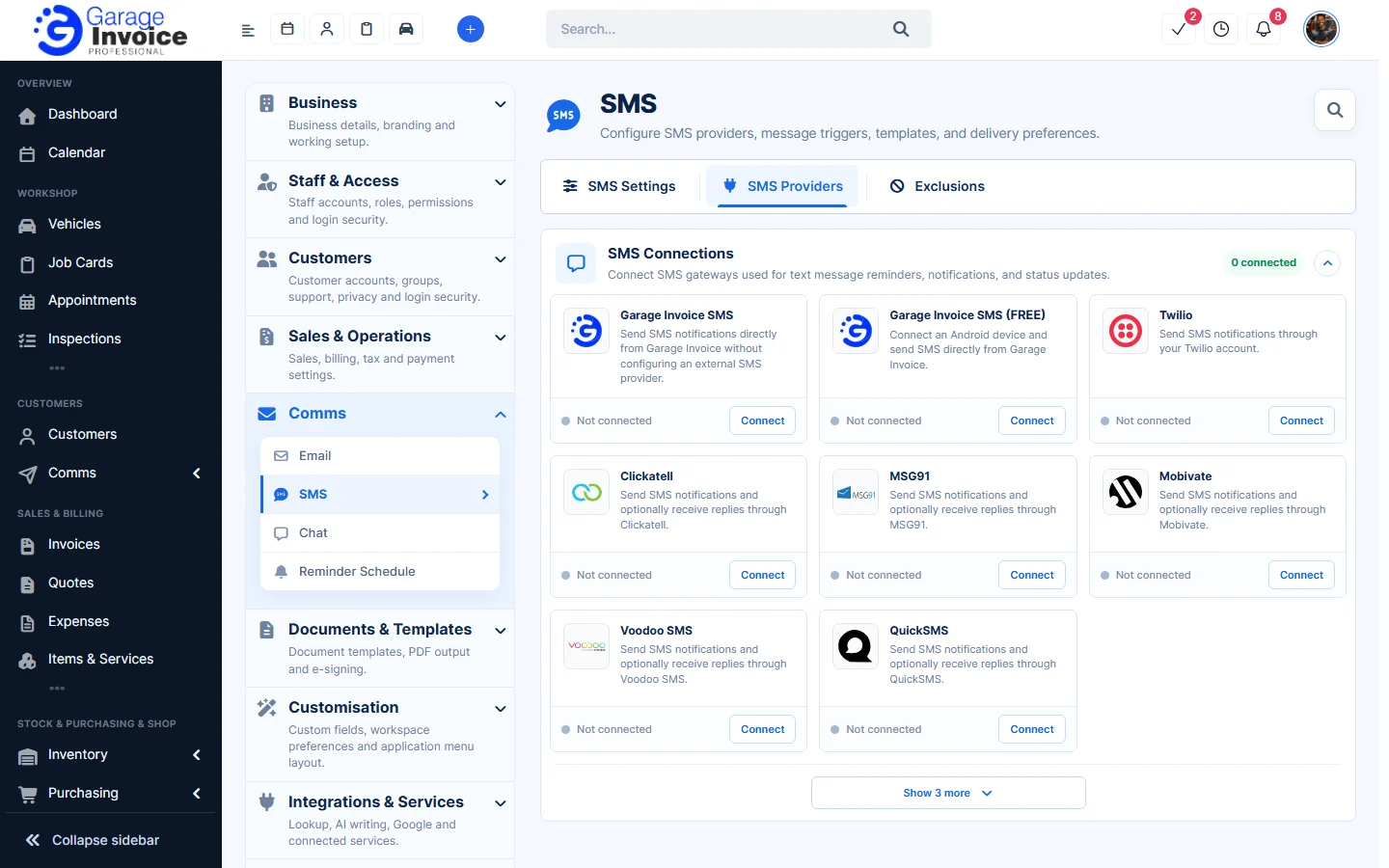
- Next to Garage Invoice SMS (FREE), click Connect, then click Continue.
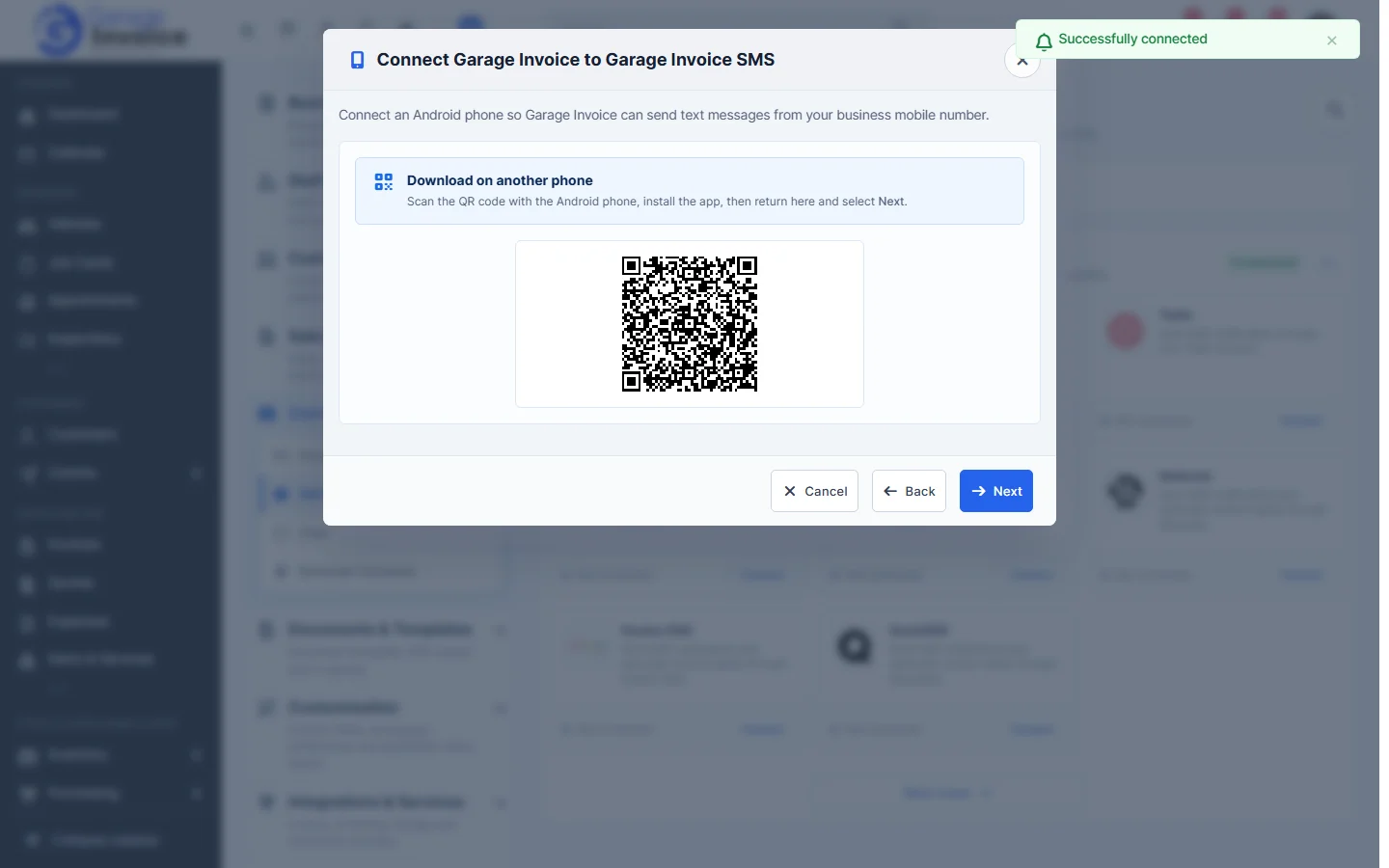
- Under Download on another phone, scan the QR code with your Android phone to download the app, install it, then come back and click Next.
On your phone
- The QR code downloads the com.garageinvoice.gateway.apk file to your phone.
- Install the app and open Garage Invoice SMS. Tap Allow for each permission it asks for.
- Tap Log In, then Scan QR code, and scan the QR code on your computer screen. Check that the app shows your device as linked.
- Back on your computer, follow the remaining steps to finish.
- In the app, turn on the Garage Invoice SMS gateway. Keep the app open so it can fetch new messages to send. Some phones let it run in the background; check your phone maker’s instructions.
If the app won’t install or can’t get SMS permission
- Samsung Auto Blocker: open Settings → Security and privacy → Auto Blocker, turn it off and install the app again. If asked, allow installs from the browser or file manager you used.
- Google Play Protect: in the Play Store, tap your profile picture → Play Protect → settings cog, turn off Scan apps with Play Protect, then install the app.
- “Restricted setting” for SMS: open Settings → Apps → Garage Invoice SMS, tap ⋮ → Allow restricted settings, confirm, then go to Permissions → SMS → Allow.
Note: menu names vary by phone and Android version. If you still can’t install the app or allow SMS, contact Garage Invoice support with your phone model, Android version and a screenshot of the message.
Feature Email and SMS notifications: see what it does and how it fits your workshop.