
AI Settings control the AI Assist tools and the wording the AI uses when it writes customer notes. You need an AI provider connected first (see Apps & Integrations Overview).
- Click Settings in the sidebar (under Administration), open Integrations & Services and click AI Settings.
- Choose the document at the top: Invoice, Quote, Job Card or Inspection. Each one has its own settings.
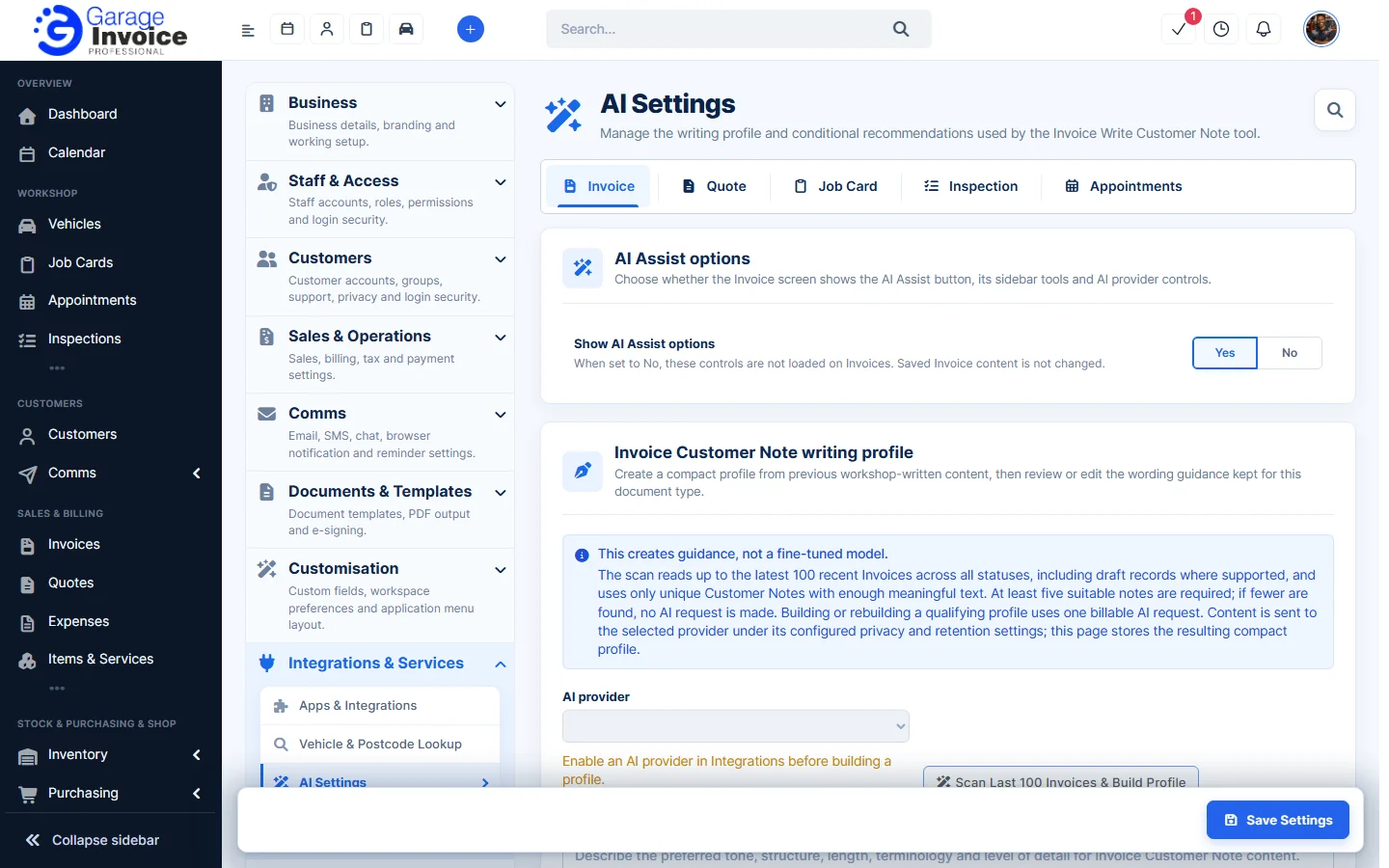
AI Assist options
Show AI Assist options: Yes shows the AI Assist button, its sidebar tools and the AI provider controls on that screen. On job cards this also covers the AI field buttons and voice dictation. No hides them. Content you have already saved isn’t changed.
Writing profile
The writing profile is guidance on tone and wording, taken from notes your workshop has written before. It isn’t a fine-tuned model.
- AI provider: the connected provider used to build the profile.
- Scan Last 100 Invoices & Build Profile (or Quotes, Job Cards, Inspections): reads up to your latest 100 documents and uses only unique customer notes with enough text. At least five suitable notes are needed; if there are fewer, no AI request is made. Building or rebuilding a profile uses one billable AI request.
- Compact writing profile: the guidance that’s kept. You can read and edit it, or write your own, describing the tone, structure, length, terms and level of detail you want. It covers style only: facts about the customer and the work always come from the document itself.
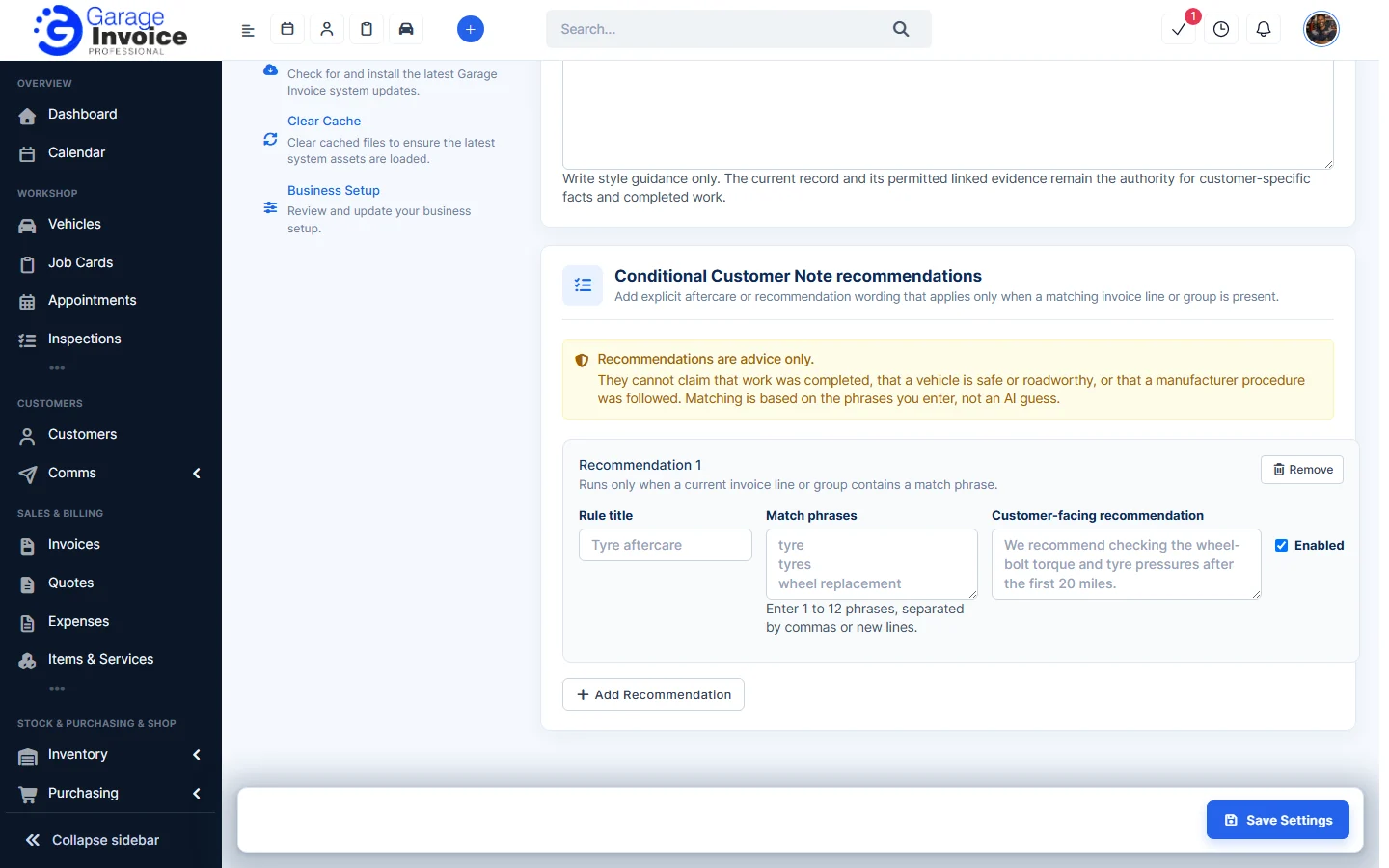
Conditional recommendations
Add your own aftercare or advice wording that’s used only when a matching line or group is on the document. Matching uses the phrases you enter, not an AI guess. Recommendations are advice only: they can’t claim that work was done, that a vehicle is safe or roadworthy, or that a manufacturer procedure was followed.
- Click Add Recommendation.
- Fill in:
- Rule title: a name for the rule, for example Tyre aftercare.
- Match phrases: 1 to 12 phrases, separated by commas or new lines, for example tyre or wheel replacement.
- Customer-facing recommendation: the wording to add, for example a reminder to check wheel-bolt torque after the first miles.
- Enabled: untick to switch the rule off without deleting it. Click Remove to delete it.
- Click Save Settings.
Note: Inspection settings are saved separately. The inspection screens don’t use them yet.