
- Click Inventory in the sidebar (under Stock & Purchasing & Shop) and click Stock Items. Click the gear button at the top right to open Inventory Settings, then click Settings under Shipping Settings on the left.
- Under General Shipping Settings:
- Enable Shipping: turn shipping calculation on or off.
- Shipping Fee Calculation Method: how the online shop works out the shipping fee, for example Total Order Weight, Item Shipping Fees, Highest Item Shipping Fee, Base Shipping Fee Only, Base Shipping Fee + Item Shipping Fees or Percentage of Order Total.
- Free Shipping Over Amount, Minimum Shipping Fee and Maximum Shipping Fee. Leave them blank to turn them off.
- Default Shipping Tax Rate for the shipping line on online shop orders.
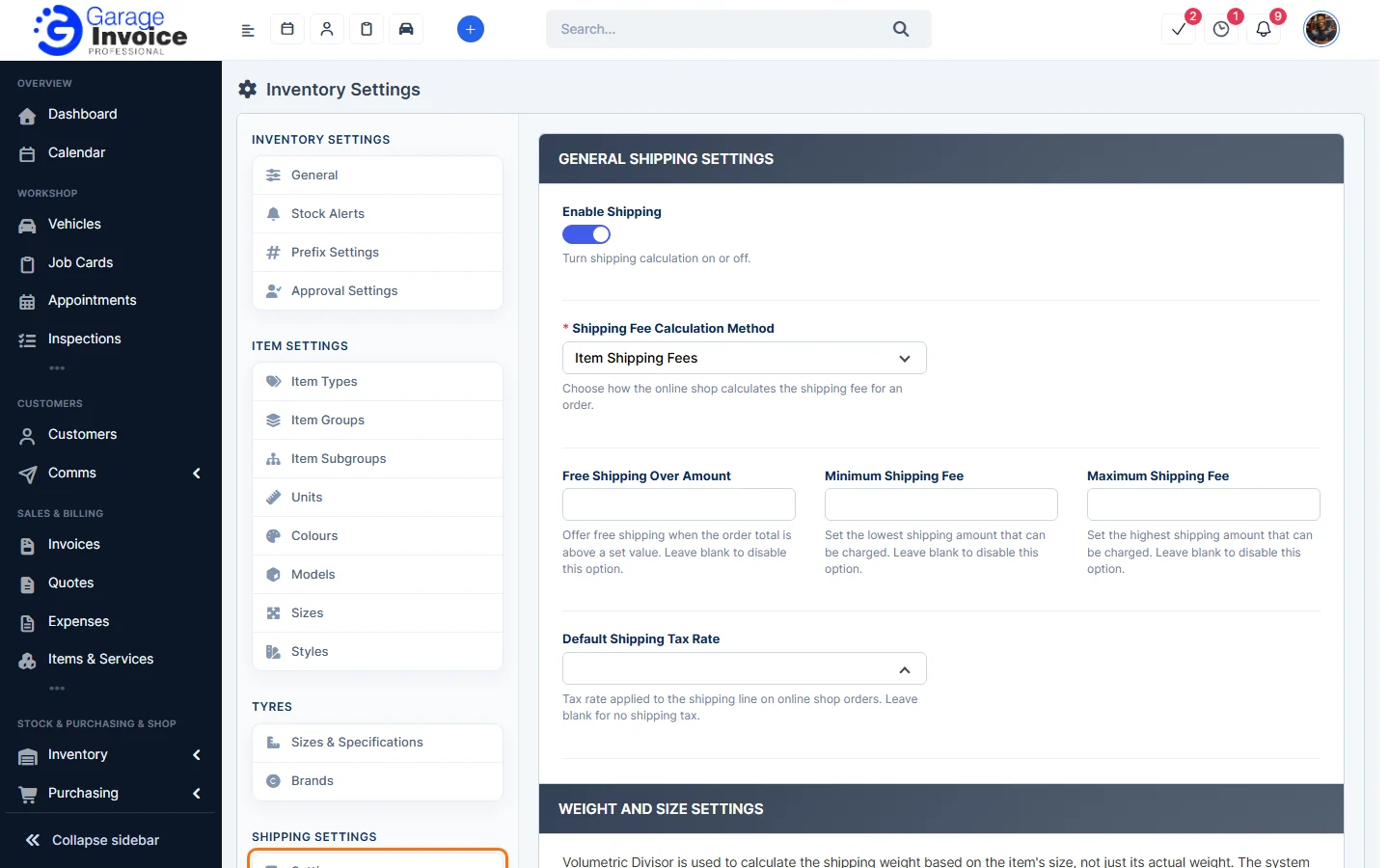
- Under Weight and Size Settings, set the Volumetric divisor used to work out the shipping weight from an item’s size, and whether to charge on the higher of the actual and volumetric weight.
- Click Save Settings.
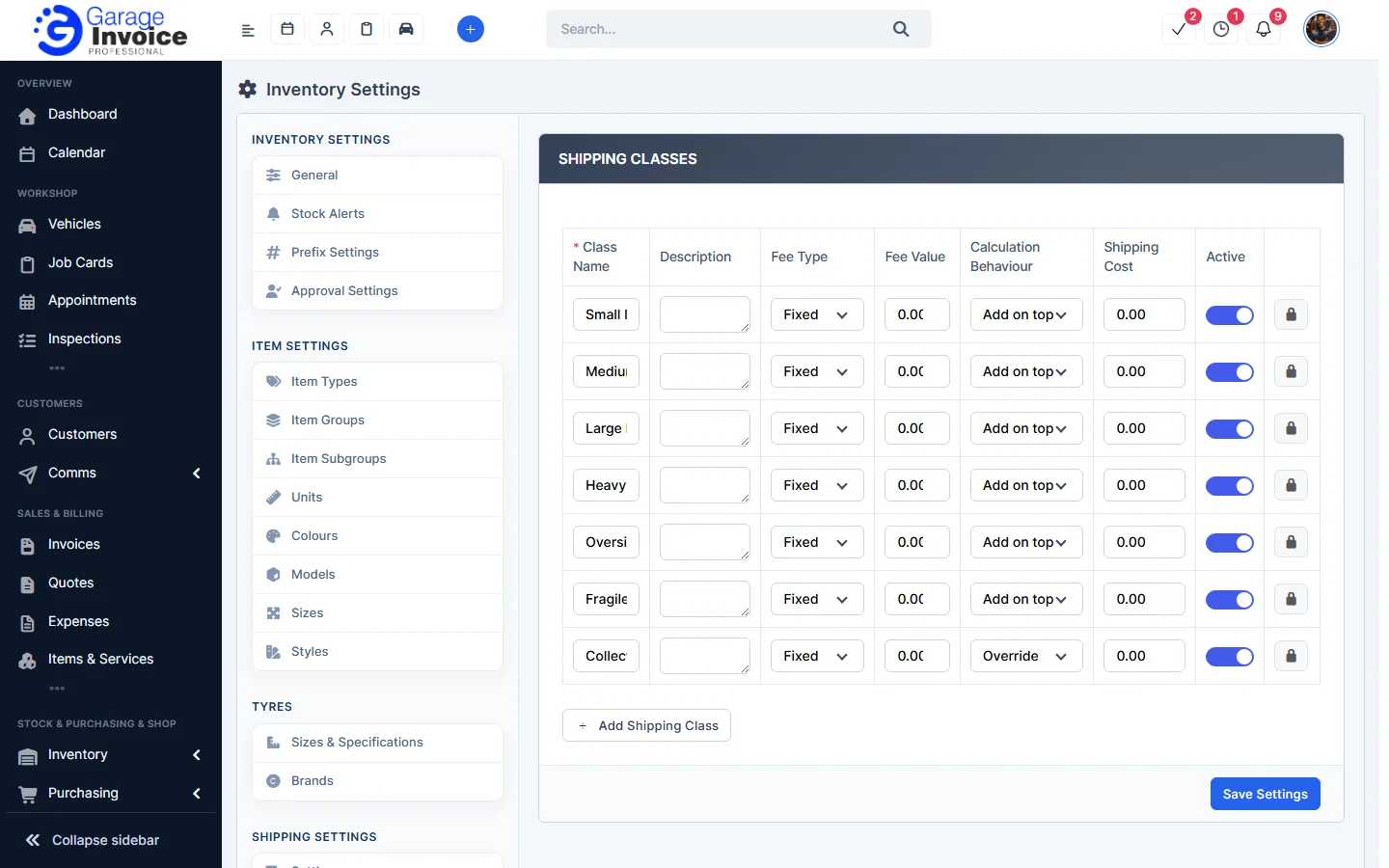
- Click Shipping Classes to manage classes such as Small, Large or Fragile. Each has a Fee Type, Fee Value, Calculation Behaviour and Shipping Cost. Click Add Shipping Class to add one, then Save Settings.
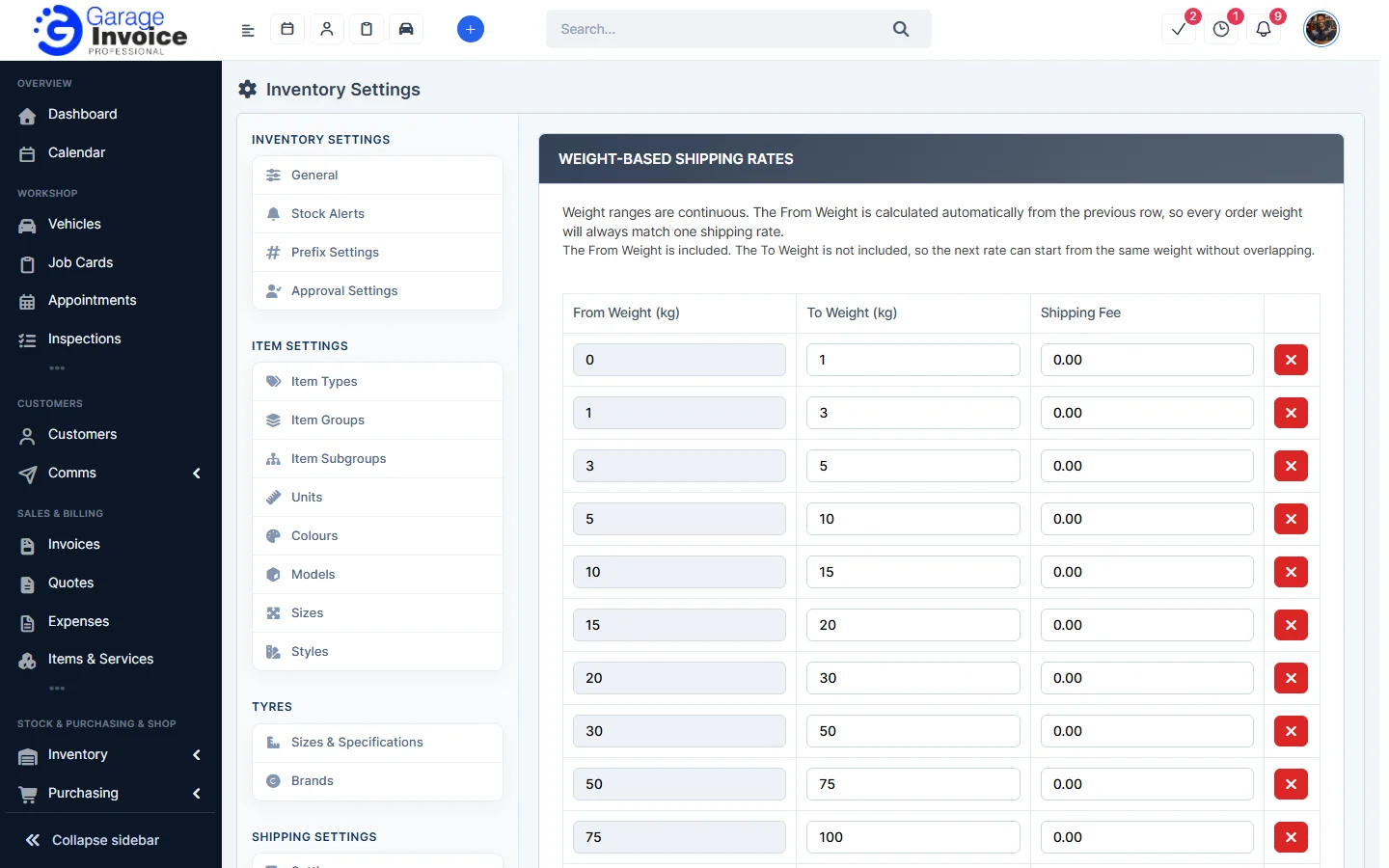
- Click Weight-Based Shipping Rates to set the Shipping Fee for each weight range (From Weight (kg) to To Weight (kg)). Click Add Row to add a range, then Save Settings.
Feature Stock and inventory control: see what it does and how it fits your workshop.