
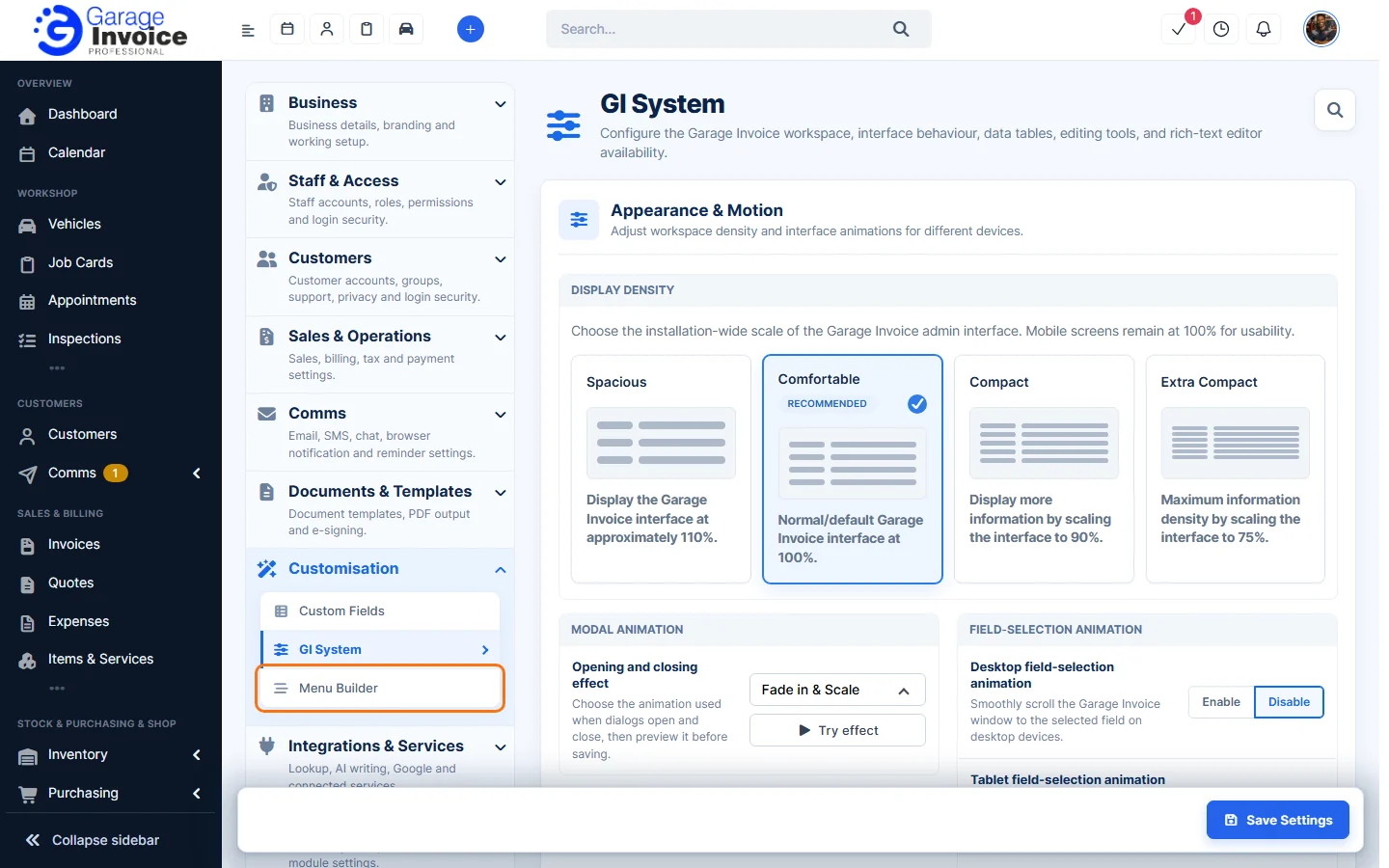
- Click Settings at the bottom of the sidebar, under Administration. In the panel on the left, open Customisation and click Menu Builder.
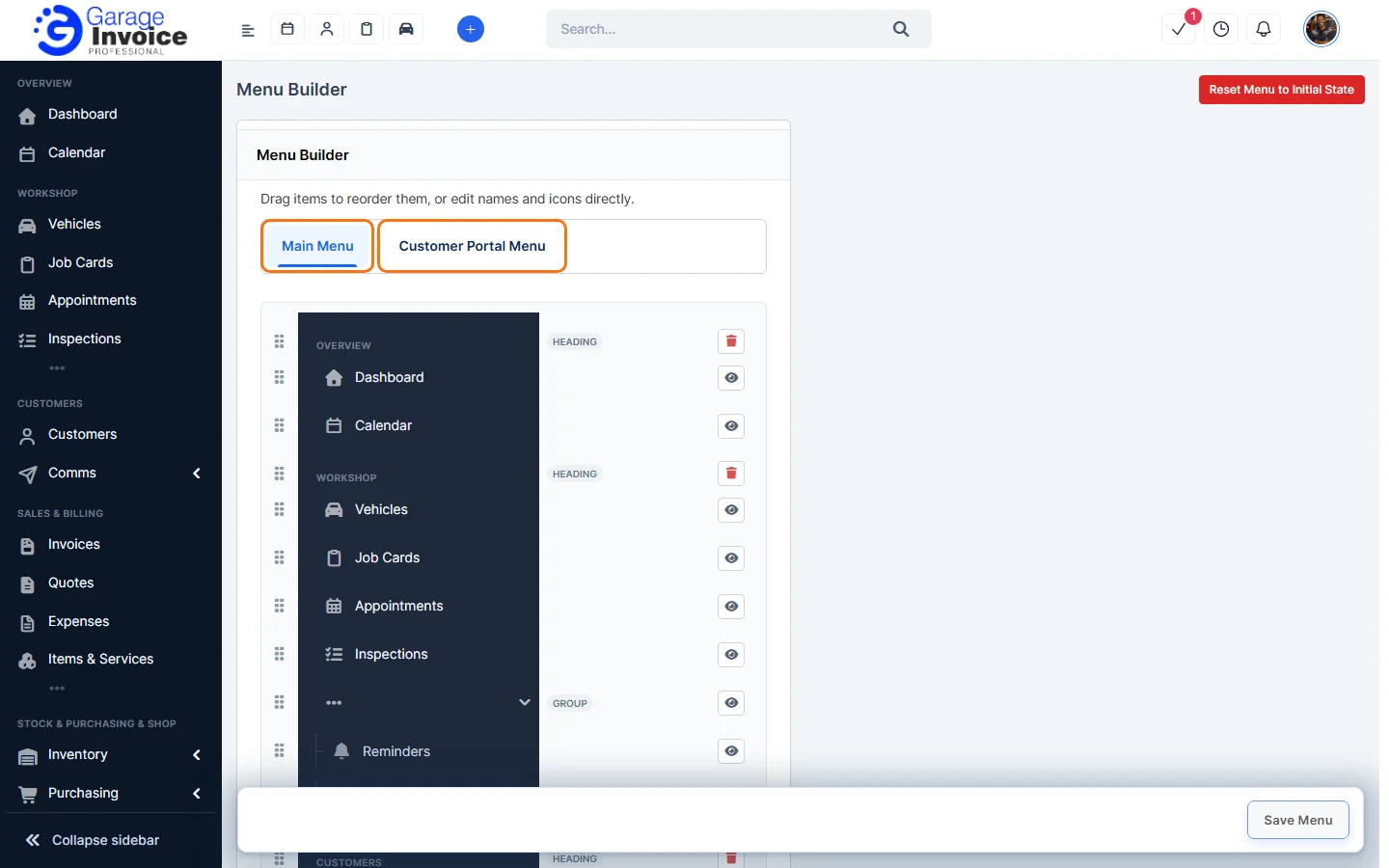
- Choose the menu to change: Main Menu (the staff sidebar) or Customer Portal Menu. The main menu is shown as it looks in the sidebar, with each Heading and Group labelled.
- Change what you need:
- Move an item: drag it by the dotted handle on the left.
- Rename an item: click its name and type a new one.
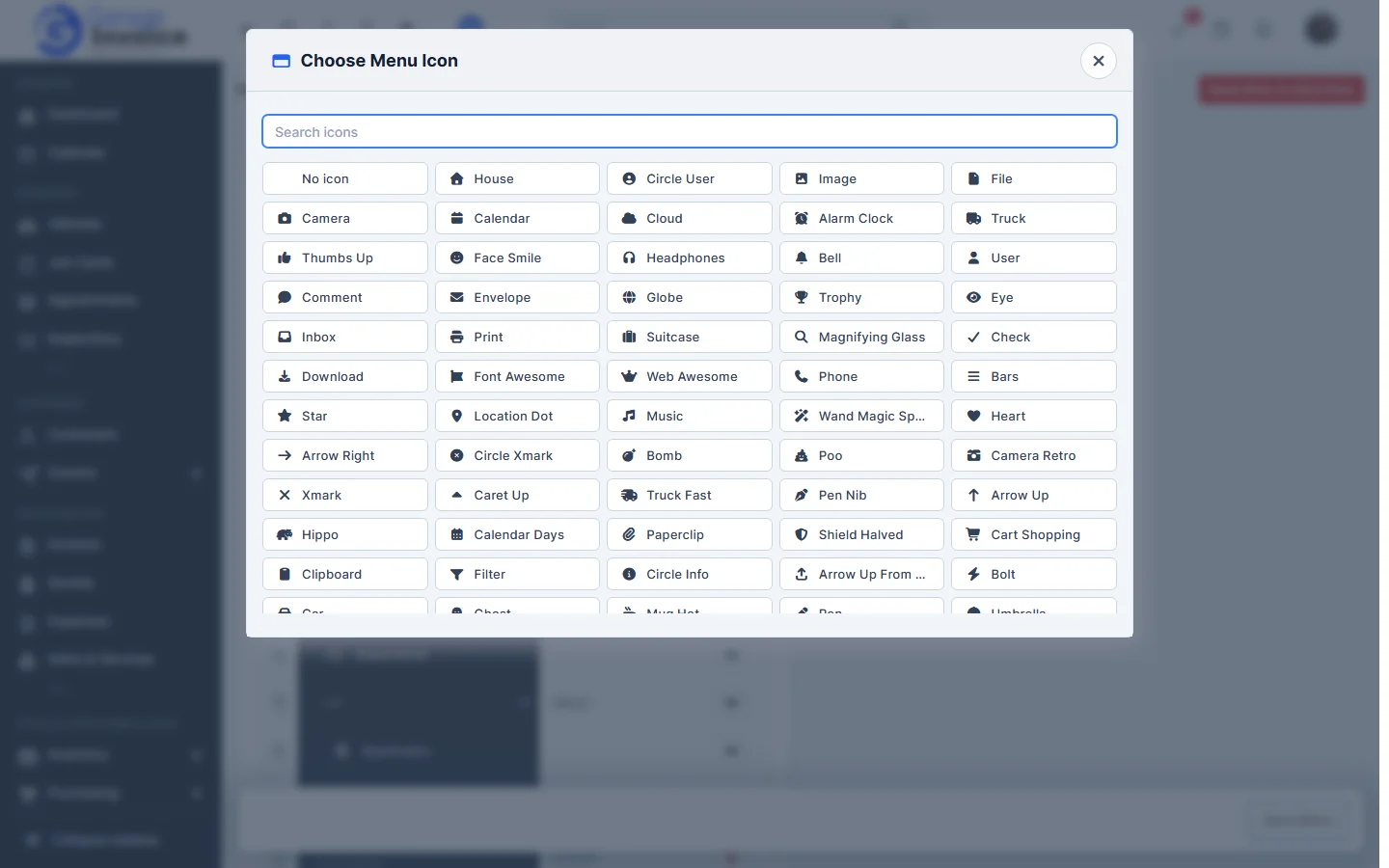
- Change an icon: click the item’s icon. In Choose Menu Icon, search for an icon and click it, or choose No icon.
- Hide an item: click the eye button next to it.
- Delete a heading: click the red bin next to it.
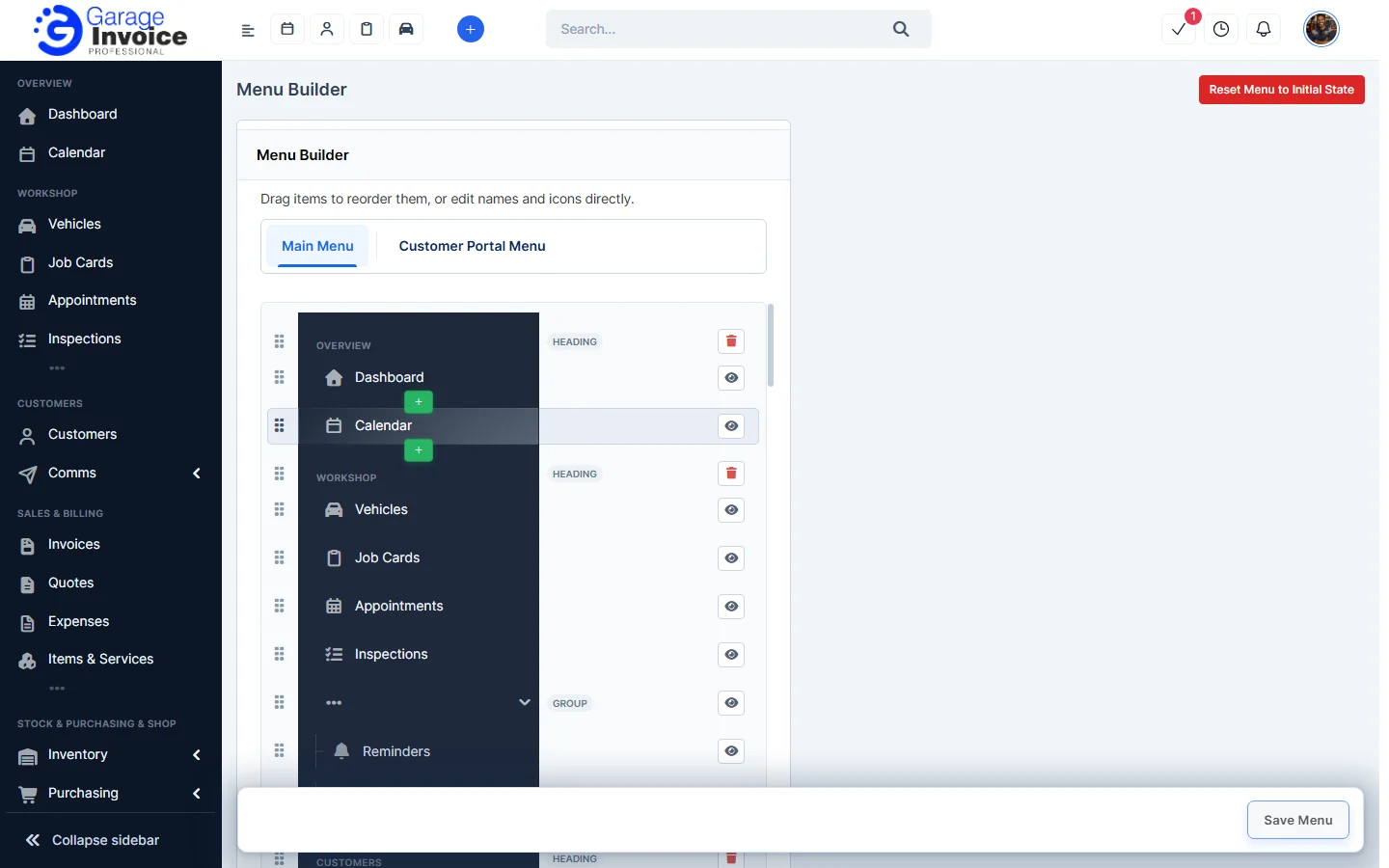
- Add your own link, group, heading or divider: point at an item and click the green + above or below it. See Add New Custom Link.
- Click Save Menu at the bottom right.
Customer Portal Menu
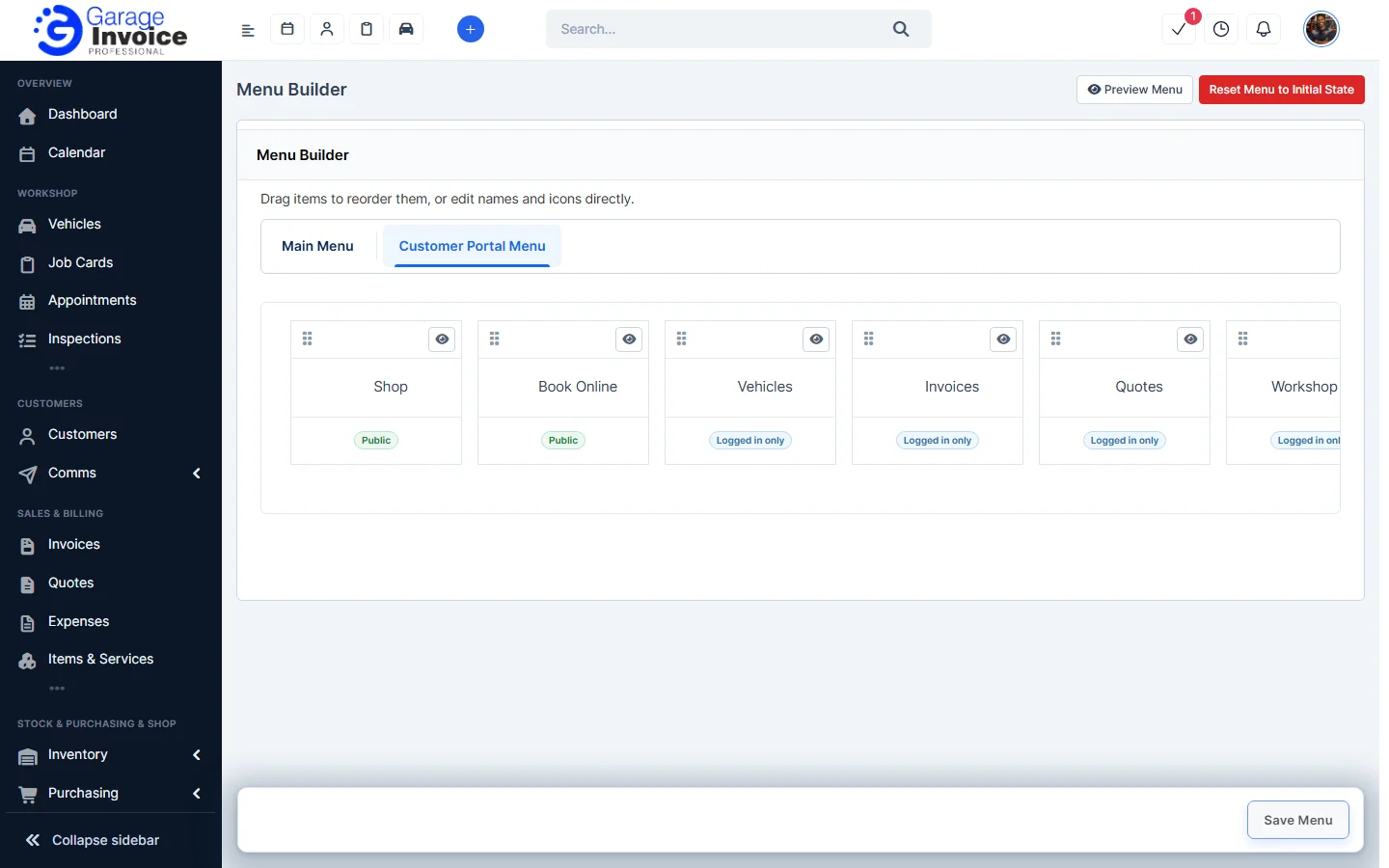
This tab shows the menu your customers see in the Customer Portal, such as Shop, Book Online, Vehicles, Invoices and Quotes. Each item shows who can see it, for example Public, Logged in only or Logged out only. Drag items to reorder them, click the eye button to hide one, and click Save Menu. Click Preview Menu to see how it looks.
Start again
Click Reset Menu to Initial State at the top right to put the menu back to how it was originally.
Related: Edit Custom Link · Delete Custom Link